

Notes on building smarter websites for actual humans.

Squarespace SEO Optimization for eCommerce Websites
Unlock the secrets to cooking up search visibility and traffic that keeps new customers steadily streaming in. With my guidance, you'll start earning links and rankings organically - no weird gimmicks needed!
Unlock the secrets to cooking up search visibility and traffic that keeps new customers steadily streaming in. With my guidance, you'll start earning links and rankings organically - no weird gimmicks needed!
My Take on Squarespace SEO for eCommerce
When it comes to search engine optimization (SEO) for eCommerce sites, I take a practical yet optimistic approach. Too often shop owners are blinded by promises of getting rich quick with little effort from shady SEO gurus. Thankfully for Squarespace eCommerce store owners, the platform comes equipped with many built-in SEO features like automatic sitemaps and SSL that give you a head start optimizing your site's foundations. The reality is that lasting SEO success requires a long-term strategy built on best practices, quality content, and always keeping the customer experience top of mind.
I liken good SEO to baking the perfect loaf of bread. You need to carefully combine the right ingredients (keywords, links, page speed, etc.), monitor as it rises (track rankings and traffic over time), and resist any urge to pull it out of the oven too soon (avoid tactics that could get you penalized). The end result is well worth the patience and care put into creating it.
While Squarespace SEO for eCommerce can seem complicated on the surface, my goal is to break things down into simple, actionable steps any shop owner can understand and implement. I believe that small, incremental improvements over time compound to yield significant results.
Here are my top recommendations for getting started:
Audit your site's speed and make optimizations to accelerate load times. Every second counts when customers are waiting. Use a tool such as SEOSpace to help you find oversized images that may be slowing things down.
Incorporate relevant keywords naturally into product names and descriptions. Treat each product page as an opportunity to connect with searching customers.
Include multiple high-quality product images as well as supplementary technical details and longer descriptions for each of your products.
Set competitive prices and explain any significant deviations from industry averages on your product details pages.
Sync your Squarespace store to Google Merchant Center to get products displayed across Google's platforms.
Follow my checklist to optimize important site elements like titles, URLs, and meta descriptions. These building blocks matter.
Add an FAQ page to improve search visibility and customer experience. Answering common questions is a valuable SEO opportunity.
Submit your sitemap to search engines so they can easily discover new pages and products.
Learn how to effectively use categories and tags to improve on-site navigation with a bonus of better search visibility.
Install Google Analytics and connect to Google Search Console to unlock free visibility into how your site is performing.
I encourage you to explore my in-depth posts on each recommendation above to further equip your site for SEO wins. And remember, lasting results don't happen overnight. But with a thoughtful strategy and commitment to continuous small improvements, your perseverance will pay off in the form of more organic traffic and sales over time.
Blog Posts About Squarespace SEO for eCommerce


Videos About Squarespace SEO


Common Squarespace SEO FAQs
-
The only paid SEO tool I recommend for Squarespace sites is SEOSpace. They function as a customizable all-in-one SEO plugin, similar to Yoast for WordPress sites. SEOSpace helps you optimize all critical elements like meta descriptions, site speed, etc. right from your Squarespace dashboard.
Otherwise, you can leverage the many built-in SEO features Squarespace offers without needing to install anything else. This includes editable metadata, customizable URLs, integrated Google tools and more. I help clients maximize use of these free functionalities before looking at paid services.
-
The most essential on-page elements that impact eCommerce SEO include:
Page titles and meta descriptions - Keep these under 60 characters and incorporate target keywords when possible.
Headers and content - Naturally incorporate keywords into headers, product titles/details, image names and alt text.
URL slugs - Use descriptive keywords in product page URLs.
Site speed - Faster sites rank better. Compress images, minify code and defer loading of JS.
Consistency across product categories also helps. Treat every product description as an opportunity to connect with searching customers.
-
While large, extensive updates aren't essential, I generally recommend revisiting your overall product catalog each quarter to refresh pricing info, inventory counts, details that may have changed. Adding new items and removing discontinued/out-of-stock products also keeps your offerings fresh.
On individual product pages, tweaking an image, updating a description or adding supplemental info every 1-2 months is ideal for SEO. But consistency matters most - small, regular improvements add up. As search trends and relevance changes over time, monitoring analytics provides insights to improve conversions.
-
The good news is all Squarespace templates have the same built-in SEO capabilities regardless of design or structure. So you can confidently choose whatever template fits your brand visually and trust the platform has you covered there!
Elements that really matter are focusing on excellent content, optimizing speed, and providing an enjoyable user experience across devices. I have posts here, here and here detailing my favorite templates if you need design inspiration - but pick what aesthetically suits your products best!
Top 3 Squrespace SEO Resources

SEOSpace
This amazing plugin is the only one of its kind that scans your site and tells you exactly what you need to update to take your site from nothing to something according to Google. It will even tell you which keywords may perform better than others and how to optimize for them!

Weglot
If you’re selling in multiple languages, effectively optimizing that content for SEO is crucial. Weglot is the only Squarespace official extension that will help you easily create a multilingual site that meets all SEO best practices.

eCommerce Email Marketing Tips & Strategies
From building lists to drafting campaigns, I've got the insider tips to start serving up eCommerce email marketing realness that has your customers coming back for seconds.
From building lists to drafting campaigns, I've got the insider tips to start serving up eCommerce email marketing realness that has your customers coming back for seconds.
My Take on eCommerce Email Marketing
Email marketing retains its crown as one of the most effective yet underutilized tools for connecting with customers. But it doesn’t have to be complicated or spammy. I’ve picked up tons of insider tips and strategies to help you serve up savvy campaigns that engage subscribers and drive real results.
First, mindset matters. Despite recurring claims of its demise 🙃, email is still going strong with higher conversion and ROI than most digital marketing channels (see full stats here). The reality is customers actually want to hear from brands they love! The key is providing ongoing value through your messaging, not constant sales pitches.
With the right mindset covered, focus your efforts on automation and personalization. Here are some ideas to get you started:
Welcome new subscribers with a friendly onboarding series. Guide fresh leads through valuable content while offering an initial discount to encourage sign-up conversions.
Set up workflows to target customers based on behaviors like abandoned carts. Strategic post-browse or cart recovery messaging prompts purchase completion with timed offers.
Leverage purchase data to recommend relevant products. Further monetize existing buyers through intelligent cross-sells while nurturing product affinity.
Surprise and delight! Send birthday promos, customer appreciation sales, or exclusive sneak peeks. Simple personal touches make subscribers feel special and eager to buy again and help you stay top of mind.
Squarespace makes sending marketing emails easy through their built-in marketing automations, allowing you to easily create sequences based on subscriber behaviors or schedule one-off email blasts to announce promotions. You can even customize order confirmation messaging based on products purchased with just a few clicks. However, if you want to go a step further and do some advanced segmentation and targeting, ConvertKit and Squarespace Commerce integrate so naturally that they make the perfect pair.
When executed strategically, email marketing forms the backbone of any ecommerce marketing strategy. Optimize message relevancy, provide ongoing value, and honor subscriber consent, then watch as your list becomes one of your most valuable business assets for customer retention and lifetime value boosting. I’m excited for you to uncover the full potential of this channel for your brand!
Blog Posts about eCommerce Email Marketing



Videos about eCommerce Email Marketing

Common eCommerce Email Marketing FAQs
-
An effective welcome email series guides fresh subscribers through valuable content while offering an initial discount to encourage engagement. Maintain momentum by sending 3-5 emails over the first week covering:
A genuine thank you and overview of upcoming email content
Tips, tricks and recommendations based on subscriber source
Links to blog posts, how-to guides, or other resources
Exclusive promo code for first purchase to prompt action
With Squarespace email campaigns or ConvertKit, you can easily set up automated sequences or scheduled messages personalized with merge tags like {firstname} to help things feel personalized!
-
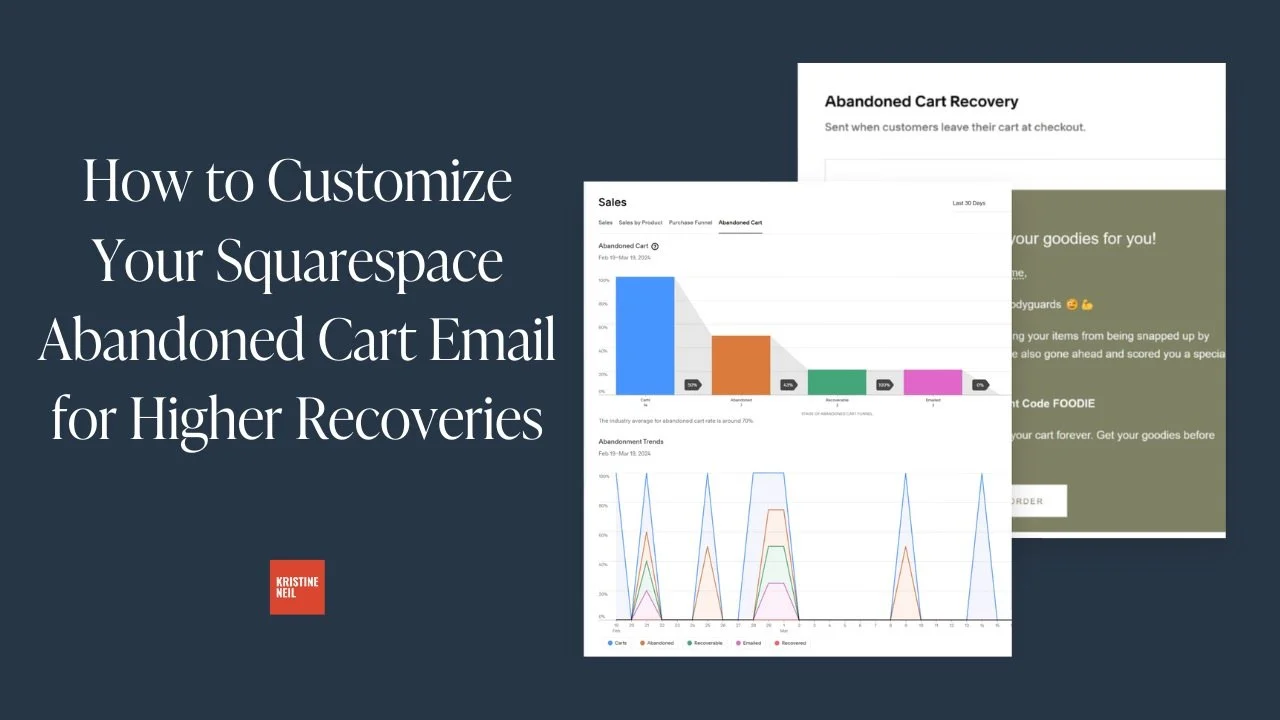
Did you know roughly 75% of online shopping carts are abandoned before checkout? That adds up to nearly $4 trillion in lost ecommerce sales every year. But with targeted messaging, you can recover 10-15% of abandoned cart revenue easily.
Strategic abandoned cart recovery emails deployed within 24 hours prompt purchase completion by clearly highlighting original items left behind coupled with urgency-inducing perks like discounts or free shipping.
Best practices include:
Refresh cart contents with product images/details
Limit copy to focus solely on finishing transaction
Offer time-sensitive promo code or free gift
Share testimonials reinforcing purchase decision
Leverage Squarespace’s automation tools to trigger abandoned cart emails based on active cart session length. Then use Squarespace’s built-in eCommerce analytics to track recovery rates and optimize messaging for increased sales.
-
Core email automations cover the entire subscriber lifecycle. Must-haves like welcome series and abandoned cart recovery can increase conversions. While post-purchase follow-ups and special occasion messaging boost engagement and lifetime value.
Additional automations to consider:
Browse abandonment for high-interest site visitors
Customer win-back for period inactive subscribers
Waitlist notification for out of stock products
-
Determining optimal email frequency is a careful balance. Send too often and subscribers get annoyed. Too seldom and they forget who you are. Typically best practice is to aim for:
2-4 emails per month for a general subscriber list
Weekly for very engaged followers signed up for things like newsletters
Only on special occasions for one-time purchasers
The key is providing value, not cluttering inboxes. Use email as an opportunity to share advice, build community and make emotional connections. Then track engagement metrics in your email marketing platform of choice to see what works best for your audience.
These analytics will usually tell you what you need:
Open and click-through rates
Bounce or abuse reports
Unsubscribe volume
Upticks in site traffic or sales around sends
Let your data determine the ideal pace and tweak things if you see fatigue setting in. The goal is inbox anticipation, not annoyance!
Top 3 eCommerce Email Marketing Resources
ConvertKit
My number one favorite email marketing platform! Super powerful yet still easy to use and (bonus!) plays super nice with Squarespace Commerce.
Squarespace Email Campaigns
If you’re looking to keep everything under one roof, Squarespace’s built-in email capabilities are simple but extremely effective.

Flodesk
For the design-minded, this one’s for you! It has some built-in commerce capabilities and it’s easy to link to Squarespace via Zapier.

Squarespace Store Management: Streamline Your Online Shop
Save hours of headaches by streamlining order fulfillment, inventory, taxes and more using Squarespace as your all-in-one CRM. I'll help you master the backend to efficiently manage orders, track customer details, and simplify eCommerce operations!
Save hours of headaches by streamlining order fulfillment, inventory, taxes and more using Squarespace as your all-in-one CRM. I'll help you master the backend to efficiently manage orders, track customer details, and simplify eCommerce operations!
My Take on Squarespace Store Management
Streamlining ecommerce store management doesn’t have to be a headache, even as your orders, inventory and customers grow. The key is leveraging tools that simplify operations in one centralized place.
Enter Squarespace, your website host + an all-in-one CRM with features tailored specifically for selling online. Whether you need to wrangle inventory counts, manage fulfillment or get insight into your customers, Squarespace equips you to handle it without costly or complex add-ons.
Here are some other things you can do to help make store management on Squarespace a breeze:
Set up custom product categories and tags to make inventory easy to filter and find. Strategically organizing items helps shoppers discover products faster.
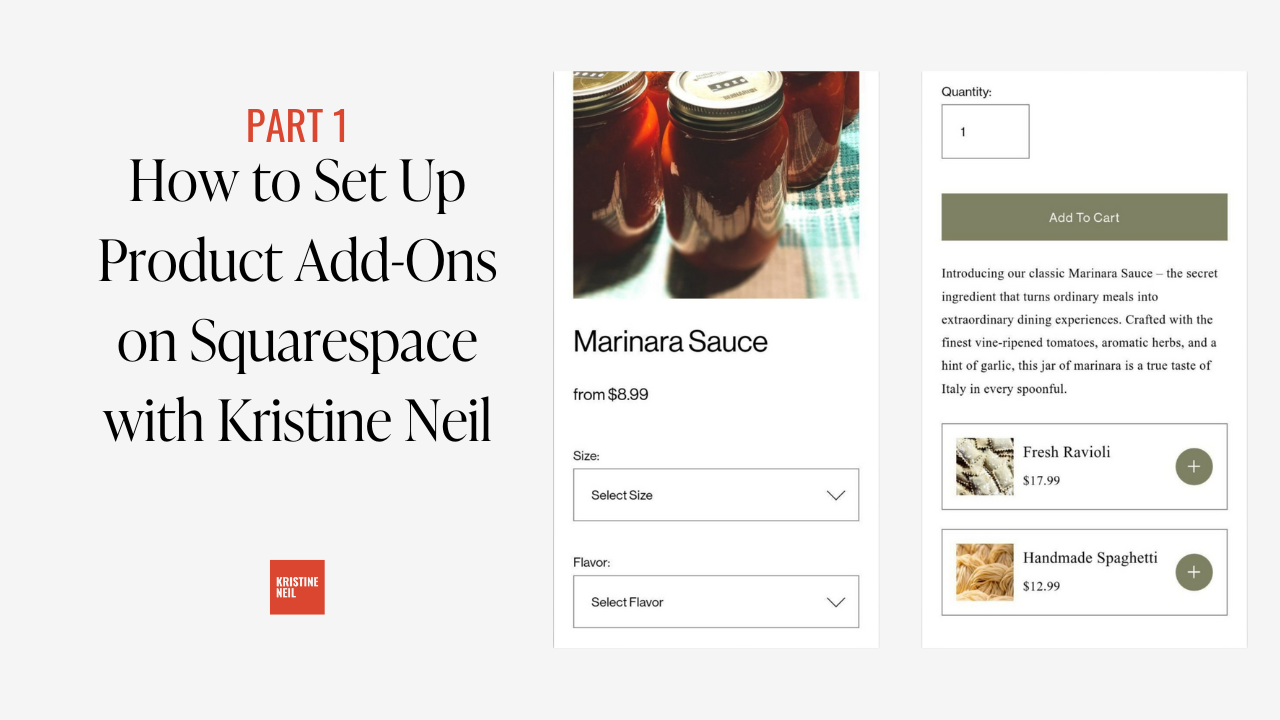
Enable product add-ons like gift wrapping to boost order value. Used strategically, this Squarespace feature can help you increase profit per sale without doing any sleazy selling.
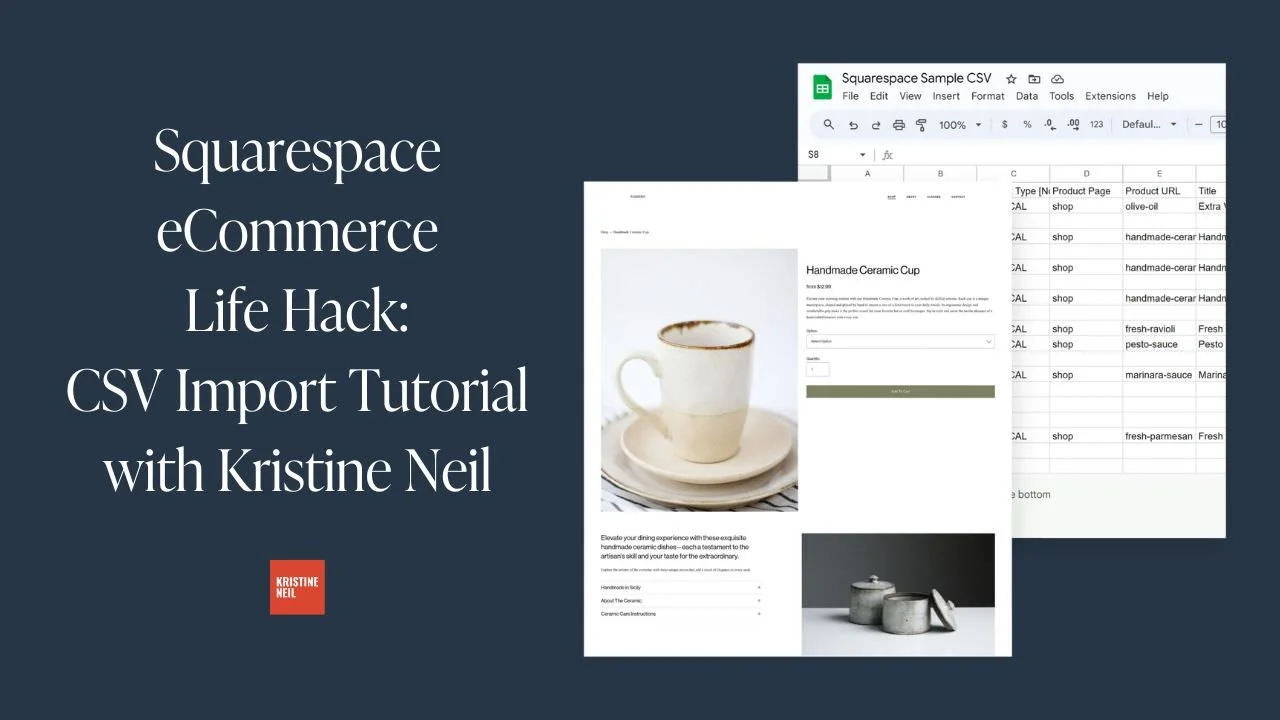
Use CSV files to bulk upload inventory or edit products saving hours of manual data entry time. A few tweaks in a spreadsheet lets changes ripple across your catalog instantly. Magic.
Integrate a return management platform like Aftership for smooth returns keeping customers happy. Automation and tracking removes headaches for merchants.
Create automatic post-purchase and shipping emails to delight customers. Personalized messaging post-sale improves perception of your brand.
Configure customer profiles and purchase history for personalized communication at scale. Data and insights on buyers allows tailored customer service.
Implement TaxJar to automatically calculate sales tax by location, taking the guesswork out of all the insane tax rules. Accurate totals at checkout build trust (and keep you out of trouble with the IRS)!
Take advantage of built-in functionality for discounts and promotions letting you easily highlight deals. Special offers encourage purchasing urgency.
By mastering Squarespace’s built-in capabilities, you can save hours a week previously lost in spreadsheets, notes and manual processes. Operations become streamlined. Tax and accounting simplify. And you gain time to focus on growing the business.
The result is the ultimate merchant toolbox allowing even the smallest of teams to nimbly manage big businesses. Let me show you how with tailored guidance on the settings and workflows that alleviate ecommerce headaches at scale.
How's this? I aimed to highlight more specific features including your recommendations on add-ons and apps. Let me know if you'd like me to elaborate on any aspect more to turn this into a true standalone guide.
Blog Posts about Squarespace Store Management





Videos about Squarespace Store Management
Common Squarespace Store Management FAQs
-
The secret here is to use Squarespace categories and, to a lesser extent, tags. By grouping products together in categories, you can provide a logical way for customers to discover your products and find what they’re looking for faster. Think of categories as the departments of a department store (men, women, shoes, jewelry, etc.) or aisles of a grocery store (produce, canned goods, dairy, freezer, etc.).
If you have a lot of products, it’s also really helpful to create nested categories. This allows people to drill into a broad category and see a filtered view of products in a subcategory. If you’re using our grocery store example, above, you might have a main category called “Produce” and subcategories underneath that for vegetables, fruits, etc. On Squarespace, you can have up to three levels of shop navigation in total.
Tags are also helpful for grouping things that appear in different categories so think of things like tagging by season, collection, vendor, color, fabric type or other attributes that might be meaningful to your customers and relevant to your products.
Strategic organization empowers you to efficiently locate, update or showcase segments of inventory as needed, especially as your store’s offerings grow. Learn more about categories & tags in this post.
-
Built-in Squarespace functionality allows you to configure flat rate or weight-based shipping rates, present accurate pricing in cart, automatically print shipping labels, and send delivery confirmations and tracking info to customers. Extensions like EasyShip or ShipStation then provide additional optimizations like rate shopping across carriers, batch label printing, custom pack station integration and more.
Shipping can get pretty complex which is why I recommend a super simple shipping strategy that’s also very highly converting. One of the biggest questions I’m often asked is whether it’s worth it to offer free shipping? The answer is an unequivocal yes! Here’s why:
Free shipping is super simple for buyers to understand ✅
Free shipping has become an expectation for many shoppers ✅
Free shipping can reduce cart abandonment rates ✅
Free shipping can increase conversion rates ✅
Free shipping can reduce customer service costs for returns (if things ship for free there’s no reimbursement of shipping costs) ✅
Squarespace makes it easy to set up a profitable shipping strategy, especially when paired with a shipping extension. For more on how those work, check out this post!
-
Adding some strategic discounts into the mix can be a great way to drive sales and delight customers. But before dreaming up any promos, decide if deals jive with your brand vibe, as I break down in this post.
Assuming discounts get the green light, Squarespace makes it easy to set them up. You can offer percentage off or dollar amount discounts that are applied automatically or via custom coupon codes. You can even have codes and discounts targeting all orders, only specific products or even specific categories. You can get all the specifics in my discount rules post.
The one thing to remember when constructing your coupon lineup is that simplicity rules. You can spotlight free shipping, limit usage, set expirations and automate applications to reduce friction. You can time launches around occasions like new product releases or changing seasons to leverage buzz.
But avoid overdoing it. You don’t want to risk training buyers to only purchase when discounted, especially if you have a luxury or more exclusive brand. Consider separate sales sections or showing offers only once abandoned.
Sending targeted emails to specific customer segments as opposed to publishing codes publicly can create a sense of exclusivity and also help you grow your email list! For more on strategizing sales, check out this post. With the right blend of discounts and timing, you can bake up some serious sales success!
-
Squarespace offers robust tools for tracking customer details and site analytics right within your backend, eliminating the need for a separate CRM system. Take advantage of:
Automatic customer profiles that compile key metrics like lifetime spend, order history, and communication records into easy-to-access individual overviews as covered here.
Custom tags to manually indicate preferences, history and other traits to enable personalized communication at scale.
Saved customer segments based on criteria like first-time buyer status or product interest so you can target relevant offers.
Integrated analytics dashboards visualize macro trends related to traffic sources, audience demographics, popular products, sales velocities and more as outlined here.
Exportable reports help uncover granular insights that inform marketing campaigns, inventory decisions and new product development.
By centralizing audience data and past interactions within Squarespace’s elegant interface, you gain an invaluable merchant toolbox. No need for complex software when the insights required are already at your fingertips! For even more on Squarespace analytics check out this post!
Top 3 Squarespace Store Management Resources

Aftership Returns
Discerning customers know to look for a generous return policy (and easy returns process!) before making a purchase so implementing a program such as Aftership Returns is as much about landing the sale as it is managing returns. But, hey, it’s a win-win.

Squarespace App
Manage your store on the go with Squarespace’s free app! Available for Android or iOS, the Squarespace app allows you to manage & fulfill orders, make quick website edits, accept in-person payments and even act as your POS system.
ConvertKit
Following up with customers is super easy thanks to ConvertKit’s built-in Squarespace integration. If there’s one tool that you add-on to extend Squarespace’s built-in capabilities I would say it’s this one. (Check out this post about for more on this perfect power couple.)

Squarespace Web Design: Crafting Irresistible Site Styles
The goal: craft a storefront and Squarespace eCommerce website experience so captivating, shoppers won't be able to tear their eyes away. I'll help you style up shop experiences that stop scrollers dead in their tracks. Consider yourself the next Squarespace web design pro!
The goal: craft a storefront and Squarespace eCommerce website experience so captivating, shoppers won't be able to tear their eyes away. I'll help you style up shop experiences that stop scrollers dead in their tracks. Consider yourself the next Squarespace web design pro!
My Take on Squarespace Web Design & Style
Stunning yet conversion-focused ecommerce design is both an art and a science. The goal is to craft a visual experience that gets people paying attention while also removing any friction standing between desire and purchase. Don’t worry, it’s not as tricky to balance as it sounds!
To me putting this into practice just means that eCommerce website owners need to pay attention to both the obvious things we think about when it comes to design & style… and the not so obvious. What do I mean by that?
Well, obvious things are things like which template to choose, how to design your brand, or using code to customize your site so it feels special.
Not so obvious things are those that generally seem to fall into the category of user experience and might impact how we design sites to be more accessible or empathetic.
Design also encompasses things like site navigation and one of my favorite tips to help level up basic eCommerce sites is to simply change your navigation! It’s easy to fall into the trap that your site needs to feature links to pages like About Us, Our Story, Our Blog and Contact Us. These are all good pages to have (and they’re perfect for your website footer) but by simply changing your site navigation to be more customer-focused you’ll instantly see an uptick in interaction. The easiest way to do this is to simply turn your shop categories into your main navigation items!
When it comes to selling online, some of the best design advice is to just not overdo it! Create a brand that allows your beautiful products speak for themselves. In 2024, consumers are on to gimmicks and crave real-ness and authenticity. If you do want to trick things out just a bit, there are some plugins that I often use to just add a few special touches to sites here and there. Just don’t go crazy with them!
Keep product page layouts simple to help keep things focused on that all import Add To Cart button. Write product descriptions that focus on your customer’s motivations and benefits to them. Unify your product photos in style and in composition so that they feel like your brand.
The end result is a Squarespace eCommerce site experience with substance behind the style—a website equipped not just to attract dream customers, but convert them into loyal, repeat buyers. This means crafting accessible, frictionless journeys that guide customers seamlessly from discovery to purchase.
Blog Posts about Squarespace Web Design & Style



Videos about Squarespace Web Design & Style

Common Squarespace Web Design & Style FAQs
-
Yes and no. You can (and should!) definitely style your checkout page so that the style matches the rest of your site. You can find your checkout page by going to WEBSITE and scrolling down to SYSTEM PAGES > CHECKOUT.
However, aside from adding a custom order form, you cannot make any changes to the cart page itself (the one where people enter their information + credit card info). This is for security reasons and helps make sure that people can shop safely on your site knowing their info is secure.
-
This really depends on your own goals and situation. If you’re ready to get going ASAP and don’t want to waste any time, a paid template can help you get to launch day super fast while still ensuring designer-level results on a budget. Some of my favorite templates are always from either Ghost or GoLive.
If you have a little more time on your hands, starting from one of Squarespace’s free templates can be a good way to learn how things work. This is also a way to help control the cost of Squarespace website setup. I have several posts with some of my top template picks here, here and here.
The last option is actually my preference is actually to skip both of the above and design your own template! All the details on that here.
-
When it comes to choosing design assets like fonts and colors for ecommerce sites like a pro Squarespace site designer, stick with options that appeal to a wide demographic rather than niche stylistic tastes. Why? Research shows that customers make subconscious judgments about a brand’s trustworthiness and quality within just 50 milliseconds (!!) based only on visual factors like color and typography.
Web Design Font Tips - Clean, simple sans-serif fonts tend to test best for conversion across sites. They have a modern, minimalist look and feel that aligns with strong brands. Try font pairs like Open Sans or Lato for an accessible option.
Web Design Color Tips - Neutral, desaturated palettes lend an air of sophistication while still allowing accent shades to stand out. Composed schemes also align better with photography. And unless they are part of your (carefully curated) brand color palette, avoid jarring choices like neon hues and that may land as unprofessional or loud.
The goal is maximizing universal appeal through design choices backed by data and trends. Select assets that reflect the style and quality customers expect from reputable ecommerce brands selling desirable products - like yours!
-
When it comes to ecommerce design, rookie mistakes can cost you sales. Steer clear of these blunders that even some seasoned site owners make:
Choosing a template based only on looks - make sure it also aligns with your brand and has space for key pages and content.
Overloading every page - keep it clean and minimum. Fancy animations and effects often distract more than dazzle.
Blocking ADA accessibility - ensure your site works for all visitors through standards like alt text, color contrast, and useful image alt text.
Ignoring mobile - most shopping happens on phones now. Test for responsiveness and slim menus/content.
Forgetting the footer! - place essential secondary pages like Contact and FAQs down there to keep prime real estate for spotlighting products.
As always, the key is balancing visual flair with utility and conversion. When in doubt, minimal is best!
Top 3 Squarespace Web Design & Style Resources

Accessibe
Did you know that the vast majority of digital accessibility lawsuits in 2023 targeted eCommerce businesses? The solution to ensuring legal compliance is Accessibe. Of course, it's also my absolute favorite tool to ensure sites can be viewed by shoppers of all abilities! (More on designing for accessibility in this post.)

Ghost Plugins
Whenever I’m looking for a little code snippet to spice things up, Ghost is my first stop. In addition to the free plugins, they also have really high quality paid plugins for more advanced tweaks and sleek, modern Squarespace templates.
Use code KRISTINENEIL for 10% off paid plugins & templates.
SquareKicker
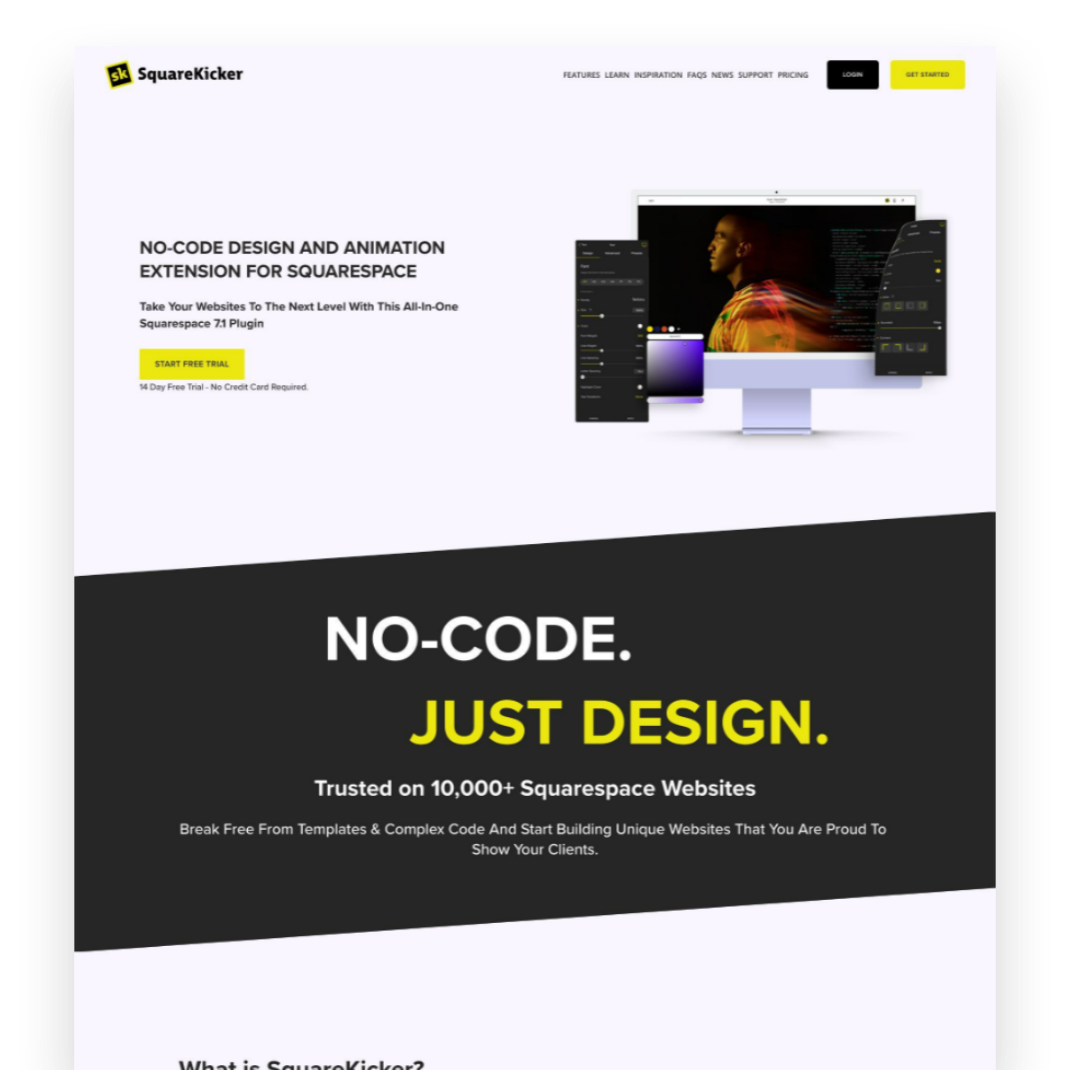
Custom design without code? It’s easy - and fun - with SquareKicker to create visually interesting layouts with special effects that layer seamlessly on top of Squarespace’s built-in capabilities.
3 Essential Squarespace Product Page SEO Tips to Boost Sales
Discover the power of Squarespace product page SEO with these three essential tips. Learn how to optimize your titles, descriptions, and images to attract more customers and boost your online sales.
Are you struggling to attract customers to your Squarespace shop? Implementing the right Squarespace product page SEO tips can make all the difference in driving organic traffic and boosting your sales. In this post, I'll cover three essential strategies for optimizing your product pages and getting your products in front of the right people.
Why Following These Squarespace Product Page SEO Tips Matters
Picture this: you've poured your heart and soul into creating an amazing line of artisanal candles. You've spent months perfecting your scents, designing beautiful packaging, and setting up your Squarespace shop. But when you finally launch... crickets 🦗
It's a disheartening feeling, knowing that your incredible products are just sitting there, waiting to be discovered. But here's the thing: if you haven't optimized your Squarespace product pages for SEO, you're essentially leaving money on the table 💸
Think about it - when someone searches for "lavender vanilla candle", you want YOUR product to be the first thing they see. But without the right SEO strategies in place, your candles might be buried on page 5 of the search results, gathering virtual dust.
The good news is that with a few simple tweaks, you can start attracting more organic traffic (and sales!) to your Squarespace shop. Let's dive in!
1. Optimize Titles, Meta Descriptions, and Alt Text with Target Keywords
When it comes to SEO for your Squarespace product pages, your titles, meta descriptions, and image alt text are prime real estate. These elements are not only visible to potential customers on the search engine results pages (SERPs), but they also give search engines crucial context about what your page is all about.
To make the most of these elements, be sure to incorporate your target keywords naturally. For example, if you're selling artisanal candles, your product page title could be something like "Handmade Soy Candles - Lavender & Vanilla | Your Brand Name". This title includes relevant keywords while also showcasing what makes your product special.
Your meta description should expand on this, providing a compelling and concise summary of what customers will find on your product page. Aim for around 150-160 characters and be sure to reiterate your primary keyword.
Finally, don't neglect your image alt text! This is a golden opportunity to provide context to search engines about your image content while also improving accessibility for visually impaired users. Describe your product images clearly and concisely, like "Lavender and vanilla scented soy candle in a glass jar".
2. Write Unique, Keyword-Rich Product Descriptions
Your product descriptions are your chance to really sell your items - both to potential customers and to search engines. Instead of using generic manufacturer descriptions, take the time to craft unique, compelling copy that highlights your product's key features and benefits.
As you write, weave in relevant keywords where they fit naturally. But remember - your ultimate goal is to provide value and answer any questions a potential buyer might have. Focus on creating helpful, engaging content and the SEO benefits will follow. (The simple Squarespace product page SEO tips in this post are a great place to start!)
Consider using storytelling techniques or highlighting what makes your product special. Maybe your candles are hand-poured in small batches using locally sourced ingredients, or perhaps they're inspired by your grandmother's favorite scents. These details not only make your products more enticing but also give you opportunities to include valuable long-tail Squarespace product page SEO tips.
3. Optimize Your Product Images for SEO and User Experience
Your product images play a crucial role in both SEO and user experience. High-quality, visually appealing images can help your products stand out in the search results and encourage potential customers to click through to your site.
To optimize your images for SEO, start by choosing descriptive, keyword-rich file names. Instead of using generic names like "IMG_1234.jpg", go for something more specific like "lavender-vanilla-soy-candle.jpg". This helps search engines understand what your image depicts and can even contribute to your rankings for image search.
Next, be sure to compress your images before uploading them to your Squarespace site. Large image files can slow down your page load times, which is a major red flag for SEO. Squarespace recommends using images that are no larger than 2500 pixels wide and keeping file sizes below 500KB for optimal performance.
Finally, consider adding alt text to your product images. We touched on this briefly in the first section, but it bears repeating! Alt text is a great place to include your target keywords while also making your images more accessible to visually impaired users and search engine crawlers alike.
Bonus tip: If you have multiple images per product, consider using Squarespace's built-in focal point feature to ensure that the most important part of each image is always visible, even on different device sizes. This can help keep your product pages looking polished and professional, no matter how customers are browsing.
The Bottom Line
Phew, that was a lot of information! But don't worry - SEO doesn't have to feel overwhelming. By focusing on these three key areas - keywords, product descriptions, and images - implementing my proven Squarespace product page SEO tips, you'll be well on your way to boosting your Squarespace shop's visibility and sales.
Remember our example candle shop? By implementing these Squarespace product page SEO tips, they could start ranking for relevant searches like "best soy candles" or "unique scented candles gift". And that means more potential customers discovering (and falling in love with) their products every day.
7 Proven Email List Building Tips for Squarespace Shops
Discover 7 effective strategies to grow your email list and boost sales on your Squarespace eCommerce site. Learn how to attract subscribers and drive customer loyalty.
If you're running a Squarespace Commerce site and haven't tapped into the power of email marketing yet, you're missing out on some serious revenue potential. Trust me, as a seasoned Squarespace expert and eCommerce strategist, I've seen firsthand how a well-crafted email strategy can skyrocket your sales and customer loyalty.
But here's the thing: Before you can start crafting compelling email campaigns, you need to build a list of eager subscribers ready to engage with your content and offers. Luckily, with a few savvy strategies and some irresistible incentives, you can transform your Squarespace site into an email list building powerhouse.
So, grab your favorite beverage, get comfy, and let's dive into my top 7 tips for growing your email list like a pro. These tried-and-true tactics have helped my clients boost their subscriber count and drive real results. Let's get started!
Offer an irresistible sign-up incentive - A discount code or offer of free upgraded shipping on their first order can be just the motivation people need to sign up for your emails. This strategy works especially well for new, small, or lesser-known brands that may need an extra nudge to encourage potential customers to try their products.
Leverage Squarespace's promotional pop-up feature - Grab your browsing shoppers' attention and drive sign-ups by utilizing Squarespace's built-in promotional pop-up tool. Customize the design and messaging to align with your brand and offer a compelling reason to join your list.
Include an email opt-in form in your website footer - Ensuring you have an email sign-up form in your footer means it will appear on every page of your site, maximizing conversion opportunities. Keep the form simple and straightforward, highlighting the key benefits of subscribing to your list.
Incorporate email sign-up into your checkout process - Make joining your email list a seamless part of your Squarespace checkout process. Add a checkbox or opt-in field to your checkout page, making it easy for customers to subscribe while completing their purchases. For more tips on optimizing your checkout, check out my post on creating a seamless checkout experience.
Create exclusive, gated content upgrades - Develop valuable content pieces related to your products or niche, such as guides, checklists, or insider tips. Position these resources as "VIP customer access" materials, requiring an email address to unlock them. This approach helps build your list while providing genuine value to your audience.
Pitch your list in post-purchase emails - After a customer makes a purchase, use the auto-confirmation email to highlight the benefits of joining your email list and include a sign-up link. This is a great opportunity to engage with customers who have already shown interest in your brand. If you want to take your post-purchase emails to the next level, check out this post on customizing transactional emails.
Experiment with creative calls-to-action - To find what resonates best with your audience, test different calls-to-action on your email sign-up buttons. Try phrases like "Join the VIP List," "Become an Insider," or "Get Exclusive Offers" instead of generic phrasing like "Subscribe." Track which CTAs drive the most conversions and optimize accordingly.
Actionable Takeaways
Choose an enticing sign-up incentive that aligns with your brand and target audience
Set up a pop-up and footer opt-in form on your Squarespace site today
Brainstorm a valuable content upgrade you can offer as a "VIP" opt-in incentive
Test at least 2 different CTA phrases on your sign-up buttons this week
FAQs
-
Aim to email your list at least once a month to keep your brand top-of-mind, but not so often that you overwhelm your subscribers. Consistency is key!
-
Mix it up with a blend of valuable content, exclusive offers, product updates, and behind-the-scenes peeks into your brand. Focus on providing value, not just pushing sales.
-
Keep an eye on your open rates, click-through rates, and conversion rates. If you're not seeing the results you want, don't be afraid to experiment and try new approaches.
Bottom Line
There you have it – 7 powerful strategies to supercharge your email list growth on Squarespace. Remember, building a thriving list takes time and consistency, but with these tips in your toolkit, you'll be well on your way to cultivating a community of loyal subscribers who can't wait to hear from you. So, pick a strategy, implement it on your site, and watch your list and your sales grow! You've got this!
9 eCommerce Design Tips I Love from GoLive's eCommerce Template
Check out my review of GoLive’s beautiful new Trove ecommerce template. I highlight seven specific design elements from Trove that any online shop should implement to drive more sales, along with a link to my full video walkthrough of the template.
I recently had the chance to dive into Trove, the latest eCommerce template offering from web design mavens GoLive. As a proud Squarespace partner myself, I was drooling over how beautiful and retail-ready this template is right out of the gate!
Whether you sell furniture, run a fashion boutique or curate artisanal wares, Trove provides a polished yet flexible foundation for your online shop. But beyond just being pretty, this template packs in smart eCommerce features that drive sales.
I highlighted some of my favorite elements in a recent YouTube template walkthrough. Check that out below to see Trove in action!
For those looking for hard-hitting tips to improve your own online shops though, here are 9 key eCommerce design takeaways from the Trove Template:
Include Shop Categories in Your Main Navigation - Having clearly labeled shop categories prominently placed in your header navigation helps visitors immediately understand the different products you offer.
Spotlight a Best Sellers Section - Featuring your most popular products front and center builds credibility by showcasing what you do best and what shoppers love.
Share Your Company Values and Story - Devoting website space to communicate your brand values, ethical sourcing commitments or origin story allows visitors to connect with the real people and passions behind your business.
Incorporate Customer Reviews and Testimonials - Sprinkling in social proof through reviews, testimonials and press features helps reinforce quality and trustworthiness.
Add a Visible New Arrivals Section - Giving customers an at-a-glance place to view your latest product drops and inventory additions encourages discovery of items they may have missed otherwise.
Structure Intuitive Category Pages - Clean sidebar navigation on your category pages lets visitors easily self-serve and find what they are looking for.
Keep Your Product Page Descriptions Focused - Leading with scannable yet hard-hitting product details helps visitors quickly grasp the essence of each item.
Include Supplementary Product Sections - Extended areas covering FAQs, care instructions, shipping specifics etc. answer common questions without cluttering up the main description.
Show Related or Recommended Products - Suggesting complementary or popular items encourages customers to shop more.
As you can see, beyond just looking absolutely stunning, Trove sets up some ecommerce best practices that any online seller should have in their playbook!
Ready to check out Trove for your own upcoming store build or redesign? Hop over to GoLive’s site for all the details on this standout template.
Hopefully these tips sparked some ideas on how to better spotlight products and craft intuitive experiences for your online shop! For more eCommerce web design inspiration, check out one these popular posts:
Watch The Video Walkthrough of Trove:

Top 5 Squarespace Shop Mistakes & How to Fix Them
Squarespace makes opening an online store smooth but scaling operations takes strategy. This post reveals the top 5 store management mistakes that may be hurting your growth and actionable ways to get back on track.
Listen, I get it. Setting up an online store via Squarespace offers a ton of out-of-the-box simplicity compared to tackling site design and a pile of code, and the beautiful templates and intuitive CMS make opening up shop online a breeze.
But don’t let that ease fool you - scaling eCommerce operations into a high-performing machine still takes savvy strategy. Without thoughtful setup and smart management choices, what seems straightforward can quickly snowball into an overwhelming headache.
Over my years building websites and consulting for scaling entrepreneurs looking to unlock growth through eCommerce, I’ve seen merchants make some common Squarespace store management mistakes that shoot future success in the foot.
Lucky for you though, these pitfalls are avoidable if you know what to watch out for! In this post, we’ll review five frequent problem areas and - more importantly - how to course correct.
Mistake #1
Improper Inventory Tracking
Without careful record keeping, items get lost in distribution centers and warehouses faster than a banana bread disappears at a farmer’s market.
Problem: Failing to thoughtfully organize inventory into Squarespace’s categories, tags or other filters makes scaling untenable. Plus not actively monitoring stock levels and reordering timeframes means unpleasant sell outs and scrambling to restock hot items.
Outcome: You can’t find product inventory when needed for an order. Items sell out and diehard customers get turned away empty handed. Massive revenue opportunity cost.
Solution: First, logically segment your catalog with categories and nested subcategories so both you and shoppers can navigate quickly at scale. For example, categorize apparel by type (shirts, pants), further broken down by style (casual, dress), gender, brand, etc.
Monitor best selling items and set minimum stock alerts tied to reorder timeframes by leveraging Squarespace’s built-in analytics and integrating an inventory management extension. Data is your friend!
Mistake #2
Complicated Shipping Options
Free shipping or no free shipping? Zones or flat rates? Tiered pricing by item cost or calculated by carrier? Decisions, decisions.
Problem: It’s easy to get excited by Squarespace’s expansive built-in shipping functionality and go overboard configuring a confusing spider web of custom rates, surcharges, and limitations. But this complexity quickly becomes a barrier preventing checkout and you’ll start to see abandoned cart rates skyrocket.
Outcome: Customers bounce from cart when they can’t clearly understand shipping fees or find an option that seems reasonably priced. Plus you sink unnecessary hours fielding customer service inquiries trying to explain variances.
Solution: I cannot stress enough - simple is best! Studies show free shipping dramatically increases conversion. So make that your hero offer as much as possible by baking modest shipping costs into base prices.
For supplementary paid shipping, configure just 2-3 flat rate tiers based on cart value brackets like under $50, $50-$100, and over $100. Publish handling times by common carriers. Be transparent upfront to set expectations. (p.s. This is all great info for an FAQ page.)
Mistake #3
Discounts Devaluing Products
Everyone loves a deal, there’s no doubt about it. But the lure of juicing short-term sales through discounts often backfires over the long haul.
Problem: Rather than special limited-time or targeted offers, you fall into the trap of keeping items perpetually “on sale” through sitewide promo codes plastered on your site.
Outcome: Customers quickly become trained to only purchase when receiving a discount and abandon carts or hold off buying items at full retail value. Your products seem meaningless without deals.
Solution: Shift promotional focus from widespread price cuts to exclusivity. Highlight specialty collaborations driving scarcity. Use segmented emails with special subscriber sales. Offer new customer discounts but fade them over time through customer lifetime value marketing.
Sparingly advertise discounts around seasonal launches or holidays using banners - then quickly revert back to regular prices. You want to seem generous at times without eroding product value. (Check out this post for more pricing psychology tips.)
Mistake #4
Gaps in Inventory & Order Visibility
With countless product details and customer orders to track daily, it's easy for gaps in visibility to emerge if you’re not proactive.
Problem: Relying on manual spreadsheets and notes rather than a centralized system leads to order processing delays, inventory blindspots, lack of customer purchase history, and more.
Outcome: You oversell out-of-stock items, mishandle customer data, respond slowly to fulfill orders without a 360-degree view. And with no analytics insights, you miss sales trends.
Solution: Eliminate blindspots by centralizing critical info and workflows into Squarespace’s stock tracking, order management, and customer profiles. Standardize order processing procedures. Export analytics reports to make smart decisions based on data.
Staying on top of the details can help you know when to cut items from your inventory, understand which customers purchase most often and help you streamline your back office procedures. Start leveraging the platform tools available to you!
Mistake #5
Transactional vs. Personalized Customer Experience
In the early days of your business, my guess is that you were on a first name basis with every shopper. And while growth is good, it’s easy to forget how important personalization was in making it all happen.
Problem: Once you scaled, customers became faceless transactions rather than unique individuals with preferences and a previous purchase history with your brand.
Outcome: Failure to make shoppers feel special can send them elsewhere to shop, which also means you miss out on referrals and community enthusiasm from loyal brand advocates.
Solution: Tap back into the CRM power built right into Squarespace like saved customer profiles and order data. Segment users by lifetime value bands so your VIP shoppers feel appreciated through special treatment and exclusive offers.
Send post-purchase surveys to identify pain points requiring attention across the buying journey. Personally respond to negative reviews. Have loyalty or affiliate programs that foster community among top fans.
Remember - personalized customer experiences drive measurable revenue gains, increased retention, valuable insights, and free word-of-mouth promotion! Don’t leave that money on the table.
Bottom Line
While it's easy to fall into these common eCommerce pitfalls, the good news is that they are all avoidable with a bit of diligent preparation and process focus upfront. Leverage the tools already available in your Squarespace platform and think proactively. Carefully organize behind-the-scenes workflows just as thoughtfully as you design the customer-facing storefront. Monitor key metrics. Continuously gather feedback. And never lose sight of the individual people who make this business possible - your customers!
By taking the time to purposefully streamline operations and experiences, you equip your brand for scalable, sustainable growth. So be confident in your path forward, learn from mistakes, and continue delighting shoppers - that's the recipe for long-term eCommerce success.
6 Simple Tips for eCommerce Photography that Converts
The secret to more orders and fewer returns? Great photos! Learn the ins and outs of impactful product photography for your eCommerce site. Whether you choose to DIY or go professional, these tips will make sure your images really shine. Plus, discover my resources for great eCommerce photos to fit any budget!
Updated Jan 2024
I’ll avoid starting this post with the whole “a picture is worth a thousand words” schtick and just get right down to it: crap photos are killing your shop’s vibe. Images that are dark, blurry, inconsistent or make it difficult for people to see what they’re actually buying are more than just a turn off. Did you know that an estimated 22% of online purchases are returned simply because the item looks different in person than it did online? That’s a huge number but one we can easily improve upon simply by having better photos to begin with. More orders and fewer returns? Yes, please.

ECOMMERCE PHOTO TIP #1
Lighting is everything.
The best thing you can do to make your DIY photos look more professional is pay attention to the lighting. Just like none of us likes how we look when our pics turn out dark and gloomy, your products feel the same way!
Depending on the style you’re going for you could either wait around for some great natural light or invest in a few items to set up your own little photo studio. There are lots of options out there for stands, lights, backdrops and other accessories to make sure your products are shown in the best possible light.

ECOMMERCE PHOTO TIP #2
Go for clean backgrounds, or none at all.
I almost always recommend that each product have at least one image that has either a white/light background or no background at all. Photos with clean backgrounds make your shop look super modern and easy to browse, cutting down on too much visual clutter.
You can add fun photos with colored backgrounds or patterns as additional product images but the main product thumbnail almost always looks best with a very simple background. To achieve this look on your own, you will need to brush up on your Photoshop skills and pay attention to things like shadows to keep things looking professional.

ECOMMERCE PHOTO TIP #3
Keep your style consistent.
Coming up with new photoshoot ideas is great and all but remember that your product photos are all part of the bigger brand story you’re trying to tell. Keeping your style consistent can also help people identify your brand at a glance even if they interact with it on several different platforms i.e. your website, your social media + any other channels you may be selling on such as Etsy or Amazon.
You can create consistency in your photos by using the same backgrounds or scenes or by sticking to a well-defined color palette in your images.

ECOMMERCE PHOTO TIP #4
Use high-res images that are “zoom-able”.
One of the hard things about shopping online is that you miss out on the sense of touch. Without your potential customers being able to feel what they’re buying, give them the next best thing and make sure your images are high resolution and look great even when zoomed way in. I can’t tell you how many times I’ve been shopping online and appreciate the ability to zoom in to really see things like fabric details or the texture of a product. So helpful!
To enable product image zoom on Squarespace: from the product details page, click EDIT > click the Pencil icon > select ZOOM from the HOVER ACTION drop down menu.
Image size tip! Even though you can upload images up to 20MB, using images that are 500KB or less will help make sure that your site loads quickly.

ECOMMERCE PHOTO TIP #5
Show the whole product from all angles.
Again, the goal of eCommerce is to give people as much information as they could get if they were shopping with you in person. One way to do this is to make sure that you have images of the front, back and sides of your product. Even better - a 360° video or spinning gif!
It’s also important (and this really should go without saying) that you show your whole product in photos! This isn’t the time to get artsy with weird cropping, either intentionally or unintentionally.
One of the most common questions I get is how to fix product images from getting cut off on Squarespace. For this, you’ll just want to make sure that your finished photos all have the same ratios. They can be square or 2:3 or whatever you want them to be, they all just need to be the same to make sure they always look as intended.

ECOMMERCE PHOTO TIP #6
Have a photo of every product variation.
Lastly, even if you think your product variations are super simple and straightforward - take a picture of each and every one of them! This is obviously important for things like color variations but are also nice for product variations that come in different sizes or flavors. For example:
Color variations - example: you sell sweatshirts available in red, blue and green. Have one main pic that shows all three together + one image for each color variation.
Size variations - example: you sell candles and offer a one pack or a three pack. Have your main image be the single candle and a secondary image that shows three candles together.
Flavor variations - example: you sell CBD gummies that come in four flavor options. Have one main pic that shows all four flavors + one image for each flavor variation.
Bonus Budget eCommerce Photography Tip
If you’re going to invest in photography, I say it’s 100% worth it to spend the money photographing your products first. You can check out this post all about how to integrate free stock images for things like website backgrounds or other non-shop pages of your website. So, if you need to, don’t feel bad about using some carefully curated stock photos to set the mood or tone for your site. Just come in strong with your stellar product photos and things will feel personalized, professional and ready to sell.
My Recommended Source for Easy eCommerce Product Photos

Let’s say your calling in life isn’t to be a photographer. What to do? Meet Soona. Finally, an easy way to get great-looking photos and take the stress out of finding and hiring a photographer you can trust. Soona calls themselves a “self-service content creation platform” and here’s how they work:
You book a virtual shoot (or in-person if you’re near LA, Seattle, Austin, Minneapolis or Denver). You can choose from their different image or video packages or just select what you need ala carte. You can add-on special things like having a hand model, full body model, or even a pet model 😻 depending on your needs.
Mail them your products.
On the day of your shoot, you join in virtually where you can interact with the crew to give real-time feedback so the photos are exactly what you’re looking for.
Once your shoot wraps, you select the photos (or videos!) that you love and the finished, ready-to-upload results are sent to you within 24 hours. Flat-rate pricing ($39 photos & $93 videos) makes it easy to stick to your budget.
Here’s what I love the most about this process: you only pay for what you love and know that you’re actually going to use… versus paying a photographer hourly for a photoshoot where you’re not even sure what the results will be for weeks, sometimes months.
Overwhelmed by choices? Check out the eCommerce Starter Pack!
p.s. All pics in this post are from Soona!

A Step-by-Step Guide to Starting an eCommerce Business in 2024
Do you have a great idea for an eCommerce site but no idea where to start? This quick step-by-step guide will help you cover the basics, launch quickly, and be able to start selling with confidence on Squarespace. We’re going lean and mean!
In my many (many) years as a web design and former design agency owner, one of the biggest traps I've seen new business owners and startups fall into is wanting everything to be absolutely perfect before launch day. And not just in a “let’s make sure to spell check the copy” kind of way. No, more in an “analysis paralysis”, perfectionist kind of way. Here are some of their trademark behaviors:
They get stuck on minute details that won’t affect their initial sales or long-term success.
They put off launching while they worked on extras that could have easily been added in Phase 2 (or 3… or 5… or 10) of the project.
They research and research and research but never actually make decisions.
They stall out because they’re afraid they missed something.
And if you’re wondering why you clicked on a blog post about how to start an eCommerce business in 2024 and landed instead on a little side story about people who’ll probably never launch, here’s why:
Because I want you to see how simple it is to just do it.
One of the things I love about Squarespace is how easy it makes it to just jump in and start selling. You can’t put off making sales while you wait for your website to be ready for you. You need to start selling ASAP. The rest can come later.
Taking a Lean-Agile Approach to Web Design & Development
Let me tell you how my little minimalist heart just sings at the sound of the words “minimally viable product.” When others hear it and think “barebones”, I hear the cha-ching of that cash register ringing.
An MVP product is one that starts lean so that you can:
Keep initial investment costs in check.
Get feedback before adding on new features.
Start seeing revenue right away to fund and finance the implementation of those features.
It makes sense in product development and app development and all sorts of other areas so why not web design?
So here we are: how to actually make it happen.
The Step-by-Step Guide to Starting an eCommerce Business in 2024
I could write a college textbook-sized document that covers all the things you could ever need or want to do on your website at some point but these are the things that you need to launch your MVP site. You know, the one that’s going to start making you money ASAP before you even crack open a book. We’ll dig into each of these things in detail in a bit but here’s our shortlist of absolute must-haves:

The Right Website Subscription
A Domain Name
3 Basic eCommerce Settings (Money, Taxes, Shipping)
Simple Content + Images
Legal Policies
With these things set, just add your products and you’ll be ready to sell!
Now let’s dig into each item in more detail:
The Right Website Subscription
There are two parts to this: the right website platform + the right subscription plan.
Now, it’s no secret that Squarespace is the MVP of MVPs. It’s my eCommerce website builder of choice and it should be yours, too. Some people will tell you (falsely) that if you’re in eCommerce you’ve “got to be on Shopify” and - sure- that’s an option you could totally look at.
However, as both a longtime Squarespace Circle Member and a Certified Shopify Partner I feel like I’m uniquely qualified to speak objectively about both platforms. I’ve built sites of all types and sizes on both and yet still choose Squarespace 9 times out of 10 for the sites I work on. Here’s why:
Ease of Use - I’m guessing you didn’t get into business to also learn how to code something as simple as a landing page or contact form. You’re most likely going to be the one managing day-to-day things on your site and I don’t want you to go mental trying to do so.
More Commerce Features - Yep, you read that right. On Squarespace, you can offer more product variations and sell more product types all without the need for paid plugins.
Limited Monthly Costs - You’ll find no one that hates feeling nickel-and-dimed more than me so the type of thing that really grinds my gears is when you pay a monthly fee to a service provider only to quickly realize that in order to do what you really want you’ll need to sign up for 8,342 additional paid apps. Welcome to the Shopify experience: where the world is at your fingertips so long as you’re willing to string together multiple third-party apps with questionable security levels in order to do the one thing the platform claims to be able to do well: sell stuff. With Squarespace, everything’s built right in with the exception of a few very specific optional add-ons making it easy to not just sell but to run your entire business without the need for multiple additional paid apps.
(For more Squarespace vs. Shopify comparison notes check out this post: Squarespace vs. Shopify: Which is Best for Small Business?)
So now that we’re all on the same page with Squarespace, it’s just a matter of picking the right plan. I break down all the options in detail here but here’s the TL;DR:
Choose Basic Commerce ($27/mo) if you’re just getting started and are in super cost-saving mode. You can switch plans at any time so you can always upgrade later. This plan is probably also sufficient for smaller sellers whose primary income isn’t generated online.
Choose Advanced Commerce ($49/mo) if your eCommerce website is the centerpiece of your business. The advanced tools really are what’s going to help you compete most effectively and they come at a pretty reasonable premium over the Basic plan.
A Domain Name
Hot tip before we jump into all things domain-related: if you pay for your Squarespace subscription (above) annually you can register a new domain name FOR FREE for the first year! This will not only save you a few bucks, you’ll never have to figure out how to log in to your “web host” ever again. Because it’s Squarespace. And it’s all just right there. 🧘♀️ZEN
Ok, now on to picking a domain name. I have two slightly contradictory pieces of advice on this front:
On one hand, your domain name is super important. Probably more important than your business name or your product names or your brand colors or anything else.
On the other hand, just pick something and keep on trucking.
In this post, I give a bunch of my been-there-done-that advice on domain names but since we’re going for simple here, my number one piece of advice on domains is this:
Go for the .com version! Vanity domains are becoming slightly more ok but if you absolutely can, find a .com domain that you can live with instead. People will get your vanity domain wrong, like, 96% of the time and that’s annoying for them and bad for you.

Beyond that, I just recommend keeping things as short and easy to spell as possible!
3 Basic eCommerce Settings (Money, Taxes, Shipping)
eCommerce doesn’t have to be scary! There are 1,001 settings and features and options but what it boils down to when you’re just getting started is:
Have a way to get paid
Make sure you’ve got your tax situation on lock
Put together a simple shipping strategy
That’s it. Everything else is secondary or can be added on and taken care of later.
Money - Create a Stripe account so that you can accept cards plus Apple Pay and Afterpay. One account, all the payments. Simple. (More here.)
Taxes - Put ‘em on autopilot.
Shipping - Don’t be stubborn. Just offer free shipping already. Here’s my #1 most recommend strategy in detail!
Simple Content + Images
This is one of my 3 Mistakes New Online Sellers Make: they say too much. Yep, that’s right. Most eCommerce newbies feel the need to write way more than they need to for their websites when the truth of the matter is that people don’t read websites, they SKIM them.
Bottom line: the best sites are simple, straightforward, and highly skimmable.
Most e-commerce sites need only a few static pages (such as an about page and an FAQ page) but I often see newbies give more real estate to the history of their company than they do to what they’re actually selling. This is a huge mistake and has the unintended side effect of reducing sales, which makes people think e-commerce isn’t worth it. The truth is, we’re often getting in our own way when it comes to sales.
A good rule of thumb for web copy is to write out what you think you need to say, then cut it in half... and then cut it in half again. Upside: less to write and faster to launch!
When it comes to the images on your site, it’s also important to keep things simple. Here are two of my best simple image tips:
Don’t worry about minute details in stock photos that may not be exactly right. For example, I once had a client say that a stock photo (that was otherwise perfect for their fitness brand) wasn’t going to work because the brand of weights shown in the image wasn’t the same as the brand they own 🙃 I guarantee no customer is going to notice a thing like that! Images are just there to set the mood and visually contribute to a bigger story. Find ones that work but don’t sweat the small stuff.
Selecting images that are consistent in style is one of the best ways to make stock images look less… stock. Select images that have the same overall colors and tones or the same photographic style, such as all black and white images.
You’d also be surprised at how few photos you’ll actually need on an eCommerce website - aside from product photos, that is! A few well-chosen images for banners and backgrounds on your static pages and you’re in business!
Legal Policies
I know, I know: if the tiny print is really as important as it is, why isn’t it at least in a larger font?! 😂 Jokes aside, you really need to make sure your arse is covered in case something goes sideways. Chances are it won’t but just think of the legal policies on your site like buying insurance; you get it on the off chance that something does go wrong.
My #1 go-to for website policies is Termageddon because it’s an affordable way to make sure that I’m always covered. The policies are auto-updated any time a data privacy law changes (which is actually pretty often these days) which really aligns with my desire to make things as simple and streamlined as possible. Set things up once and you’ll be covered forever.
You may also like: Legal Checklist for New eCommerce Businesses
Putting It All Together
Now that you’ve got the basics taken care of all you need to do is add products and you’re in business! Your MVP website will be a true MVP! The most important thing you can do is just launch. That’s it. Getting started is the hardest part but with these few basics taken care of, you can start selling right away while you turn your attention to the rest of your business. By launching quickly:
You won’t be stuck obsessing over teeny, tiny, meaningless details that won’t affect your ability to sell now OR see success in the long run.
You can feel confident in selling online and add additional features funded from those first sales.
You can build on the strong foundation you have when the time is right.
Time to launch your MVP eCommerce website!

What does it cost to start an eCommerce website in 2024?
Are you thinking about starting a website on Squarespace in 2023? In this blog post, I break down the costs of getting started on Squarespace, including domain registration, hosting fees, and premium design templates. Whether you're launching a simple shop or a robust online store, I've got you covered with all the pricing information you need to make an informed decision. Find out what it really costs to start a Squarespace website in 2023 and start building your online presence today.
Starting an eCommerce website can be an exciting way to sell products or services online and reach a wider audience. It’s no secret that my favorite platform for building an eCommerce website is Squarespace, which offers a range of templates and features to create a professional-looking website and super powerful online shop. But what does it cost to start an eCommerce website on Squarespace in 2024? In this post, I’ll break down the various costs associated with building and maintaining an eCommerce website on Squarespace, including template and plan pricing, payment processing fees, and other potential expenses.
Before we jump into the details, I have a few helpful tips to keep in mind about pricing in general:
Tip #1
Choose the right tool (or suite of tools) for the job
There are still a lot of people out there who seem to think that eCommerce is a costly undertaking, completely out of their reach. While this can definitely be the case if you’re using the wrong tools, I think it’s why it’s so important to make sure you know about all the options out there and what exactly each tool does. It’s also important to have a clear idea of exactly how each piece of software or app you plan on using specifically fits into your business ecosystem. I’ve seen too many business owners paying for redundant systems because they didn’t realize that Software A had the same features or capabilities as App B. (For some of my favorite tech combos for small businesses check out this post.)
Tip #2
Don’t be afraid of monthly subscription costs - just be smart about them
Look, I hate being nickel-and-dimed as much as the next person and I know it’s super annoying that everything these days seems to come with a monthly or annual subscription cost. However, paying monthly subscription costs for apps or software is definitely no more expensive than developing something custom. In fact, custom development is often much, more more expensive. I’ve had more than a few potential clients come to me over the years and inquire about building a custom solution for them because they either “can’t afford” or “don’t like” the monthly costs associated with various apps or tools to do the job. TL;DR things didn’t work out.
Think of it like this: if a company like Squarespace spends a lot of money on R&D to build a powerful eCommerce platform they can either charge a small number of big companies a ton for it (because those companies can afford it) -- or they can charge a large number of small businesses a little for it. Monthly subscription costs offer smaller players the opportunity to use the same tools that used to only be available to the big guys and so I say this is a huge win for small businesses! Love it or hate it, that SaaS model is what has helped put the cost of eCommerce website development into the realm of possibility for many small business owners that may not otherwise be able to afford it.
Tip #3
Don’t forget about tangential costs
It would be impossible for me to estimate all of these things because there are so many variables but there can be quite a few “non-website” costs that can impact the overall success of a website. Upfront costs are things like investing in great branding, strong product photography and compelling copywriting. You might also have ongoing expenses for things like paid ads, promoted posts, social media marketing, social media strategy and SEO. All of this is just to say that while the costs I’m going to outline below are a good place to start for the actual website part of things that you should expect to budget for these other upfront and ongoing costs to get the most out of your investment in a website.
What does it cost to start an eCommerce website in 2024?
Upfront Costs
The bulk of the expenses of an eCommerce website project come in the setup / getting started stage. There are three main factors to consider: the cost of a custom website template (if you choose to go that route), the cost of working with a web design professional to design/build/develop your site, and whether you need to add any third party plugins to customize your site.
Squarespace Template
All modern websites are built off a starting theme or template. This is just a framework that’s used as a jumping-off point so that you don’t have to reinvent the wheel with every new website.
One of my favorite things about Squarespace is that even the free templates are all modern and beautiful. Even better, sites built on the Squarespace 7.1 platform don’t even really need to choose between templates like before because all templates have the exact same features. This means that you’ll never be locked into anything by choosing the “wrong” template.
You also have the option on Squarespace from buying a template design from a third-party designer which is kind of like a compromise between using one of the free templates and going all-in with a web designer (like below). Paid templates are a really affordable way to get a “custom” look without the custom price tag and allow you to get started really quickly so IMHO they are well worth their very affordable price tags!
For more on templates, check out these posts:
Total template cost: $0-$399
Web Designer
I mean, not to be too biased or anything but this is where your investment can really make the difference 😉 especially when it comes to making your chosen template stand out from the crowd. An experienced web designer can use custom CSS, HTML, and javascript to tweak templates so they don’t look so generic and will have an excellent understanding of UX/UI best practices so that your finished site looks professional and converts visitors into customers!
The cost of a web designer is going to vary based on their years of experience but also just the going rate for the type of projects they specialize in and the clients they work for. For example, a designer that works mostly for local businesses in a small, rural town is probably going to have a lower hourly rate than someone who works for brand name companies in NY or LA. This doesn’t mean that one’s work is necessarily more valuable than the other, just that they cater to different markets and meet different needs. For an average small-to-medium business looking to either build their first eCommerce site or revamp an existing one, I have seen designers charge as little as $1000 and as much as $7000 or more.
When comparing web designers, it’s important to not just compare the bottom line cost but also the deliverables. What are you getting exactly? How many pages? How many products? Will you be getting help with SEO or copywriting in addition to the web design setup? What’s not included or is going to cost extra? Take a look at all of these things so you know exactly what you’re paying for.
Last note on this subject: if you feel like you’re somewhat technically inclined and interested in learning some of the basics you could always forgo hiring a designer and go the DIY route. As with most things of this nature, you have to understand that what you save in money doing it yourself will probably cost you in time. An expert can work a zillion times faster and knows what pitfalls and roadblocks to look out for. In most cases, I think that optimizing your time to market is a super relevant factor to consider; after all, you can’t start making money until you launch so spending too long in the development phase has a cost all its own.
Total web designer cost: $0-$7000+
Squarespace Plugins
These are code snippets that extend the functionality of your site and unlike other third party apps below, most of these you only have to pay for once when you first set them up. Check out my favorite plugins for Squarespace eCommerce in this post.
Total Squarespace plugin costs: $0-$160
Recurring Costs
Beyond the initial setup, there are some website expenses that you’re going to get billed regularly for, either monthly or annually. Paying annually almost always comes with a discount over paying monthly so save yourself some $$ and always sign up for subscriptions annually!
Squarespace Costs
Here are the main expenses for a Squarespace eCommerce website:
Website Subscription $276 - 588 / year - I break down the difference in all the plans in this post but this cost is for either the Basic or Advanced Commerce plans
Domain $9-12 / year - Unless you’re new to Squarespace and pay for an annual subscription in which case you get your first year FREE!
Email (G Suite)* $6 / user / month - Same as with the domain/hosting, above - Squarespace offers this FREE for one year for new accounts.
Third Party Tools
Alright, this is where things get VARIABLE because the apps you choose to use are going to probably different than the apps someone else uses making this super unique to each business. That being said, here are the rough costs for the things that I recommend for ALL business:
Email Marketing Subscription $60 - $420 / year - Compare my top three picks in this post
LiveChat $492 / year - more on my favorite tool for this and why I think it’s so important here
Legal Policies $99 / year - make sure you protect your business with an ironclad privacy policy and terms of service
Aftership $108 - $1188 / year - a custom order tracking page can make your small business look totally awesome
Automatic Returns Platform $0 - $1188 / year - worth every penny even if no one returns a thing. Find out why in this post.
Bottom Line
Modern eCommerce software has made it so much more affordable for small businesses to enter the market and even those pesky monthly costs should be considered manageable versus the high custom development costs of yesteryear. When it comes to total expenses, there are some ways to make sure you get the best bang for your buck by carefully selecting a platform and template that meets your business needs. Armed with the right tools and people on your team, you can keep monthly expenses in check and focus on growing your business.
Shopify vs Squarespace: Which eCommerce Platform is the Best in 2024?
The question I’m asked more than anything is whether small businesses and startups should choose Squarespace or Shopify for their eCommerce website. There are lots of variables that go into that decision but this post covers the biggest factors (ease of use, features & pricing) to determine the best option.
Are you looking for an e-commerce platform to launch your online store? Two popular options that you may have come across are Shopify and Squarespace. Both of these platforms are designed to help small and medium-sized businesses build and manage their online stores, but which one is right for you?
In this article, we'll compare Shopify vs Squarespace, looking at their features, ease of use, pricing, and more. By the end of this article, you'll have a better idea of which platform is best for your needs.
What is Shopify?
Shopify is an all-in-one e-commerce platform that lets you create and manage your online store. It's a cloud-based platform, which means that you don't need to worry about hosting or server maintenance.
You can use Shopify to build your website, manage your inventory, process payments, and more. As of 2023, 4.4 million websites use Shopify across 175 different countries. This popularity has led to Shopify being the go-to when someone thinks of building an e-commerce platform.
What is Squarespace?
Squarespace is a website builder that also offers e-commerce capabilities. It's known for its user-friendly interface and beautiful templates.
Squarespace lets you build your website using drag-and-drop tools, and you can use it to sell physical and digital products. Unlike Shopify, Squarespace is not exclusively an e-commerce platform; it's designed to help you build any type of website.
With over 3.7m subscribers on Squarespace's platform, not only is this a popular place to build a website, but the platform is also improving massively, especially compared to its competitors like Shopify.
Considerations of Each Platform
Below are some considerations you should bear in mind when deciding between Squarespace and Shopify. They are both fantastic platforms in their own right, so make sure to take the time to weigh them up for your business.
Ease of Use
Both Shopify and Squarespace are designed to be user-friendly and intuitive. Shopify has a straightforward interface that makes setting up your online store easy. The platform offers a variety of templates (some free and some paid), and you can customize your site by editing the HTML and CSS. Shopify Themes built on the newer Online Store 2.0 framework do feature better drag-and-drop functionality and more options to add sections to non-shop pages. This opens up a lot of design capabilities that Shopify previously lacked.
By comparison, Squarespace features a full drag-and-drop interface. Squarespace sites built on the latest Fluid Engine platform have almost endless possibilities for customization and design and while there are paid Squarespace template options out there (see some favorites here) all design features and functions are available even if you choose to start from a free template. Setting up a store on Squarespace is also a simple process, though some sellers with larger catalogs may find it harder to organize or manage their inventory without some extra support.
Features
Both Shopify and Squarespace offer a wide range of features to help you build and manage your online store. Here are some of the key features of each platform:
Shopify:
Inventory management
Payment processing
Order management
Shipping and fulfillment
Marketing and SEO tools
App store with over 4,000 apps and integrations
Squarespace:
eCommerce tools
Marketing and SEO tools
Customizable templates
Domain registration and hosting
Blogging tools
Exciting extensions and plugins, such as the Squarespace SEO plugin
Third-party integrations with platforms like EasyShip and TaxJar
Pricing
Pricing is an important factor to consider when choosing an e-commerce platform. Here's how Shopify and Squarespace stack up in terms of pricing:
Shopify:
Basic Shopify: $29 per month
Shopify: $79 per month
Advanced Shopify: $299 per month
Squarespace:
Business: $23 per month
Basic Commerce: $27 per month
Advanced Commerce: $49 per month
It's worth noting that both platforms offer free trials, so you can test them out before deciding which one to move forward with for your business.
Aside from monthly platform costs, you also need to factor in costs for any extra apps or plugins that you may need. Shopify features a very large app store which can be tempting to turn to but nearly every quality app requires a monthly subscription in addition to what you pay Shopify. These fees can range from a few dollars to a few hundred dollars or more per month so if you’re not careful they can really add up quickly.
There are apps, extensions, and plugins that you can add to Squarespace as well but in general, there is more built-in functionality within Squarespace that does not require any extra monthly spend. Aside from features such as Scheduling or Email Campaigns, everything else is included with your Squarespace subscription which can help you keep your budget in check.
Bonus: Check out this post to determine which Squarespace plan is right for you and use code KRISTINE10 for 10% off your Squarespace subscription.
Shopify vs. Squarespace Conclusion
After a detailed comparison between Shopify and Squarespace, it is evident that both platforms offer a lot of features and benefits to their users. However, Squarespace comes out on top due to its ease of use, affordability, and the availability of all the essential features required to run an online store. Shopify is a great solution for some businesses but Squarespace is the ideal solution for small businesses and startups who want a sleek and modern-looking website with the ability to sell products with ease. As your business grows in complexity or needs to scale, you may find yourself looking to Shopify as a solution but you’ll need to be willing to take on the additional costs and some design limitations when you do.
Shopify Vs Squarespace FAQs
-
Yes, Shopify does offer website templates that don't have an e-commerce functionality. However, these templates may not be as flexible as that Squarespace offers. If you don’t plan on selling anything right away or plan on using an alternate checkout method, go with Squarespace!
-
Squarespace does not offer a free plan.
Shopify does offer a very low cost “Starter” plan but it’s really geared towards those that do not want or need a full website of their own and is not really recommended for most users.
Both platforms offer free trials so that you can try them out before subscribing to a paid plan.
-
Yes, Squarespace allows users to sell digital products like ebooks, music files, and video downloads. Check out this post for all of the things you can sell on Squarespace without the need for any additional third-party apps.
-
Yes, Shopify does charge transaction fees of 2% on their Basic Plan, but these can be waived if users use Shopify Payments as their payment gateway.
Both of the Squarespace Commerce plans feature 0% transaction fees.
-
Yes, Squarespace allows users to use their own custom domain name or purchase one through Squarespace.
-
To improve your Squarespace SEO you can follow this Squarespace SEO checklist or list of Squarespace SEO tips.
This post was co-authored by guest contributor Henry Purchase, Founder of SEOSpace. SEOSpace offers an easy-to-use Chrome plugin created specifically for Squarespace. Their tool analyzes your Squarespace website for SEO and provides actionable steps to help you improve your search performance. It’s the “Yoast for Squarespace!”
Take the Extra Step: Customizing Your Store’s Email Notifications
Let your customers know that they matter to you beyond the sale by bringing your brand into their inbox. Customizing the default emails your site sends is a quick way to create a personalized experience and Squarespace offers lots of options to quickly and easily edit all the stock emails in one place.
Updated Dec 2023
Customer email notifications are one of those things that often get overlooked or skipped by eCommerce novices. They assume the defaults will work just fine and don’t do much beyond maybe adding a logo. This is a giant missed opportunity! Taking just a small amount of time to customize your store’s email notifications lets your customers know that you care about their experience beyond the sale and goes a long way in helping build brand credibility.
Customers get email notifications for a whole bunch of different activities they may take on your site including when they buy something, create an account, join a membership area, or even make a donation! Squarespace recently updated the entire email editor to provide more design and personalization options so it’s a great time to revisit this even if your site’s been live for years.
WATCH THE VIDEO
GET THE DETAILS
How to Personalize Your Emails
Something that’s a great time-saver is the ability to set some global styles that will apply to ALL the emails that your site sends. (Also points for keeping branding consistent!) To get to the settings, just click on COMMERCE > CUSTOMER NOTIFICATIONS. To change the style options, just click the EDIT EMAIL button in the Global Email Styles preview pane. Business settings are under the… Business Settings link. Here’s a summary of all the possibilities and some important things to note:
Global & Business Settings
Global Email Styles
In terms of style, you have lots of control. You can edit colors, fonts, buttons, and the header & footer appearance.
Colors - I would recommend keeping a white/light background so that your emails are always easy to read. Then, just add in your signature brand color as buttons, below. Choose colors that match the ones in your Site Styles exactly.
Fonts - You’re only allowed to select from certain custom-paired font packs and cannot use custom fonts in emails (more on this at the end of the email if you need an explanation on why). You can change things like font sizes and text & link colors to suit your brand but you’ll need to pick a font pack that feels like your brand even if the fonts aren’t exactly the same. A good tip if you used one of the font packs in your Site Styles for your website, just pick a similar themed one for your emails; i.e. serif, sans, or mixed.
Buttons - You can change the style, alignment, colors & font of the buttons that appear in your emails. Don’t think too hard on this and just make them match your site’s settings!
Header & Footer- You have lots of options to be able to set your email headers & footers up so they don’t look so “default-y” 🙃 Play around with some great preset layout options but then choose colors and fonts that match the other choices you’ve made, above. I always think it’s a good idea to choose to display your logo in emails - it makes things look really official and personalized vs just having your site title. Or, you could choose to show your site title in the header and your logo in the footer! Another great footer option that you should enable if you are active on social media is including social links!
Don’t worry if this seems like a lot of options. The best part about taking the time to just edit the global email settings is that you only have to do it once and it automatically applies to everything!
Business Settings
You’ll want to make sure that you’ve added your business info by clicking on SETTINGS > BUSINESS INFORMATION from the home screen. This will feed that info into the email notifications section. Don’t omit this information because not only is it helpful to your customers, in some places it’s actually legally required to include in the footer. Here are a few tips when it comes to the business settings in this section:
The “From” email address should absolutely be a custom, branded email address. Do NOT use a Gmail, Yahoo, or other free email address! Not only does this look unprofessional but it can also affect email deliverability issues. You don’t want to end up in everyone’s spam box!
The “Reply-To” email should be whatever inbox you or your team check the most often. You want to be able to read and reply to customer emails quickly. If you’re setting up an email alias for all your shop emails (ex: shop@yourdomain.com) that’s not your main inbox, I would suggest also setting up forwarding on that email. This could be simple (all shop emails go to X person/dept) or more complex using a tool like Zapier.
💁♀️ Note: if you send test emails to yourself to check out how things look, they are all going to come from “no-reply@squarespace-mail.com” but that’s just for testing! Your actual reply-to email will be used for real emails sent from your site!
Customize With Merge Tags
Before we get into all the different types of emails you can customize, a quick review of merge tags! Honestly, these are the key to making sure your customers feel loved and appreciated. It’s like getting a piece of snail mail that isn’t junk! Here are the different elements you can insert into your emails:
Customer first name - abandoned cart, product restock, customer account welcome, password reset & password updated emails
Linked site title - all emails
Order number - order confirmed, order refunded, order fulfilled, and digital download emails
Subscriber first name - subscription canceled and subscription authorization required emails
Subscription name - subscription canceled, subscription authorization required and subscription payment declined emails
Donor first name - donation confirmation emails
To add a merge tag, just highlight the text you want to customize and click the arrow icon in the formatting bar. Then just select the tag from the options. Here’s what it looks like:

💡 Merge Tag Tip! You can also work merge tags into subject lines or the email preview text to make emails really feel personalized and stand out in your customer’s inbox!
Descriptions of All The Email Types
Ok, now for the fun part! I promise that this may seem like a TON of emails to have to work on but for the most part, you’re going to let the default language and global style settings do most of the work and then just pepper in some personalization and merge tags here and there so that your emails stand out from the rest. I’ve listed out all the emails below and then added some ideas for how to customize them where I feel like it would be most impactful.
🤓 Remember in general I wouldn’t mess around at all with styling individual emails; do that at the global level! This is just focusing on the content or the actual wording of the emails.
💡 Tip! Squarespace is going to automatically fill in things like order numbers, order details, transaction info, tracking info, etc. into the various emails so you don’t need to add any of that info on your own. Along those lines, keep the personalized copy you add as general as can be as the same email(s) will be sent for all of your products/orders even if you sell lots of different things.
🚩 I’ve bolded the emails below that I think are most important so if you’re short on time, customize these ones first and come back to the others. I’ve also noted some emails as self-explanatory which is… self-explanatory.
General Orders
Order confirmed - this is arguably the most important email your site will send to a customer. It has the potential to go way beyond just providing a record of their order. A great confirmation email reassures the customer that they made a great choice, expresses gratitude for their business, and opens up the 1:1 conversation between them and your brand. It allows you to use your brand voice beyond your website and welcome customers into the fold. You can do things like asking them to follow you on social media or provide additional value by directing them to additional content on your site that relates to what they ordered. If you customize nothing else, do this one.
Customizing Product Emails by Product Type
Update! Since this post was first published, Squarespace released the option to create custom order confirmation emails based on the product purchased. This means that if you sell a mix of physical, digital & service products your order confirmation emails can have a custom copy for each one. This is super helpful because it means that if you want to include special information about shipping or lead times that would make sense for an order for a physical product but not for a digital good or service you can do that. It may make sense to include a link to your scheduler in a service email order confirmation or download instructions for a digital good order. Lots of possibilities! To customize these from the Customer Notifications panel go to General Orders > Order Confirmed > Edit > Add an optional custom message based on product type.
Order fulfilled - this is the email that’s going to include the tracking information that you’ve added (or your Squarespace shipping extension has added) to the order. Get people excited for what’s on the way by including an opening sentence or two thanking them for their order and getting them hyped for the delivery.
Ready for Pickup - if you offer a local pickup option, this email is sent instead of the “order fulfilled” email, above. Use this email to provide locals with precise pickup information. Some suggestions are to repeat the hours you’re available for pickup orders, your address, and what’s required to pick up their order. For example, you might require a photo ID or just for them to show you their order confirmation on their phone. If your location has any special parking instructions or a special area for curbside pickups be sure to note that as well.
Order refunded - self-explanatory
Digital downloads - if you sell digital products, apply everything I said for the order confirmation email, above, to this email instead.
Donation confirmed - if you’re a nonprofit or an organization that accepts donations, apply everything I said for the order confirmation email, above, to this email instead.
Payment declined - haha never a fun email to get but you could lessen the sting by injecting some humor into the situation!
Product not available - this email only gets sent if the product inventory drops to zero while an order is processing. If you’re releasing product drops that often sell out or have lots of traffic competing for a small amount of product, this one can be worth customizing. Otherwise, default is probably ok because for most sellers this will not ever end up ever being sent out.
Point of Sale
Order receipt - think of this as the in-person version of the order confirmation email so if you sell via Squarespace POS you could add some pizazz here. I think it’s less important than strictly eCommerce order confirmations because the customer presumably had some sort of in-person interaction with your brand but it’s still an opportunity to continue the conversation or make a good impression.
Refund receipt - self-explanatory
Customer Engagement
Abandoned Cart - according to this recent study, roughly 3 out of every 4 shoppers will leave a site without completing check out. Enabling - and customizing! - your abandoned cart email can help you recover 10% or more of that otherwise lost revenue. I think a strategic abandoned cart email cuts straight to the point so I wouldn’t add too much in the way of copy but your subject line and an opening header or sentence could really make things stand out in a crowded inbox. Don’t forget that you can use merge tags in email subject lines and preview lines!
Waitlists - if you’ve enabled waitlists for sold out, back-ordered or not-yet-launched products, this email is what will let people know when a product they were interested in is available for purchase. Note: these emails aren’t automatically sent by the system; you’ll need to indicate that you’re ready to send them by going to COMMERCE > WAITLISTS.
Customer Accounts
Account created - if you’ve enabled customer accounts, I think this is a good email to give a little love to. Add some personality and let people know what to expect and what they can do to manage their own accounts.
Reset password - self-explanatory
Password updated - self-explanatory but keep in mind that the reset password link expires after 24 hours.
Gift Cards
Gift card issued - this is admittedly not the best-looking feature on Squarespace BUT you can make the best of the situation by at least adding some exclamation points!? Yay! A gift!!
Gift card voided - self-explanatory
Subscription Orders
Subscription canceled - self-explanatory, but make sure they know if there is any fine print just to cover your bases
Subscription verification needed - self-explanatory
Payment failed - self-explanatory but see the payment declined email, above. (TL;DR when in doubt, make a joke.)
Member Areas
Membership Welcome - if you’re using the awesome new Squarespace Member Areas feature, this email is the equivalent of an order confirmation email (minus the transaction info, that’s sent separately). This email is your opportunity to offer valuable “getting started” type info, suggest the best next steps, and let people know how to contact you or manage their membership. Don’t make it too long but know that a lot of people will save or bookmark emails and refer back to them later!
Membership Canceled - express some sadness if you must but please don’t do that thing where you guilt/shame people for canceling. Just confirm what happened and move on.
What You Can’t Do
Just a reminder of a few requests that come up occasionally that are not possible:
You can’t turn off any of the emails to stop them from sending. If you are wanting to do this, I would suggest working through WHY. There may be something about the way you have the product or service set up or your own internal process that needs to change if you’re thinking about needing to do this.
You can’t change the default portions that automatically populate i.e. order details, transaction info, tracking info, etc. This is for a good reason - it saves you time! Just like above, if you’re thinking about trying to edit these types of things I would look instead at your fulfillment process or internal business systems first.
Change styles on an email-by-email basis. Another time-saver. Set these things at the global level and be done with it.
Use custom fonts. The reason for this is that the fonts need to be universal so that they display nicely in all different email providers. Custom fonts can be tricky and you’re better off picking something similar but standard even if it’s not a perfect match. Some brand designers will even provide recommended system fonts to use for situations like this since it’s pretty common.
Other Site Emails
While all of the emails above may seem like a lot, there are actually even more emails that your site can send depending on what other features you’re using. These features are:
Squarespace Scheduling
Squarespace Email Campaigns
Afterpay payment plan emails
Email notifications to the store owner & contributors about orders and low inventory
The thing to remember on these emails is that you’ll need to set them up and style them in addition to any of the customer notification emails described in the main part of this post. Most of them have similar options for things like adding a logo to the email header or customizing button colors, etc. but they may not look 100% the same. Just do your best to make them look as cohesive as possible and don’t sweat the small stuff on this. It’s ok if these emails look like sisters instead of twins.

My Most Recommended Squarespace Shipping Strategy for eCommerce Success
Are customers tired of your surprise shipping costs? Discover my most recommended shipping strategy for Squarespace that will increase your average cart values and provide a seamless shopping experience. Say goodbye to surprises and boost your eCommerce success with Squarespace shipping.
Watch The Video
READ THE POST
Are your customers abandoning their shopping carts without completing a purchase? It's possible that your current shipping strategy is working against you! If you want to improve abandonment rates, increase your average cart values, and provide a seamless shopping experience on Squarespace, look no further than my highly recommended shipping strategy. In this post, I'll guide you through the steps of setting up this conversion-optimized shipping strategy on Squarespace. Not only will it boost your sales, but it will also leave your customers super happy. That’s what we call a win-win!
The Importance of a Free Shipping Offer on Squarespace
Setting up a free shipping offer is the key to encouraging customers to buy more on Squarespace. By providing a flat rate shipping option and allowing customers to bypass it by spending a certain amount, you eliminate any surprises and reduce friction in the cart. Customers won't feel nickel and dimed when they see the shipping cost, and they'll appreciate the added value of getting something for their money. Plus, this strategy will ultimately increase your average cart values, benefiting your Squarespace business in the long run. This is seriously a win-win strategy all around!
Step-by-Step Guide to Setting up Squarespace Shipping with My Recommended Strategy
Let's dive into the details of setting up Squarespace shipping. Start by determining your current average cart value on Squarespace. For example, let's say it's $50. Your goal is to entice customers to spend a little more, so consider setting a free shipping threshold slightly higher than your average, such as $70. Customers who don't meet this threshold will be offered a flat rate shipping cost, which covers the bulk of your shipping expenses.
To implement this strategy on Squarespace, follow these steps:
Go to your Squarespace settings and navigate to the shipping section.
Set up two flat rate options: one for the affordable, slower shipping option, and another for the faster upgrade option. For example, you can offer priority mail for $9.99 per order as the flat rate option on Squarespace. Be mindful of your shipping zones and consider limiting shipping to specific regions to avoid incurring high costs. For instance, you may choose to ship only within the United States on Squarespace.
In addition to the flat rate options, give customers the choice to upgrade to express shipping on Squarespace. This caters to those who value faster delivery and are willing to pay a premium for it. Offering an express shipping option, such as UPS second day air for $18.99, taps into the mindset of customers who are accustomed to quick deliveries from major online retailers.
Offering Free Shipping as an Incentive on Squarespace
Now, let's talk about the highlight of this strategy on Squarespace: the free shipping offer. Create an automatic discount for orders that meet the minimum spending threshold (e.g., $70) on Squarespace. This discount will remove the flat rate shipping cost, providing customers with free shipping as long as they choose the priority mail option. Make sure to communicate this offer clearly during checkout on Squarespace, so customers are aware of the potential savings.
To further promote your free shipping offer on Squarespace, utilize marketing tools like the announcement bar. Enable this feature and prominently display the message "Free shipping on orders over $70" along with a call-to-action like "Shop now." This clickable bar will redirect customers to your Squarespace shop, ensuring they don't miss out on the opportunity to benefit from the free shipping offer.
Enhancing the Shopping Experience on Squarespace
By following these simple steps on Squarespace, you can set up my most recommended shipping strategy and enhance the shopping experience for your customers. No more surprises at checkout, no more feeling nickel and dimed. Transparency and the allure of free shipping will entice customers to spend a little more on Squarespace, ultimately boosting your sales and average cart values.
Give this strategy a try on Squarespace and let me know how it works for you. Happy shipping!

Everything You Need to Know About Podia
Podia is a (nearly) all-in-one platform that been making headlines if you're looking to sell digital downloads, courses, workshops, webinars, coaching, consulting or access to a community. Should you give it a try?
Updated Oct 2024
If there’s an eCommerce trend that I don’t think is going away anytime soon (if ever!) it’s the continued productization of services. Customers love the ease of eCommerce and want interacting with other parts of their favorite businesses to be just as simple. For you, the business owner, making it easier for clients to book with you, learn from you, engage with you and even interact with your other fans is a great way to boost revenue or even create passive income. (I’ve even done this myself - learn about it here!)
The trouble I find most people have in getting started is just in the pure overwhelm of all the technology and tools out there to get the job done! (How to choose? Which is best? How to link everything together??)
With this in mind, I’d like to introduce you to Podia. Podia, meet business owner - they’re looking to create a course or launch a community or book webinars or sell digital products.
Business owner, meet Podia. The (nearly) all-in-one tool to do all of the above and more.
What is Podia?
Podia started off back in the day as a simple course-building platform that also had some cool features if you sold digital products but it has evolved into a really well-built platform with a range of capabilities for all types of businesses that have digital products. This could be anything from an ebook to a webinar, full-fledged course or even an online community.
Here’s a high level overview of the main features:
Website Builder - Podia’s website builder is SIMPLE. As in, it doesn’t hold a candle to Squarespace or any of the other builders out there. BUT. It is easy to use and there’s a case to be made for simplicity. If what you’re needing is just a simple sales page or landing page for your stuff to live on, Podia is going to make that super easy. For everything else, I would recommend checking out the section below on how to integrate Podia with Squarespace.
Email Marketing - Much like the built-in website builder, Podia’s email marketing platform is simple and easy to use. It’s another feature that I would lean on for simple updates for products within Podia itself such as notifying students of course updates, etc. Personally, I think email should be such an integral part of any eCommerce marketing strategy that most people will be better served by another platform. (Check out this post for my faves - and note that ConvertKit integrates supremely with Podia!)
Digital Downloads - Ok, now we’re getting into where Podia really shines! Digital downloads can be pretty much any file type you can think of so you can sell ebooks, templates, audio files, video files, spreadsheets - whatever your little heart desires. Selling digital products on Podia is a dream and has some powerful capabilities that Squarespace doesn’t. The biggest of these is that customers are able to access a history of all the digital products they have purchased from you by logging into their account. On Squarespace, they need to go back to their inbox, find the original order confirmation and request the download be resent to them (original download links expire after just 24 hours). Other notable features are the ability to create bundles, add upsells, do pre-sales or use digital products as free lead magnets. So many possibilities!
Coaching - Podia makes it easy to “sell your knowledge” via consultations or other session types. The built-in coaching tools are perfect for any type of expert that’s been trying to use a traditional scheduling tool to book and get paid for their time. Now, I do really enjoy Squarespace Scheduling for this type of set up as well but just like with digital downloads above, there are some features in Podia that may tip the scale in its direction. The biggest of these is that it’s just a really great customer interface! Not that Squarespace Scheduling isn’t - just that I do think customers really like using Podia. And, just like with digital downloads, coaching products can be bundled with any other product or used as upsells (or with an upsell). This makes marketing your coaching options or consulting services a breeze!
Communities - I’m going to throw a curveball out there and say that this may be one of my favorite features of Podia? I know, I know - weird, right? Well, you know I’m no fan of social media and I will tell everyone who will listen that they need to do all they can to make sure they actually own their audience and the interactions they have with them. Think of the community feature on Podia as a Facebook group that you set up except for you own everything about it and you don’t have to compete for your audience’s attention while engaging with you or one another. Communities can be free (like a private FB group) or paid (more like a VIP slack channel). You can also use a community similar to a Patron or Substack where it’s a place you release exclusive content or provide VIP access to you or your products. You can even set up things like subscription tiers with communities, giving some members more exclusive access than others.
Courses - Courses are where Podia got its start and I would say that it’s probably what most people know them for. Podia’s course builder is just like everything else they offer: well-organized and straightforward. I personally find it less overwhelming to use than other products in this category such as Teachable - which has a ton of features but is almost so bloated it’s unusable and not very intuitive to use. Podia has the features you need to set up and sell courses (bundles, drips, pre-sales, pre-launches, upsells, bundles, quizzes, etc.) but somehow just makes all those things so accessible and easy to use. Of course another strong selling point on using Podia as your course platform is that it integrates with all the other features you may also have there like digital downloads or coaching products so it’s easy to use the different parts to leverage off of and support one another.
Webinars - If you’ve been using YouTube Live or Zoom to host online workshops, webinars on Podia are a huge win; no more anonymous views or losing people to someone else’s competing content. If you offer paid webinars you can even earn passive income through replays of your content, automatically stored by Podia.
Affiliates - The last big feature worth highlighting is Podia’s built-in affiliate management capabilities. If you’re looking at adding an affiliate program (as you should) and you have everything on Podia anyways it’s nice to know that you won’t have to add a third-party system to the mix.
Are there any Podia alternatives worth trying?
As I mentioned above, there are quite a few platforms that you could look at if you’re just interested in one specific aspect of Podia and not all the others: Squarespace Member Areas, Squarespace Scheduling, Slack, Teachable, Peach’s, etc. All together though, Podia could in theory replace all those extra subscriptions except Squarespace + your email marketing platform of choice which I think are still best handled independently. Together, those three could become your ultimate tech stack!
The only other platform that I’ve come across that has similar all-in features as Podia is Kajabi but I personally find Kajabi to be a headache to work with and not worth the hefty price tag. Compared to the closest plan possible, you’ll save up to $2400 per year by skipping Kajabi in favor of Podia! Speaking of pricing…
Which Podia plan is best?
Podia has two simple plans. Here’s how they compare:

When selecting a Podia plan, the most significant factor to consider is the transaction fees. Podia has recently updated its pricing structure, simplifying it to just two plans:
Mover: $33/month with 5% transaction fees
Shaker: $75/month with 0% transaction fees
Let's break down which plan might be best for you based on your monthly sales:
If your monthly sales are less than $840, the Mover plan is more cost-effective, even with the 5% transaction fee.
If your monthly sales are $840 or more, the Shaker plan becomes more economical due to the absence of transaction fees.
Here's a quick calculation to illustrate:
At $840 in monthly sales:
Mover: $33 + (5% of $840) = $75
Shaker: $75 flat fee
Beyond the cost considerations, there is one other key feature to take into consideration: affiliates. If you're interested in using affiliates to promote your products, you'll need to opt for the Shaker plan, as this feature is not available in the Mover plan.
Summary:
Choose the Mover plan if:
Your monthly sales are less than $840
You don't need affiliate marketing capabilities
Choose the Shaker plan if:
Your monthly sales are $840 or more
You want to use affiliate marketing
Remember, as your business grows, you can always upgrade from the Mover to the Shaker plan to take advantage of the 0% transaction fees and affiliate features.
Who is Podia a good fit for?
Anyone who has knowledge to share, is an expert in their field or creates things! I’ve also seen so many of my “traditional” eCommerce clients look to add features like those that Podia offers as a way to transition some of their services into products or add a human touch to an otherwise very transactional experience. I also think Podia is a great fit for anyone who has been running a private (or public) Facebook group, allowing you to take control of your audience and message, build community and cross-sell your other products.
How to integrate Podia with Squarespace
Since I recommend you keep all of your main content on your primary domain for SEO purposes, I would suggest linking out to Podia from your Squarespace site via buttons and text links placed strategically throughout your site. Here’s a quick checklist of where and how to do that:
Podia Account Login Link - Add a link to the top level navigation on your main site for existing clients to login to their podia accounts. This makes it so people only have to remember your main domain but can then easily access their purchased products via Podia.
Links to Products - Use the provided checkout embed codes from Podia to send people directly from a sales page on your website to the Podia checkout for that particular product. Again, this allows you to keep all that great keyword content on your main site (good for SEO!) and still take full advantage of all Podia’s features.
Links Back to Your Site - Even if you keep the majority of your content on your main site, customers and clients are still going to end up on your Podia site as they interact in your community, work through courses or access digital content, etc. To keep people from ending up down a dead end road, be sure to also add a link back to your home page in the navigation area of your Podia site. You can also add links in Podia to any other frequently visited pages on your main site such as your blog.
I’m sure there are lots of other places you can think of to organically link content back and forth between Squarespace and Podia but the three things above are the must haves!
The Bottom Line
Podia is an awesome nearly all-in-one platform that people looking to sell digital content, offer workshops or webinars, sell courses, build communities or even sell coaching or consulting services should definitely check out. It’s an affordable solution that can help simplify things for both you and your customers while still being super rich in features and tools. For some, it could even replace a website builder and email marketing provider but for most I think of it as a perfect addition to those platforms.
How to Use Product Categories & Tags in Squarespace
In this post, we’ll discover the difference between a category & a tag (hint: they aren’t the same!), how to incorporate them into your site’s navigation and how to create shop subcategories on Squarespace. Plus, I’ll share 4 of my favorite ways to use categories and tags that you may not have thought of yet!
Updated November 2023
Product categories and tags sometimes get relegated to the “I’ll take care of that later” pile for busy eCommerce sellers. But I say put this off at your own peril because categories and tags are AWESOME. Not only can they help people quickly and easily find things, they also have SEO-boosting secret powers! It’s definitely worth it to think strategically about how you can use product categories and tags on Squarespace to help your customers or clients find what you’re selling, discover new things and understand what you’re all about at a quick glance. In this post, we’ll discover the difference between a category & a tag (hint: they aren’t the same!), how to incorporate them into your site’s navigation and how to create shop subcategories on Squarespace. Plus, I’ll share 4 of my favorite ways to use categories and tags that you may not have thought of yet! Let’s get started!
What’s the difference between a category & a tag?
Great question. At first glance, there doesn’t seem to be any difference between these two different classifications. However, these should not be used interchangeably and you definitely want to plan out how you’ll use them before you just go willy nilly tagging products with all sorts of crazy things.
I always use the example of a t-shirt shop because it’s pretty easy to understand but you don’t have to sell physical products to use categories or tags! So, pretend we have a t-shirt shop and we want people to be able to find what they are looking for quickly. Think of categories as the “departments” of a department store. They are what organizes what you offer by subject or category. Smart categories might be :
Men’s
Women's
Kids
Tags, on the other hand, are descriptions of products in each of those categories. So, in the example of our t-shirt shop, some helpful tags might be:
Colors (red, blue, yellow, etc.)
Brand (Hanes, Bella/Canvas, Under Armour, etc.)
Material (Cotton, Polyester, Triblend, etc.)
Another way to think about the difference between categories & tags is that most products/services will fall into only one category but may have several different tags. So a blue, cotton, Hanes youth tee is going to be in just the “Kids” category but then be tagged blue + cotton + Hanes.
Categories are great for SEO
I wasn’t lying when I said that categories have SEO-boosting secret powers! Why? Because categories and tags are considered “metadata” and it’s little language snippets like these that search engines like Google can pick up on to help decipher what you’re all about. Turns out it doesn’t take a ton of artificial intelligence to figure out that if my store’s categories are:
Haircuts
Color
Blowouts
Styling
… that I’m probably operating a salon.
Video: More on categories & tags, when to use them, and why they matter
During a live November 2023 webinar with Squarespace called Five eCommerce Tips, a viewer asked a great question about categories & tags! Check out my answer for more about how to use categories & tags on Squarespace:

Incorporating Categories Into Your Site’s Navigation
Here’s the other awesome thing about product categories on Squarespace: every category is automatically added to the navigation area of your shop. Magic. But, also: dangerous. This is why it’s so, so, so important to make sure that you have a plan in place for your categories. You don’t want your navigation to be too long or cluttered.
It’s also important to note that categories and tags are case sensitive so if you create categories named: Womens, womens and WOMENS you’ll end up with THREE navigation links in your shop with all essentially the same name but none of the same products. Messy!
Another way to use category or tag landing pages in your site’s navigation is to use them to create drop-down navigation menus. This allows you to create another layer of organization.
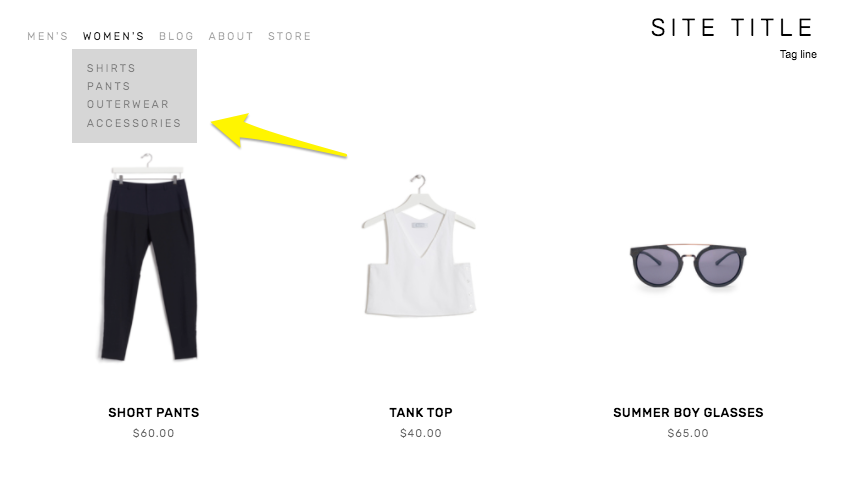
Creating Nested Categories
Creating multiple levels of shop navigation is like making sure your department store is organized logically into different departments, each with its own little “sub-departments” within them. This makes it easy for people to find what they are looking for quickly, which can reduce frustration and lead to higher conversion rates.
Let’s consider an expanded example from our simple t-shirt shop and pretend we have a full-fledged department store. It would make sense that the navigation would need to visually allow us to “nest” categories within each other. So instead of just lumping everything together in one category called “Women’s” you can instead make subcategories like this:
Women’s
Tops
Tees
Hoodies
Bottoms
Denim
Joggers
Accessories
Sunglasses
Bags
* Note that if you want to create nested subcategories like above that you can add up to three levels max. This means you can have Main Category > Subcategory > Subcategory like in the example above. You would not be able to break the Denim category into more subcategories. If you wanted to do something like that, I would recommend just moving the category up the food chain. If you have enough products that you need more than two subcategories beneath it, that probably means it’s important enough to be the main category all by itself.

Look how fast we can find exactly what we’re looking for!
Other Ways To Use Categories & Tags on Squarespace
Link to filtered collections - Another benefit of creating categories and subcategories is that doing so creates individual page path URLs for each category, optimized for SEO and allowing categories to act as standalone pages. This means that if you are running an ad or a promo for all blue shoes, you can link people right to the filtered subcategory: Shoes > Blue. 🤯 For more on this, check out this Squarespace help article.
Make summary blocks smarter - This is one of my absolute favorite things about Squarespace summary blocks! I almost always add one to a home page design as a way to feature selected categories of products… or to feature “featured” products! Doing this is simple by just clicking on the content tab of your summary block settings and then choosing “Filter Items” to have that block only show what you want it to.
Influence what related products are displayed - I recommend everyone turn on the Related Products feature in their commerce settings because why not?? This is such an amazing built-in Squarespace selling tool that I think gets underutilized by most new sellers. Not only does it help keep people on your site longer by showing them more to look at it, but it can also actually show them more of what they WANT to look at. By default, products that share the same first category are shown in the related products section. If your product happens to not have a category, then matches using the first tag will be shown. If you’re into related products, you might also like this post: How to Upsell & Cross-Sell on Your Online Store.
Display more accurate search results - Adding search blocks or using your store’s built-in search page are other ways to help customers find what they are looking for. And, you guessed it, adding categories to your products helps here too! This is because both categories and tags are indexed for search results in addition to being indexed by major search engines such as Google.
Who should be using categories & tags?
I think everyone could benefit from using categories and tags, if only for their aforementioned SEO benefits! From a size standpoint, you probably don’t need to worry about people not finding what they’re looking for if you only sell one signature service or only a handful of products. But even if you have a small shop with just a dozen or so products or services, why not add that layer of categorization to help people be able to decide what is best for them? For example, if you’re an interior designer and offer multiple virtual design sessions you could categorize them by investment level:
$
$$
$$$
This would help people self-sort and see just the services that they can afford. When you start to think about tags & categories as strategic tools to help visitors find what they need on their own, all sorts of doors start to open up! Done right, taking advantage of this simple feature can boost your SEO, help reduce visitor frustration and increase sales. Thinking about what you sell in terms of categories (and tags, to a lesser extent) can help you create ways for customers to easily discover more and help you create a more dynamic eCommerce website.

How to Set Up Product Add-Ons on Squarespace
Learn how to set up add-on products in your Squarespace shop to offer complementary items and increase your average cart value. Follow a step-by-step guide to enable the add-on feature and link add-on products to your main shop. Boost your sales and enhance your customers' shopping experience!
UPDATED 11/29/23
Watch The Videos
Read The Steps
I have a cool update from Squarespace to share with you that can make your Squarespace shop even better. In this blog post, I'll show you step-by-step how to set up add-on products in your Squarespace shop. It's a great way to offer complementary items to your customers and increase your average cart value. So let's dive in!
First things first, log in to your Squarespace account and go to your shop dashboard. Once you're there, follow these simple steps:
Choose the product you want to add an add-on to: Let's say you're selling a delicious marinara sauce. To set up an add-on product, go to the product page and click on "Edit Product".
Scroll down to the "Selling Tools" section: You'll find it by scrolling down the page or clicking on "Settings" and then "Selling Tools".
Enable the add-on feature: Squarespace has made it super easy for you to include a product add-on on your product page. Look for the option that says "Product Add-On" and click on it.
Add the add-on product: You can add up to two four products as add-ons. Keep in mind that the add-on products need to be physical, service, or digital products. They can't be subscription-based, and they can have up to one product variation. In our example, let's add some fresh ravioli as an add-on to the marinara sauce.
Save and publish: Once you've added the add-on product, click on "Save" and let Squarespace do its magic. Now, when your customers visit the marinara sauce product page, they'll have the option to add the fresh ravioli as well.
Repeat the process for other products: If you have another product, like pesto sauce, that you want to offer add-ons for, simply go to the product page, click on "Edit Product", and follow the same steps to set up the add-on.
Remember, if a product has multiple variations such as both size and flavor, like our marinara sauce, that product can’t be set up as an add-on to any other product. However, if a product such as the parmesan which only has one product variation (size) or no product variations (ravioli) that can be set up as an add-on to another product.
But what if you want to offer an add-on that is not available in your main shop? No worries! Squarespace has a solution for that too. Here's what you can do:
Create a new store: In your shop dashboard, click on the plus icon and select "Store". Instead of adding a new category in your existing shop, create a new store.
Add the add-on product: Let's say you want to offer handmade spaghetti as an add-on. Fill in the necessary details like title, description, image, and price. Don't worry, this new store won't be visible to your customers.
Link the add-on to your main shop: Go back to your main shop, choose the product you want to add the add-on to, and follow the same steps as before. This time, you'll find your handmade spaghetti available as an add-on.
And that's it! With Squarespace's new add-on feature, you can easily set up add-on products in your Squarespace shop. It's a fantastic way to offer complementary items and enhance your customers' shopping experience.
I hope this step-by-step guide has been helpful to you as a small business owner running your eCommerce business on Squarespace. Give it a try and see how it can boost your sales. Happy selling!

The Importance of Accessibility in Web Design
Web accessibility is essential for creating an inclusive online experience. It helps websites reach a wider audience, improve search engine rankings, and reduce maintenance costs. Here’s how to do it.
Dream scenario: A world where everyone is able to enjoy every website online, regardless of their ability.
Accessibility has been a topic close to my heart for years. It's not just about creating an inclusive online experience; it's about ensuring that every individual, regardless of their abilities, can access and engage with digital content. In this post, I want to emphasize the significance of accessibility in web design, provide you with practical tips to make your website more inclusive, and share my favorite accessibility tool. But first, let's talk about why accessibility matters.
Designing for All
When we discuss accessible design, we often think about people with permanent visual, auditory, or cognitive disabilities. However, the scope is much broader. Accessibility also encompasses those with temporary disabilities as well as individuals with varying levels of ability, like the elderly. Additionally, we must consider users with limited internet access or those who rely solely on mobile devices to browse the web. It’s why designing with empathy is so important. By designing with inclusivity in mind, we ensure that everyone, regardless of their situation, can access and navigate our websites seamlessly.
Four Tips for Creating an Accessible Website
Keep layouts clean and minimal: Cluttered layouts not only hinder comprehension but also pose challenges for interaction. Design your website with a clear and intuitive structure, making it easy for visitors to find information and take desired actions. Remember, simplicity is key.
Use color wisely: While aesthetics play a vital role in web design, it's important to go beyond visual appeal. Consider users with color blindness or those accessing your site in challenging lighting conditions. Provide high contrast elements and alternative visual cues to ensure that your content remains accessible to all.
Put alt text, metadata, and links to work: Enhance both user experience and search engine optimization by incorporating descriptive alt text for images and providing additional context through captions and text transcripts for multimedia content. Avoid using vague hyperlinks like "read more here" and opt for clear, descriptive language instead.
Remember, boring and consistent can be good things: While innovative design concepts are exciting, when it comes to web accessibility, consistency is key. Users rely on familiar structures and functionalities to navigate websites efficiently. By sticking to established design patterns, you create a more inclusive and user-friendly experience.
Everyone Wins with Inclusive Design
By implementing accessible design principles, you not only ensure that your website is available to a broader audience but also reap various benefits. Accessible websites tend to:
Perform better in search engine rankings 📈
Reduce maintenance costs 📉
Increase audience reach 🌎
As technology evolves the long story short is that we all benefit from accessible design, whether we interact with the web through smartphones or voice assistants, screen readers or other accessibility tools.
How to Make Your Website Accessible Today
Designing an accessible website is not only the right thing to do, but it's also essential for legal compliance. The Department of Justice has made it clear that business websites should align with specific accessibility standards. Non-compliance can lead to potential lawsuits, putting your business at risk. But don't worry, I've partnered with accessiBe to provide you with a simple, streamlined solution.
accessiBe is an AI-powered web accessibility solution that ensures your website complies with WCAG, ADA, and other accessibility regulations. By incorporating accessiBe, you empower individuals with disabilities to adjust how they view and interact with your website without compromising the codebase, layout, or design. With accessiBe's continuous monitoring and personalized reports, you can easily prove compliance and maintain an inclusive online presence.
Remember, designing for accessibility isn't just about meeting legal requirements; it's about embracing diversity, empathy, and equal opportunities. Join me in creating a digital landscape that truly serves everyone with accessiBe!
Squarespace and ConvertKit: The Dynamic Duo for Your Online Business
Unleash the power of Squarespace and ConvertKit! They're the ultimate tech combo that turbocharges your online business. Discover how this dynamic duo takes your eCommerce email marketing to new heights.
There's a dynamic duo in the tech world that's been flying under the radar for too long: Squarespace and ConvertKit. They're like the perfect pair, just as inseparable as peanut butter and jelly or Batman and Robin. Squarespace is the master of providing a seamless selling experience, while ConvertKit swoops in with its superpowers in email marketing. Together, they create an unstoppable force that can turbocharge your online business and take it to new heights. Forget about ordinary, these two are extraordinary when combined.
Seamlessly Sell with Squarespace Commerce
Squarespace Commerce is renowned for its user-friendly interface and stunning templates that make setting up an online store a breeze. But when you combine Squarespace Commerce with ConvertKit, you unlock a world of possibilities. With Squarespace Commerce, you can showcase your products, securely handle transactions, and effortlessly manage your inventory. And with ConvertKit, you can automate post-purchase emails, recommend related products, and keep your customers engaged long after they've made a purchase.
One of the standout features of Squarespace Commerce is its integration with popular payment gateways, such as Stripe and PayPal. This ensures a seamless checkout experience for your customers, increasing trust and reducing cart abandonment. By connecting ConvertKit to Squarespace Commerce, you can leverage these selling capabilities and send targeted emails to customers based on their purchase history, interests, or other criteria. This level of personalization and segmentation can significantly improve the effectiveness of your email campaigns and drive repeat business. With an email list, you’re no longer reliant on social media!
Unleash the Power of ConvertKit's Email Marketing
While Squarespace does offer its own email campaigns feature, there's no denying that ConvertKit takes email marketing to a whole new level. With ConvertKit, you'll have the ability to create highly targeted and personalized email sequences that are triggered by specific customer actions. This means you can send product-specific emails to your customers, nurturing them throughout their buying journey and increasing the chances of repeat purchases.
ConvertKit's automation feature allows you to set up workflows that automatically send emails based on customer behavior, such as purchases or website interactions. This helps you deliver timely and relevant content to your subscribers, boosting engagement and driving sales. With ConvertKit, you can say goodbye to generic email blasts and hello to personalized, conversion-focused communication. (Not sold on ConvertKit yet? Check out this post where I break down my top 3 email marketing platform picks.)
How to Connect Squarespace and ConvertKit: Simple Step-by-Step Guides
Now that you're ready to harness the power of this tech combo, let's walk through how to connect Squarespace and ConvertKit.
Two Options for Collecting Subscriber Info
Option 1: Embedding a ConvertKit Form onto Squarespace
This option is perfect if you'd like to use ConvertKit's forms for collecting subscriber information. The best part is even though you can customize and tweak each form within ConvertKit, you also have freedom to customize these forms with your very own custom CSS on Squarespace.
In your ConvertKit account, create a captivating form that captures the information you need from your website visitors. You can customize the fields and design to align with your brand.
Copy the provided embed code from ConvertKit. Don’t worry, it’s just one line of code - you can’t mess this up!
Head over to your Squarespace website and navigate to the page where you want to add the form.
Edit the page, then add a Code Block.
Paste the ConvertKit embed code into the Code Block.
Save your changes, and like magic 🔮 your ConvertKit form seamlessly integrates into your Squarespace website.
Option 2: Adding Squarespace Subscribers to ConvertKit
If you'd like to use Squarespace's own forms for collecting email addresses instead of embedding a ConvertKit form, don't worry! You can still easily send the subscriber data to ConvertKit. All you have to do is create a Zapier account, which you can sign up for absolutely free. Just remember that to access the API and use this integration, a paid ConvertKit plan is required. With Zapier, you can automate the process of transferring subscriber data from Squarespace to ConvertKit, ensuring a seamless and efficient workflow for your email marketing efforts.
Connect your Squarespace form to Zapier:
Click on your Squarespace form and go to the Storage tab.
Click on the Connect button next to "Zapier".
Save your work and go back to your Home Menu.
Navigate to Settings > Advanced > Developer API Keys.
Click on Generate Key and name your key. Check the "Forms" box.
Click on "Generate Key" and Copy Key to copy the API key.
Set up the Zapier trigger step (Squarespace):
Go to zapier.com and create a new automation workflow or "Zap".
Choose Squarespace as the Trigger App and New Form Submission as the Trigger Event.
Connect your Squarespace account with Zapier using the API key.
Select the Squarespace form you want to send subscriber data to ConvertKit for.
Test the trigger to ensure everything is set up correctly.
Configure the Zapier action step (ConvertKit):
Choose ConvertKit as the Action App.
Select the desired Action Event (e.g., Add Subscriber to Form, Add Tag to Subscriber). For example, you may have a form called "Freebie XYZ." When someone signs up through that form, ConvertKit can tag them as "Freebie XYZ". This tag allows you to trigger various automations and sequences. This allows you to serve your subscribers a customized experience, tailored just for them!
Connect your ConvertKit account to Zapier.
Map the Squarespace subscriber data to ConvertKit's subscriber fields.
Test the Action to confirm it's working as expected.
Name your Zap and turn it on to activate the integration.
This integration eliminates the need for manual importing or exporting of subscriber lists, saving you time and ensuring accurate data.
How to Capture Squarespace Customer Info in ConvertKit
The ConvertKit + Squarespace Commerce integration allows you to send product-specific, post-purchase emails to your customers, nurturing them and encouraging repeat purchases. By setting up automations in ConvertKit, you can create a personalized customer journey that keeps your audience engaged and increases their lifetime value. With ConvertKit's analytics and reporting tools, you can also track the performance of your email campaigns and optimize your marketing efforts for maximum results.
Using The ConvertKit + Squarespace Commerce Integration
Generate an API Key in Squarespace:
Go to Settings > Advanced > Developer API Keys in Squarespace.
Click the 'Generate Key' button.
Give your key a name and select 'Orders' > 'Read and Write' under Permissions.
Click 'Generate Key' and then 'Copy Key' to save the API key.
Connect the Integration in ConvertKit:
In ConvertKit, go to Automations > Integrations.
Click on Squarespace.
Paste the API Key from Squarespace into the API Key field in ConvertKit.
Click Next and then click the 'Sync Squarespace orders to ConvertKit' button.
Click Next again, and now you can track your Squarespace Commerce purchases from within ConvertKi
Now, here's the icing on the cake: this integration doesn't require any coding or complex workarounds. It's designed with small business owners and startups in mind, making it accessible to everyone. Give Squarespace and ConvertKit a try today and see how they can transform your eCommerce email marketing. With this dynamic duo by your side, you'll have the tools to grow your online business and engage your customers like never before.

Squarespace eCommerce Life Hack: CSV Import Tutorial
Check out my latest YouTube video all about how I use CSV files to make uploading and managing inventory on Squarespace eCommerce websites fast and easy!
Updated May 2025
If you’re tired of manually adding products one by one to your Squarespace shop, this is the video you’ve been waiting for. I’m walking you through the process of using CSV imports to bulk upload products and save yourself a ton of time (and headaches).
In this step-by-step tutorial, I show you how to customize Squarespace’s CSV template, add all your product details in one place, and import them into your store with just a few clicks. Whether you’re setting up a brand new shop or doing a seasonal update with a bunch of new products, CSV imports can seriously streamline your workflow.
This tip came straight from audience questions after my presentation at Squarespace Circle Day in August 2023. So many of you wanted to know: “How do I efficiently manage larger inventories on Squarespace?” This is how.
It might seem a little intimidating if you’re not a “spreadsheet person,” but I promise it’s doable — and honestly kind of satisfying once you get the hang of it. Plus, this method helps reduce errors compared to adding items manually (been there, made that typo).
If you’re a fellow Squarespace web designer, this is also a great trick to have in your toolbox when working with client shops. It’s faster, more scalable, and gives you a solid process for handling larger product catalogs.
👉 Ready to learn? Watch the full tutorial below and follow along.
Got questions about using CSV files in Squarespace? Or maybe you’ve got your own tips for managing eCommerce shops more efficiently? I’d love to hear your thoughts — drop a comment on the YouTube video and let’s chat.