

Notes on building smarter websites for actual humans.

How to Add Restaurant Online Ordering to Your Squarespace Site (and Keep More Profit)
Adding online ordering to your restaurant’s Squarespace site doesn’t have to mean rebuilding from scratch or losing profits to delivery apps.
If you’ve ever tried to add online ordering to a restaurant website, you already know the pain points: either you’re handing over a chunk of your profit to a third-party app, or you’re rebuilding your entire site just to make it work.
Neither is ideal, especially if you already like your Squarespace site and just want an easy way for customers to place orders directly with you.
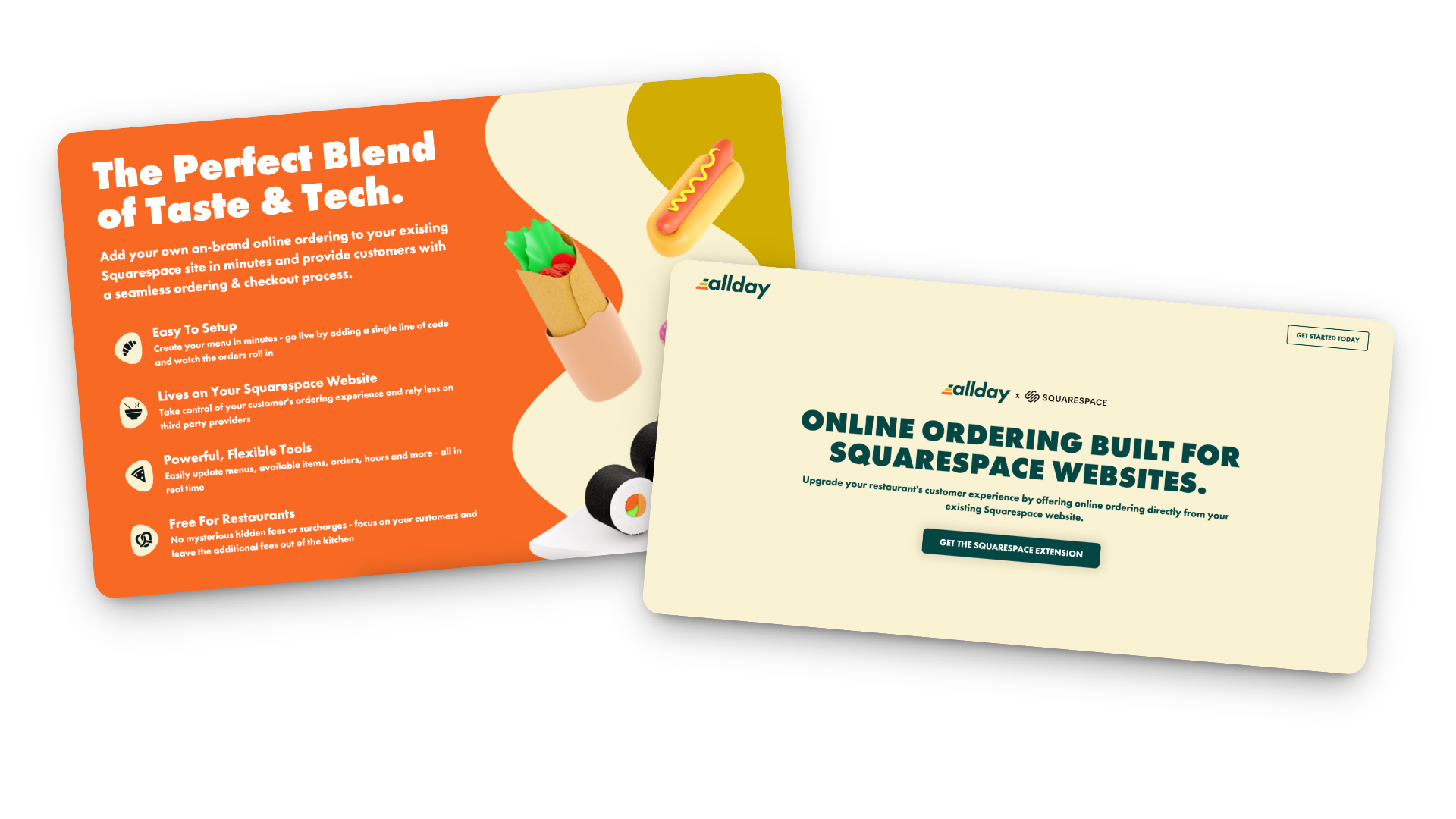
That’s where Allday Ordering comes in. It’s a new Squarespace extension that lets you add online ordering right to your existing site - no new platform, no technical chaos, and no middlemen taking their cut.
I’ve been testing it on a few projects lately, and I’m genuinely impressed by how simple it is to set up and how well it integrates with the way small restaurants actually run. So in this post, I’ll walk you through what it does, who it’s best for, and how to make it work harder for you.
What Allday Does (and Why It’s Worth a Look)
Here’s the gist: Allday connects directly to your Squarespace website and adds a complete online-ordering experience - one that looks and feels like part of your brand.
Customers can:
Browse your menu
Customize their order
Check out without ever leaving your site
You keep your design, your data, and your margins.
Setup is easy too: just add a small code snippet, configure your menu, and go live. Seriously so simple!
How the Pricing Works
Here’s my favorite part: it’s actually transparent.
For restaurants: completely free.
For customers: a flat $2 fee per order (clearly shown at checkout).
Processing: standard Stripe fees (2.9% + 30¢).
Contracts: none 🚫
Plus, you can start, pause, or cancel anytime. And because everything runs through your own website, you keep the customer data - meaning you can actually build relationships instead of renting them from delivery apps.
Who Allday is Best For
In my opinion, Allday is a great fit for:
Independent restaurants that want to modernize without switching systems
Cafés and bakeries that sell daily specials, pre-orders, or meal kits
Catering services and pop-ups that need flexible menus
Small restaurant groups that want a consistent setup across multiple locations
Basically, if you’re already using Squarespace and want a way to accept online orders that feels native to your site (and not like a clunky bolt-on), this is worth exploring.
How to Make Online Oredering Work Harder for You
This is where the magic really happens. Adding online ordering is great, but optimizing how people use it can make a big difference in your sales.
Make “Order Now” Impossible to Miss
Add it to your header, footer, homepage hero, and anywhere else customers tend to land. If they have to hunt for it, they’ll give up and go back to DoorDash.
Use Mouth-Watering Photos
A couple of great shots of your best-sellers go a long way. You don’t need a full menu gallery — just enough to make people hungry.
Keep the Menu Tight
Too many options = decision fatigue. Focus on what you can fulfill quickly and consistently. Clear categories and smart modifiers (“Add chicken +$2”) help too.
Promote Direct Ordering Everywhere
Remind customers they can order directly from your site. Add a quick line to your emails or posts:
“Skip the apps — order directly from our website and help us keep prices fair.”
Use QR Codes Strategically
Add them to menus, packaging, and in-store signage that lead straight to your ordering page. Repeat customers will thank you.
Pay Attention to the Data
Because you own your analytics, you can actually see what’s working — top dishes, busy hours, repeat orders, and even drop-off points. Use that info to improve your menu and marketing.
Integrate with Your Email List
If you use Flodesk (like I do) or another email tool, send simple reminders:
“New week, new menu — order ahead now.”
“Early access to our seasonal menu — pre-order today.”
Test and Adjust
Watch how customers interact with the page. Are they clicking “Order Now” right away, or scrolling first? Do certain items always sell out? Tiny layout or wording tweaks can have a big impact.
Keep It Fresh
Menus change, seasons change, and so do your customers’ habits. Make updating your online ordering part of your regular routine — swap in seasonal dishes, highlight new items, or feature a “staff favorite” now and then.
Bonus Tip: Not only does this keep regular customers engaged, it also signals to Google that your page is active (which can help with SEO).
Restaurant Ordering on Squarespace FAQs
-
Install the official Allday extension, add your menu, set your pickup/delivery options, and embed “Order Now” buttons on your site. It takes less time than you’d think.
-
It’s free for restaurants. Customers pay a small flat fee ($2 per order), plus standard Stripe processing.
-
Yep! You can set different menus, hours, and fulfillment options for each.
-
Yes! Everything happens right on your Squarespace site, so your fonts, colors, and overall style stay consistent.
-
I’d recommend it for small to mid-sized restaurants, cafés, bakeries, catering businesses, and pop-ups - basically anyone who doesn’t want to hand off their customer experience to a third-party app.
-
Visibility + communication. Make the ordering button clear, mention it in your emails and social posts, and highlight the benefits (lower fees, faster pickup, direct support for your business).

Bottom Line
Adding restaurant online ordering to your Squarespace site doesn’t have to be complicated or expensive. With Allday, you can keep your website, your brand, and your customer relationships intact - all while giving your diners a smoother, more personal way to order.
If you’re ready to give it a try, you can get started here. I’ll help you set it up and make sure it looks and functions exactly the way you want.
Because really, you should be focused on your menu - not a middle man.

How to Connect Shopify to Squarespace
For most sellers, there’s no need to try to connect Shopify and Squarespace. You should be looking instead at choosing which platform is best for you and going all-in on it. But for some specific use cases, the Shopify Buy Button is a great way to have a great-looking Squarespace website powered by a Shopify back end for commerce.
Updated June 2024
I usually advocate for just picking one website platform and sticking with it. This isn't just to make life simpler, it's also because stringing a bunch of systems together often means you have more opportunities for those systems to fail. It can also be wishful thinking to think that doubling up on website platforms (in this case, Squarespace + Shopify) will allow you to have your cake and eat it too. In reality, both platforms have their pros and cons and while my expert opinion is that Squarespace is the best choice for small business eCommerce websites, there may be some specific use cases where it pays to connect the two via the Shopify Buy Button.
Example Use Cases
Adding another subscription to the mix needs to make sense and there have to be compelling reasons to do it. At face value, it would seem that the Shopify Buy Button is kinda pointless; Squarespace offers eCommerce and Shopify allows you to build a website. But there are exceptions. If you really want to stick with your Squarespace website but are dealing with any of the following issues, the Shopify Buy Button may be a good solution for you:
You use a specific accounting system or POS that only connects to Shopify
You use a third-party logistics company that only offers a Shopify integration
You have multiple locations you need to either ship or sell in person from
As you can see, the reasons to connect Shopify & Squarespace usually have to do with some sort of limitation of a third-party platform and have nothing to do with any perceived limitations to Squarespace’s commerce abilities. It’s also worth noting that Squarespace has accounting, POS, and 3PL options as well so before trying to force a Squarespace/Shopify integration you may also want to just consider other third-party software that plays nice with your website platform of choice instead of the other way around.
Ok. Now that I’ve sufficiently tried to talk you out of this, here’s how to do it! 😂
About the Shopify Buy Button

The trick to connecting a Shopify shop to a Squarespace website is the Shopify Buy Button. It allows you to basically embed your Shopify shop on any Squarespace page using a small bit of code. You have the option to embed just one product or show entire collections.
The Cost
In order to score Shopify Buy Button capabilities, you’ll need to spring for the Shopify Starter plan which is $5/month. (Side note: since you won’t be needing all the commerce features on the Squarespace side of things you can probably get by with the Business plan there.)
Limitations
Important things to note if you’re considering this duo as an option:
You cannot use any apps from the Shopify app store in conjunction with the Buy Button so if one of the reasons why you were eyeing Shopify was to expand your Squarespace commerce capabilities via a third-party app or extension then this will not work for you.
Although you can provide checkout links via social media with the Buy Button and also add Facebook Messenger as a sales channel, this isn’t the same as having a fully shoppable social media or Instagram like is offered on a full Shopify plan.
How to Get Started

Adding the Buy Button Sales Channel and Creating a Buy Button in the Shopify Admin
If you’d like to give the Squarespace + Shopify combo a try and have your site ready to go on Squarespace, here’s an overview of all the steps at a high level:
Start on Shopify by signing up for a free trial here. You’ll then need to subscribe to the Shopify Starter plan as directed (don’t worry you won’t be charged until after your free trial ends).
Add your products to Shopify (Products > Add Product)
Enable the Buy Button sales channel and then follow the steps to create and style your Buy Button code
Copy the Buy Button embed code provided on Shopify anywhere on Squarespace using a Code Block!
2 Ways to Embed Your Shopify Code Into Squarespace
There are two ways to go about embedding things from Shopify and which one you choose will determine how you treat inventory on your Squarespace site:
Embed entire collections (Collection Buy Button) - You can embed entire collections onto Squarespace in one fell swoop. This tends to work best if you have a large shop because it automatically includes all products and all variants of those products.
Embed individual products (Product Buy Button) - Alternatively, you can generate embed codes for individual Shopify products one at a time. With a Product Buy Button, you are given the option of including all product variants or selecting just the product variant(s) you want to include.
Styling Shopify Buy Buttons to Match Your Squarespace site
Before generating your Shopify embed code, you are given options to customize how it will look and how it behaves on Squarespace. You can control:
Button Color
Button Size
Button Font
What happens when the button is clicked & whether it opens in a new browser window or not.
It’s important to customize the button to match the style and look of your Squarespace as closely as possible to create a seamless experience for your customers. You can preview and test how your Buy Button will look by clicking preview. Note that once your code is embedded, you cannot make changes to how it looks or acts so if you make changes you’ll need to start over to create a new button and then replace the old embed code on Squarespace with the new one.
Layout Options
There are three layout options you can select from for your Buy Button. The difference between them basically boils down to how much information is included with the embed:
Basic Layout - the embed code will just create a button for the product you choose. There won’t be an image included. This is useful if you have product images on Squarespace and then just want to put “Add to Cart” buttons below each of them to make them shoppable.
Classic Layout - this will generate an embed code that includes a product image and price next to a Buy Button. Since this doesn’t include any product details, it would probably only be useful for embedding on pages where you want to offer a quick overview of a product instead of a more complete shop page. (Just like Squarespace’s Product Block.)
Full View Layout - this will create a layout that most closely emulates a full product details page. It includes the product image, price, and description in addition to the Add to Cart button.
Bottom Line
For most sellers, there’s no need to try to connect Shopify and Squarespace. You should be looking instead at choosing which platform is best for you and going all-in on it. But for some specific use cases, the Shopify Buy Button is a great way to have a great-looking Squarespace website powered by a Shopify back end for commerce.

My Most Recommended Squarespace Shipping Strategy for eCommerce Success
Are customers tired of your surprise shipping costs? Discover my most recommended shipping strategy for Squarespace that will increase your average cart values and provide a seamless shopping experience. Say goodbye to surprises and boost your eCommerce success with Squarespace shipping.
Watch The Video
READ THE POST
Are your customers abandoning their shopping carts without completing a purchase? It's possible that your current shipping strategy is working against you! If you want to improve abandonment rates, increase your average cart values, and provide a seamless shopping experience on Squarespace, look no further than my highly recommended shipping strategy. In this post, I'll guide you through the steps of setting up this conversion-optimized shipping strategy on Squarespace. Not only will it boost your sales, but it will also leave your customers super happy. That’s what we call a win-win!
The Importance of a Free Shipping Offer on Squarespace
Setting up a free shipping offer is the key to encouraging customers to buy more on Squarespace. By providing a flat rate shipping option and allowing customers to bypass it by spending a certain amount, you eliminate any surprises and reduce friction in the cart. Customers won't feel nickel and dimed when they see the shipping cost, and they'll appreciate the added value of getting something for their money. Plus, this strategy will ultimately increase your average cart values, benefiting your Squarespace business in the long run. This is seriously a win-win strategy all around!
Step-by-Step Guide to Setting up Squarespace Shipping with My Recommended Strategy
Let's dive into the details of setting up Squarespace shipping. Start by determining your current average cart value on Squarespace. For example, let's say it's $50. Your goal is to entice customers to spend a little more, so consider setting a free shipping threshold slightly higher than your average, such as $70. Customers who don't meet this threshold will be offered a flat rate shipping cost, which covers the bulk of your shipping expenses.
To implement this strategy on Squarespace, follow these steps:
Go to your Squarespace settings and navigate to the shipping section.
Set up two flat rate options: one for the affordable, slower shipping option, and another for the faster upgrade option. For example, you can offer priority mail for $9.99 per order as the flat rate option on Squarespace. Be mindful of your shipping zones and consider limiting shipping to specific regions to avoid incurring high costs. For instance, you may choose to ship only within the United States on Squarespace.
In addition to the flat rate options, give customers the choice to upgrade to express shipping on Squarespace. This caters to those who value faster delivery and are willing to pay a premium for it. Offering an express shipping option, such as UPS second day air for $18.99, taps into the mindset of customers who are accustomed to quick deliveries from major online retailers.
Offering Free Shipping as an Incentive on Squarespace
Now, let's talk about the highlight of this strategy on Squarespace: the free shipping offer. Create an automatic discount for orders that meet the minimum spending threshold (e.g., $70) on Squarespace. This discount will remove the flat rate shipping cost, providing customers with free shipping as long as they choose the priority mail option. Make sure to communicate this offer clearly during checkout on Squarespace, so customers are aware of the potential savings.
To further promote your free shipping offer on Squarespace, utilize marketing tools like the announcement bar. Enable this feature and prominently display the message "Free shipping on orders over $70" along with a call-to-action like "Shop now." This clickable bar will redirect customers to your Squarespace shop, ensuring they don't miss out on the opportunity to benefit from the free shipping offer.
Enhancing the Shopping Experience on Squarespace
By following these simple steps on Squarespace, you can set up my most recommended shipping strategy and enhance the shopping experience for your customers. No more surprises at checkout, no more feeling nickel and dimed. Transparency and the allure of free shipping will entice customers to spend a little more on Squarespace, ultimately boosting your sales and average cart values.
Give this strategy a try on Squarespace and let me know how it works for you. Happy shipping!

How to Use Product Categories & Tags in Squarespace
In this post, we’ll discover the difference between a category & a tag (hint: they aren’t the same!), how to incorporate them into your site’s navigation and how to create shop subcategories on Squarespace. Plus, I’ll share 4 of my favorite ways to use categories and tags that you may not have thought of yet!
Updated November 2023
Product categories and tags sometimes get relegated to the “I’ll take care of that later” pile for busy eCommerce sellers. But I say put this off at your own peril because categories and tags are AWESOME. Not only can they help people quickly and easily find things, they also have SEO-boosting secret powers! It’s definitely worth it to think strategically about how you can use product categories and tags on Squarespace to help your customers or clients find what you’re selling, discover new things and understand what you’re all about at a quick glance. In this post, we’ll discover the difference between a category & a tag (hint: they aren’t the same!), how to incorporate them into your site’s navigation and how to create shop subcategories on Squarespace. Plus, I’ll share 4 of my favorite ways to use categories and tags that you may not have thought of yet! Let’s get started!
What’s the difference between a category & a tag?
Great question. At first glance, there doesn’t seem to be any difference between these two different classifications. However, these should not be used interchangeably and you definitely want to plan out how you’ll use them before you just go willy nilly tagging products with all sorts of crazy things.
I always use the example of a t-shirt shop because it’s pretty easy to understand but you don’t have to sell physical products to use categories or tags! So, pretend we have a t-shirt shop and we want people to be able to find what they are looking for quickly. Think of categories as the “departments” of a department store. They are what organizes what you offer by subject or category. Smart categories might be :
Men’s
Women's
Kids
Tags, on the other hand, are descriptions of products in each of those categories. So, in the example of our t-shirt shop, some helpful tags might be:
Colors (red, blue, yellow, etc.)
Brand (Hanes, Bella/Canvas, Under Armour, etc.)
Material (Cotton, Polyester, Triblend, etc.)
Another way to think about the difference between categories & tags is that most products/services will fall into only one category but may have several different tags. So a blue, cotton, Hanes youth tee is going to be in just the “Kids” category but then be tagged blue + cotton + Hanes.
Categories are great for SEO
I wasn’t lying when I said that categories have SEO-boosting secret powers! Why? Because categories and tags are considered “metadata” and it’s little language snippets like these that search engines like Google can pick up on to help decipher what you’re all about. Turns out it doesn’t take a ton of artificial intelligence to figure out that if my store’s categories are:
Haircuts
Color
Blowouts
Styling
… that I’m probably operating a salon.
Video: More on categories & tags, when to use them, and why they matter
During a live November 2023 webinar with Squarespace called Five eCommerce Tips, a viewer asked a great question about categories & tags! Check out my answer for more about how to use categories & tags on Squarespace:

Incorporating Categories Into Your Site’s Navigation
Here’s the other awesome thing about product categories on Squarespace: every category is automatically added to the navigation area of your shop. Magic. But, also: dangerous. This is why it’s so, so, so important to make sure that you have a plan in place for your categories. You don’t want your navigation to be too long or cluttered.
It’s also important to note that categories and tags are case sensitive so if you create categories named: Womens, womens and WOMENS you’ll end up with THREE navigation links in your shop with all essentially the same name but none of the same products. Messy!
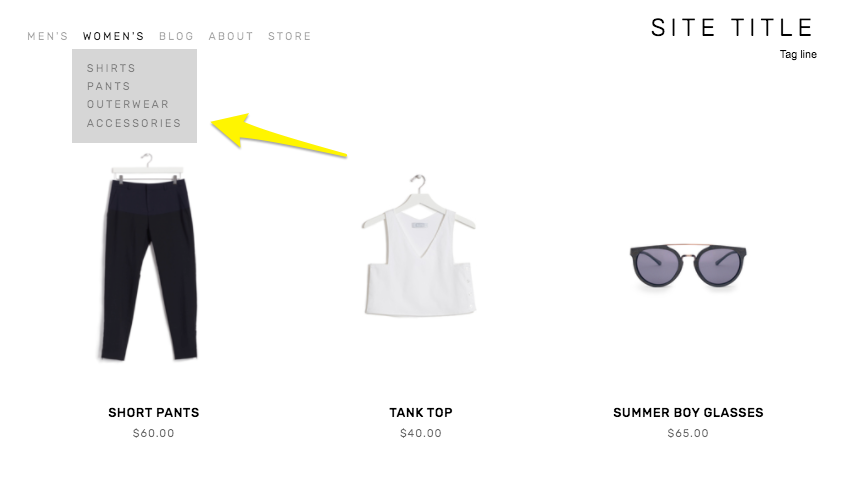
Another way to use category or tag landing pages in your site’s navigation is to use them to create drop-down navigation menus. This allows you to create another layer of organization.
Creating Nested Categories
Creating multiple levels of shop navigation is like making sure your department store is organized logically into different departments, each with its own little “sub-departments” within them. This makes it easy for people to find what they are looking for quickly, which can reduce frustration and lead to higher conversion rates.
Let’s consider an expanded example from our simple t-shirt shop and pretend we have a full-fledged department store. It would make sense that the navigation would need to visually allow us to “nest” categories within each other. So instead of just lumping everything together in one category called “Women’s” you can instead make subcategories like this:
Women’s
Tops
Tees
Hoodies
Bottoms
Denim
Joggers
Accessories
Sunglasses
Bags
* Note that if you want to create nested subcategories like above that you can add up to three levels max. This means you can have Main Category > Subcategory > Subcategory like in the example above. You would not be able to break the Denim category into more subcategories. If you wanted to do something like that, I would recommend just moving the category up the food chain. If you have enough products that you need more than two subcategories beneath it, that probably means it’s important enough to be the main category all by itself.

Look how fast we can find exactly what we’re looking for!
Other Ways To Use Categories & Tags on Squarespace
Link to filtered collections - Another benefit of creating categories and subcategories is that doing so creates individual page path URLs for each category, optimized for SEO and allowing categories to act as standalone pages. This means that if you are running an ad or a promo for all blue shoes, you can link people right to the filtered subcategory: Shoes > Blue. 🤯 For more on this, check out this Squarespace help article.
Make summary blocks smarter - This is one of my absolute favorite things about Squarespace summary blocks! I almost always add one to a home page design as a way to feature selected categories of products… or to feature “featured” products! Doing this is simple by just clicking on the content tab of your summary block settings and then choosing “Filter Items” to have that block only show what you want it to.
Influence what related products are displayed - I recommend everyone turn on the Related Products feature in their commerce settings because why not?? This is such an amazing built-in Squarespace selling tool that I think gets underutilized by most new sellers. Not only does it help keep people on your site longer by showing them more to look at it, but it can also actually show them more of what they WANT to look at. By default, products that share the same first category are shown in the related products section. If your product happens to not have a category, then matches using the first tag will be shown. If you’re into related products, you might also like this post: How to Upsell & Cross-Sell on Your Online Store.
Display more accurate search results - Adding search blocks or using your store’s built-in search page are other ways to help customers find what they are looking for. And, you guessed it, adding categories to your products helps here too! This is because both categories and tags are indexed for search results in addition to being indexed by major search engines such as Google.
Who should be using categories & tags?
I think everyone could benefit from using categories and tags, if only for their aforementioned SEO benefits! From a size standpoint, you probably don’t need to worry about people not finding what they’re looking for if you only sell one signature service or only a handful of products. But even if you have a small shop with just a dozen or so products or services, why not add that layer of categorization to help people be able to decide what is best for them? For example, if you’re an interior designer and offer multiple virtual design sessions you could categorize them by investment level:
$
$$
$$$
This would help people self-sort and see just the services that they can afford. When you start to think about tags & categories as strategic tools to help visitors find what they need on their own, all sorts of doors start to open up! Done right, taking advantage of this simple feature can boost your SEO, help reduce visitor frustration and increase sales. Thinking about what you sell in terms of categories (and tags, to a lesser extent) can help you create ways for customers to easily discover more and help you create a more dynamic eCommerce website.

How to Set Up Product Add-Ons on Squarespace
Learn how to set up add-on products in your Squarespace shop to offer complementary items and increase your average cart value. Follow a step-by-step guide to enable the add-on feature and link add-on products to your main shop. Boost your sales and enhance your customers' shopping experience!
UPDATED 11/29/23
Watch The Videos
Read The Steps
I have a cool update from Squarespace to share with you that can make your Squarespace shop even better. In this blog post, I'll show you step-by-step how to set up add-on products in your Squarespace shop. It's a great way to offer complementary items to your customers and increase your average cart value. So let's dive in!
First things first, log in to your Squarespace account and go to your shop dashboard. Once you're there, follow these simple steps:
Choose the product you want to add an add-on to: Let's say you're selling a delicious marinara sauce. To set up an add-on product, go to the product page and click on "Edit Product".
Scroll down to the "Selling Tools" section: You'll find it by scrolling down the page or clicking on "Settings" and then "Selling Tools".
Enable the add-on feature: Squarespace has made it super easy for you to include a product add-on on your product page. Look for the option that says "Product Add-On" and click on it.
Add the add-on product: You can add up to two four products as add-ons. Keep in mind that the add-on products need to be physical, service, or digital products. They can't be subscription-based, and they can have up to one product variation. In our example, let's add some fresh ravioli as an add-on to the marinara sauce.
Save and publish: Once you've added the add-on product, click on "Save" and let Squarespace do its magic. Now, when your customers visit the marinara sauce product page, they'll have the option to add the fresh ravioli as well.
Repeat the process for other products: If you have another product, like pesto sauce, that you want to offer add-ons for, simply go to the product page, click on "Edit Product", and follow the same steps to set up the add-on.
Remember, if a product has multiple variations such as both size and flavor, like our marinara sauce, that product can’t be set up as an add-on to any other product. However, if a product such as the parmesan which only has one product variation (size) or no product variations (ravioli) that can be set up as an add-on to another product.
But what if you want to offer an add-on that is not available in your main shop? No worries! Squarespace has a solution for that too. Here's what you can do:
Create a new store: In your shop dashboard, click on the plus icon and select "Store". Instead of adding a new category in your existing shop, create a new store.
Add the add-on product: Let's say you want to offer handmade spaghetti as an add-on. Fill in the necessary details like title, description, image, and price. Don't worry, this new store won't be visible to your customers.
Link the add-on to your main shop: Go back to your main shop, choose the product you want to add the add-on to, and follow the same steps as before. This time, you'll find your handmade spaghetti available as an add-on.
And that's it! With Squarespace's new add-on feature, you can easily set up add-on products in your Squarespace shop. It's a fantastic way to offer complementary items and enhance your customers' shopping experience.
I hope this step-by-step guide has been helpful to you as a small business owner running your eCommerce business on Squarespace. Give it a try and see how it can boost your sales. Happy selling!

Squarespace eCommerce Life Hack: CSV Import Tutorial
Check out my latest YouTube video all about how I use CSV files to make uploading and managing inventory on Squarespace eCommerce websites fast and easy!
Updated May 2025
If you’re tired of manually adding products one by one to your Squarespace shop, this is the video you’ve been waiting for. I’m walking you through the process of using CSV imports to bulk upload products and save yourself a ton of time (and headaches).
In this step-by-step tutorial, I show you how to customize Squarespace’s CSV template, add all your product details in one place, and import them into your store with just a few clicks. Whether you’re setting up a brand new shop or doing a seasonal update with a bunch of new products, CSV imports can seriously streamline your workflow.
This tip came straight from audience questions after my presentation at Squarespace Circle Day in August 2023. So many of you wanted to know: “How do I efficiently manage larger inventories on Squarespace?” This is how.
It might seem a little intimidating if you’re not a “spreadsheet person,” but I promise it’s doable — and honestly kind of satisfying once you get the hang of it. Plus, this method helps reduce errors compared to adding items manually (been there, made that typo).
If you’re a fellow Squarespace web designer, this is also a great trick to have in your toolbox when working with client shops. It’s faster, more scalable, and gives you a solid process for handling larger product catalogs.
👉 Ready to learn? Watch the full tutorial below and follow along.
Got questions about using CSV files in Squarespace? Or maybe you’ve got your own tips for managing eCommerce shops more efficiently? I’d love to hear your thoughts — drop a comment on the YouTube video and let’s chat.

Maximizing Your Squarespace Site with Extensions, Plugins, and Code Snippets: A Comprehensive Guide
Maximize your Squarespace site with this guide to extensions, plugins, code snippets, and apps. Learn the differences between these tools and discover every Squarespace extension available, along with trusted plugin and code resources.
If you're using Squarespace to create your website, you're probably aware that extensions, plugins, code snippets, and apps can help you do so much more with your site. But, do you know the differences between them and how to use them effectively?
In this post, I’ll go over everything you need to know about Squarespace extensions, plugins, code snippets, and apps. I'll explain the differences between them and provide useful tips for using them in the most effective way possible.
I'll also give you a rundown of every single Squarespace extension currently available. That's right, every.single.one! We’re talking extensions for shipping and fulfillment, finance, inventory and products, sales and marketing, and more. You'll get a comprehensive list of all the add-ons that integrate seamlessly with Squarespace, and to help you get to the bottom of things quickly I'll even highlight my favorite ones.
And, since I know that finding the right plugin or code snippet can be a daunting task, I’ve got some trusted plugin and code resources to check out. Whether you're a beginner or an experienced Squarespace user, you'll find something useful in this post.
So, if you're ready to take your Squarespace site to the next level, keep reading! I'll help you make the most of Squarespace extensions, plugins, code snippets, and apps.
Extensions, Plugins, Code Snippets, Apps - what’s the difference?
Plugins can be anything from short code snippets to more complex code solutions. Most Squarespace plugins allow you to change the look of something on your site with CSS or to do something that isn’t necessarily possible by Squarespace right out of the box using JavaScript. These are all written and created by third-party developers outside of Squarespace.
Extensions are third-party apps or programs to help you manage, optimize, and expand your site’s functionality or help you in some tangentially related aspect of business (such as with accounting, taxes or shipping). Think of these as “official” Squarespace plugins or Squarespace apps if Squarespace had an app store.
3 Squarespace Code & Plugin Tips
Less is More - I usually advise that extra code and plugins are added sparingly. Consider these the “accessories” to a really great outfit instead of the main show. You’re always best off doing as much as possible sans code (and that’s actually quite a lot, thanks to Squarespace 7.1’s Fluid Engine!) and then peppering in a few impactful code tweaks just to personalize things a touch. This not only makes it a lot easier (less custom code to sort through!) but can also help ensure that your site loads quickly which is great for SEO.
Know Your Platform - There’s a lot of legacy code floating around out there for Squarespace 7.0 but all new sites are built on Squarespace 7.1 and the code is often not applicable to both platforms! A good code developer will make sure to indicate which platforms (or themes for 7.0 sites) their code works on but if you find something out there that’s not working the first thing I would check is that you’ve found code that applies to the platform you’re currently on.
Test Thoroughly - It’s easy on Squarespace to add in some code and just walk away but you always want to be sure to to test that things are working as expected when you’re not in edit mode. View your site in an incognito window and on different screen sizes. Does everything look and act as it should? Is your code having any unintended impact on other areas of your site? Even well-written code snippets and plugins can have some negative interactions with other customizations you may have added so test, test and test again just to be on the safe side.
What doesn’t require an extension on Squarespace?
There are so many different things that don’t require any additional add-ons or extras on Squarespace that I think they’re worth mentioning! These are all things that often require extra third-party apps or add-ons on other platforms but that are just built right in on Squarespace.
Social Media - Facebook, Instagram, LinkedIn, Pinterest
Content - YouTube, Vimeo, Spotify, SoundCloud
Payments - Stripe, PayPal, Apple Pay, Afterpay
Shipping - USPS, FedEx, UPS
Files - Google Sheets, Dropbox
Google Things - Google Search Console, Google Analytics
To connect any of the things above, you can do so right from within Squarespace!
A Brief Rundown of Every Single Squarespace Extension Currently Available
As mentioned above, consider this list of Squarespace Extensions like the “Squarespace App Store.” All of these add-ons integrate seamlessly with Squarespace - they have the official Squarespace stamp of approval! (p.s. This is a looooong list so I’ve highlighted my faves 😉)
Shipping & Fulfillment
Aftership - Boost sales with branded tracking pages, proactive notifications, and actionable shipping insights (Related post: How to Send Delivery Confirmation Messages with Squarespace)
Easyship - Save up to 91% on shipping across 550+ courier services & boost global revenue growth 56% with this feature-rich platform (Related post: How To Set Up a Profitable Shipping Strategy on Squarespace)
Order Desk - Order management app that helps you automate your order fulfillment process
Returns Center by Aftership - Frictionless self-service returns management portal to give smooth returns experiences (Related post: How to Manage eCommerce Returns on Your Small Business Website)
ShipBob - Simple, fast, affordable two-day fulfillment from a global fulfillment network
Shippo - Save time and money on shipping
ShipStation - Import, organize, and ship orders from over 180 channels, carriers, and fulfillment providers
Finance
Avalara - Create ready-to-file sales tax returns
Dext - Simplify, standardize and streamline your digital sales accounting with Dext Commerce (formerly Greenback)
FreshBooks - Generate reports and automatically sync clients, items, and orders from all your sales channels
MYOB - Automate the flow of your Squarespace sales, payment and tax information into your MYOB file through a daily sync.
Quickbooks Online - Connect Squarespace to QuickBooks Online to automate accounting of your sales data
TaxJar - Automated sales tax calculations, reporting, and filing (Related post: The Definitive Guide to Squarespace Sales Tax)
Xero - Automate the flow of your Squarespace sales, payment and tax information into your Xero file through a daily sync.
Inventory & Products
Art of Where - Design your custom printed products made on-demand. Leggings, silk scarves, t-shirts, handbags, notebooks & more
Candid Wholesale - A better way to buy, sell, and pay for wholesale (Related post: How to Set up a Wholesale Shop on Squarespace)
Printful - Print on demand for your Squarespace site powered by Printful (Related post: 3 Ways to Crush This Holiday Selling Season with Your Squarespace eCommerce Website)
inFlow Cloud - A complete inventory management system (Related post: A Minimalist’s Guide to Squarespace Inventory & Product Extensions)
LitCommerce - Enable Multichannel Selling: Bulk List Products & Sync Orders with the top-global marketplaces such as Amazon, eBay, Etsy, Walmart, TikTok Shop, etc.
Printify - Create, sell, and ship custom products anywhere in the world (Related post: Creating a Custom Print-on-Demand Store with Squarespace)
Printique - Professional photo lab delivering high quality fine art prints, frames, canvas, acrylic, and metal
Soona - Meet Soona. The virtual content studio for e-commerce product photography and video. Over 15k brands love Soona. Only pay for the content you love. $39/photo and $93/video. (Related post: 6 Simple Tips for eCommerce Photography that Converts)
Spocket - Add dropshipping products from US & EU suppliers directly to your store
SPOD - Design & sell custom products
Syncee - Find products for your dropshipping business
Trunk - Multi-channel real-time stock syncing and bundling (Related post: How to Sell Bundles & Kits on Squarespace)
Sales & Marketing
Channable - Empowering your eCommerce growth
Delighted - Automate post-purchase customer feedback surveys
EZ Texting - Send Smarter text promotions and automated SMS campaigns to your customers
GoDataFeed - Transform static product catalogs into dynamic product feeds for hundreds of channels like Google, Facebook, and Amazon
Judge.me - Product reviews with free photos & videos for social proof
LiveChat - Delight your customers and fuel your sales with a complete customer service platform (Related post: How to Add LiveChat to Squarespace)
MailChimp for Commerce - Drive traffic and sales with personalized marketing
Outfy - Create stunning social media graphics and automate social media posts
Progressier - Transform your Squarespace site into a mobile app and deliver push notifications
Sprout - Use Sprout to easily plant trees, become more sustainable, and reach eco-conscious customers.
Weglot Translate - Translate your website into multiple languages
Want to connect something not on the list above? Don’t worry - it’s probably still possible through the use of the Squarespace Commerce API + Zapier!
My Most Trusted Plugin & Code Resources
Will Myers’ Curious Coder Membership - If you’d like to learn a little behind how code works (or even how to write some yourself), I highly recommend Will’s Curious Code Membership! There are some code snippets you can just copy and paste which is nice when you’re in a hurry to just solve a problem but the real magic is in Will’s super easy-to-understand videos where he explains how and why things work the way they do.
Inside The Square - Becca’s YouTube is filled with answers to all of your most frequently asked Squarespace code questions and she always keeps it fun and high energy.
Chris Schwartz-Edmisten - Chris has a really great way of explaining things that I also really enjoy.
Beatriz Caraballo - Beatriz has a ton of great code resources, especially if you’re a fellow Squarespace web designer.
Ghost Plugins - My favorite all-around source for plugins is Ghost because I trust that they’ll all work well and they’re curated and sourced from the best Squarespace pros around (including yours truly).
For specific plugins that I use & recommend, check out one of these round-up posts:
Bottom Line
You now know all the basic ins and outs on Squarespace extensions, plugins, code snippets, and apps! With this knowledge, you can now explore the vast world of Squarespace customization and know when and how you can get the most out of your Squarespace website. By experimenting with different plugins, code snippets, and apps, you can add exciting new features and functionalities to your site and make it even more effective and impressive. Whether you want to optimize your site for search engines, enhance its performance, or simply make it look more beautiful, Squarespace has everything you need to achieve your goals. So go ahead and try new things and experiment with different tools and techniques. With Squarespace, the sky's the limit!

All About Courses on Squarespace
Sell access to course content directly on your Squarespace website. Same user experience, same content and branding - just a whole new way to expand your eCommerce offerings!
Squarespace’s latest update completely revamps digital products and adds a new feature: the ability to add course content right on your own Squarespace website! If you’ve been toying with the idea of augmenting your eCommerce lineup with a course or other digital product - I think you’re going to be so excited by this. If you haven’t yet thought about adding a course or digital bundle to your online shop, I think that once you’ll see how easy and beautiful it is your mind is going to start thinking of things (or at least that was just me 🤣)!
Crash Course on Squarespace Courses?
It’s as simple as it sounds and as pretty as you’d expect a feature from Squarespace to be! Squarespace Courses allows you to build online courses, offer them for sale in whatever way works for you and have everything live right online next to the rest of your content. Here’s the features in a nutshell:
Keep your students & customers on your site with everything you sell in one place.
Create a standalone course or bundle digital products together.
Offer pricing that works for you: one-time payments that offer lifetime access, monthly access with recurring payments, or free!
Courses can feature video, text or whatever content fits your needs & industry.
Offer discounts & promotions on digital products.
Customers are all managed in one place - the same as customers buying other products types from you.
Most importantly, it's easy to make your content look good because it's Squarespace! Built-in project tracking, clean course navigation, simple chapters & lessons and a beautiful course overview page are just the latest.
What’s the difference between Courses and Member Areas?
Good Q. Courses allow you to create sequential lessons (organized into chapters, if you’d like) where your customers aka students can visually track their progress. Even though both require paid access this differs from a Member Area in that it has that traditional course structure in place. So, for example: if you were an expert in making pies and wanted to offer student access to your paid video library of pie-making videos, creating gated content through a Member Area would be perfect for you. However, if you wanted to organize those videos into an order that helps give more structure to the lessons (first you talk about ingredients, then prep, then actually making the dough and rolling it out before moving on to fillings, etc.) then Courses is what you want.
What about bundles of content?
Want to bundle together your beginner’s guide to pie making and your advanced pie making tips into one mega pie making super class? DONE. New digital product pricing plans allow you to do just that so that granting access to multiple things can happen in one fell swoop.
What does Squarespace Courses cost?
Ok, let’s break this down because at first glance I’ll admit that it’s a lot to take in!
First, keep in mind that the pricing info below is on top of your regular Squarespace subscription. (Check out this post if you want my breakdown on those options. Hint: I always recommend at least Basic Commerce to all my clients to avoid transaction fees and score a ton of other perks.) Now this is also a benefit because if you’re on a Commerce Plan already, technically you don’t need to add anything else in order to start selling a Course or other digital product such as a Member Area. There are some
Selling Without
Add-On
Any Commerce Plan
9% Transaction Fees on Digital Products
(still 0% fee for physical products)
Digital Products
Add-On Pricing
Starter
7% Transaction Fees
10 Hours of Video Storage
$9/mo
Core
3% Transaction Fees
50 Hours of Video Storage
$34/mo
Professional
0% Transaction Fees
Unlimited Video Storage
$119/mo
So, as you can see the only thing that’s different about the options above are the transaction fees and the # of hours of allowed video storage. All other features including the ability to sell unlimited courses & memberships, have unlimited students, offer multiple pricing plans including bundled options, and access to customer analytics & insights are all included on ALL plans.
How does this pricing compare to other learning management platforms?
Things range quite a bit in this space so it can be tough to compare apples to apples. For example, my favorite course platform up to this point has been Podia and it’s most expensive plan tops out at $75/mo.
Comparatively speaking that does make Squarespace the more expensive option however, I think there’s something to having everything in one place.
Here’s how similar plans on other platforms compare to Squarespace’s top-of-the-line Professional Digital Products Add-On:
Kajabi - $399/mo
Teachable - $199/mo
Thinkific - $199/mo
Podia - $75/mo
Other alternative checkout methods with even more pared down features are available for less.
Bottom Line
This new feature is a really powerful addition to Squarespace’s Commerce lineup and if you’re anything like me, it should inspire you to start thinking of what knowledge you have that you might be able to start sharing with your audience. Even if you only offer a free class to start to try it out, I think you’ll find that brand fans are always eager for new ways to engage with you. Adding Squarespace Courses or new digital products can be a great way to augment your existing product lineup - or even offer a way to stick your pinky toe into the pool! Give it a try!

More Squarespace Plugins to Level Up Your eCommerce Site
Ready to take your site to the next level? Give one of these plugins or apps a try to take your basic site up a notch. From shipping to marketing there’s a little something here for you!
Here are some of plugins and apps I’ve been turning to again and again lately! These will take your already awesome Squarespace site and turn it into a super powerful eCommerce powerhouse. As a reminder, my take on plugins or apps is to use them judiciously; add in one or two to tweak or customize your site - you don’t need them all!
However, unlike some of my previous posts about plugins (check the bottom of this post for links!) these ones really hone in on specific pain points you may be facing on your Squarespace site. From making sure your shop pages look super unique to adding video to your product details pages, all of these plugins or apps come in super handy for eCommerce on Squarespace!

Variant Pricing Extension
Paid ($30)
If you’re selling customizable products on Squarespace or want to offer upsells or add-ons, this plugin is for you! It ingeniously creates an intuitive customer experience where they can select from some options/variants to increase the cost but can also bypass options if they’re fine with the base product.
Product Description Tabs
Paid ($20)
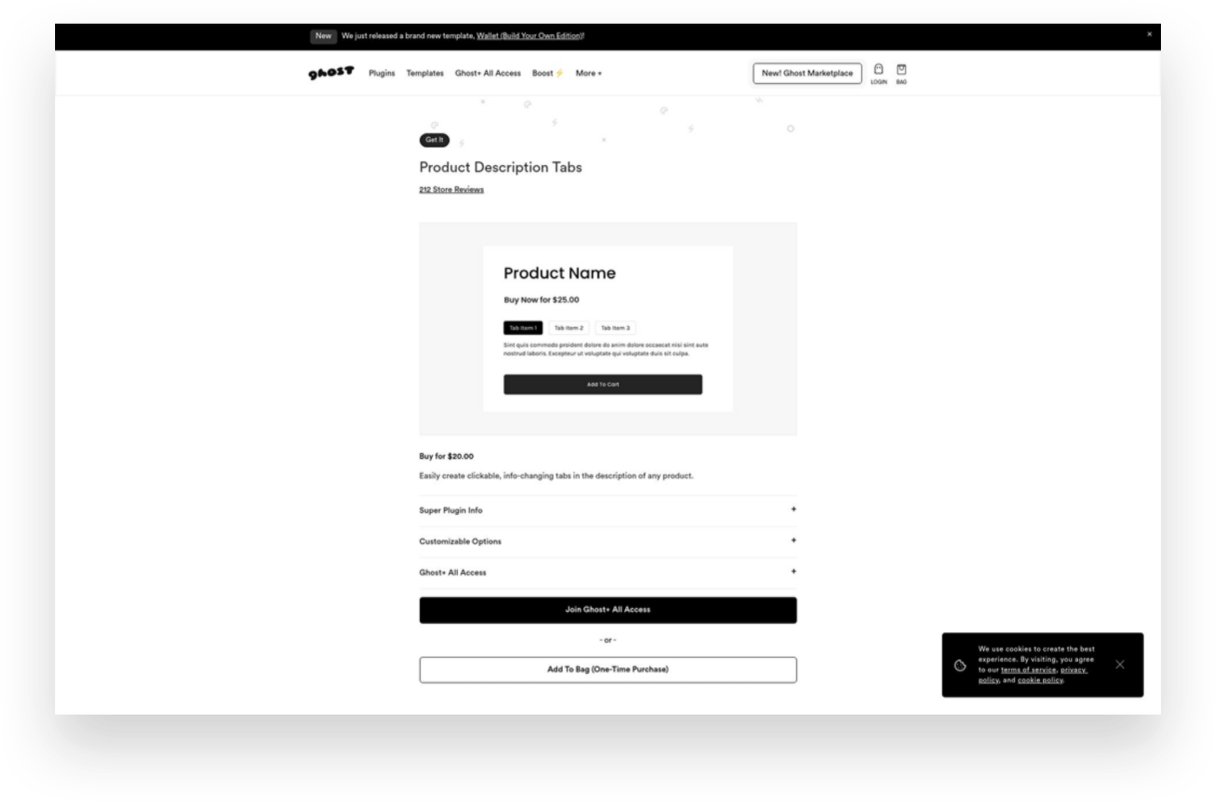
Want to give your product details pages a little facelift? Ditch the long, boring descriptions and consolidate info into these cool-looking product tabs. I especially like this type of layout for products that have details like care instructions or other specs that might be helpful to some shoppers but that everyone doesn’t necessarily need to see right up front.
Featured Product Layout for Product Pages
Free
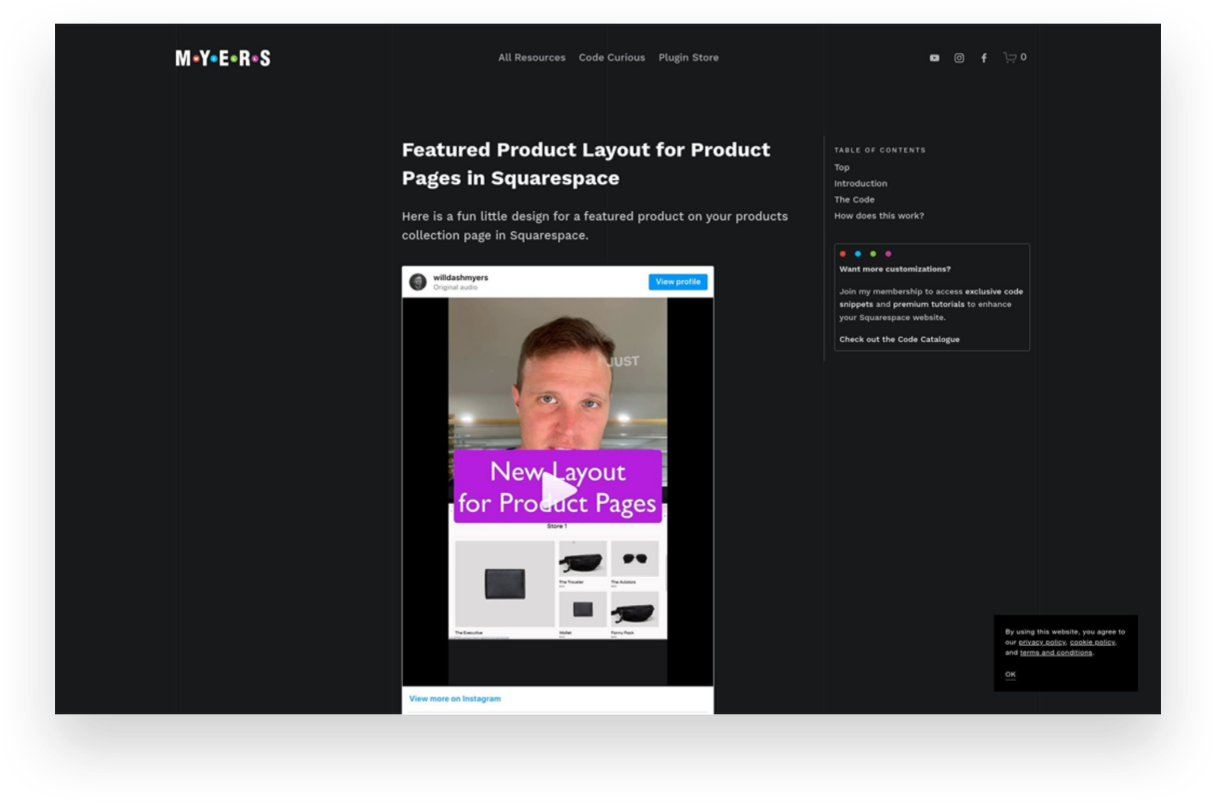
I showed my pal Will Myers if he could come up with a solution for shop pages that would allow you to feature a product versus just having everything the same size in the grid. You know, just to give things a little more flavor. Boy did he deliver! This simple code does just the trick and will help your shop pages look way more interesting.

Offerwhere App
Paid ($40/mo+)
I often have clients ask about how to set up a loyalty program on Squarespace and this the app I refer to them to. This app allows your customers to collect points for shopping with you and then allows them to use them in exchange for rewards or deals you set up. This is a fun way to reward your most loyal customers!

Squarespace Product Gallery Video Plugin
Paid ($29)
Product videos - especially ones that can show your product from all angles or those with 360 degree views - are super highly converting. Oddly, Squarespace doesn’t allow you to add video alongside product thumbnails on your product details pages. Luckily, this plugin does just that and videos look just like the native Squarespace thumbnails so no one would ever know this is an add-on!
Looking for more great eCommerce plugins for Squarespace?
Check out these other plugin posts:

Creating a Custom Print on Demand Store with Squarespace
Discover how to create a custom print-on-demand (POD) store with Squarespace and stand out in the competitive eCommerce market. This step-by-step guide will help you set up your Squarespace store, choose a POD provider, optimize your website for SEO, and launch your store to start selling customized products worldwide.
The eCommerce market provides a huge opportunity for entrepreneurs to start their own successful businesses. However, given the huge number of opportunities, the industry swells with competition too.
Customers today are more likely to buy from online retailers who have well-designed websites. After all, things might get a bit boring if everyone follows the same format and offers the same things in the online stores that all look the same. Therefore, one of the keys to eCommerce success is finding ways to differentiate yourself from the competition.
It's always beneficial to have an advantage over the opposition with a well-designed online store that will attract more customers and result in more purchases. The good news is that those who have joined the most recent waves of online businesses can rely on Squarespace for being their hidden weapon.
Wondering how to get started? In this article, I’ll help you create your very own custom print-on-demand (POD) store with Squarespace.
Benefits of Having a Print-on-Demand Store With Squarespace
With a POD business, you partner with a third-party vendor that prints out individual orders as they come in from your customers. So, for example, if you’re selling custom tumblers, they will only manufacture it when someone places an order for it on your website.
One major perk is that you and others like you may launch a business without having to worry about the hassle of investing in an inventory or managing it. You can focus on running your company while your POD partner handles production, packaging, and shipping.
There are several options for setting up a POD storefront, including eCommerce platforms, such as Shopify, WooCommerce, BigCommerce, etc. Out of these, Squarespace makes a compelling case for why it should be your ideal website builder. They offer superior graphic power, ease of use, and overall value for your money. A personal domain name and unlimited storage space are both included.
Steps to Create a Custom Print-on-Demand Store With Squarespace
Now that you understand why creating a POD website with Squarespace is your best bet let’s help you set up a store and start earning.
1. Set Up Your Squarespace Store
To set up your Squarespace store, you’ll need to first create an account. Squarespace provides a 14-day free trial that allows you access to all its tools. (p.s. When you’re ready to subscribe, you can use my code KRISTINE10 to save 10% on your annual subscription!)
After you’ve created an account, choose a template or design your own! You will have lots of options to choose from but this post will help you know what to look for.
Simply enter your email address or use your Google account to sign in to Squarespace. The next page will prompt you to enter a title for your website before providing some general editing tips. Depending on your vision for your website, you can:
Add pages
Organize the structure for easy navigation
Add content
Choose color scheme
Add branding elements like logos, fonts, store policies, etc.
Once your store is all set up, you’re ready to move to the next step.
2. Pick Print-on-Demand Provider
You may connect to a number of print-on-demand services with Squarespace Extensions. The success of your print-on-demand venture hinges on picking the right POD partner to work with your eCommerce platform. But how do you choose the best POD service when there are so many? Here's a rundown of some things to think about:

Your budget
The catalog size
Quality of products
Customization options
Delivery timeline
Quality of support
Ease of integration
I like Printify because it provides an extensive catalog of more than 800 high-quality white-label products. You can sell anything and everything from custom jackets to custom phone cases, stickers to shoes - whatever you can think of! They also have a free mockup generator that helps you create beautiful designs easily and create 3D mockups. Lastly, they guarantee a production time of 10 days. If they don’t meet the timeline, they’ll process a refund! And if you ever get stuck, they’re available around the clock to help you with any issues.
Once you’ve selected your POD provider, it’s time to understand what it’ll take to survive and thrive in the market. For that, we move on to the next step!
3. Do a Competitive Analysis
Competitive analysis is a technique for gauging the business's market standing in relation to that of its competitors. It is a technique for gathering information and making it useful.
Conducting a comprehensive competitive analysis positions you to outperform the competition and win over loyal customers. Competitor analysis is an integral part of developing a successful company plan. A thorough competitor analysis will help you in the following ways:
Learn more about the current corporate climate, which may assist you in better positioning your brand;
Find your niche and stand out from the competition;
Take note of the areas in which your rivals excel;
Use opportunities to benefit you and take advantage of your rivals' shortcomings.
Learn from the marketing moves made by your competitors and use those lessons in your own approach.
4. Choose Your Products and Upload them to the Store
After the competitor analysis, you should be clear about what you want to offer. Now, link your POD provider with Squarespace and display your products on your website.
With Squarespace and Printify working together with its integration, this is a breeze. Browse the comprehensive collection and pick the items that you believe will appeal best to your intended audience.
Using Printify's straightforward interface, you can add your company's logo or other custom artwork to any of your selected products. You may easily customize the appearance of your products by uploading and positioning your own custom artwork. You can personalize your products with art, typography, and more with Printify's mockup generator and state-of-the-art design tools.
Once your designs are ready, simply upload them to your store with a descriptive title, compelling description, and the selling price.
5. Create a Marketing Strategy
Online retailers need to work harder to attract customers than traditional stores since they can't just rely on foot traffic. You can't expect clients to appear out of thin air if you launch an online store.
While the products offered in each online store may be unique, their marketing approaches are consistent. To help you replicate this strategy on your own, you’ll have to do the following:
Define your unique selling point, meaning what makes you stand out from your competitors.
Create a marketing funnel from discovery to purchase to understand the customer journey.
Set marketing objectives for each stage of the funnel and how you’ll achieve them.
Define your budget and determine what methods you can afford.
Define your marketing channels and key performance indicators (KPI) to measure progress.
Determine a timeline to implement the strategies and stick to them.
Track your progress, see what you can do better, and implement changes.
Related Post: Crash Course: The Squarespace Commerce Analytics Panel
6. Launch Your Store
Once your marketing strategy is in place, it’s time for action! Find out what kind of fulfillment alternatives and shipping costs the POD provider offers before you start selling online. Some POD services may have the ability to fulfill and ship orders mechanically.
Make sure your shipping policies are in line with the requirements of the POD supplier you plan to use before you announce them to the public.
That’s it launch your store and publish it on all marketing channels to start making sales!
More Tips While Creating a Custom Print-on-Demand Store With Squarespace
Squarespace websites are built keeping search engine indexing in mind, but how well people find your new store still depends heavily on the material you provide as well as how you exhibit it. I strongly suggest you take advantage of the SEO tools that Squarespace provides or use a tool like SEOSpace to help your site get noticed. You can also optimize your Squarespace website by:
Targeting keywords
Optimizing product pages, their images, title, and description
Creating regular content in the form of blogs
Creating inbound and outbound links
and following other SEO practices found on their official checklist.
Another strategy you can implement is setting up an affiliate or referral program for your shop. Adding an affiliate strategy will boost your marketing returns multi folds and visibly show results with increased brand awareness, customer loyalty, generation of leads, and conversion rates. For more on my favorite affiliate and referral marketing tool check out this post!
Conclusion
The eCommerce industry is booming with opportunities, and Squarespace provides a great solution for entrepreneurs to create visually stunning websites with little to no coding knowledge. You have a lot of freedom with Squarespace when it comes to designing your eCommerce platform and handling client orders, including the option to use POD services. With this article, you’re equipped to start your own print-on-demand store and sell customized items to the world. Get started with your very own POD store on a Squarespace website today!

My Favorite Squarespace Plugins & Extensions for eCommerce
Squarespace has (almost) everything you need built right in for eCommerce but when you’re ready to take things to the next level or want to boost your customer’s experience in your online shop, check out these favorites I turn to time and again.
One of my favorite things about Squarespace is that almost everything you need to run your eCommerce business is built right in. Believe it or not, there are some website platforms where adding simple things like an Instagram feed or a contact form require (paid) third party apps (lookin’ at you, Shopify 😬). Luckily, Squarespace does both of those things - and much more - for us! However, there are a few areas where you may still need to look to a few strategic add-ons to enhance the eCommerce experience for your customers, or make life easier on you as the store owner. Here are the Squarespace plugins and third party apps I look to time and again for almost every eCommerce project I do on Squarespace.
Plugins
Squarespace plugins are little code snippets that allow you to extend or customize the way Squarespace looks or functions. Most plugins come with a one-time upfront cost and once you add the code to your site you’re done.

Custom Order Confirmation Page
FREE
This plugin from Ghost is quick and easy to install - the perfect way to add a little personality to your site and replace the boring order confirmation page with something that matches your brand and personality.

Custom Cart Slide Out Plugin
$40
This plugin makes it so your customer don’t have to scroll back up to hunt for their cart. It’s easy to install and offers a lot of customizable options.

Breadcrumbs Plugin
$37
Breadcrumbs are the little bits of navigation that help shoppers remember where they’ve been or how they got to the page they’re on. As a default, Squarespace shows only the first page and current page - and no steps in between! This plugin is probably one of my most often used and adds true breadcrumbs to your shop’s navigation.

Product Color Image Swatch Plugin
Change up those boring text dropdowns to color icons! You can even upload your own images to show different patterns or textures - whatever you’d like! This plugin is a must for any sort of apparel or fashion site.

Sync Product Variant Images Plugin
$49
This plugin works great on it’s own or in conjunction with the swatch plugin above. This plugin extends the way product variant images are displayed. By default, Squarespace will show a variant image (assuming you’ve assigned one) but it only works in one direction and doesn’t allow you to group images based on the variant selected.

Upsell Plugin
FREE
It’s easy to add an upsell page to Squarespace using this plugin! The way this works is that your customers are redirected to a landing page after they add something to their cart. This plugin is great because you can design the landing page however you like.

Universal Filter Plugin
$70
This plugin is probably the most intensive as far as coding goes but also one of the most powerful! I would say it is a necessity if you have a lot of categories or tags you’d like shoppers to be able to search and filter by. This functionality here blows Squarespace’s built-in search out of the water!
Extensions
Unlike plugins, Squarespace extensions typically come with a monthly subscription cost. They aren’t just code snippet you copy and paste into your site, they are third party apps that you can sync up to your Squarespace shop to extend the functionality of your site.

Aftership Tracking
PLANS START AT $11/MO
This extension allows you to provide customers with a branded tracking page and even send updates about deliveries - which I love! You can even use the tracking page to add links to other offers or specials to attract people back to your shop.
Easyship
PLANS START AT $29/MO
My hands down favorite shipping extension that I think everyone should be using. Easyship makes it… easy to fulfill orders with the added benefit of discounted shipping rates versus paying retail or printing labels directly through Squarespace.

Aftership Returns
PLANS START AT $11/MO
Even if you never process a single return, this extension is worth the minimum plan since customers LOVE being able to see that they could return if they wanted to. This extension creates a self-service returns portal just like all the major eCommerce brands have.

Candid Wholesale
PLANS START AT $39/MO
If you’re selling wholesale another way now - or looking to add a wholesale channel in the future - save yourself the headaches, skip all other options, and go with Candid. Everything you need to manage those relationships and sell in a secure way to your wholesale partners.

Trunk
PLANS START AT $35/MO
If you’re selling on multiple channels (think Etsy, Amazon, Shopify) OR you sell bundles or kits on Squarespace, this nifty little app will help you keep your inventory in check. Update in one place and -magic!- all your various sales channels follow suit.

LiveChat
PLANS START AT $20/MO
Personal story time: since adding LiveChat to my site people rarely fill out my contact form. Why? People trust a live chat widget more than they do a form and it’s everyone’s favorite way to communicate! LiveChat is simple to install and you can get started really fast!
Bottom Line
With a few simple, strategic add-ons you can take your basic Squarespace site and turn it into a stellar eCommerce powerhouse. With the right plugins and extensions you can customize the customer experience, improve your metrics and even see more sales! Thankfully, most of what we need to sell on Squarespace is already built right in but these tools come in handy when you just want to go the extra mile.

How to Add LiveChat to Squarespace
LiveChat is now an official Squarespace integration so it’s easier than ever to add this highly converting feature to your eCommerce website! Follow this step-by-step guide to get started and check out my tips for live chat success.
LiveChat is now an official Squarespace integration, so it’s easier than ever to add this highly converting feature to your eCommerce website! Follow this step-by-step guide to get started, and check out my tips for live chat success. First, a quick reminder of how awesome adding a live chat widget to your website can be.
Live Chat Stats For The Skeptics
Before we get into the step-by-step details, I just wanted to round up some of my favorite live chat stats in case you’re unsure whether incorporating this feature into your eCommerce website is worth it.
Live chat is customer’s preferred method of communication. Customers find live chat or messaging the most satisfying way to communicate with a business, with 73% of people preferring it to phone or email communication. When asked, 44% of online consumers say that having questions answered by a live person during an online purchase is one of the most important features a website can offer. When I hear a stat like that, I know this feature should be higher on most sellers’ web design wish lists! Having a live chat feature is almost as basic of a requirement as a contact form.
Live chat builds trust with buyers. One of the biggest objections to adding live chat - especially from small business owners - is the worry that it will suddenly take up all their time responding to live questions from online shoppers. This would be a good problem to have but in reality, out of every several hundred visitors, you may only get one who actually chats. Now, you may think that if every visitor isn’t going to chat, why even bother adding the feature? Here’s why: a staggering 90% of customers said that just seeing a live chat button reassures them that they could get help if needed and gives them confidence even if they don’t chat. (‼️) So, just setting up the widget itself is worth it, even if it never gets used! To prove this point, 77% of customers surveyed said they wouldn’t purchase on a site if there were no live chat option available. All of this says that just the mere presence of a live chat option helps build trust with visitors, and the absence of one may mean you’re missing out on sales for no other measurable reason. Bonus: 63% of consumers said they are more likely to return to a website offering live chat. Now that’s brand loyalty!
Live chat increases sales & conversions. Customers who chat with a brand are 3x more likely to purchase and have a 10-15% higher average order value. 57% of customers abandon their purchase if they can’t get their questions answered quickly and customers who chat are also 50% less likely to make a return. This means that you can reduce abandoned carts, increase the likelihood of visitors making a purchase, increase average order value and decrease returns by simply adding live chat to your eCommerc website!

The Best Live Chat Widget for Squarespace
LiveChat! I’ve tried a lot of live chat widgets, and this one is my favorite all around. Here’s why:
It has all the features you need, such as the ability to customize your widget, set up canned responses, create target messages based on customer activity, and more.
You can pull all your customer communication into one place, including messages from Facebook and Instagram - even text messages!
Easily convert chats to tickets so that you can respond without having to be online 24/7.
14-day free trial and paid plans starting at just $20/mo.
How to Set Up LiveChat on Squarespace
Head here to start your free 14-day free trial of LiveChat.
From the back end of your Squarespace account, click on Settings > Extensions and scroll down to find the LiveChat extension - or start typing LiveChat into the search box, and it will pop right up.
On the next screen, click the black Connect button in the top left corner. (If you have multiple sites in your Squarespace account, select the one you want to connect with.)
A screen will pop up asking you to give LiveChat permissions on your site; click Allow.
On the next screen, look for “Already have an account? Log in” in the far top right corner. Click on log in and use the account credentials you created in Step 1.
You should now be on the settings page in LiveChat. From here, just click the “Chat Enabled” to toggle it on.
How to Customize Your LiveChat Widget
Technically, you’re all done, but you’ll probably also want to spend a little time customizing things to match your brand. Here’s what I would recommend customizing:
Add your photo so people know who they are chatting with. (Click on the profile icon in the bottom left corner, then your name to get into your agent profile.)
Customize your chat widget with your brand colors. (Settings > Chat Widget > Customization)
Change your welcome message. (Settings > Targeted Messages)
Set up pre-chat or post-chat forms. (Settings > Forms)
Bottom Line
Shoppers have very positive associations with live chat vs. other support methods such as making a phone call or submitting a ticket or email. They know that they are getting a better experience and a more authentic, honest interaction with your brand which builds trust and loyalty. You can use live chat to help customers discover new products and more customers than ever expect brands to offer this feature. Setting up live chat with LiveChat on Squarespace is easier than ever so you can get started quickly and start discovering all these benefits for yourself.

How to Enable AfterPay on Squarespace
Setting up AfterPay as a payment option on Squarespace is easy but there are some limitations and caveats to keep in mind. Here are the (super easy) instructions on how to enable this payment option plus answers to common questions about how it works.
Updated: Nov 2022
If you’ve checked out this post: Should You Offer “Buy Now, Pay Later” Options On Your eCommerce Website and decided that you’d like to give this a try, here’s how simple it is to set up! It’s almost embarrassingly easy! If you haven’t checked out that post and want the quick scoop here it is: Afterpay is a payment processor that allows your customers to pay for purchases on your site in installments with 0% interest. Afterpay basically becomes a lender to them. If a customer chooses this as a payment option, you still get paid the full amount upfront at the time of purchase. Your customer will then pay Afterpay back in four equal payments over 2 months.
How to Enable Afterpay on Squarespace
To get started you’ll need to have also set up Stripe as your merchant processor. You probably already have this enabled but if not you’ll need to take just a few minutes to sign up for and connect your account to Squarespace. From there, you’re only a few clicks away from being able to offer AfterPay! What I love about this integration is that unlike on other platforms, you don’t have to jump through any additional sign-up or application hoops.
From the Home menu > Settings > Selling > Store Payments > Stripe and then toggle the Afterpay option to On.
That’s it!
What Your Customers See at checkout
At checkout, customers will select Afterpay as their preferred payment option. After entering their billing address they will click continue and be prompted to log in to their Afterpay account. (If they don’t yet have an account, they can opt to create a new one.)
They will see a summary of their future payments for the purchase from your shop and have to accept the terms. Once they do this they will be redirected back to your site’s normal Order Confirmation page and get the same order confirmation emails as they would if they had chosen any other payment option.
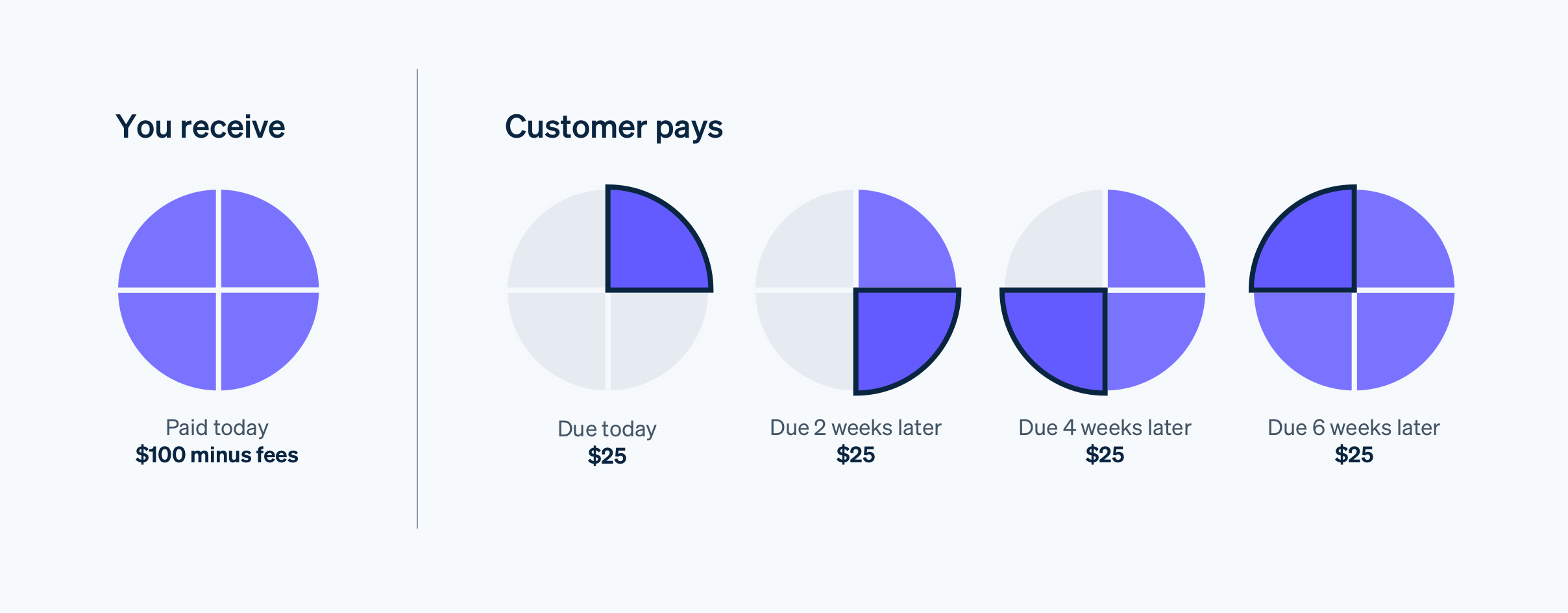
While pricing for Afterpay is set at 6% + 30c per successful payment, businesses that offer Afterpay on Stripe have seen, on average, a 40% increase in average order value and a 22% increase in cart conversion. Afterpay can be used for orders ranging from $1 to $2,000 and is frequently offered by businesses that have an average order value of $100+. You are not responsible for any consumer credit or fraud risk for purchases with Afterpay. (Source: Stripe)
Common Questions:
What happens if customers miss payments? You still get paid just like if a customer misses a credit card payment. The terms including what happens if payments are missed or late are entirely between your customer and Afterpay.
What does this cost you as the merchant? The total fee is 6% of the order total plus $0.30. This includes your normal Stripe processing fee of 2.9%. So the additional cost to you for offering this option is ~3%.
Can any customer choose this option? Customers do have to have applied and been approved for an Afterpay account. They’ll need to meet Afterpay’s eligibility requirements and be under their approved credit limit. There are also spending limits that vary by country. These are determined by Afterpay, not Stripe or Squarespace. Just like a credit card, their total spending limit includes purchases they’ve made at all stores, not just yours.
What happens if an order is canceled or refunded? The payment is returned to Afterpay. This happens automatically when you mark an order as canceled or refunded in Squarespace. On the customer side, they will receive a refund of their initial payment plus any additional payment installments they’ve already made. If you issue a partial refund to a customer, the amount they owe Afterpay is adjusted to reflect the new balance. Note that Afterpay’s transaction fees are nonrefundable.
Limitations
AfterPay is only available for physical products and won’t be displayed as an option for digital, service, or subscription products.
It’s currently only available if you are located in the United States, Canada, New Zealand, or Australia AND your customers are in the same country as you. For example, Canadian customers will not see this option on a site based in the US and vice versa.
You must be on either the Commerce Basic or Commerce Advanced plan (which I recommend anyway).

How to Use Squarespace Scheduling as an eCommerce Tool
Squarespace Scheduling makes it easy for you to turn your services into easy-to-shop products and it’s actually kind of the low-key rock star of the Squarespace family of features that we’ve all been sleeping on. Learn more about this infinitely customizable tool and why it’s one of my favorites for all sorts of businesses.
Updated: Aug 2022
If you’re a service-based business that’s looking for ways to productize your services (or a traditional eCommerce shop looking to add services to your mix), you’ve probably realized that you really have only a handful of good options: 1) Try to find a specific app or tool that’s focused on your industry so that it has all the features you need and just hope and pray it’s not $973 zillion dollars a month; 2) String together free or “freemium” apps that only kinda get the job done and also kinda make it look like you’re a high-end hobbyist and not the professional badass you are; 3) end up on this blog post because you’re like, “I just wish there was one tool that I could customize to do exactly what I want at a decent price so I can focus on running my business.”
Solution: Squarespace Scheduling
Whoa, now - I know what you’re thinking. You’re thinking that you need to sell access to events or provide packages of services or host virtual classes and sell gift cards, not a meeting scheduling tool. Good news: Squarespace Scheduling does all those things and more and it’s actually kind of the low-key rock star of the Squarespace family of features that we’ve all been sleeping on. I’ve used it for lots of clients to create an easy and professional way for them to move their service-based businesses online. The best part: it’s nearly infinitely customizable so no matter what industry you’re in, you can make it look and feel exactly how you need it to. The second best part: since it’s built right into your website, you can manage everything about your business in one place. Priceless.
Features
Appointment Types
If you’ve used any sort of online booking tool before, you’re probably used to thinking of appointment types in terms of “30-minute meeting” or “60-minute meeting” which are both totally possible with Scheduling. But you can ALSO set up group classes or a series of events, offer optional add-ons or upsells, or even create coupons or discounts for any of the above. There are also lots of little details you can add that help with merchandising and branding your offerings - from being able to add photos to displaying custom confirmation pages.
Availability
The Availability section has a lot of options but this is part of its strength. In this panel, you have options to set two types of resources: your time + rooms. There are all the settings you’d expect in a typical meeting scheduler when it comes to your own availability: setting daily/weekly hours, controls for how far in advance people can book, how many appointments can be booked each day, etc.
What sets Scheduling apart though is all of the other control it gives you. Want to minimize gaps in your day so that you don’t have unproductive downtime between meetings? Done. Want to only offer certain events on certain days? Easy. Want to look super popular and in-demand? Just enable the “look busy” feature so that it doesn’t look like you have all day every day completely wide open. 😳
The second resource you can control is “Rooms” but don’t let the name limit you. Sure, you can use this to set availability for actual rooms (think: booking the conference room at your coworking space) but you could also use it to represent stations or chairs (like in a hair salon) or even things - like how many snowboards your outdoor adventure company has available for rent. You could use this to control booking at a company level so that you can never overbook or oversell if you have more people or demand than you have resources or inventory.
Payment Options
It’s not eCommerce if you’re not getting paid! Scheduling allows you to connect Stripe, Square, or Paypal… plus a few combos of all of those. My favorite processor is Stripe because it’s super easy to get set up and it’s pretty much the gold standard for how to get paid via anything across the whole internet (which means you only need one account).
Customer Emails & Reminders
I’m a huge proponent of the idea that providing a great customer experience doesn’t end once a sale is made; to me, that’s just the beginning, and all of the interactions you have with your clients and customers after the sale are just as important! Scheduling allows you to customize and personalize every.single.detail. of all the confirmation, reminder, and follow-up emails that get sent out. You can also tailor them to each different appointment type, package, or subscription versus a lot of other tools that require you to create just one generic confirmation email that needs to work as a one-size-fits-all solution.
It’s also really easy to set up reminder and confirmation emails that put the power to cancel or reschedule into your customer’s hands (notice a recurring theme here on not spending time being your own secretary??).
Intake Forms
The name “intake” forms may make you think this feature is only helpful if you run a medical practice (which you could absolutely do with Scheduling as the advanced plan is HIPAA compliant!) - but you can also use forms to collect any other type of information from clients upon booking. You can also have some forms be internal only so that you can complete them on behalf of your clients or even use a form as a client agreement for “terms and conditions” or other fine print stuff. Back on the healthcare note, if you happen to be in the medical profession there’s even a built-in SOAP notes feature if you don’t feel like creating your own custom form.
Packages, Gifts & Subscriptions
This is where Scheduling really starts to feel like an eCommerce solution! By building on top of the foundation of a typical “scheduler”, Squarespace Scheduling allows you to transform simple standalone services into easily sold products. Booking a meeting is selling a service but buying a package of 3 consultations is a product. You can even get fancy and make and set up “Buy 2, Bet 1 Free” type offers! The best part of this is that the booking is still handled entirely by the client so you don’t have to be in charge of handling any of the admin.
Subscriptions are another way to take a standard service and transform it into a product with a recurring revenue stream. Subscriptions can either be for a set number of installments, such as every month for 6 months, or set to repeat indefinitely until canceled. You can choose to charge a “setup” or enrollment fee… or not. You can put packages into categories so that your booking pages and links only show the most targeted products. This would allow you to do things like creating targeted landing pages or sales pages and direct people just to the selected subset of your packages or subscription products, which can be a highly effective sales tool.
Generate & Send Customizable Invoices🆕
You no longer need a third-party invoicing tool to get paid from clients, regardless of whether they’ve scheduled with you yet or not. With Scheduling Invoices, you can quickly create invoices with your own custom line items and share them with clients via a link. They can pay online through the same account that you use to accept other payments through scheduling, either via Stripe or PayPal. This is a great option for people who may offer standalone or add-on services for clients before or after their scheduled appointments or classes. For example, if you are a personal trainer you could use scheduling to get paid for sessions and then follow up with a personalized invoice for supplements. All of the info for this client will be in one place, their payment experience will be consistent and you can easily see analytics for everything all on one dashboard. (Another great way to use Squarespace as your CRM!)
Clients
If you’re looking for a way to manage and view your client’s info all in one place, you’ll love that the Scheduling tool has a Client panel that is as good as any other CRM platform out there. You can see each client’s contact info, record private notes about them, and see a history of any forms they’ve completed. You can also schedule things for them on their behalf as well as place new orders for them for any packages or subscriptions you might offer. Also, for those that sell packages and subscriptions, you can manage all your orders and subscribers from within the same system. It’s like a powerful little POS system!
Reports
Any serious eCommerce business owner is always looking to get their hands on as much data as possible to help inform decisions and keep a finger on the pulse of their business. The Reports panel inside the Scheduling tool has built-in (and good-looking!) reports for things like revenue, tips, appointments, users, and forms. You can also export the data to a CSV file so that you can dig in further in a spreadsheet if that’s your jam.
Link & Embed Options
Since Scheduling is part of Squarespace, you probably already understand that you can add a Scheduling block to any page, post, or product anywhere on your website. Super easy. But Scheduling also gives you options for a branded landing page you can direct people to (perfect for that link in profile!) in addition to embed codes for booking buttons and booking bars that you can add anywhere else you might need them. You can even generate a QR code for the Client Mobile App to allow your clients to book and manage their own appointments, classes, subscriptions, and packages.
Integrations
As much as I always want the tools and apps I use to do as much as possible without the need for other subscriptions, there are also select times when stacking a few choice pieces of software together definitely makes a final tool that’s more powerful than the sum of its parts. Scheduling plays nice with the following tools/software. The list is long so I’ve bolded my favorites!
Accounting & Invoicing
Quickbooks
FreshBooks
Email Marketing
Squarespace Campaigns
MailChimp
AWeber
Active Campaign
ConvertKit
Constant Contact
Drip
MadMimi
Simplero
CRM
Google Contacts
Salesforce
Infusionsoft
Pipedrive
Google Sheets
Uplaunch
Wufoo
Zoho CRM
Daylite
Client Engagement
Referral Candy
ReviewRail
Video Conferencing
GoToMeeting
Zoom
Join.me
Google Meet
API
API & CSS Support
Zapier
Automate.io
Zoho Flow
Custom Sidebar Integration
Webhooks
Payments
Stripe
Square
Paypal
Web Builders & Social
Squarespace
Facebook
Analytics & Conversion Tracking
Google Analytics
Facebook Pixel
Sync With Other Calendars
IDK about you but I’m sure not into checking several different apps each day just to know what’s going on. It’s way easier to just sync everything into one place so you can get the big picture. No more accidentally booking a work meeting when you’re really supposed to be at the dentist's office. Scheduling syncs with Google calendar (everyone’s fave) and also with others like iCloud and Outlook.
Users
If you have multiple team members that all need access to your Scheduling tool (or even their own calendars), you can just add them as a contributor to your Squarespace account and give them only Scheduling permission. This will allow them to access everything in the Scheduling section but still not be able to edit or mess with the rest of the content on your website!
eCommerce Use Cases
Not sure if using Scheduling is a viable solution for your business/industry? Here are a few different use cases that could all use this tool:
Small Businesses - Set up a class series (like a cooking class or other educational series) or sell access to online or in-person workshops
Fitness or Health-based Businesses - Sell subscriptions or gift certificates to either in-person or virtual sessions
Consulting Businesses - Use Scheduling to sell group classes/workshops or book private sessions. You could also sell digital products like ebooks or other downloads by attaching links to those products to custom confirmation emails.
Retail Shops or Boutiques - Provide options to book private “shop in person” time slots or sell services like personal styling or shopping
These are just a few ideas to show you that there are so many ways to take your services (or launch new ones!) and make them easy products for people to engage with. I hope it also shows you that there are so many ways you can make the everyday interactions you have easier with a tool like Scheduling.
Give It A Try!
If you have a Squarespace site, it already comes with a free trial of Scheduling! From the home menu just click SCHEDULING and then follow the prompts to get started on your free trial.

What does Squarespace's new Fluid Engine mean for eCommerce?
Squarespace Fluid Engine is the latest release on Squarespace's 7.1 platform. Find out what's changed, what's stayed the same and what it all means if your shop is built on Squarespace.
July 21, 2022
The internet is all abuzz because Squarespace has just dropped an all new editing experience called Fluid Engine. Maybe you’ve heard about it already (or maybe you’re just learning about it now!) and you’re wondering — what does this mean for me and my site??? Here’s the scoop!
How We Got Here
As a reminder if you’ve had a Squarespace site for any number of years, you’re used to what’s now being called the “Classic Editor” which allows you to add any of Squarespace’s trademark “blocks” (things like text, images, buttons, video, etc.) onto your pages at predefined points. You may have had to use things like Spacer blocks to get things to line up the way you wanted. The Classic Editor offered a mostly intuitive design experience but some advanced layouts such as creating full bleed content or overlapping blocks required custom code.
Intro to Fluid Engine
What makes Squarespace’s new Fluid Engine different from the Classic Editor is that it offers the ability to add blocks anywhere in a section - even overlapping them if you’d like! Instead of adding blocks at predefined points in a section, blocks can now be added anywhere you want and dragged, dropped, stretched, resized, layered or manipulated to achieve just the look you’re going for. You don’t need Spacer blocks and there’s a chance you’ll be able to get by with a lot less custom code.
Fluid Engine also comes with one other big change and that’s to how your site looks on mobile. Previously your page layouts were automatically translated to mobile and there wasn’t really a way to change the way they looked without also editing the desktop view. With Fluid Engine, the desktop and mobile views can be edited independently offering more control over how things look on smaller screens.
What does this mean for eCommerce sites?
Good news if you’ve read this far and are worried that how you upload and mange products on your site will change — all of that stays exactly the same! There are no changes to the way eCommerce looks or works at all. Your product pages, shop page and other static pages like your cart and checkout are not changing in either the way you edit them or the way they work for your customers.
Fluid Engine only impacts content pages on your site (more on that below) so things like your home page, about page or other non-shop related pages. One of the biggest selling points for me on using Squarespace for eCommerce has always been in how creative and dynamic your non-shop pages can be versus those built on Shopify, for example. So while the release of Fluid Engine has no affect on how eCommerce works or functions in any way, I do think it makes a stronger case than ever for why Squarespace continues to be a great choice for online shops. After all, how you present your brand on your non-shop pages is as important and influential on conversion rates as any actual eCommerce function.
Who has access to Fluid Engine?
Fluid Engine is available now on all English language sites built on Squarespace 7.1. (If your site is still on Squarespace 7.0, this is just yet another reason to make the switch to 7.1 as there are no plans to release the new editor experience on the 7.0 platform.) If your site was built before early-mid July 2022 and is on Squarespace 7.1, you’ll notice an upgrade button in your Classic Editor sections. Should you click it? Up to you but here’s what that means:

(Here’s what a Classic Editor section looks like on 7.1 with the option to upgrade it to a Fluid Engine section in the top left corner.)
Upgrading a Classic Editor section that used custom code may cause that code to break. This may not be a bad thing (you can probably replicate the layout without code in the new Fluid Engine section) BUT you should know going in that things may not immediately look the way you want.
Once you click Upgrade on a section there’s no going back. This is a one way ticket situation so just be sure you want to board the train, you know what I mean?
If you’re going to be doing any DIY editing on your site, don’t forget to check out the mobile view. In my extensive beta testing of this product, I spent a lot less time writing custom code but a lot more time manually recreating all mobile page layouts.
Do you have to make the switch?
The short answer is not really. As long as your 7.1 site was built prior to the launch of Fluid Engine, all of your existing page sections will remain as Classic Editor sections. However, any new sections you add will be created with the new Fluid Engine powering them so you’ll end up having a little bit of a mixed bag of sections for a bit. In the long run, as you edit and add new content to your site old sections will be replaced with new ones - all built with Fluid Engine.
Bottom Line
This is a big announcement and a big change from Squarespace but don’t let it scare you. You don’t have to make any big changes right away if you don’t want to and how your online store looks and works is not changing in any way. This is just the latest in Squarespace continuing to push things forward in terms of innovative design capabilities. Have any questions about how to use Fluid Engine or adding new Fluid Engine sections to your eCommerce site? Feel free to contact me!

Squarespace Feature You Should Be Using: Product Reviews
One of the best eCommerce tools you can use is built right into Squarespace and I bet you're not even using it yet. What is it? Product reviews! Find out how to get started sending review requests and displaying them on your site.
Anyone else here scroll right on past product descriptions half the time and head straight for the reviews/comments? 🙋♀️ There’s just something about getting an outsider’s take on things that feels so much more trustworthy. I mean, sure YOU love your products but what do the real people think?
Good news: collecting reviews for the physical, digital or service products that you sell on Squarespace could not be easier! But this is a feature that I see people sometimes skip setting up. It’s definitely worth the few minutes to be able to start collecting that valuable feedback from satisfied customers to share with the world. (p.s. Showing reviews on your product pages is a great way to boost sales!) Here’s how to do it.
How to Turn on the Product Reviews Feature on Squarespace
I told you this was going to be simple! To start sending out review request emails and displaying reviews on your site, from the home menu in Squarespace click COMMERCE > PRODUCT REVIEWS. From there:
Toggle REQUEST REVIEWS on to send an email request for a review 14 days after every purchase of physical, digital or service products in your shop.
Toggle EMAIL NOTIFICATIONS on if you’d like to receive an email notification every time someone leaves a review.
That’s the basics! There are a few more settings and options that you’ll want to set up or customize to your liking which I’ll get to in a second but first, what happens when someone leaves a review on your Squarespace site?

What leaving a review on Squarespace looks like for your customers.
How Squarespace Product Reviews Work
Once you’ve turned reviews on, here’s how things work:
14 days after you fulfill each order, customers will receive an automated email asking them to leave a review. (You can - and should! - customize this email - more on that below!)
In addition to (or in lieu of) a written review, people can also rate products between 1 and 5 stars.
How to Customize the Squarespace Product Review Request Email
The stock email that Squarespace is going to send out once you toggle reviews on is pretty boring and generic looking. You’re going to definitely want to jazz it up with your own branding and maybe even customize the copy so it has some of your company’s personality.
To edit the Product Reviews email specifically, from your home menu click COMMERCE > CUSTOMER NOTIFICATIONS > CUSTOMER ENGAGEMENT > PRODUCT REVIEW REQUEST. From here you can change the text from the default to something more personalized.
To change the way emails look in general you’ll head to COMMERCE > CUSTOMER NOTIFICATIONS > GLOBAL EMAIL STYLES. In this section you can change things like fonts and colors in the email, add your logo or social media icons, and other things that will change the way ALL emails sent from your site look. (For more on customizing all of your shop’s email notifications, check out this related post: How to Customize Your Store’s Email Notifications.)
How to Change The Way Reviews Are Shown
Product reviews are shown on product details pages below all other content. You have a few options on how to display reviews on your site:
Show Product Reviews Only - This option will show only reviews related to each specific product on that product’s details page. So reviews for Product A will only show on Product A’s page, reviews for Product B only on that page, etc. The star rating shown is an average of the rating for just the product in question. I would recommend this option once you have a lot of reviews for each product.
Show Store Reviews Only - This option will display ALL the reviews you’ve received regardless of which product page you are on. This means that on any given product page you’ll see a mix of reviews for Product A, Product B, etc. The star rating shown is an average of the ratings for all products in your shop. I would recommend this option if you’re just getting started and don’t want it to look like your products don’t have any reviews.
Show Both Product & Store Reviews - This option will allow people to toggle between a tab that shows just reviews related to the product they are looking at and a second tab that shows all reviews received from your shop. This is a good option if you’re wanting to show that customers also really like other products you sell since the product thumbnails shown with each store review are clickable to those specific product pages.
To select the display option that works best for where you’re at right now, from your home menu click COMMERCE > PRODUCT REVIEWS and in the “Display” section click on the dropdown menu to select from one of the options above. You can change this at any time so select what works for now and update later as you’d like!
What to Do When You Get a Bad Review
Eek! Ok, I know it seems like the end of the world but bad reviews happen to all of us and you should definitely not live in fear of a bad review. You should also not let the chance of a bad review prevent you from asking for feedback in the first place!
If you’re confident in your products, customer service and the overall experience of shopping with you then you know the occasional bad review probably says more about the reviewer than you. Perhaps they just had a bad day or something happened that was outside of your control like a shipping delay. Assuming you’ve done all you can to make things right, just chalk the occasional bad review up to that person not being your ideal customer and move on with your life.
How to Manage Reviews
All of the above being said, you’ll probably want to still go in and hide any less than stellar reviews. I would only do this for things that are truly nasty or untrue; objective reviews that are less than 5 stars may have feedback or comments that future customers find helpful such as how to pick the right size or what they could do differently to expect a better outcome. Sometimes the 3 and 4 star reviews are the best ones because they seem real and honest!
For anything else, from the Product Reviews panel click on VISIBILITY next to the review you’d like to hide and change from PUBLIC > HIDDEN. Click on HIDE to Confirm.
Squarespace Product Reviews FAQs
-
Yes - long winded reviewers get cut off at 1500 words.
-
Yes. Customers can only review a purchase within 120 days of receiving the review request email.
-
No - and it’s not recommended to do so, especially if it’s a negative review. You don’t want to seem argumentative. Instead, I would just go in and hide the review and send the customer a personal email to try to resolve the issue. To hide a review, follow the steps in the “How to Manage Reviews” section, above.
-
If someone places an order for multiple products from your store, they will only receive one review request email but they can review and rate each item individually.
-
Not at this time. Review request emails will only go out for purchases made from your online shop.
-
Yes… but only within the last 14 days. For any customers who purchased before that, you could always reach out with a personalized email asking for feedback. One off testimonials can then be incorporated elsewhere on your site which is still a good thing.
-
No. Only reviews received directly from customers via the email review request form can be managed and displayed via Squarespace. This helps the credibility of the reviews on your site since they are all verified purchases.
-
Nope but you can hide them using the steps in the “How to Manage Reviews” section, above.
-
You cannot resend review request emails and this is probably for the better. I would say that the best reviews come from people who are willing and eager to respond quickly when asked the first time. Resending requests could seem spammy and might actually impact the feedback you receive. If someone doesn’t respond, just let it go and focus on your other, more engaged customers.
-
Not at this time. Keep in mind that review request emails are sent out 14 days after you mark an order as fulfilled. If you sell physical products, this gives enough time for shipping and allows the customer to use the product a bit before reviewing. For digital or service products, 14 days is a good window where the experience is still fresh in their minds but it’s not too soon as to be annoying.
-
Yes! I detail everything you need to know about moving from Etsy to Squarespace including how to import reviews in this post.
-
You can embed reviews widgets from third-parties onto your Squarespace site but honestly? I think it looks kind of janky and that it's ok if all your reviews aren’t aggregated in one place. Let Facebook reviews live on Facebook and website reviews on your website. You could always do like I recommended above and add some static text to your site quoting a few select really awesome third-party reviews if you really wanted to include that copy on your site. Otherwise, I would focus on building well-rounded reviews across a variety of platforms as this could be good for SEO.

How To Create a Custom Order Form for Squarespace
There’s no need to switch to Shopify and add on a sketchy third party plugin to have a customizable order form on your website. I have a simple solution that means you don’t have to give up on your Squarespace site to be able to have a custom order form. Keep everything you love and add a custom order form right into your current site.
Updated May 2022
This is one of my favorite little Squarespace “hacks” because one of the most common reasons why people think they need to have a Shopify website is to be able to add a plugin to manage custom order forms. But what if you didn’t have to give up on your Squarespace site, the awesome design capabilities, your killer blog, and all that you’ve already built to be able to have a custom order form on Squarespace? Solution: Paperform.
What is Paperform?
At first glance, Paperform is a form builder but it’s really so much more than that. The flexible SaaS Platform allows you to easily create custom forms, build product pages, take payments, automate onboarding, create dedicated landing pages, schedule appointments and put manual processes on autopilot. it’s as simple as writing a document but a lot more fun..
With over 2,000 integrations and 500 templates, there are lots of style and customization options making it a great option for creating things like landing pages, custom quote forms, booking, and reservation forms, and (as you may have guessed) custom order forms. You can collect payments via your forms and either embed them directly on your Squarespace site or link out to them from a text link or button. Perfect for small businesses wanting to build beautiful solutions tailored to their brand.
How to Create a Custom Order Form for Squarespace
You can start your custom order form from one of the 500+ templates they have to offer or choose to create your own from scratch. Personally, I like starting from scratch but there are lots of templates to choose from so if you see one that seems close to what you’re trying to do by all means take the shortcut!
Customize your form to include any questions you need to gather customer and order info. (Remember shorter forms convert best!) Paperform currently has over 26form fields including all the standard stuff like name, email, address but also some really cool fields like file upload, appointments, subscriptions, coupons, price, products, and calculations... Those last few are going to be our secret weapons for your custom order form!
Price - this field is great for simple fixed prices if you set the field to “read-only”. (Hint: If you want people to be able to name their own price or make a donation, just toggle the “read-only” option off.)
Products - adding a product field is like adding a little eCommerce shop right to your form! You can add products, set stock limits of various SKUs, set prices, add images to products, and choose how you’d like your products to be displayed in your form.
Calculations - these fields are cool because not only can you do simple calculations but you can use your customer’s answers in calculations! This means you can add custom or variable values based on the selections people make.
Coupons: Having the option of using coupons not only encourages existing customers to return but also helps to incentivize new ones to engage with your brand. With Paperform, coupons can be disabled or enabled at any time, have an expiration date, and apply to specific payment fields on a form. This feature works really well with the calculations function to automatically work out the price.
Custom Pricing Rules

Custom Pricing Rules are Magic
These are the backbone of any custom order form! Custom pricing rules are like calculation fields on steroids. You can use these to modify the total price of an order based on inputs. You can use logic to map form answers to specific prices. You can even add a processing fee to the total. Combined with the calculations field, you can create a seriously powerful dynamic pricing form for your Squarespace website.
Other Cool features:
Logic Rules - determine when questions, pages, sections of pages, and success pages should be displayed
Custom Emails - use logic to determine which messages are sent after submission
Discountable Products - on a product-by-product basis
Shipping - calculate variable shipping costs based on customer answers
Answer Piping - so that you can display things like customer names and order totals in real-time
Receipts: Now your customers enter their email address for the receipt in the checkout page, one will be auto-sent via Stripe when it has been successfully being charged.
Sales Tax - set up simple or complex rates based on user input automatically added
Analytics: Custom built-in data analytics and powerful data management and automation workflows, including google analytics and Facebook pixel support
Authorize Payments - charge customers later by only authorizing cards at checkout
Product Import - via CSV file
Zapier - connect your form submission info to virtually any other program
Custom Summary Emails - send custom emails or even custom PDFs to either your customer, yourself or both
Custom Confirmation Messages - display custom messages that correspond to answers
Custom Redirects - send customers to another page back on your website based on their answers
Form Sharing - essentially, once you’ve created your beautiful yet intelligent form, custom pdf or custom email, you can send it to the account of your business partner, a colleague or even a client.
Getting Paid
Paperform integrates with multiple payment gateways depending on your individual preference. You can accept the following payment methods for your custom order form:
PayPal
Stripe
Braintree
Square Payments
Embed on Squarespace
Once your form is ready you can either link to it from your site via a button or text link… or embed it right on your site! This means that you can add your custom order form to any page of your Squarespace site. You just copy and paste the code generated by Paperform into a code block where you want your form to appear! Your order form is also automatically mobile-friendly and will work on any device or screen size.
Take It Further
Set up recurring payments or subscription products using the built-in subscription field.
Embed a custom form onto your Squarespace site that allows visitors to upload and submit files along with their forms.
If you’re wanting to create a custom quote request form, you can still use all the calculations fields and custom pricing rules to get a total for you. Just turn off the payment processing.
Add an appointment field to allow customers to book a meeting or schedule their service with you.
Accept donations or set up “pay what you want” pricing by making any price field editable by your customers.
Use the in-app editor to edit anything. From resizing and annotating to adding Insta worthy filters, the Image Editor allows you to control exactly how your images look without needing to open Canva, Figma or PhotoShop.

Squarespace Plugins an eCommerce Pro Uses
Squarespace does so much right out of the box that you could definitely get by without needing to add a thing. But if you’re looking to take things up a notch, there are so many great plugins out there to turn to. Check out this list of some of my go to options.
Squarespace does so much right out of the box that you could definitely get by without needing to add a thing. But if you’re looking to take things up a notch, there are so many great plugins out there to turn to. The trick is knowing which ones to trust and then using them judiciously. I think of too much code just like having too much clutter lying around the house; it makes it hard to find what you’re looking for and is just downright uncomfy.
Because of this I always take the stance on sites that I’m working on that I want to do as much as possible without adding any extra code and then only come in at the end to pepper in a few choice items that I know will really make the site stand out to customers, make admin way easier, or both. Here are some of my faves!

Squarespace Split Footer
Paid ($30)
You know I love a great website footer and this plugin offers a cool way to incorporate a sign up box or other CTA so that it doesn’t get lost in the crowd. The mockup shows the section sticking out as a way to highlight it but you can also keep it level with the rest of the content for a more streamlined look and use different color backgrounds to differentiate.

Product Color Swatch Variant Plugin
Paid ($59)
This is a great plugin if you want to be able to visually represent the color options for your products versus just having them in a drop-down list. It can be as simple or as advanced as you like; you can use either basic color names or hex codes for simple things but also upload your own images to use as swatches which works great for things like patterns and textures.

Peach’s Affiliate Plugin
This is really more of a whole software/program than just a basic old plugin but if you’re wanting to add affiliate marketing to your Squarespace website, this is the best out there. No other tool integrates as seamlessly with Squarespace and users always give it rave reviews.

Squarespace Mini Cart
Paid ($50)
Hello, cute little cart! This plugin changes the cart into a sleek, minimal pop-up in the corner of your screen but I also really like that you can customize the text that shows up at the top of the mini cart. This is the perfect place to highlight free shipping offers to encourage higher cart values.

Mega Menu for Squarespace 7.1
Paid ($10)
As much as I sometimes favor keeping things simple up top, there are other times when you just need a mega menu. This one is one of my go-to options because it’s easy to use and it works really well. Mega menus are perfect for larger shops that have a lot of categories so that you don’t have to have huge drop-down menus but they also work to just make your navigation more visually appealing.

Notifications Plugin
Paid ($60)
You know those chat bots that automatically popup little messages to you? This is kind of like that except you don’t have to actually chat! 😂 This plugin allows you to publish up to 6 different notification messages and even add images & links to each notification. This could be useful if you want to make sure customers don’t miss new features, services, or products.

Custom Squarespace Cart Icon
Free!
If the traditional shopping cart look doesn’t really match your brand, this plugin is the answer! You can use any custom graphic and even customize the text. So if you want to refer to your shopping cart as a backpack or a tote or a bag - you can just go right on ahead!
Looking for more great eCommerce plugins for Squarespace?
Check out my other list of faves here: My Favorite Squarespace Plugins for eCommerce Sites

What Are All the Things You Can Sell on Squarespace?
Ever wonder if there’s a way to sell what you’re selling on Squarespace? Chances are the answer is yes! Learn about all the different things you can sell on Squarespace plus the infinite number of ways you can set up and customize everything to perfectly fit your business.
Squarespace’s latest ad campaign is all about how “Squarespace has everything you need to sell anything” and that’s great because the average online seller these days is often selling way more than simple goods. Products are often sold as bundles or subscriptions. Business owners want to be able to provide the option for shoppers to customize or personalize their orders. Entrepreneurial service providers, consultants, coaches, and trainers all need to be able to sell their offerings, fill up workshops, or get paid for their time.
If you ask me, this is where it really matters which eCommerce platform you choose. Squarespace does so many things with absolute ease but when you add any complexity to the mix platforms like Shopify start to fall apart. Shopify can work ok if you sell simple physical products but - let's be honest - that’s just not what modern eCommerce looks like.
The Truth Behind the Shopify App Store
Nothing bothers me more than having to add a bunch of paid apps just to make things work, so it should come as no surprise that I have a very contentious relationship with the Shopify app store. Sure, possibilities seem endless when you start looking around but you soon realize that each app comes with its own limitations, its own varied level of customer service or support, its own technical hang-ups, and its own monthly subscription cost.
All of this is to say that one of the zillion reasons why I love Squarespace for eCommerce is that you really can sell just about anything and everything! And for the very few things that are paid extras, they’re designed as part of the platform so you never have to worry about whether they’re going to integrate with the rest of your website seamlessly or who to contact for support. So, without further ado, a comprehensive list of all the things you can sell on Squarespace:
Included
Physical Products
Physical products are anything that is a tangible good that is shipped. Products can be straightforward and simple or super complex - things are totally customizable! For complex products, you can add up to 6 product options with a max of 250 total variants.
Product options are things like size, color, or style but are completely customizable to whatever you need them to be. Product variants are just the max number of all the possible combinations of the product options.
You can also sell personalized or customizable products by using a combo of product options and custom product or custom checkout forms. (For super extreme cases you can also embed a custom order form into Squarespace.)
Digital Products
Digital products are things like printables, PDFs, eBooks, audio or video files, or any other file you want. The max file size is 300 MB but you can also sell access to multiple files as one product by zipping up the files into one folder. Customers receive a link to download the files in your product and have 24 hours to download before the link expires. Squarespace’s back end management tools allow you to easily do things like resend order download emails and manage customers.
Service Products
eCommerce isn’t just for shipped products! Smart service providers make it easy for their customers and clients to access their offerings by selling them online. Simple services can be added just like regular products. This works great for some things like consultations or flat rate services that don’t require someone to select a specific time for use at checkout. Services can be one-time or recurring and can also have custom product forms just like physical products (above).
Service products can also be things like events, workshops, meetings, group classes, or tours that occur at specific times. You have a couple different options on how to set these up - either as a combo of a service product (with or without the event calendar) or by using the Squarespace Scheduling add-on (detailed below).
Print On Demand & Drop Shipped Products
Squarespace has some great print on demand and dropshipping extensions that allow you to sell physical products in your shop without needing to carry any inventory or manage things like shipping and fulfillment. These include:
Art of Where
Printful
Printique
Spocket
For more details on Squarespace product & inventory extensions, check out this post.
Subscription Products
You can turn any physical or service product into a subscription product on Squarespace! This is a great option if you sell anything from food subscription boxes to recurring consultations. In addition to all the regular eCommerce options, you can set things like the subscription frequency (weekly, monthly, annually) and the billing cycle (anywhere from once to eternity).
Another great reason to choose Squarespace for subscription products is that it is so easy for customers to be able to manage their own accounts. Customer accounts allow you to focus on running your business since customers can do things like reset their account password, edit their next order date or subscription frequency, see their order history or update their billing and shipping information in their account on their own.
Gift Cards
I think every shop should have gift cards! These are super simple to add and each gift card is automatically issued its own unique code that customers can either send to their recipient (or themselves 😊). You can set up gift cards for any value(s) you’d like and the value never expires!
Other Kinda Commerce-y Things
Donations - You can accept donations of any amount you choose on your site using the donation block. Tip: you can also hack the donation block to sell products or services at pay-what-you-want pricing :)
Restaurant Reservations & Online Ordering - Squarespace has great extensions meant just for restaurants. Check out OpenTable and Tock to get started.
Things That Require a Paid Add On
Scheduling
Squarespace Scheduling is an add-on that works well for services and classes that need to be booked at specific times. But this tool is way more than just online booking & appointments! You can also use it to create packages, sell service subscriptions, book group classes and workshops, sell access to recurring events and more.
For a full review of all you can do with Squarespace Scheduling check out this post.
Memberships
Squarespace Member Areas allows you to create gated content that people need to pay for access to. Everything is completely customizable including setting up the billing intervals, membership options, what people see when they log in and all the custom emails that go along with a membership. Another great thing is that customers can also manage their own membership accounts just like with any of the other items you sell on Squarespace.
For a full review of all you can with Squarespace Member Areas check out this post.

All About Squarespace Shipping Labels
You can now print shipping labels from right within Squarespace! But should you? Find out all about the pros and cons of this new feature, whether you should be using it (or something else) and the exact steps to take in order to print your first shipping label.
I love whenever I see Squarespace release commerce updates! It really reconfirms to me the platform’s commitment to supporting online sellers. One of the latest releases has been long awaited but should you dive in? Let’s explore… shipping labels!
But first, a quick reminder of how things work normally without this feature:
If you don’t use a shipping extension: Once someone places an order, you can see the order details in Squarespace. It’s up to you to fulfill and ship that order on your own. This means that you can go to the post office or FedEx Office or the UPS store or whatever you like, pay for the shipment and then log back into Squarespace to enter the tracking information and mark the order as fulfilled in Squarespace.
If you do use a shipping extension: The order details still show up on your Squarespace dashboard but they also automatically get sent over to your shipping extension of choice. The exact process from here varies by extension but the gist is this: the shipping extension will automatically find the shipping option that’s the best fit for the package and destination (based on shipping rules you set up), score you a discounted rate over paying retail, and then create the shipping label for you to print out. It will also automatically send the tracking info back to Squarespace, add it to the order details and mark the order as fulfilled for you.
How to Print Shipping Labels on Squarespace
In short, the new shipping label feature in Squarespace allows you to buy and print shipping labels right from within your orders panel so that you can streamline and simplify your order fulfillment workflow. You’re still going to need to drop packages off at the post office but you won’t have to wait in line to buy a label each time!
Sounds great, right? Yeah! But there are some drawbacks and this may not be a perfect solution (yet!) for everyone. Here are the ins and outs!
Pros
This feature is completely free and included on all users business and commerce plans - no need to pay for a shipping extension!
Keeps everything in one place - no need to log into another program
Discounted rates for Priority Mail Express and First Class versus retail
Saves you from having to manually enter customer addresses and tracking numbers
Cons
Only available for shipments within the US and selling in USD
USPS is currently the only option (no FedEx or UPS, etc.)
You can only print one label at a time
You cannot currently add shipping insurance to an order
You still need to contact USPS to schedule a pickup
So, who do I think should try this and who should skip it for now?
Real talk: I LOVE this new feature but I don’t think it’s for everyone just yet. Here are the people I think should try it and who should look to another option until some more features are released:
Try this if you’re….
A lower volume shipper
Wanting to simplify and streamline your process by not adding yet another piece of software to your lineup
Only shipping in the US, selling in USD, and want to ship via the US Postal Service
Skip this for now if you’re…
Currently using a third party shipping extension and using rules or automations
Needing to print labels in bulk
Currently shipping with enough volume that you have your own discounted carrier rates

Interested in using Squarespace to print shipping labels? Here’s how!
Here are the exact steps you’ll need to take to print your first shipping label on Squarespace:
From the home menu on your Squarespace site > Commerce > Orders > click on a pending order that you’re ready to ship
In the order details window that pops up, click Purchase Label
Add your seller information (you only need to do this the first time, after that just make sure to check the box to save your address and label preferences as the default and it will reuse them every time)
Click on Shipping Label and enter the shipment info including the package dimensions and weight. The customer shipping address should automatically prefill but if you need to change it you can do that in this section as well.
The available USPS shipping options will be displayed as well as a reminder of the shipping option that your customer selected. You can compare options and select the best fit. Then click Review Order > Confirm and Purchase > Print Label.
The last step is to mark your order as fulfilled. The tracking information from the label you printed will automatically be copied in to the order details and be included in the shipment confirmation email that is sent to your customer. Done!

Kristine Neil
Fractional Web Partner
I'm Kristine Neil - a communications strategist who has spent 20+ years designing websites, first running a full-scale design and marketing agency, and now leading my own studio. I've been the creative director managing the work, the coder quietly fixing what others couldn't, and the strategist in the room asking why before how. Somewhere between the MBA and the other degrees, I decided web design was just one tool in a much bigger toolbox - the real work is figuring out what you're trying to say, who needs to hear it, and what's getting in the way. A website is just where all of that comes to life.
I build on Squarespace, and after years deep in the platform I know how far it can go and when to push past its limits. These days, I'm especially drawn to working as a fractional partner - getting to know an organization over time and helping with whatever moves them forward, whether that's a full redesign, an ongoing hand with content and strategy, or just being the person who knows their site best. I write here about eCommerce, web strategy, and making the complex feel a little more human.