

Notes on building smarter websites for actual humans.

Squarespace SEO Optimization for eCommerce Websites
Unlock the secrets to cooking up search visibility and traffic that keeps new customers steadily streaming in. With my guidance, you'll start earning links and rankings organically - no weird gimmicks needed!
Unlock the secrets to cooking up search visibility and traffic that keeps new customers steadily streaming in. With my guidance, you'll start earning links and rankings organically - no weird gimmicks needed!
My Take on Squarespace SEO for eCommerce
When it comes to search engine optimization (SEO) for eCommerce sites, I take a practical yet optimistic approach. Too often shop owners are blinded by promises of getting rich quick with little effort from shady SEO gurus. Thankfully for Squarespace eCommerce store owners, the platform comes equipped with many built-in SEO features like automatic sitemaps and SSL that give you a head start optimizing your site's foundations. The reality is that lasting SEO success requires a long-term strategy built on best practices, quality content, and always keeping the customer experience top of mind.
I liken good SEO to baking the perfect loaf of bread. You need to carefully combine the right ingredients (keywords, links, page speed, etc.), monitor as it rises (track rankings and traffic over time), and resist any urge to pull it out of the oven too soon (avoid tactics that could get you penalized). The end result is well worth the patience and care put into creating it.
While Squarespace SEO for eCommerce can seem complicated on the surface, my goal is to break things down into simple, actionable steps any shop owner can understand and implement. I believe that small, incremental improvements over time compound to yield significant results.
Here are my top recommendations for getting started:
Audit your site's speed and make optimizations to accelerate load times. Every second counts when customers are waiting. Use a tool such as SEOSpace to help you find oversized images that may be slowing things down.
Incorporate relevant keywords naturally into product names and descriptions. Treat each product page as an opportunity to connect with searching customers.
Include multiple high-quality product images as well as supplementary technical details and longer descriptions for each of your products.
Set competitive prices and explain any significant deviations from industry averages on your product details pages.
Sync your Squarespace store to Google Merchant Center to get products displayed across Google's platforms.
Follow my checklist to optimize important site elements like titles, URLs, and meta descriptions. These building blocks matter.
Add an FAQ page to improve search visibility and customer experience. Answering common questions is a valuable SEO opportunity.
Submit your sitemap to search engines so they can easily discover new pages and products.
Learn how to effectively use categories and tags to improve on-site navigation with a bonus of better search visibility.
Install Google Analytics and connect to Google Search Console to unlock free visibility into how your site is performing.
I encourage you to explore my in-depth posts on each recommendation above to further equip your site for SEO wins. And remember, lasting results don't happen overnight. But with a thoughtful strategy and commitment to continuous small improvements, your perseverance will pay off in the form of more organic traffic and sales over time.
Blog Posts About Squarespace SEO for eCommerce


Videos About Squarespace SEO


Common Squarespace SEO FAQs
-
The only paid SEO tool I recommend for Squarespace sites is SEOSpace. They function as a customizable all-in-one SEO plugin, similar to Yoast for WordPress sites. SEOSpace helps you optimize all critical elements like meta descriptions, site speed, etc. right from your Squarespace dashboard.
Otherwise, you can leverage the many built-in SEO features Squarespace offers without needing to install anything else. This includes editable metadata, customizable URLs, integrated Google tools and more. I help clients maximize use of these free functionalities before looking at paid services.
-
The most essential on-page elements that impact eCommerce SEO include:
Page titles and meta descriptions - Keep these under 60 characters and incorporate target keywords when possible.
Headers and content - Naturally incorporate keywords into headers, product titles/details, image names and alt text.
URL slugs - Use descriptive keywords in product page URLs.
Site speed - Faster sites rank better. Compress images, minify code and defer loading of JS.
Consistency across product categories also helps. Treat every product description as an opportunity to connect with searching customers.
-
While large, extensive updates aren't essential, I generally recommend revisiting your overall product catalog each quarter to refresh pricing info, inventory counts, details that may have changed. Adding new items and removing discontinued/out-of-stock products also keeps your offerings fresh.
On individual product pages, tweaking an image, updating a description or adding supplemental info every 1-2 months is ideal for SEO. But consistency matters most - small, regular improvements add up. As search trends and relevance changes over time, monitoring analytics provides insights to improve conversions.
-
The good news is all Squarespace templates have the same built-in SEO capabilities regardless of design or structure. So you can confidently choose whatever template fits your brand visually and trust the platform has you covered there!
Elements that really matter are focusing on excellent content, optimizing speed, and providing an enjoyable user experience across devices. I have posts here, here and here detailing my favorite templates if you need design inspiration - but pick what aesthetically suits your products best!
Top 3 Squrespace SEO Resources

SEOSpace
This amazing plugin is the only one of its kind that scans your site and tells you exactly what you need to update to take your site from nothing to something according to Google. It will even tell you which keywords may perform better than others and how to optimize for them!

Weglot
If you’re selling in multiple languages, effectively optimizing that content for SEO is crucial. Weglot is the only Squarespace official extension that will help you easily create a multilingual site that meets all SEO best practices.
3 Essential Squarespace Product Page SEO Tips to Boost Sales
Discover the power of Squarespace product page SEO with these three essential tips. Learn how to optimize your titles, descriptions, and images to attract more customers and boost your online sales.
Are you struggling to attract customers to your Squarespace shop? Implementing the right Squarespace product page SEO tips can make all the difference in driving organic traffic and boosting your sales. In this post, I'll cover three essential strategies for optimizing your product pages and getting your products in front of the right people.
Why Following These Squarespace Product Page SEO Tips Matters
Picture this: you've poured your heart and soul into creating an amazing line of artisanal candles. You've spent months perfecting your scents, designing beautiful packaging, and setting up your Squarespace shop. But when you finally launch... crickets 🦗
It's a disheartening feeling, knowing that your incredible products are just sitting there, waiting to be discovered. But here's the thing: if you haven't optimized your Squarespace product pages for SEO, you're essentially leaving money on the table 💸
Think about it - when someone searches for "lavender vanilla candle", you want YOUR product to be the first thing they see. But without the right SEO strategies in place, your candles might be buried on page 5 of the search results, gathering virtual dust.
The good news is that with a few simple tweaks, you can start attracting more organic traffic (and sales!) to your Squarespace shop. Let's dive in!
1. Optimize Titles, Meta Descriptions, and Alt Text with Target Keywords
When it comes to SEO for your Squarespace product pages, your titles, meta descriptions, and image alt text are prime real estate. These elements are not only visible to potential customers on the search engine results pages (SERPs), but they also give search engines crucial context about what your page is all about.
To make the most of these elements, be sure to incorporate your target keywords naturally. For example, if you're selling artisanal candles, your product page title could be something like "Handmade Soy Candles - Lavender & Vanilla | Your Brand Name". This title includes relevant keywords while also showcasing what makes your product special.
Your meta description should expand on this, providing a compelling and concise summary of what customers will find on your product page. Aim for around 150-160 characters and be sure to reiterate your primary keyword.
Finally, don't neglect your image alt text! This is a golden opportunity to provide context to search engines about your image content while also improving accessibility for visually impaired users. Describe your product images clearly and concisely, like "Lavender and vanilla scented soy candle in a glass jar".
2. Write Unique, Keyword-Rich Product Descriptions
Your product descriptions are your chance to really sell your items - both to potential customers and to search engines. Instead of using generic manufacturer descriptions, take the time to craft unique, compelling copy that highlights your product's key features and benefits.
As you write, weave in relevant keywords where they fit naturally. But remember - your ultimate goal is to provide value and answer any questions a potential buyer might have. Focus on creating helpful, engaging content and the SEO benefits will follow. (The simple Squarespace product page SEO tips in this post are a great place to start!)
Consider using storytelling techniques or highlighting what makes your product special. Maybe your candles are hand-poured in small batches using locally sourced ingredients, or perhaps they're inspired by your grandmother's favorite scents. These details not only make your products more enticing but also give you opportunities to include valuable long-tail Squarespace product page SEO tips.
3. Optimize Your Product Images for SEO and User Experience
Your product images play a crucial role in both SEO and user experience. High-quality, visually appealing images can help your products stand out in the search results and encourage potential customers to click through to your site.
To optimize your images for SEO, start by choosing descriptive, keyword-rich file names. Instead of using generic names like "IMG_1234.jpg", go for something more specific like "lavender-vanilla-soy-candle.jpg". This helps search engines understand what your image depicts and can even contribute to your rankings for image search.
Next, be sure to compress your images before uploading them to your Squarespace site. Large image files can slow down your page load times, which is a major red flag for SEO. Squarespace recommends using images that are no larger than 2500 pixels wide and keeping file sizes below 500KB for optimal performance.
Finally, consider adding alt text to your product images. We touched on this briefly in the first section, but it bears repeating! Alt text is a great place to include your target keywords while also making your images more accessible to visually impaired users and search engine crawlers alike.
Bonus tip: If you have multiple images per product, consider using Squarespace's built-in focal point feature to ensure that the most important part of each image is always visible, even on different device sizes. This can help keep your product pages looking polished and professional, no matter how customers are browsing.
The Bottom Line
Phew, that was a lot of information! But don't worry - SEO doesn't have to feel overwhelming. By focusing on these three key areas - keywords, product descriptions, and images - implementing my proven Squarespace product page SEO tips, you'll be well on your way to boosting your Squarespace shop's visibility and sales.
Remember our example candle shop? By implementing these Squarespace product page SEO tips, they could start ranking for relevant searches like "best soy candles" or "unique scented candles gift". And that means more potential customers discovering (and falling in love with) their products every day.
Shopify vs Squarespace: Which eCommerce Platform is the Best in 2024?
The question I’m asked more than anything is whether small businesses and startups should choose Squarespace or Shopify for their eCommerce website. There are lots of variables that go into that decision but this post covers the biggest factors (ease of use, features & pricing) to determine the best option.
Are you looking for an e-commerce platform to launch your online store? Two popular options that you may have come across are Shopify and Squarespace. Both of these platforms are designed to help small and medium-sized businesses build and manage their online stores, but which one is right for you?
In this article, we'll compare Shopify vs Squarespace, looking at their features, ease of use, pricing, and more. By the end of this article, you'll have a better idea of which platform is best for your needs.
What is Shopify?
Shopify is an all-in-one e-commerce platform that lets you create and manage your online store. It's a cloud-based platform, which means that you don't need to worry about hosting or server maintenance.
You can use Shopify to build your website, manage your inventory, process payments, and more. As of 2023, 4.4 million websites use Shopify across 175 different countries. This popularity has led to Shopify being the go-to when someone thinks of building an e-commerce platform.
What is Squarespace?
Squarespace is a website builder that also offers e-commerce capabilities. It's known for its user-friendly interface and beautiful templates.
Squarespace lets you build your website using drag-and-drop tools, and you can use it to sell physical and digital products. Unlike Shopify, Squarespace is not exclusively an e-commerce platform; it's designed to help you build any type of website.
With over 3.7m subscribers on Squarespace's platform, not only is this a popular place to build a website, but the platform is also improving massively, especially compared to its competitors like Shopify.
Considerations of Each Platform
Below are some considerations you should bear in mind when deciding between Squarespace and Shopify. They are both fantastic platforms in their own right, so make sure to take the time to weigh them up for your business.
Ease of Use
Both Shopify and Squarespace are designed to be user-friendly and intuitive. Shopify has a straightforward interface that makes setting up your online store easy. The platform offers a variety of templates (some free and some paid), and you can customize your site by editing the HTML and CSS. Shopify Themes built on the newer Online Store 2.0 framework do feature better drag-and-drop functionality and more options to add sections to non-shop pages. This opens up a lot of design capabilities that Shopify previously lacked.
By comparison, Squarespace features a full drag-and-drop interface. Squarespace sites built on the latest Fluid Engine platform have almost endless possibilities for customization and design and while there are paid Squarespace template options out there (see some favorites here) all design features and functions are available even if you choose to start from a free template. Setting up a store on Squarespace is also a simple process, though some sellers with larger catalogs may find it harder to organize or manage their inventory without some extra support.
Features
Both Shopify and Squarespace offer a wide range of features to help you build and manage your online store. Here are some of the key features of each platform:
Shopify:
Inventory management
Payment processing
Order management
Shipping and fulfillment
Marketing and SEO tools
App store with over 4,000 apps and integrations
Squarespace:
eCommerce tools
Marketing and SEO tools
Customizable templates
Domain registration and hosting
Blogging tools
Exciting extensions and plugins, such as the Squarespace SEO plugin
Third-party integrations with platforms like EasyShip and TaxJar
Pricing
Pricing is an important factor to consider when choosing an e-commerce platform. Here's how Shopify and Squarespace stack up in terms of pricing:
Shopify:
Basic Shopify: $29 per month
Shopify: $79 per month
Advanced Shopify: $299 per month
Squarespace:
Business: $23 per month
Basic Commerce: $27 per month
Advanced Commerce: $49 per month
It's worth noting that both platforms offer free trials, so you can test them out before deciding which one to move forward with for your business.
Aside from monthly platform costs, you also need to factor in costs for any extra apps or plugins that you may need. Shopify features a very large app store which can be tempting to turn to but nearly every quality app requires a monthly subscription in addition to what you pay Shopify. These fees can range from a few dollars to a few hundred dollars or more per month so if you’re not careful they can really add up quickly.
There are apps, extensions, and plugins that you can add to Squarespace as well but in general, there is more built-in functionality within Squarespace that does not require any extra monthly spend. Aside from features such as Scheduling or Email Campaigns, everything else is included with your Squarespace subscription which can help you keep your budget in check.
Bonus: Check out this post to determine which Squarespace plan is right for you and use code KRISTINE10 for 10% off your Squarespace subscription.
Shopify vs. Squarespace Conclusion
After a detailed comparison between Shopify and Squarespace, it is evident that both platforms offer a lot of features and benefits to their users. However, Squarespace comes out on top due to its ease of use, affordability, and the availability of all the essential features required to run an online store. Shopify is a great solution for some businesses but Squarespace is the ideal solution for small businesses and startups who want a sleek and modern-looking website with the ability to sell products with ease. As your business grows in complexity or needs to scale, you may find yourself looking to Shopify as a solution but you’ll need to be willing to take on the additional costs and some design limitations when you do.
Shopify Vs Squarespace FAQs
-
Yes, Shopify does offer website templates that don't have an e-commerce functionality. However, these templates may not be as flexible as that Squarespace offers. If you don’t plan on selling anything right away or plan on using an alternate checkout method, go with Squarespace!
-
Squarespace does not offer a free plan.
Shopify does offer a very low cost “Starter” plan but it’s really geared towards those that do not want or need a full website of their own and is not really recommended for most users.
Both platforms offer free trials so that you can try them out before subscribing to a paid plan.
-
Yes, Squarespace allows users to sell digital products like ebooks, music files, and video downloads. Check out this post for all of the things you can sell on Squarespace without the need for any additional third-party apps.
-
Yes, Shopify does charge transaction fees of 2% on their Basic Plan, but these can be waived if users use Shopify Payments as their payment gateway.
Both of the Squarespace Commerce plans feature 0% transaction fees.
-
Yes, Squarespace allows users to use their own custom domain name or purchase one through Squarespace.
-
To improve your Squarespace SEO you can follow this Squarespace SEO checklist or list of Squarespace SEO tips.
This post was co-authored by guest contributor Henry Purchase, Founder of SEOSpace. SEOSpace offers an easy-to-use Chrome plugin created specifically for Squarespace. Their tool analyzes your Squarespace website for SEO and provides actionable steps to help you improve your search performance. It’s the “Yoast for Squarespace!”
How to Use Product Categories & Tags in Squarespace
In this post, we’ll discover the difference between a category & a tag (hint: they aren’t the same!), how to incorporate them into your site’s navigation and how to create shop subcategories on Squarespace. Plus, I’ll share 4 of my favorite ways to use categories and tags that you may not have thought of yet!
Updated November 2023
Product categories and tags sometimes get relegated to the “I’ll take care of that later” pile for busy eCommerce sellers. But I say put this off at your own peril because categories and tags are AWESOME. Not only can they help people quickly and easily find things, they also have SEO-boosting secret powers! It’s definitely worth it to think strategically about how you can use product categories and tags on Squarespace to help your customers or clients find what you’re selling, discover new things and understand what you’re all about at a quick glance. In this post, we’ll discover the difference between a category & a tag (hint: they aren’t the same!), how to incorporate them into your site’s navigation and how to create shop subcategories on Squarespace. Plus, I’ll share 4 of my favorite ways to use categories and tags that you may not have thought of yet! Let’s get started!
What’s the difference between a category & a tag?
Great question. At first glance, there doesn’t seem to be any difference between these two different classifications. However, these should not be used interchangeably and you definitely want to plan out how you’ll use them before you just go willy nilly tagging products with all sorts of crazy things.
I always use the example of a t-shirt shop because it’s pretty easy to understand but you don’t have to sell physical products to use categories or tags! So, pretend we have a t-shirt shop and we want people to be able to find what they are looking for quickly. Think of categories as the “departments” of a department store. They are what organizes what you offer by subject or category. Smart categories might be :
Men’s
Women's
Kids
Tags, on the other hand, are descriptions of products in each of those categories. So, in the example of our t-shirt shop, some helpful tags might be:
Colors (red, blue, yellow, etc.)
Brand (Hanes, Bella/Canvas, Under Armour, etc.)
Material (Cotton, Polyester, Triblend, etc.)
Another way to think about the difference between categories & tags is that most products/services will fall into only one category but may have several different tags. So a blue, cotton, Hanes youth tee is going to be in just the “Kids” category but then be tagged blue + cotton + Hanes.
Categories are great for SEO
I wasn’t lying when I said that categories have SEO-boosting secret powers! Why? Because categories and tags are considered “metadata” and it’s little language snippets like these that search engines like Google can pick up on to help decipher what you’re all about. Turns out it doesn’t take a ton of artificial intelligence to figure out that if my store’s categories are:
Haircuts
Color
Blowouts
Styling
… that I’m probably operating a salon.
Video: More on categories & tags, when to use them, and why they matter
During a live November 2023 webinar with Squarespace called Five eCommerce Tips, a viewer asked a great question about categories & tags! Check out my answer for more about how to use categories & tags on Squarespace:

Incorporating Categories Into Your Site’s Navigation
Here’s the other awesome thing about product categories on Squarespace: every category is automatically added to the navigation area of your shop. Magic. But, also: dangerous. This is why it’s so, so, so important to make sure that you have a plan in place for your categories. You don’t want your navigation to be too long or cluttered.
It’s also important to note that categories and tags are case sensitive so if you create categories named: Womens, womens and WOMENS you’ll end up with THREE navigation links in your shop with all essentially the same name but none of the same products. Messy!
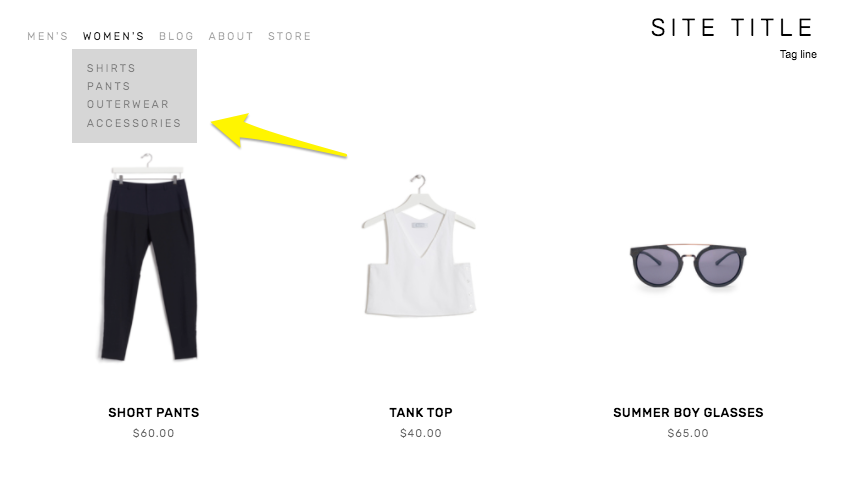
Another way to use category or tag landing pages in your site’s navigation is to use them to create drop-down navigation menus. This allows you to create another layer of organization.
Creating Nested Categories
Creating multiple levels of shop navigation is like making sure your department store is organized logically into different departments, each with its own little “sub-departments” within them. This makes it easy for people to find what they are looking for quickly, which can reduce frustration and lead to higher conversion rates.
Let’s consider an expanded example from our simple t-shirt shop and pretend we have a full-fledged department store. It would make sense that the navigation would need to visually allow us to “nest” categories within each other. So instead of just lumping everything together in one category called “Women’s” you can instead make subcategories like this:
Women’s
Tops
Tees
Hoodies
Bottoms
Denim
Joggers
Accessories
Sunglasses
Bags
* Note that if you want to create nested subcategories like above that you can add up to three levels max. This means you can have Main Category > Subcategory > Subcategory like in the example above. You would not be able to break the Denim category into more subcategories. If you wanted to do something like that, I would recommend just moving the category up the food chain. If you have enough products that you need more than two subcategories beneath it, that probably means it’s important enough to be the main category all by itself.

Look how fast we can find exactly what we’re looking for!
Other Ways To Use Categories & Tags on Squarespace
Link to filtered collections - Another benefit of creating categories and subcategories is that doing so creates individual page path URLs for each category, optimized for SEO and allowing categories to act as standalone pages. This means that if you are running an ad or a promo for all blue shoes, you can link people right to the filtered subcategory: Shoes > Blue. 🤯 For more on this, check out this Squarespace help article.
Make summary blocks smarter - This is one of my absolute favorite things about Squarespace summary blocks! I almost always add one to a home page design as a way to feature selected categories of products… or to feature “featured” products! Doing this is simple by just clicking on the content tab of your summary block settings and then choosing “Filter Items” to have that block only show what you want it to.
Influence what related products are displayed - I recommend everyone turn on the Related Products feature in their commerce settings because why not?? This is such an amazing built-in Squarespace selling tool that I think gets underutilized by most new sellers. Not only does it help keep people on your site longer by showing them more to look at it, but it can also actually show them more of what they WANT to look at. By default, products that share the same first category are shown in the related products section. If your product happens to not have a category, then matches using the first tag will be shown. If you’re into related products, you might also like this post: How to Upsell & Cross-Sell on Your Online Store.
Display more accurate search results - Adding search blocks or using your store’s built-in search page are other ways to help customers find what they are looking for. And, you guessed it, adding categories to your products helps here too! This is because both categories and tags are indexed for search results in addition to being indexed by major search engines such as Google.
Who should be using categories & tags?
I think everyone could benefit from using categories and tags, if only for their aforementioned SEO benefits! From a size standpoint, you probably don’t need to worry about people not finding what they’re looking for if you only sell one signature service or only a handful of products. But even if you have a small shop with just a dozen or so products or services, why not add that layer of categorization to help people be able to decide what is best for them? For example, if you’re an interior designer and offer multiple virtual design sessions you could categorize them by investment level:
$
$$
$$$
This would help people self-sort and see just the services that they can afford. When you start to think about tags & categories as strategic tools to help visitors find what they need on their own, all sorts of doors start to open up! Done right, taking advantage of this simple feature can boost your SEO, help reduce visitor frustration and increase sales. Thinking about what you sell in terms of categories (and tags, to a lesser extent) can help you create ways for customers to easily discover more and help you create a more dynamic eCommerce website.
How FAQs Can Boost SEO and Customer Satisfaction on Your Squarespace eCommerce Website
Are you looking to enhance your online business and provide a seamless customer experience? Discover the power of FAQ pages! Learn how FAQs can answer burning questions, boost trust, save time, smooth the shopping experience, showcase your expertise, and amp up your SEO awesomeness.
Real talk: FAQ pages aren't exactly the most glamorous topic in web design. Let's face it, no one starts a conversation about their website by raving about their awesome FAQ page. But here's the thing: FAQ pages are often overlooked or added as an afterthought, leaving visitors searching for missing information. That's why I believe it's smart to include a FAQ page right from the start, even if you're not sure how "frequently" those questions are asked!
Here are my tips to ensure your FAQ page does its job:
Pay attention to design & organization: While FAQ pages may seem a bit mundane, they don't have to be ugly. Organize your page effectively using accordion menus, tabs, or dropdowns to prevent it from looking overwhelming. Headers and subheaders can make the page skimmable, and anchor links improve the user experience. Function matters more than form, but a messy FAQ page can be a red flag.
Answer the questions no one asked: Sure, FAQs are meant to address frequently asked questions, but they can also be an opportunity to showcase your brand's personality. Consider including questions that no one would think to ask, but that allow you to share a bit of your brand's story or values. Think of them as the "I'm so glad you asked that" type of questions.
It's okay to repeat yourself: Don't assume that visitors have read every page on your site. Even if you have a dedicated shipping page, include shipping-related FAQs on your FAQ page. People tend to skim websites, so your FAQ page serves as a highlight reel of important information from across your site. Include key details that visitors may have missed and provide links to relevant pages for more in-depth information.
If you're unsure about what to include on your FAQ page, here are some ideas:
Contact information
Unique selling points of your product or service
Guidance on choosing the right product/service
Things customers might need to know but haven't thought to ask
Return policy
Shipping options and timelines
Password reset instructions
Refund policy
In a nutshell, every website can benefit from a well-crafted FAQ page, even if it's short and sweet. Think of it as an opportunity to educate your customers and build their confidence in doing business with you. A well-organized FAQ page with thoughtful answers shows your commitment to providing exceptional customer support. So, let's give your visitors the answers they're looking for and create an FAQ page that truly shines.
How to Display Your Products on Google for Free
I bet you didn’t know that one of the easiest tools you have out there to get your products seen in Google search results and across Google is not only easy to set up, but it’s also completely free to do so! Here are the steps you need to take to set up a free Google Merchant Center account and sync your Squarespace eCommerce site up to it.
I bet you didn’t know that one of the easiest tools you have out there to get your products seen in Google search results and across Google is not only easy to set up, it’s completely free to do so! Here are the exact steps you need to take to set up a free Google Merchant Center account and sync your Squarespace eCommerce site up to it.
Bonuses:
🚫 No confusing CSV files to format.
🚫 No manually adding products to Google one-by-one.
🚫 No need to update Google anytime you make a change to your shop’s inventory.
🆓 (Did I mention it’s free??)
What is Google Merchant Center & Where Do Products Display?
Google Merchant Center is the place where you’re basically telling Google what it is you sell and how you sell it. It’s where you can set up and manage free product listings that control how your products are displayed across Google’s various products, such as:


Create a Google Merchant Center Account & Connect It To Squarespace
Connecting your eCommerce site to Google Merchant Center is the way to go because it allows you to automatically sync all your products to Google versus having to add them one by one or worrying about formatting everything correctly. Here are step-by-step instructions on how to display your Squarespace products in Google Product Listings:
On your Squarespace site, go to the Commerce panel and then click on Google under Sales Channels.
At the bottom of the page click on “Sign Up With Google.” Assuming you don’t already have a Google Merchant Center account, you’ll be presented with a few prompts to help you create a new account. (Alternatively, you can also go directly to Google Merchant Center here and create your account first. The steps will be the same from here.)
Once you’ve create your Google Merchant Center Account, click Verify & Claim Website and copy the code provided for the HTML tag.
Back on Squarespace, click on the "Paste Google verification code into site header” button which will jump you to that section of Squarespace. (You can also get there by going to Settings > Advanced > Code Injection.) Paste the code provided by Google into the Header Code Injection area which is the top box on that page.
Click Save!
What happens next?
Now that you’ve connected your site and store to Google, all the physical products that you sell will be automatically synced and sent to Google Product Listings. If you’d like to check on the sync status, you can always head back to Commerce > Google right within Squarespace.
Squarespace + Google Merchant Center FAQs
-
A google-based email address (note: this does NOT mean you need a gmail.com address but just a business email address that’s through Google Workspace)
A business phone number that you can receive a phone or text on for verification purposes
-
If you’re having issues creating a Google Merchant Center account or connecting it to Squarespace, make sure you meet the following requirements:
You sell physical products. Google Merchant Center doesn’t work for service-based products. (Note: you can sell both on your site, but only the physical products will sync.)
Make sure your site language is set to English (United States). (Sorry, this is the only one it works with for now!)
Make sure that you’ve already set up at least one shipping option in Squarespace.
-
LOL I understand the skepticism.
Of course, Google would love it if you also decided to pay for Google Ads after you have all your products set up BUT, yes, displaying your products and store on Google is completely free.
Think of it this way: adding your products to Google allows them to be seen in search results just like how your site shows up on Google BUT if you want to jump to the very top of that list you’ll need to pay for it.
-
Yes! Why wouldn’t you take every free opportunity out there to get your products on Google’s radar? You can set this all up and never mess with paid Google ads if you don’t want to. But the potential payoff here is pretty big considering the set up process is so simple!
-
Once you’re all connected (meaning your site is claimed & verified by pasting the Google code on your Squarespace site), you can always check on the sync status for your physical products by going to Commerce > Google.
If you want more information, you can also log in directly to Google Merchant Center.
-
Nope. It’s all or nothing for all the physical products you sell. However, if you log in to your Google Merchant Center account you can see some more options for managing how your products are displayed.
-
Once your Squarespace site is set up and connected to Google Merchant Center, any product changes you make on Squarespace are automatically synced to Google meaning you never really need to do anything else. Magic! 🔮
If you’ve got 15 minutes, you can get your Squarespace products synced to Google!

SEO Best Practices for Product Pages
How do you help the right people discover your products? Follow these tips and best practices for your product pages to appeal to customers and search engines alike.
When it comes to Squarespace SEO, I usually defer to the experts and always recommend starting from Squarespace’s own SEO checklist. This is a great resource to start dabbling in improving your site’s search performance and touches on all the site-wide best practices. There are some specific things you can do on your product pages to give things a boost as well though and that’s what we’re going to be talking about here!
First, A Big Fat Disclaimer
SEO is crazy complex and a niche unto itself. When we talk about improving things for SEO purposes, we’re talking about the super long game. Changes you make today will have virtually no impact on how things perform tomorrow but may have measurable ripple effects over time. So, if you’re here thinking that making these changes are going to magically change how your site performs in search overnight, you will be disappointed.
BUT this does not mean that they aren’t worth doing – just want to set some realistic expectations here! Ok, onward!
Squarespace eCommerce SEO
One of the most important things you can do before you jump into your product pages specifically is make sure your site is connected to Google Search Console. (Step-by-step instructions on that in this Squarespace support article.) Doing this will help serve up some pretty helpful info to your Squarespace analytics dashboard. You’ll want to use this info to help you compile a list of relevant keywords that you can incorporate into your product pages.
Related Post: Crash Course: The Squarespace Commerce Analytics Panel
Once you have that done, it’s time to head to your shop and take a look at your products.
How to Optimize Your Product Pages for SEO
Here’s a checklist of 6 specific things each of your product pages should have in place.

Product Names
Remember that keyword list I told you to make using the info from your analytics panel, above? Whenever possible, using one or more of those relevant keywords right in your product names can help connect your product to a customer's search query.
Don’t work too hard to force anything (human readers matter more than robot ones!) – and know that for the most part your product names are naturally going to be relevant without needing to try too hard. (If they aren’t, ask yourself whether they truly have a place in your shop.)
It can also be helpful to use descriptive words that might match up to your shop’s tags or categories right in the product name. Example: instead of “sweatshirt” try “Women’s 100% Cotton Vintage Sweatshirt”

Product Descriptions
For each product, you’ll want to be sure to write descriptions that include more of those keywords from your list. Describe what sets your item apart from the competition, highlight relevant features or explain what makes your product worth buying.
If you’re struggling with what to say, I always think that tapping into one of the 5 senses helps; for example - describing the way a fabric feels in detail or how a candle smells using descriptive words.
The one thing you don’t want to do is drone on for too long in your main product description. Keep things relatively short (roughly 3 sentences at most) is a good guide. Add other information, including technical details, product specs, longer descriptions and more to the Additional Information section. This makes it so people don’t have to scroll too far from the top of your page to get to the “Add to Cart” button!

Product Images
I promise not to tell you that a picture is worth a thousand words. But I can’t lie to you: your product photography can really make or break your entire eCommerce experience. There’s nothing that will make a potential customer click away faster than bad product photos (think: poorly shot, poorly lit, inconsistent in style). So don’t be stingy on product photos! For each product, include shots of the front, back and sides if you can. Depending on what you’re selling you may also want to include close-up shots of details (so people can see things like fabric texture or how a product is assembled) or other angles. Bonus points for 360 videos or gifs!
Related Post: 6 Simple Tips for eCommerce Photography that Converts

Product Prices
I’m kind of hoping that you already did this before deciding to launch your business 😬 but please take the time to research products similar to what you’re selling to make sure your prices are competitive. This is another situation where not only will your actual human shoppers notice when things feel off but so will Google and other search engines.
If there’s a reason why your products are significantly higher (or lower) than the competition, you’ll want to make sure that your copy (including relevant keywords) backs that up. Example: if your line of soda is priced significantly higher than average make sure that you’re describing why using keywords like: organic, hand-crafted, small batch, locally sourced ingredients, etc. This information can help explain that we’re not comparing apples to apples.

Product URLs
I’ve hinted at this a bit above but one of the most important things about SEO is to remember that you need to appeal to both humans and search engines alike. Sellers used to try to “trick” search engines by stuffing keywords into every nook and cranny, including product URLs. But remember that Google is very smart and you cannot get by with any dirty little tricks like this.
So, the secret to a great product URL is to keep things short and sweet. URLs with too many keywords are red flags as are keywords that contain much more than the simple product name.
If you followed the advice above on how to name your products using relevant keywords where appropriate, making your product URLs your simple product name is all you’ll need to do.
(Bonus tip: clean up any odd bits that get added automatically to URLs if you’re duplicating products. For example, change “womens-wool-socks-h3lm23” to just “womens-wool-socks.”

Product SEO Title & Description
For each of your products on Squarespace, you also get a chance to write specific information that you’d like search engines to pick up. In the absence of this info, Google will use the other info on the page to try to fill in the blanks so it’s best to just serve it up exactly how you’d like it.
SEO titles for products should be about 100 characters or between 5 and 10 words to make sure it appears correctly in search results. Longer titles may get cut off. If your product names are about this length, I would say to just make your SEO title = your product name but if you have any extra room you could add the name of your collection or another product attribute.
SEO product descriptions are what displays right below the title above in search results. You want to cap this at about 400 characters and first and foremost make it human-readable. Use product keywords naturally incorporated into a shortened product description and you’ll make it easy for customers to find your products as a result of their search queries!
Bottom Line
SEO can be a little overwhelming but most of the best practices help improve your site as much for your real life customers as they do search engines. Thinking about how your customers experience your site, what information they need and how you can best communicate to them digitally will ultimately also help your site perform better in search. When it comes to your product pages, incorporate the tips in the 7 areas above for each and every item you sell and over time you should find that more of the right people are finding you.

The Ultimate Squarespace eCommerce Guide
Stop chasing your tail! I've covered some of my favorite posts on everything from choosing Squarespace for your new eCommerce website to mapping out a winning eCommerce strategy, from launch day to managing the day-to-day. Wherever you are in the process, I’ve got you covered!
There’s so much information out there about Squarespace web design and eCommerce but that’s half the problem! It’s all over the place and not necessarily right where you need it! So I decided to corral some of my favorite posts on everything from choosing Squarespace for your new eCommerce website to mapping out a winning eCommerce strategy, from launch day to managing the day-to-day. Wherever you are in the process, I’ve got you covered!

Choosing Squarespace
As a small business owner, you have a lot of choices that you’re going to need to make. But it’s the first one that’s arguably the most important. To me, choosing Squarespace for eCommerce is a no-brainer but I want to help you get all the facts so you can decide for yourself.

Early Decisions
Some of the early decisions in the eCommerce web design process are things you can set and forget but even simple things can help make sure you’re set up for success moving forward.

Map Out a Winning eCommerce Strategy
I wish I could tell you that eCommerce was as easy as making a website public and watching the money roll in but the reality is you need a solid eCommerce strategy in place to keep things on track. These simple and straightforward resources are here to help!

Go above & Beyond
The difference between ho-hum and fabulous is usually just paying attention to the little details that your competition most definitely missed. Don’t worry - I’m going to make sure that you’re prepped and ready to crush it and stand out from the crowd.

Launch With Confidence
Launch day doesn’t have to be nerve-wracking! You can sell on Squarespace with confidence when you know your site is on point from all angles.

Manage the day-to-day
To me, once your site is up and running is when the fun really begins! You can build new features, add new products and continue to refine the experience - all decisions you can back up with data.

3 Squarespace eCommerce Myths - Busted!
Busting myths right and left when it comes to eCommerce on Squarespace. Haters gonna hate but they also gonna still be working on their website while you're busy watching sales roll in on Squarespace 🤷♀️
Updated August 2021
Sometimes for fun - and in the name of "competitor research” I like to Google things like “Is Squarespace good for eCommerce?” and “Should I use Squarespace for my eCommerce website?" just to see what people are saying. It helps me keep in touch with the good, the bad, the ugly, and - sometimes - the just plain wrong. Since this post was originally published Squarespace has become an even stronger eCommerce solution and yet I still regularly see outdated or even just blatantly incorrect information out there. So, in an effort to keep the misinformation to a minimum let’s bust some Squarespace eCommerce myths!
Myth #1
Design options are limited on Squarespace
Truth
Squarespace templates help you save time & money
Not only do all of Squarespace’s templates allow you to build an online store of any size but there are virtually no limits to design or functionality. And just because a template looks one way right out of the box doesn’t mean things have to (or should!) stay that way. The best part of starting from a template (whether free or paid) is that it’s a great way to not have to reinvent the wheel and start a new site from scratch each time. This is the “standing on the shoulders of giants” approach and I, for one, and here for it! By allowing a template to do some of the heavy lifting, you can devote your precious time and resources to really building out the experience of your site and getting all the selling tools in place to support your business.
Dig Deeper:
How to pick the right Squarespace template for your eCommerce site →
Myth #2
There are limits to what you can sell on Squarespace
TRUTH
You can sell more on Squarespace than Shopify
Not only are you allowed more products, more options, and more variations on Squarespace than on Shopify, there’s really no limit to what you can sell without needing to tack on additional paid apps or string multiple systems together into some sort of “hacked” experience. Additionally, because of all the different things you can sell on Squarespace without needing to look elsewhere for solutions, there tends to be a lot of wiggle room in how you can set things up so that you can make sure the experience is tailored perfectly for your brand. This allows a level of both creative & technical freedom that you’ll be hardpressed to find anywhere else.
Dig Deeper:
Myth #3
Analytics & SEO features are lacking
TRUTH
Squarespace has awesome commerce analytics & SEO Features built right in!
I think I finally figured out that the reason why this myth persists is that there are some folks out there that benefit from it being true - namely people trying to scam you with sketchy search ranking guarantees and make you doubt your own ability to read a graph or chart 🙃There’s also the misconception that just because something is easy that it can’t also be effective. Squarespace has all the same SEO powers as any other platform, they just don’t make you work double-time to access them or put them to use. They just. Work. The same thing goes for analytics; all the data you need (and then some) is right there, made plain and simple so that you can have the data you need readily available to make business decisions.
Dig Deeper:

6 Steps to Creating an Effective Online Store
A successful website isn’t just about good design; it’s about how well it works, how well it sells, and how effective it is as a business tool. Whether you’re just getting ready to launch or are interested in improving your website and customer experience, these 6 simple steps will help you get things going in the right direction on your eCommerce Squarespace website.
A successful website isn’t just about good design; it’s about how well it works, how well it sells, and how effective it is as a business tool. Whether you’re just getting ready to launch or are interested in improving your website and customer experience, these 6 simple steps will help you get things going in the right direction and help you take your site from basic & blah to eCommerce mega-machine.
1. Manage Inventory in Squarespace
If you ask me, one of the first red flags I look for on a mismanaged eCommerce site is people selling physical products but marking the inventory as “unlimited.” Eek. I mean, what kind of crazy roller coaster chaotic world this must be! If you sell… pretty much anything… you have to know how much you have to sell. Heck, even events or some digital goods need “inventory” counts; you know how many seats you have to sell or how many downloads you need to break even.
For a lot of shops, managing inventory could be as simple as syncing a Google sheet up to Squarespace with a tool like Zapier.
If you want to go a step further, you could also check out one of Squarespace’s inventory extensions. (I review them all here.)
Be sure to also check out the Squarespace Commerce app which allows you to make inventory updates from your phone or tablet.
2. Add Product Categories & Tags
Product categories & tags are the backbones of a well-organized eCommerce site. Not only can you use these to help guide visitors to exactly what they’re looking for quickly, but they can also help you do cool things with your navigation - and a few other tricks (more on those below)!
For a deep dive into all the ins and outs of categories & tags check out this post: How to Use Product Categories & Tags in Squarespace
For more tips on how to keep things from getting out of control, check out the tips in this post.
3. Use Summary Blocks
Alright, I told you that categories & tags would help you do cool things and this is one of them! I think a lot of people see Squarespace Summary Blocks as great tools for pulling in an overview of posts from blogs or events but they’re also indispensable for displaying product groups on your home page - or even in blog posts, like below! You can use a summary block’s filter settings to display products from any category or with any tag. You can also use them to display only featured products. This is a great way to showcase things like bestsellers, new items, or sale items.

As an extension of this, you can also use product categories or tags to power some of my favorite Squarespace plugins like the Featured Product Tag and Product Shop Labels ones from this post.
4. Connect People to Your Email List
Beyond just sales, one of your goals really should be to always be growing your email list. It’s just such a valuable business asset! (And not just because you shouldn’t bank on social media.) I would definitely recommend asking people to sign up for your list at checkout in addition to offering a signup form in the footer of your site. Not sold on email yet? Let me convince you:
Email marketing offers a higher ROI than SEO, display, advertising, and other forms of digital marketing. It’s estimated that for every $1 you spend on email marketing, you can expect an average return of $42. More in this post.
According to another study, email marketing reigns supreme with an ROI of 4400%. No, that’s not a typo. More here: 4 Post-Sale Emails Every eCommerce Site Needs
Feeling stuck? Here are 11 Lead Magnet, Offer & Freebie Ideas to Grow Your Email List
5. Use Product Blocks
A Squarespace Product Block is like a summary block on steroids. But instead of giving you an overview of a bunch of different products in a certain category and inviting you to click through for details, a product block puts everything you need right there front and center. Product blocks turn any page you want into a shop page. Use them in blog posts, on event pages, on your home page, on landing pages - wherever they make sense for your business. Product blocks allow people to “add to cart” from right where they are, no need to navigate anywhere else.
If you’re creating targeted landing pages for paid ads or social media posts, use product blocks to add just the product you’re advertising right on the page. No distractions or other shop items to get confused by! For more on creating a great sales page, check out this post.
You could also use a product block as a way to create an interesting upsell or cross-sell layout by adding it to the additional info section of a core product. This would be a way to display super-targeted products as opposed to using the Related Products feature which is going to constantly auto-update.
6. Add Automatic Discounts
Look, I love a coupon code as much as the next person but you know what I love more than that? NOT having to remember a coupon code in order to score a deal. 🥳 Automatic discounts on Squarespace allow you to set the conditions that need to be met in order to get the discount. Once the criteria you define is met ( - boom - auto discount. This is a great way to improve the experience of shopping on your site for your customers. You can create automatic discounts that apply to any order, orders over a certain amount, single products or whole product categories!
For more on this check out this post: eCommerce Crash Course: Coupons, Offers, Discounts & Promos
If you need some ideas on some sales and offers to try out using automatic discounts check out this post.
Automatic discounts like this are separate from and in addition to any automatic free shipping offers you create. I would just keep this in mind so that you don’t create too many offers that people can stack together (just pick one or the other). Check out this post for more on free shipping and setting up a profitable shipping strategy.
Bottom Line
When it comes to creating an effective eCommerce site, you’ve got to focus on some of the little things that have a big impact on customer experience and your business. Whether it’s managing inventory effectively, properly merchandising your products, or ensuring every interaction your customer has is smooth and easy - you can do it all using the built-in tools on Squarespace.

Squarespace eCommerce Launch Checklist
Check out my quick list of commonly missed or easily overlooked items that you should make sure you’ve taken care of before you hit publish on your new eCommerce website.
I have several posts out there about how to set up your first online shop, what to include on your eCommerce setup checklist, or even how to launch an eCommerce site even if you don’t have anything to sell yet. But what about launch day? There are lots of moving parts to launching an eCommerce site and when you’re staring down launch day it can be easy to overlook something simple out of sheer fatigue! You feel like you’ve taken care of everything but how can you really know?!
I’m all about checklists as a way to take some of the guesswork out of things. I use the same checklist for nearly every project I work on for a reason - there’s no point in reinventing the wheel each time! (For the record, my checklist tool of choice is ClickUp which I highly recommend!)
If you’re getting ready to launch your eCommerce website (or even if you launched already and want to make sure you didn’t miss anything!) here’s my quick list of what you should make sure you have taken care of before you hit that “publish” button!
Make sure you’ve added a site title
Check all links & buttons
Make sure your domain is connected & secure
Test payments through your chosen merchant processor
Make sure taxes are set up appropriately
Make sure you have at least one shipping option set up
Place a test order
Set up any third-party sales channels (such as FB or Instagram)
Make sure your custom email address is working
Test all contact forms & signup forms
Work through Squarespace’s SEO checklist
Disable test mode to prepare for accepting orders
Customize & review your site’s email notifications
Make sure your checkout page is customized
Check out how your site looks on mobile
Verify your site with Google Search Console
Add your Google Analytics account info
As you can see, most of the things on this list are things that you’ll probably have taken care of during site set up but these are also commonly missed or overlooked items so make sure you’ve got them all checked off. Once you do, remove your site password and hit publish! You’re ready to launch!

How to Create a FAQ Page on Squarespace
In this quick post, get four tips for making your FAQ page customer-friendly and informative plus two options for how to quickly create a FAQ page on your Squarespace site.
I’ve mentioned before that I love a great FAQ page. These innocuous little pages are great not just for helping people learn more about what you sell or how to work with you but can also boost SEO because they are usually just naturally keyword-rich! Another thing I love about FAQ pages is that having one is another way that you can keep your product pages looking clean and simple. Here are some tips for making your FAQ page plus a couple of options for how to add a good-looking one to your site.
Tip 1:
Create Sections & Keep Things Organized
Think of organizing your FAQ page just like you would your shop by keeping like with like. Creating sections to group your FAQs together also keeps the page skimmable. Remember, people aren’t going to read this page word for word. They are there to get an answer to a… frequently asked question. If you have just a handful of FAQs, go ahead and lump them all together but if you have quite a few break them up into sections by topic such as those about shipping, ordering, your products, your company, etc.
Tip 2:
Focus on Your Customer & Use Their Voice
Have you ever stumbled upon a super passive-aggressive FAQ page? One where you know for a fact that no one has ever asked any of the questions and the store owner is just using it as a way to blast some rules and talk about themselves? Don’t be like this. Your FAQ page should always be focused on your customer - not you or your business. Think of what problems they have that you can help solve and not the other way around. A great FAQ page should really just be an extension of your great attitude towards customer service. Lastly, on this point, use their voice and ask questions from their point of view!
Tip 3:
Add Links To Keep People Moving
Don’t send your visitors on a scavenger hunt for info by telling them to check out another page or a product description -- link them right to it! I liken this to the real-life experience of asking a grocery store employee where to find a certain product. The lazy employee just vaguely points you in the general direction and maybe tells you what aisle the product might be on; the helpful one walks you right to it and stays to make sure you found what you need. Do the same thing on your site! This not only ensures that customers find exactly what they are looking for but also reduces the chances of them leaving empty-handed out of frustration.
Tip 4:
Keep It Short
Both your answers and the questions :)
2 Ways to Create an FAQ Page on Squarespace
There are two main ways to add a FAQ page to your Squarespace site and the one you choose is really going to depend on 1) how many FAQs you have and 2) the look & aesthetic you’re going for.
Use a FAQ Page Layout
The first option is to use one of the designer page layouts already in Squarespace in the same way you’d add any other new page. This is super easy because you can just type over the placeholder text with your own content!

Step 1: Add a new page and choose “Page Layouts”

Step 2: Scroll down to FAQs and select one of the pre-designed layouts
Add Content using the NEW Squarespace accordion block
If you want to get fancy and/or if you have a ton of FAQs and hiding the body content so it’s only visible when you click on it is a popular option. You used to have to add FAQ accordions using (usually) paid code but Squarespace has recently added a new accordion block so you can just one like any other element on your pages! Here’s an example:
-
And you could put the answer here!
-
And another awesome answer!
-
Yep, it sure is!

How to Boost Your eCommerce SEO
Guest blogger, Alex from HeySugar SEO, gives us a crash course in all things SEO for eCommerce sites. From keyword research to schema, here’s everything you need to know to boost your eCommerce SEO!
I was cruising through Instagram, as one does, not too long ago and I came across a post from HeySugarSEO and immediately thought to myself that Alex, Founder and Creator of HeySugar SEO, would make for an awesome guest blogger here. I’m all about knowing what your niche is and seeking out experts who know their niche way better than you ever could and if there’s one topic that really takes an expert’s touch let me tell you, it’s SEO. Not that things need to be complicated (but sometimes they are)… really just that there’s so much information out there that it can sometimes know where to start. I asked Alex if she wouldn’t mind sharing with us all some of her advice on all things eCommerce + SEO and boy did she deliver! There’s a ton of great info in this post, I just know you’re going to bookmark it and come back often :) - Kristine
Search engines are our digital shopping guide, taking the random things we search and returning a strategic list of the best match, but not necessarily the best products. While you may sell the best version of a particular good, Google and other search engines may not give it the rank visibility it deserves. That's where SEO can make or break an ecommerce site. SEO, or search engine optimization, is the tactics and strategies behind most (if not all) of the leading ecommerce sites' digital strategies.
What is SEO?
Search engine optimization is essentially a chess game between your site and Google. Google makes the rules and generally speaking, they're clear. But as with most things, the more technical it is, the more difficult the solution is to find. And e-commerce SEO is no exception to this rule.
SEO is a mix of research, writing, tech, and strategy that all combine to help your site rank better.
SEO can supplement or completely create traffic for sites. It's best used in tandem with branding, social, and paid campaigns, but - in my biased opinion - SEO can easily sustain a business with minimal branding and social content on the side.
93% of all searchers stop looking at links past the first page of search results. That means if you're beyond page one, only 7% of people MAY take a look at your site (and click-through rates on page two and beyond are crazy low) so SEO is of the utmost importance when it comes to getting online traffic.
Key Factors in Ecommerce SEO
SEO strategies require different mixes of tactics depending on the industry, client goals and the functionality of a site. Ecommerce is a beast of its own, with many tactics exclusive to online shopping. The categories below cover the standard and critical components of SEO on an ecommerce site.
Keyword Research
On-Page Optimization
Site Functionality and UX
Technical SEO
Keyword Research for Ecommerce Sites
Understanding what your potential clients are searching online is an ideal start to creating an online store. If you have a store already - no worries! Keyword research, along with your own experience in selling online, will help you further hone your best keyword targets.
When doing your research for the ideal keywords, it's important to understand that data doesn't lie. Here's a prime example:
Let's say you own an online candle company. You want to show up in search so you can make more sales, so you start finding your ideal keywords. Your best-selling candle is called "Peach Blossoms on a Shady Hillside" and you are determined to rank for that exact term. You probably will, which is good. But do you know how many people online search for the exact term: Peach Blossoms on a Shady Hillside? You. Only you. Well, maybe your husband when you made him search for it on his phone.
But that's it. Just because a keyword fits your brand or product name or specialty idea perfectly, doesn't mean it is the right target for your SEO.
BTW, the ideal keyword term here would be something as simple as "handmade candles" or "fruity candles," both of which have several hundred to thousands of searches per month.
In order to get the most out of your keyword research, you'll need to take a step back from the peach candle fumes and think: does this keyword have the breadth and depth I need to focus on it?
How to do keyword research
Keyword research tools are a dime a dozen, but there's a few that are worth using to get useful and actionable data from, including:
Moz offers free keyword reports (up to 5 a day on a free account) that give you clear data on search volume, competition and click-through rates. Just put in a term you're interested in and Moz will give you a look at 1,000 related keywords and their data. You can export these into csv or Excel docs to sort, filter, and clean your data. More on cleaning below!
I use this Chrome extension to see related terms on anything I search. Just install the extension and capture fresh search data on anything you search online.
This is a great tool for creating content. You can put in a search and see all variables on that term, plus any long-term keywords it may be associated with. It's a great starting point for crafting data-driven written content for your site. This site allows two reports per day on a free account.
This is probably the most "advanced" of the tools I'm mentioning here, but it does offer the most robust data. A report from GKP will include monthly keyword volume for terms you choose, plus the minimum and maximum Adwords costs, all with the added feature of zeroing in on specific geographic areas for your keywords. They can go as deep as a zip code! This is great data to use if you plan to target a specific city or state with your content.
Google itself
This is the easiest one to use with the least quantifiable data to gain. Sounds grim, but it's not! You can gather loads of information on your site, your competition, and the way your ideal customers search just by performing the search yourself. I always suggest clients search for their ideal keywords as well as their brand name as if they're a customer to really understand how and why their SEO goals matter.
Once you have some keyword data, you'll need to analyze and clean it. For instance, remember the fictitious candle brand we had? We would probably want to remove any keyword data for Yankee Candle from our reports. We don't really care how many searches a different brand name gets - we care about the nonbranded terms that can bring clients to you! Here's a quick checklist to refer to when cleaning your keyword reports:
Does this keyword reference a brand other than mine?
Could this keyword bring a client to me?
Does this keyword have enough volume (searches) to warrant my attention?
Can I create enough content to make this keyword valuable for my site?
Could this keyword be a supporting role to my main keywords?
Here's a run-through on these questions for another example brand. Let's say we're a dropshipper for tech accessories. Here's how I would evaluate their keywords if I was their SEO:
Keyword: iphone charger walmart with 1,500 searches per month
Answers:
Yes, Walmart has enough domain authority in search to outrank my site
Probably not.
Yes, 1,500 people a month is plenty!
No, creating content around this keyword would be difficult and probably turn out spammy
No, you'd just add to Walmart's keyword value
Keyword: portable charger for iphone with 750 searches per month
Nope!
Yes, and probably a good one
Yes, half of the one above, but still enough to make it worthwhile
Yes, I could wax poetic on my need for a portable charger all day long!
Absolutely. It could easily be the "lead role" in a keyword map as well.
If your keyword can't get past question one, I would strongly recommend not using it. The amount of time you would put into ranking for another brand's keyword is typically not worth the potential payoff. You can spend your SEO efforts better elsewhere.
Once you've cleaned your keywords through this system, you've got a good start on your list of keyword targets for your site!
On-Page SEO
Now that you have your best keywords, you can start plugging them into your site, most specifically your product pages and category listings. You'll hear the term on-page SEO a lot in SEO blogs, podcasts and the like. All it refers to is optimizing the visual and experiential parts of a site that a consumer could interact with, including the meta title, meta description, header tags, images and alt tags.
Meta Data on Ecommerce Sites
Every single page of your site has meta data. Whether you've set your meta data parameters or plugged them in yourself, meta data is there, waiting for some juicy SEO content to be added to it.
Meta data is sort of like a label for each page of your site. It not only tells consumers, but also Google, what content is on the page and what to expect when you see it. When you search for "summer sandals" you'll see what the SEO world refers to as blue links. The blue, larger text of each result is the meta title. The text below in smaller print is your meta description.

There's two big reasons these matter: it's one of the first things Google "sees" on your page. Google bots crawl pages from the top down and meta data is always at the very top of your page. It sets the expectation of what the bot can expect when it reads your whole page. The second reason is this is usually the very first touchpoint you get with a customer. What they read in search results can inspire them to click or prompt them to look elsewhere.
Basically, creating good meta data is a balancing game between keyword data and copy that converts.
The formula I typically stick to when writing ecommerce meta data is this: Shop [Keyword 1] and [Keyword 2] | [Brand Name]
Here's a couple of examples:
Shop Women's Flat and Heeled Sandals | Sassy Shoes
Shop Affordable Lamps and Lighting | Bright Ideas
Shop Keto and Gluten-Free Snacks | Yum Foods
I like using action terms like shop at the beginning of meta data because it's a subtle but clear call to action, especially when we can easily assume that someone searching for "affordable home decor" is most likely looking to shop.
Meta descriptions tend to get less read time from consumers, but still get plenty of attention from Google. Meta descriptions, in my opinion, are simpler to write. Just create two sentences about what's on the page and make sure you include at least one of your target keywords.
Here's a checklist to keep in mind as you create meta data:
Use your target keyword in both title and description.
Include an action word - or call-to-action - in your meta title.
Include your brand name when you can, but cut it if you need space.
Character limits: meta data should be between 40-60 characters and meta descriptions should be about 150 characters.
When you publish your meta data, go look at it from a consumer perspective. Think about what they would want to see while shopping and tweak as you see fit.
Image SEO on Ecommerce Sites
Photos are a key ingredient in online sales. If you can't touch, taste, or hear the product in person, you need all the visual cues to be able to make a purchase decision. The downfall of having several great photos of each product is the load time it forces on your site.
Site speed is a critical algorithm measurement for all search engines. The quicker and more efficiently a site loads, the better a consumer's experience is on the site, which means Google is more likely to rank that site.
Loading dozens or even hundreds of images on a single page of your site can slow your pages down dramatically. A site load lag of just half a second can move a page from the top rank spots to page 5 or more.
Thankfully, many online shopping template sites try to minimize this issue by offering pagination. Pagination is what happens when you have more products than one page of your site can handle, so it gives the user multiple pages of products to scroll through.
If you have the option, I would highly recommend limiting your single page product capacity to 10-15 products. This way, your site can load a smaller set of products per page and have an easier job loading the page quickly.
Limiting the number of images on a page isn't the only tactic. You can compress your images to smaller files, making it less of a burden on the page to load.
Here are the two image compressor programs I use all the time: Compressor.io and Web Planet Compressors. Both are free tools that let you drag an image file in and download a compressed file out. 99% of the time, this compression process will not affect the image quality. If it does, you may need to manually compress images incrementally to test the quality.
Alt Tags on Images
Alt tags, or alternative tags, are the names behind the pictures. Google bots can't see pictures and interpret them the way humans can (at least not right now - Google is up to some crazy innovative things!) But bots can read alt tags. It's essentially a text description of what's in the image.
Alt tags tend to be a place people stuff keywords, so Google is paying close attention to them. If it feels spammy, they won't like it. So keep it simple. I find that writing alt tags for ecommerce sites are easier than others because most photos are pretty obvious. You have photos of the product, photos of people using the product, different shots of the product with specs and measurements and whatnot. On many other sites, it's just stock photos of people smiling. Those are the complicated pictures to write alt tags for.
Long story short: be clear, concise, and conservative on your keyword usage in alt tags.
Site Functionality and UX for Ecommerce SEO
In case you didn't know, Google is smart. So smart in fact, that they have developed ways to quantify a user's experience on your site. User experience is CRITICAL to Google's algorithm. Their ultimate goal is to make sure they rank the pages with the best match for your search and best experience for a customer at the top of search results.
The functionality of your site plays a large role in how Google grades your site. They use Google Analytics to measure these factors.
BTW - if you don't have Google Analytics on your site, go put it in there now!
There are millions of data points in GA that measure user behavior, but these are the big ones Google pays attention to:
Session Length - does a user stay on your site for a significant time?
You want this to be a significant length! 30 seconds is a good, healthy starting point, but of course longer is typically better.
Pages/Session - how many pages does someone look at when they visit your site?
You want to see 2+ pages per session
Bounce Rate - do users see one page and immediately back out or leave your site?
Ideally, this is low. Below 25%
Conversion Rate - do consumers click, call, submit forms, add to their shopping cart, and make purchases on your site?
We all want these! The rate and importance will depend on your site and goals.
So what are things you can do to make the above numbers as Google-friendly as possible?
Make your site navigation clean and clear
Put obvious CTAs in the header, footer, and throughout the body of your site
Make sure your folder structure of products or services is logical
Keep your menu options to minimal tabs - don't clutter your nav bar!
Make your CTAs a clear contrast from the site - bold font, contrasting color, clear language
Give your pages enough good content to make them worth reading
Site Architecture and SEO
Anyone running an online shop has probably made use of the categories and tags on the backend of your site. If you need a refresher on these, Kristine has a great article on how to use both categories and tags in your ecommerce shop. The SEO magic she mentions? It's real! And it's crazy simple to implement if you know what to do.
I'll use Kristine's example here. Let's say I'm running an online t-shirt shop. To rank for the term t-shirt would be a feat - that term averages about 50,000 searches a month with some decent competition. For the amount of time, effort, and money it would take to rank at the top of that search, it's not worth it in my opinion.
So let's go one layer deeper. My most general categories are men, women, and children’s shirts. What kind of keyword volume and competition is there for men's shirts, women's shirts, and children's shirts?
I pulled this keyword data from Moz.
men's shirts - 30k/month with a 52 difficulty score
women's shirts - 3,100/month with a 46 difficulty score
children's shirts - 14/month with a 42 difficulty score
From an SEO perspective, what am I taking away from this?
Men's shirts are still too broad to tackle - I need to find a more descriptive, lower volume and higher converting keyword to name my men's categories with.
Women's shirts - it's in the ideal range of keyword volume, but probably not descriptive enough to catch high converting traffic. We gotta dig a little deeper there.
The monthly volume here isn't worth the time! But people obviously search for kid's clothes online - we need to find a better keyword to use when naming this category.
For the sake of brevity, I'll just dig into the kid's category here. After combing through my keyword data, here are the better keywords I think we could use to further sort and rank our kid's line of t-shirts:
girls shirts - 1,700/month
shirts for girls - 1,650/month
clothes for boys - 750/month
boys shirts - 750/month
boys long sleeve shirts - 700/month
kids tshirts - 625/month
While this data may push you to make more category pages, it clearly defines and targets your keyword goals, making ranking (AND SELLING) much more possible.
As for content on these pages, I highly recommend adding a couple of paragraphs of written content, a few small and fast-rendering pictures of your products with the right alt tags, and of course, meta data to match your category parameters. Be sure that your content is clearly defined on each category page so that you don't create duplicate content. That's a big no-no for Google.
The long and short of it is: take advantage of categories. If you target them correctly, they will most likely become your cash cows in terms of bringing in organic traffic. You can measure all this with the organic traffic reports in Google Analytics.
Technical SEO for Ecommerce Sites
The tech side of SEO is a harder one to define. The best way I've heard it put is that it's everything that shapes the way bots interact and experience your site. SEO is catering to two big groups: users and bots. Tech SEO is the tactics you need to make sure you're taking care of the bots.
Sitemaps
As the name explains, a sitemap is a map of your site, showing the bots around and letting them know which pages to pay attention to. If you are using Squarespace or Shopify, you're in luck! Both these tools create sitemaps automatically on your behalf. If you're using a CMS like Wordpress, I would recommend finding a plugin to make sure your sitemap is properly built.
A sitemap, in the simplest terms, is a list of all the URLs on your site with a few key details on each URL:
Is this URL crawlable? This detail requires a follow/nofollow tag.
Is this URL indexable? This detail involves an index/noindex tag.
Does this URL have a canonical source? This detail uses a canonical tag.
For the most part, you will only ever need to use an index/noindex tags. These are best used for landing pages built specifically for paid campaigns that you don't want competing with your main, organic content. Otherwise, I doubt you'll need to use follow or canonical tags.
Once you have your sitemap, you'll need to submit it to Google and other search engines for indexing. This means that instead of waiting around for Google to find your site and crawl it, you give Google a formal nudge to say, "Hey! My site is ready for you to see it!"
Schema for Ecommerce Websites
Schema! My favorite! I doubt you came here for a history lesson, but I think a brief backstory on schema may make it easier to understand its significance.
Years ago, when the internet's total amount of content was just a drop in the bucket compared to today, the crawling that search bots did was simple. There was a reasonable amount of content to crawl and few features of pages that needed to be acknowledged. Ranking was pretty simple! But then the internet grew and that made categorizing, sorting, and understanding all these pages and sites much harder.
Imagine a map with a couple of roads on it. It's pretty easy to understand. Now throw several thousand other roads, bodies of water, parks, monuments, and the like on the map without a key. Are the red lines roads? Are the dotted blue lines walking paths? Nobody knows!
Schema is the map key for this. It made an insane amount of content not only more efficient from a crawling standpoint, but also understandable.
Schema is the key to your "map" of a site. Instead of making Google bots do all the work to understand what the name of your business, logo, phone number, and products are, schema rolls out the red carpet for bots and gives them a concise digital tour of your content.
It's not just about making life on the bots easier, either! It plays a giant role in the consumer experience in search results. If you went to Google and searched for "smart home speakers," you'd get results like this:

The photo cards of products there? Those are powered by schema. The sites those products are hosted on have schema behind each product listing to make sure they can show in search results in the cleanest (and easiest for consumers to understand and click) way possible.
Using schema correctly and strategically can get your products ranking in search the same way those Google Homes and Alexas are doing right now.
If you mosey on over to Schema.org, you'll see there are thousands of types of schema. Don't overwhelm yourself by reading through them all. The main types of schema you need in ecommerce are:
Organization Schema - this schema allows your business to show up in search professionally, with content and links you control. It also validates your business for more SEO brownie points to Google
Reviews or Ratings Schema - this schema allows reviews or ratings to show up in search results for your products to make a richer SERP (search engine results page) and a better user experience for your potential customers
Product Schema - this one positions your content to rank for product cards in search, making conversions and engagement higher
There are sites to help you build and test your schema before uploading it into your site. You can also find help in building the correct schema at heysugarseo.com.
Ultimately, SEO is about user experience. If you get stuck making decisions about your site's SEO, think about what would be simplest, cleanest and most beneficial for a user to experience and purchase from your site. That will most likely be the right answer.

7 Ways to Build Trust (and Boost Sales) on Your eCommerce Website
Building trust with online customers and clients online can be an uphill battle - but not if you incorporate these 8 things on your website! Simple trust signals can go a long way in boosting sales on your eCommerce site.
If there’s one thing that watching too much Catfish will teach you is that you basically can’t trust anyone on the internet. Pretty much anyone can make a website these days and unfortunately that includes schemers and scammers out there making it hard for the rest of us who run legit businesses online. When it comes to eCommerce, you definitely have a hurdle to overcome that you don’t have IRL and that is: how do you get people to trust you?
Turns out there are a few subtle things that people look for on websites that are like little beacons of hope that they aren’t going to be robbed of their life savings by working with you and they are called TRUST SIGNALS. Incorporating some (or all) of these into your site goes a long way towards letting people know that amid all the nonsense happening online, you’re one of the good guys.
To build trust online, make sure your site has these:
Social proof. Incorporate reviews, recommendations, feedback, or testimonials from past clients on your website so that future customers can see what it’s like to work with you or buy from you. Bonus points if they are third-party verified like those from Google or Wiremo.
A clear shipping & return policy, if you sell physical products. People will look to the footer of your website for info on shipping and returns and without this info, you could look like you’re trying to be kinda shady. Also, a secret little eCommerce trick to instantly building trust: offering free returns. As it turns out, scammers won’t tell you that you can send your order back at no charge.
A picture of you or your team. This one is so simple and yet so effective: show your face. People do business with people and that means being able to look you in the eye, even if it’s virtual ;) This is one I can personally attest to the effectiveness of; despite my years of hesitation in putting a picture of myself on my website, I finally added one about a year ago. The analytics don’t lie and I truly believe that this had a major impact on an uptick in leads and inquiries. Give it a try!
Your address, if you have a physical location. (Although I will say there’s no shame if you’re completely virtual and either doesn’t have or don’t want to put your address out there!) That being said, if you have a physical location, adding an address is a huge trust builder. I would say that even if it’s not a street address saying something like “Based in the Pacific Northwest” is better than nothing.
An SSL certificate. Not only does the little lock symbol in your browser bar mean that people can confidently trust that transactions on your site are secure, but this also matters a ton to Google and insecure sites give everyone major red flags! Don’t worry if you just had to actually Google what an “SSL certificate” is -- my fave platforms (Squarespace & Shopify) take care of this for you! Winning.
Social media links - but only links to active accounts! LOL, I had to add that little caveat there because there’s nothing more unnerving than clicking on a social link and realizing that the last time someone was actually on Twitter was 2013. I mean, does this mean you’re no longer in business? Are you in jail? Did you get abducted by aliens? Add links to accounts you’re active on so that people can engage with you. That’s the point of social, after all.
Clear ways to contact you. This can be a simple contact page with a contact form, or a page that lists contact phone numbers and email addresses for your business. You could also go a step further and add a live chat widget. Not convinced that live chat is where it’s at? Check out this post or this one where I dig into this specific feature even deeper!
Hopefully, you see how adding even just a few of these trust signals to your eCommerce website can help you build major consumer confidence!

SEO & Squarespace
SEO doesn't have to be scary - and it also doesn't require any plugins! The only thing you need is a simple checklist to remind you of all the content strategies and tips that will help you get noticed organically.
Highlighting Features & Busting Myths about SEO and Squarespace
As a web designer & developer, I naturally get a lot of questions about SEO or search engine optimization. As a Squarespace designer & developer, I also get plenty of questions about how choosing the platform itself affects SEO. This can be a complex and confusing subject with lots of information out there meant to confuse and conflate things and there are plenty of myths that I love busting whenever possible. Let’s do this!
The Backstory
Somehow back in the day, Squarespace got a bad rep when it comes to SEO. This may have been relevant in the early days of the service (Squarespace 5, anyone?! 😜) but the current platform which all new websites are built on features a robust toolkit when it comes to SEO. The best part is that no third-party apps are needed to be able to work on the SEO features of your site and you don’t need to get into any super-technical code either.
Built-In Squarespace SEO Features
All Squarespace sites are optimized for mobile and all templates have been scanned with Google’s Mobile-Friendly Testing Tool to ensure that they are mobile-friendly. Google prioritizes mobile-optimized sites in search results.
Areas where you can edit the search engine and page descriptions on both a site-wide and per-page basis. No third-party plugins are needed for this!
Sitemaps are automatically generated and itemize all of the URL and image metadata on your site. Everything is given proper priority and is ready to index regardless of the template you choose.
SSL Certificates are included in every domain that is connected to a Squarespace site. SSL-secured websites rank higher than those that are not secure.
Squarespace automatically generates clean HTML markup that can be read by search engines when your site is indexed without the need for any extra code or tags.
The tags that improve search engine indexing (alt, title, meta, and link tags) are automatically included.
Clean URLs for all primary pages that are easy for search engines to read and index.
If you have multiple domains or use a custom domain on your Squarespace site, automatic redirects ensure that search engines will only see your primary domain.
Easy enabling of Accelerated Mobile Pages (AMP) to create lightweight versions of every page on your site so that they can load faster when people view your website on their phones. Sites with AMP may rank higher in mobile searches.
Products on Squarespace are structured so that data like the product name, image, description, price, and URL so that Google can display this information as a rich search result.
Automatic and easy integration with Google Search Console so that you can see Google search keywords analytics directly in your Squarespace analytics platform.
The Secret to Getting Seen: Content
One of the greatest misconceptions out there is that SEO is as easy as adding a plugin (something like Yoast if you use WordPress). The real truth is that plugins like Yoast are nothing more than a checklist. You’d be just as well off printing an actual to-do list and putting it on a clipboard next to your desk. These plugins do nothing for your SEO just by being connected. The secret to getting noticed is having great content, something that is completely independent of what platform your site is on or what SEO tools you may be using. That being the case, I know that people love checklists so here’s one you can work off of:
Site Title (less than 60 characters, include keywords)
Site Description (50-300 characters, make it a readable description)
Location Info (i.e. a map and business contact information)
Use a Custom Domain
Connect Your Social Media Accounts
Add SEO Descriptions (for each page, 50-300 characters)
Page & Title Formats (for all individual pages, home, blog, shop)
Custom 404 Page
Clean Blog post URLs (include post title in URL)
Clean Page slugs (use real words and make it relevant)
Verify site with Google Search Console
Index your site with Google
Verify your site with Bing Webmaster Tools
Connect your site to Google Analytics
Regularly check Google analytics search keywords panel and update content as needed
As content updates and changes over time, be sure to redirect or fix any broken links using URL redirects
Update your site frequently by blogging
Use keywords strategically
Use Squarespace’s built-in features for creating headings
Add alt text to images
Add social sharing images to every page
Give images readable file names
Use tags & categories on blog posts, products, and galleries
Link to other relevant content on your site
Keep images under 500KB
If you’re looking for a great article that goes into more depth on some of these topics, I highly recommend checking out this post from Style Factory: Squarespace SEO (2021) — Checklist and Tips which has been updated for 2021 and has step-by-step info on a lot of the items on the list above!

Kristine Neil
Fractional Web Partner
I'm Kristine Neil - a communications strategist who has spent 20+ years designing websites, first running a full-scale design and marketing agency, and now leading my own studio. I've been the creative director managing the work, the coder quietly fixing what others couldn't, and the strategist in the room asking why before how. Somewhere between the MBA and the other degrees, I decided web design was just one tool in a much bigger toolbox - the real work is figuring out what you're trying to say, who needs to hear it, and what's getting in the way. A website is just where all of that comes to life.
I build on Squarespace, and after years deep in the platform I know how far it can go and when to push past its limits. These days, I'm especially drawn to working as a fractional partner - getting to know an organization over time and helping with whatever moves them forward, whether that's a full redesign, an ongoing hand with content and strategy, or just being the person who knows their site best. I write here about eCommerce, web strategy, and making the complex feel a little more human.
A grant-funded rebuild on Squarespace with live transit and parking data, WCAG 2.1 AA certification, and a site a team of 1.5 can run - for 51% less than what it replaced.