

Notes on building smarter websites for actual humans.

How to Add Restaurant Online Ordering to Your Squarespace Site (and Keep More Profit)
Adding online ordering to your restaurant’s Squarespace site doesn’t have to mean rebuilding from scratch or losing profits to delivery apps.
If you’ve ever tried to add online ordering to a restaurant website, you already know the pain points: either you’re handing over a chunk of your profit to a third-party app, or you’re rebuilding your entire site just to make it work.
Neither is ideal, especially if you already like your Squarespace site and just want an easy way for customers to place orders directly with you.
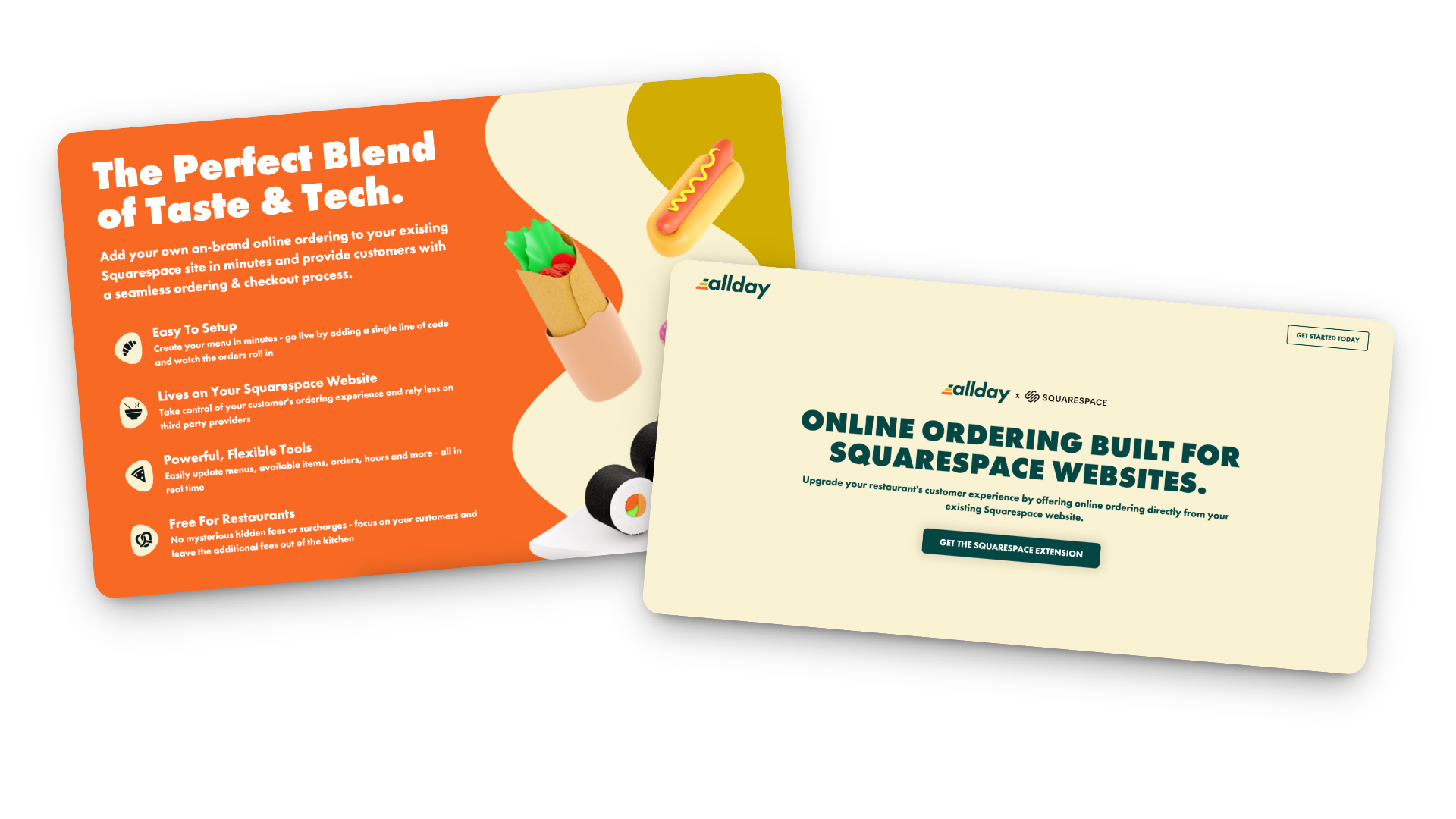
That’s where Allday Ordering comes in. It’s a new Squarespace extension that lets you add online ordering right to your existing site - no new platform, no technical chaos, and no middlemen taking their cut.
I’ve been testing it on a few projects lately, and I’m genuinely impressed by how simple it is to set up and how well it integrates with the way small restaurants actually run. So in this post, I’ll walk you through what it does, who it’s best for, and how to make it work harder for you.
What Allday Does (and Why It’s Worth a Look)
Here’s the gist: Allday connects directly to your Squarespace website and adds a complete online-ordering experience - one that looks and feels like part of your brand.
Customers can:
Browse your menu
Customize their order
Check out without ever leaving your site
You keep your design, your data, and your margins.
Setup is easy too: just add a small code snippet, configure your menu, and go live. Seriously so simple!
How the Pricing Works
Here’s my favorite part: it’s actually transparent.
For restaurants: completely free.
For customers: a flat $2 fee per order (clearly shown at checkout).
Processing: standard Stripe fees (2.9% + 30¢).
Contracts: none 🚫
Plus, you can start, pause, or cancel anytime. And because everything runs through your own website, you keep the customer data - meaning you can actually build relationships instead of renting them from delivery apps.
Who Allday is Best For
In my opinion, Allday is a great fit for:
Independent restaurants that want to modernize without switching systems
Cafés and bakeries that sell daily specials, pre-orders, or meal kits
Catering services and pop-ups that need flexible menus
Small restaurant groups that want a consistent setup across multiple locations
Basically, if you’re already using Squarespace and want a way to accept online orders that feels native to your site (and not like a clunky bolt-on), this is worth exploring.
How to Make Online Oredering Work Harder for You
This is where the magic really happens. Adding online ordering is great, but optimizing how people use it can make a big difference in your sales.
Make “Order Now” Impossible to Miss
Add it to your header, footer, homepage hero, and anywhere else customers tend to land. If they have to hunt for it, they’ll give up and go back to DoorDash.
Use Mouth-Watering Photos
A couple of great shots of your best-sellers go a long way. You don’t need a full menu gallery — just enough to make people hungry.
Keep the Menu Tight
Too many options = decision fatigue. Focus on what you can fulfill quickly and consistently. Clear categories and smart modifiers (“Add chicken +$2”) help too.
Promote Direct Ordering Everywhere
Remind customers they can order directly from your site. Add a quick line to your emails or posts:
“Skip the apps — order directly from our website and help us keep prices fair.”
Use QR Codes Strategically
Add them to menus, packaging, and in-store signage that lead straight to your ordering page. Repeat customers will thank you.
Pay Attention to the Data
Because you own your analytics, you can actually see what’s working — top dishes, busy hours, repeat orders, and even drop-off points. Use that info to improve your menu and marketing.
Integrate with Your Email List
If you use Flodesk (like I do) or another email tool, send simple reminders:
“New week, new menu — order ahead now.”
“Early access to our seasonal menu — pre-order today.”
Test and Adjust
Watch how customers interact with the page. Are they clicking “Order Now” right away, or scrolling first? Do certain items always sell out? Tiny layout or wording tweaks can have a big impact.
Keep It Fresh
Menus change, seasons change, and so do your customers’ habits. Make updating your online ordering part of your regular routine — swap in seasonal dishes, highlight new items, or feature a “staff favorite” now and then.
Bonus Tip: Not only does this keep regular customers engaged, it also signals to Google that your page is active (which can help with SEO).
Restaurant Ordering on Squarespace FAQs
-
Install the official Allday extension, add your menu, set your pickup/delivery options, and embed “Order Now” buttons on your site. It takes less time than you’d think.
-
It’s free for restaurants. Customers pay a small flat fee ($2 per order), plus standard Stripe processing.
-
Yep! You can set different menus, hours, and fulfillment options for each.
-
Yes! Everything happens right on your Squarespace site, so your fonts, colors, and overall style stay consistent.
-
I’d recommend it for small to mid-sized restaurants, cafés, bakeries, catering businesses, and pop-ups - basically anyone who doesn’t want to hand off their customer experience to a third-party app.
-
Visibility + communication. Make the ordering button clear, mention it in your emails and social posts, and highlight the benefits (lower fees, faster pickup, direct support for your business).
Bottom Line
Adding restaurant online ordering to your Squarespace site doesn’t have to be complicated or expensive. With Allday, you can keep your website, your brand, and your customer relationships intact - all while giving your diners a smoother, more personal way to order.
If you’re ready to give it a try, you can get started here. I’ll help you set it up and make sure it looks and functions exactly the way you want.
Because really, you should be focused on your menu - not a middle man.

Advanced Product Manager for Squarespace: Finally, Bulk Editing That Actually Works
If you've ever had to update prices across 50+ products in Squarespace, you know the pain. Here's the tool that finally fixes Squarespace's biggest product management bottleneck.
If you've ever had to update prices across 50+ products in Squarespace, you know the pain. Click into product one, change the price, save. Click into product two, change the price, save. Repeat until you question your life choices.
Or maybe you've tried the CSV import route - download, edit in a spreadsheet, re-import, fix the errors it inevitably throws, re-import again, and wonder why this feels like you're working against the platform instead of with it.
Here's the thing: Squarespace Commerce can work beautifully… until you hit scale. Once you're managing a catalog of any real size, the one-by-one product editing workflow becomes the bottleneck that can keep you stuck spending more time working in your business than on it.
That's exactly the problem Advanced Product Manager from SquareHero solves - and I've been lucky to be beta testing it for the past few weeks so I can tell you exactly what it does, what it doesn't do, and whether you should add this to your toolkit.
What It Actually Does
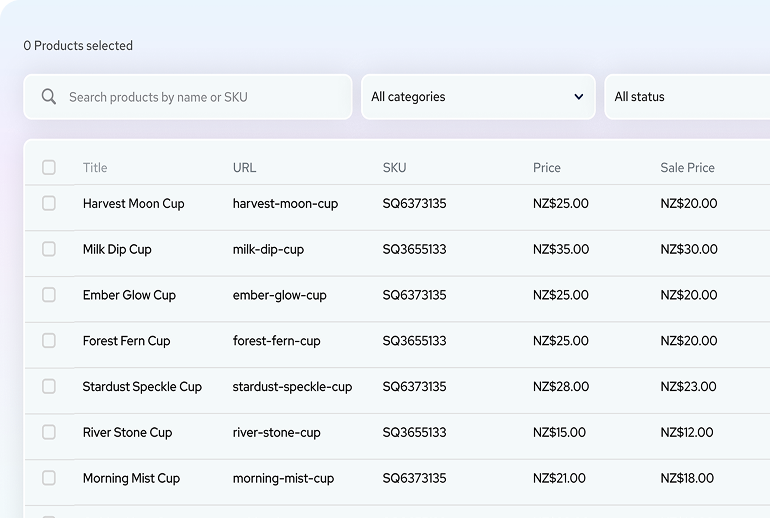
Advanced Product Manager is a plugin that gives you a spreadsheet-style view of all your Squarespace products. You can see everything in one, clean table and make changes instantly. No more clicking through products one by one every time you need to make a price increase.
Here's what you can edit in the table view (think Shopify-style spreadsheet):
Product titles: Edit product names directly in the table
URLs: Update product URL slugs
SKUs: Manage product SKUs
Categories: Add or remove categories
Pricing: Adjust regular and sale prices
Stock levels: Update inventory quantities
Bulk Editing aka The Real Magic
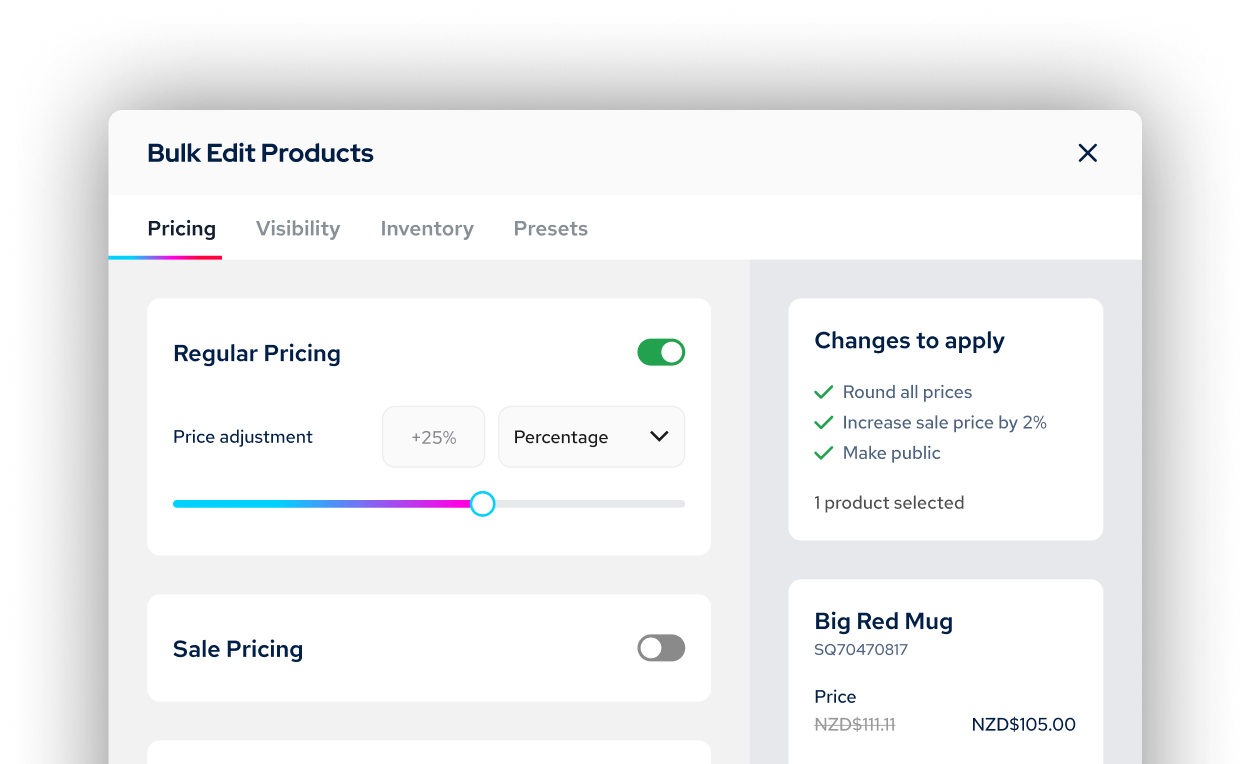
Things really get fun when you can make updates like this en masse:
Price changes: Adjust regular prices by percentage, dollar amount, or set a fixed price across multiple products. For sale prices, you can adjust based on the regular price (say, 25% off) or modify existing sale prices by percentage, dollar amount, or fixed price.
Smart rounding: This is particularly useful. If a 25% discount creates an awkward price like $24.93, you can set rounding rules to automatically adjust to $24.99, $24.95, a whole number, or a custom amount. The final price might not be the exact percentage you specified, but it looks better to customers.
Sale toggles: Turn sale prices on or off across multiple products at once.
Product status: Bulk change products between public, hidden, or scheduled.
Category management: Add or remove categories in bulk. This is useful when you want to do things like move everything into a "clearance" category and apply sale prices all at once 🪄
Inventory adjustments: This is for all the inventory managers out there who need to update their site to match physical stock levels. When you receive a shipment and need to add 25 units each across multiple products, you can make that adjustment in seconds rather than updating each product individually.
Who Actually Needs This
Let's be honest - if you have 10 products and update pricing once a year, you probably don't need this tool. But if any of these sound familiar, it's worth looking at:
You're running regular sales or promotions. Black Friday prep used to mean clicking through every single product to toggle sale prices on and off and entering the right prices. Now it's a bulk selection and one click. No math required.
You manage multiple collections with different pricing strategies. Think: food brands rotating seasonal menus, retail stores with different margin requirements per category, anyone managing wholesale vs. retail pricing - this saves you from juggling spreadsheets.
You're a designer managing client stores. SquareHero offers multi-site plans (3-site and 10-site options), which makes this particularly useful if you're maintaining product catalogs for multiple clients. You’ll literally look like the hero when clients ask if you can make price updates and you have that done in minutes vs. days.
You're just tired of the CSV workflow. Honestly, same - and you know I love a spreadsheet! The CSV export/import process in Squarespace works really well, but I know that it can be overwhelming for a lot of people. This is faster and, honestly, just way less frustrating.
How It Works
Installation is genuinely super simple - it's a quick code snippet added once to your site and you’re done.
Once installed, you'll see the SquareHero icon in your editor and you can click on that to display your products in a sortable, filterable table. Select the ones you want to edit, make your changes, and save. The updates happen directly in Squarespace, so everything stays in sync.
One feature I particularly appreciate: demo mode. You can try the full product before buying, no credit card required. Test it with your actual product catalog and see if it solves your specific workflow problems before committing.
The Real Talk Section
This isn't going to solve every Squarespace Commerce limitation. It won't give you more advanced selling features, it won't replace a proper POS system if that's what you need, and it won't magically make Squarespace's variant system work any differently (though it does make editing pricing for those variants much, much faster).
The tool is for pricing or inventory updates and not things like:
Editing product descriptions
Adding/removing variants
Adding/removing photos
Controlling advanced selling tool features such as product add-ons or custom forms
Editing the Additional Info section
But honestly? These are Squarespace limitations, not limitations of this tool. Within Squarespace's current constraints, this tool eliminates the most repetitive, time-consuming part of managing a Squarespace store at scale. And that's actually super valuable even if you need to do some of the other product management the old school way.

Pricing
I think the pricing structure is super fair and with single-site, 3-site and 10-site plans there’s something for you whether you’re a site owner yourself or a web designer or store manager on multiple sites. Even on the single site plan at $14/mo paid annually, I’d say if you're spending even an hour per month on bulk product updates, this pays for itself pretty quickly.
The Bottom Line
If you're running a Squarespace store with more than a handful of products and you regularly need to make bulk changes, this tool does exactly what it promises. For Squarespace users who've been stuck with one-by-one editing for years, this actually feels, dare I say, revolutionary - even if it's just bringing the platform up to what other eCommerce platforms have offered all along. But it's really well-executed - and honestly, that's what matters when you're trying to actually run a business instead of fighting with your website.
It’s quick to install, demo mode lets you test before buying, and the interface is clean enough that you won't need a tutorial to figure it out.
Squarespace Commerce is a solid platform, but the product management workflow has always been its weakest point at scale. Advanced Product Manager fixes that specific problem without overcomplicating things.
Full disclosure: I beta tested this product and received access in exchange for an honest review. This post contains affiliate links - if you purchase through them, I earn a small commission at no extra cost to you. I only recommend tools I actually use and believe solve real problems.

Flodesk + Squarespace Commerce: A Real Look at The New Integration
Flodesk’s new integration with Squarespace Commerce means no more Zapier hacks. Now you can sync customers instantly, trigger post-purchase workflows, and build smarter automations - without extra tools.
If you’ve ever strung together Squarespace and Flodesk with a series of zaps and a prayer, I know you’ve thought: surely there must be a better way? Good news: Flodesk now offers a direct integration with Squarespace Commerce. No Zapier or duct tape necessary. But real talk: there are still a couple of kinks to iron out and some pitfalls you’ll want to look out for. Let’s break down exactly what you can do, the smart ways to take advantage of this update, and what you still can’t, so you can plan your automations confidently.
What This Integration Actually Enables
Finally! Here’s what you can now do with Squarespace x Flodesk:
Customer Sync: Automatically import all customers into Flodesk as a segment.
Post-Purchase Triggers: Launch workflows the moment a purchase completes - just pick Squarespace as the trigger in Flodesk (Makes a purchase → On the store …), then optionally filter by product.
Powerful Workflow Capabilities: From cart purchase to final email, Flodesk handles the workflow logic. Use delays, conditions, and design strategic sequences to ask for reviews, cross-sell, or welcome repeat buyers. (More on this below!)
What It Still Doesn’t Do :(
No Abandoned Cart Emails: Squarespace's API doesn’t support the detection of abandoned carts, so recovery sequences still aren’t possible. No tool outside of Squarespace’s own email campaigns can trigger upon cart abandonment yet.
No Real-Time Form Opt-In Sync: New sign-ups via Squarespace forms are only synced to Flodesk every six hours, unlike purchases, which sync instantly. IF you need form submissions to sync instantly that’s not a problem though - just embed your Flodesk forms like normal vs. using the integration.
Doesn’t Replace Squarespace Transactional Emails: This integration does not replace the automated Squarespace customer notifications, such as the order confirmation email or shipping confirmation email. Those are transactional and are handled by Squarespace. Flodesk handles the relational follow-ups. You can’t turn off Squarespace’s system emails, so make sure you customize and brand them (more on that in this post).
What Gets Sent via Squarespace vs. Flodesk Cheat Sheet
Via Squarespace
Order confirmation (via Customer Notifications)
Shipping confirmation (via Customer Notifications)
Abandoned Cart (via Campaigns)
Via Flodesk
Product-specific emails or workflows
Customer-specific emails or workflows
Wildcard
Review Request email - your pick on this one! Just make sure that if you enable the automatic Squarespace review email that you don’t set one up via Flodesk and vice versa.
How the Integration Works Behind the Scenes
When you connect, a segment is automatically created and named after your Squarespace store URL. You can rename it after the fact without breaking the sync.
The initial import includes all customers who’ve opted into marketing.
Ongoing sync runs automatically every six hours for form opt-ins. Purchases sync immediately and are marked as either Unconfirmed (if not opted into marketing) or Active (if opted-in).
How to Connect Squarespace & Flodesk
Ok, so you’re into this? Making the connection is super easy! Just go to Account settings > Integrations, click Connect on the Squarespace card, and follow the prompts!
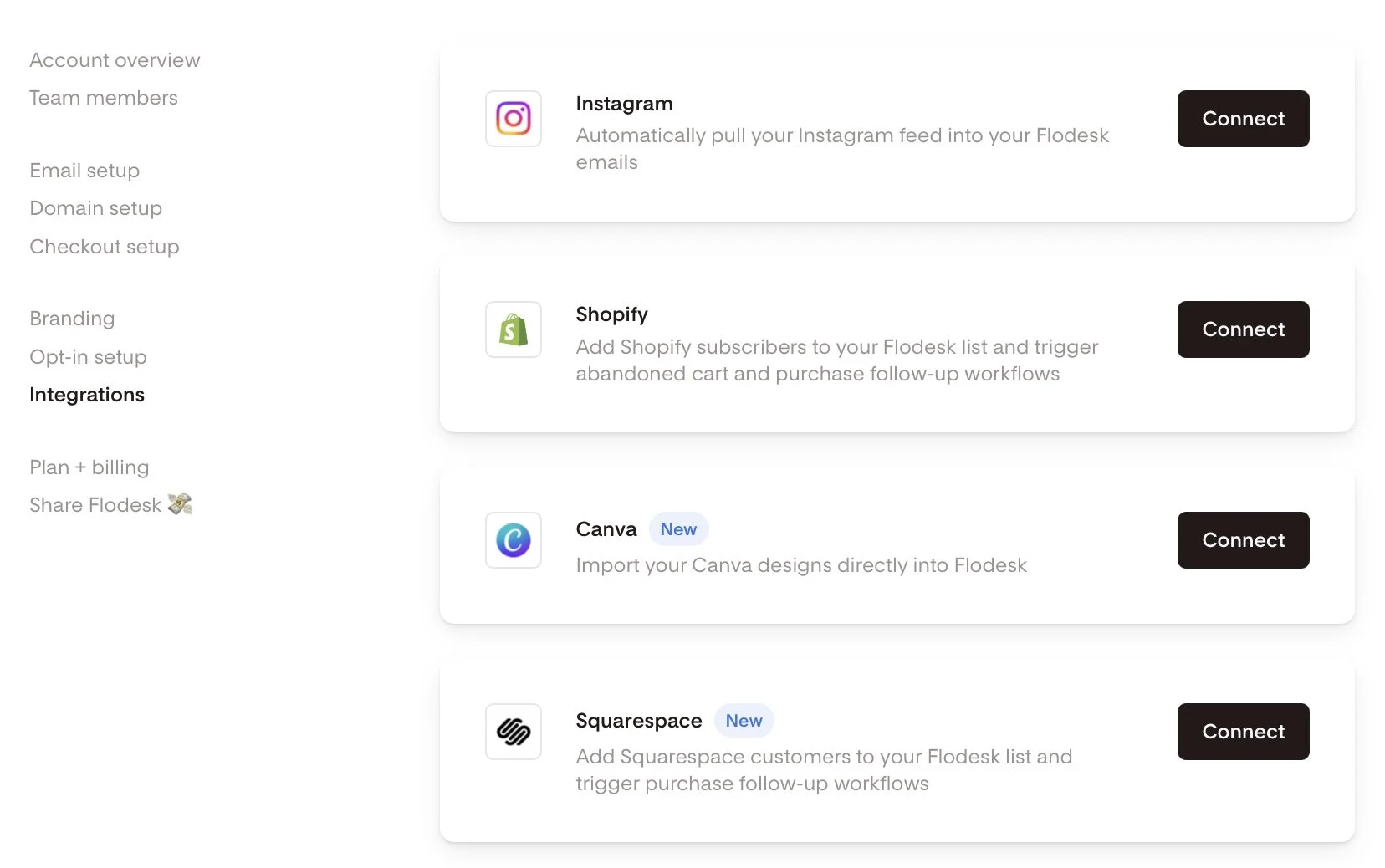
Screenshot of Flodesk and Squarespace integration
How to set up a Squarespace Purchase Follow-up workflow in Flodesk:
Alternatively, if you haven’t done that yet and you’re in the middle of building out a workflow, you can also do it right there by choosing Squarespace as a trigger in a purchase follow-up workflow.
Head to the Flodesk dashboard under Workflows → + New → Purchase follow-up.
Select Your Trigger: Choose 'Makes a purchase' and select your Squarespace store.
Product-Specific Workflows: Filter by product if needed. Note that each workflow currently supports filtering for one product, requiring a specific workflow for each.
Build Your Customer Journey: Incorporate time delays, conditions, and multiple emails to craft a personalized customer experience.

Setting up a workflow in Flodesk
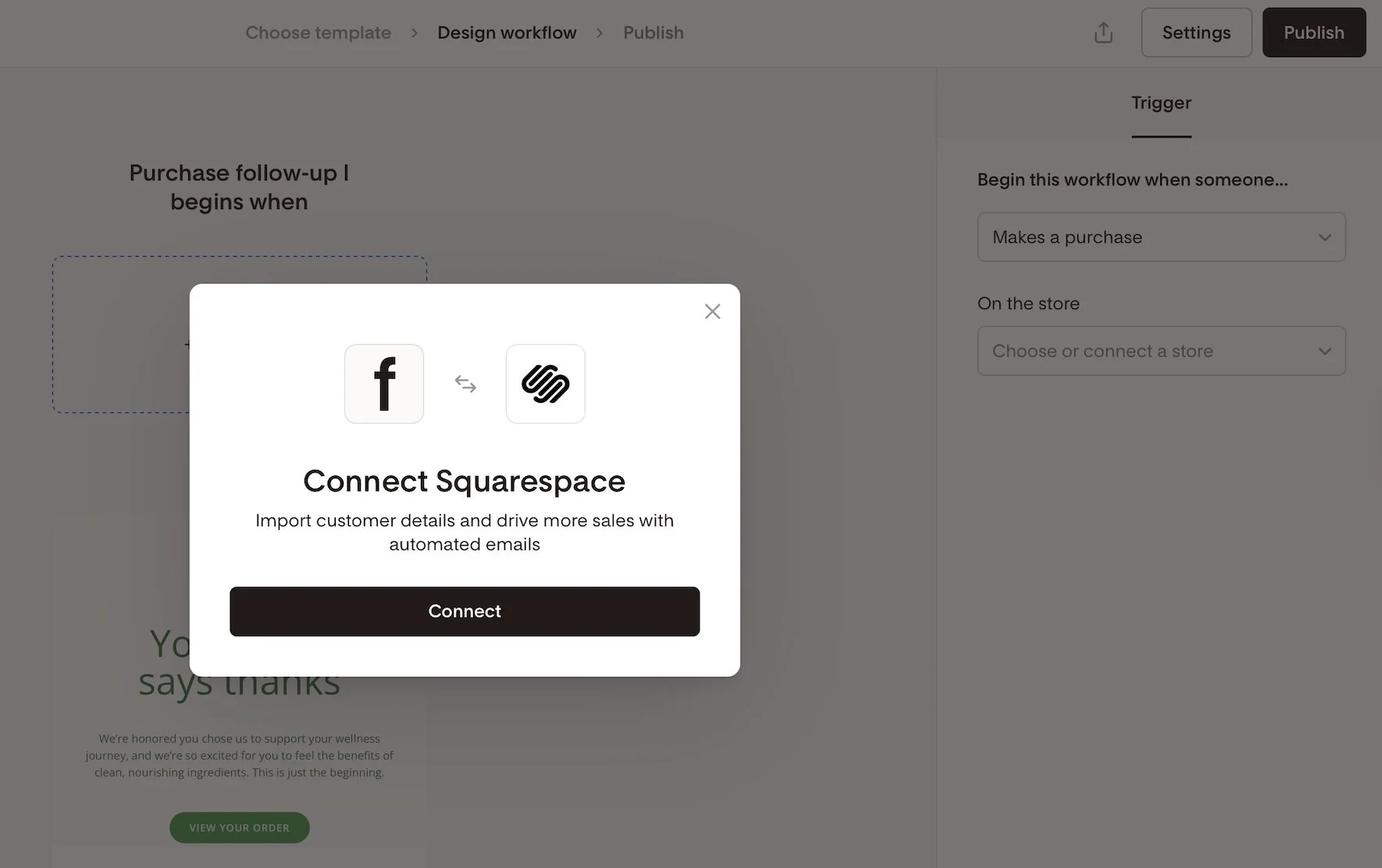
Connecting Squarespace as an integration in Flodesk
Creative Workflow Implementation Ideas:
Not sure where to start with commerce-related workflows? Here are some ideas to get the wheels spinning!
Thank-you email after a purchase
Detailed how-to-use instructions for a product
Address common product or service FAQs
Upsell or cross-sell related products
Send a review request email post-delivery
Offer an exclusive discount for repeat buyers
Invite customers to join a membership, subscription, or community
Implement seasonal or collection-based follow-ups
Squarespace x Flodesk FAQs
-
Nope. Everything you can currently do (customer sync and purchase-triggered workflows) happens natively.
-
Not currently - Squarespace doesn’t send that kind of trigger through the API.
-
Form opt-ins every six hours; purchases are synced instantly. If you need forms to sync instantly though, just embed a Flodesk form!
-
In a dedicated segment named after your store URL - you can rename it later if you’d like.
-
Absolutely - but note that each workflow only supports a single product filter. So if you want to send 3 unique automated emails for 3 specific products, just set up 3 workflows in Flodesk.
-
Flodesk workflows could overlap. To avoid duplicates, disable Squarespace post-purchase emails if you’re using Flodesk for follow-ups.
-
On Squarespace, go to Settings > Selling > Checkout and toggle Email Signup ON. You can also customize the text displayed in the signup box by clicking on Email Signup Settings.
Bottom Line
This new integration is exactly what so many Squarespace sellers have been hoping for. Now, you can finally say goodbye to Zapier, create purchase-triggered workflows, and send out beautiful follow-up emails—no complicated workarounds needed. While things like abandoned cart emails and instant form syncing are still on the wish list, this update is a big step forward for building stronger customer relationships right inside Squarespace.
If you’re excited to try it out, you can sign up using my Flodesk affiliate link. Not only will you get access to these handy new features, but you’ll also be supporting more tutorials like this one in the future. It’s a win for your business and helps our whole community grow!

Essential Squarespace Tools for eCommerce Stores
Discover my vetted list of essential Squarespace eCommerce tools that actually work. From shipping solutions to custom code, these are the exact tools I use with clients to build successful online stores.
Look, I get it. You chose Squarespace because it's supposed to make running an online store easier, not give you a headache trying to figure out which third-party tools you actually need.
After years of building eCommerce sites (and being called the "Squarespace eCommerce Queen" more times than I can count), I've learned that the right tools can make or break your online store. But here's the thing - you don't need 47 different apps. You need the right ones that actually work with Squarespace and solve real problems.
So let's cut through the noise. Here are the tools I actually use and recommend for my eCommerce clients - no fluff, just the ones that earn their keep.
The Foundation
Squarespace - Obviously, right? But seriously, this is still my #1 recommendation for small to medium businesses who want to manage everything in one place. eCommerce, blogging, scheduling, email campaigns - it all just works together. Use code KRISTINE10 for 10% off your subscription.
Termageddon - Privacy policies and terms that automatically update for you. If you're selling online, you need this legal protection, and this is the easiest way to cover your bases without hiring a lawyer. Magical, honestly. Use code KRISTINE for 10% off your first year.
Shipping Made Simple
Easyship - This one's a no-brainer for me. Connect your store, sync orders, generate labels - even their free plan gets the job done. I've written about them several times because they just work, especially for smaller stores that don't need enterprise-level shipping solutions.
Beyond Basic Forms
Paperform - I love Squarespace's built-in forms for most things, but when you need custom order forms, wholesale inquiries, or anything with advanced calculations or logic, Paperform is your answer. Super powerful yet stunningly simple - honestly one of my favorite tools ever.
Code & Customization
Will Myers - Hands down, the best custom code solutions for Squarespace. I use Will's code snippets on literally every site I build. If you want to add functionality that Squarespace doesn't offer out of the box, this is where you go first.
Custom Codey - AI-powered coding assistant specifically built for Squarespace. When you need custom code but don't want to learn CSS from scratch, this tool is a game-changer. Plus, it's built by someone who actually understands Squarespace inside and out. Use code KRISTINENEIL for a discount!
The Bottom Line
Here's what I've learned after building hundreds of eCommerce sites: the best tech stack is the one you'll actually use. These tools have earned their spot because they solve real problems, integrate well with Squarespace, and don't require a computer science degree to figure out.
Start with the foundation (Squarespace + Termageddon), add shipping when you need it (Easyship), and layer on the others as your business grows and you hit specific pain points.
Your online store should work for you, not against you. These tools help make that happen.
P.S. Some links in this post are affiliate links, which means I earn a small commission if you purchase through them - at no extra cost to you. I only recommend tools I genuinely use and believe in.

Kristine Neil
Fractional Web Partner
I'm Kristine Neil - a communications strategist who has spent 20+ years designing websites, first running a full-scale design and marketing agency, and now leading my own studio. I've been the creative director managing the work, the coder quietly fixing what others couldn't, and the strategist in the room asking why before how. Somewhere between the MBA and the other degrees, I decided web design was just one tool in a much bigger toolbox - the real work is figuring out what you're trying to say, who needs to hear it, and what's getting in the way. A website is just where all of that comes to life.
I build on Squarespace, and after years deep in the platform I know how far it can go and when to push past its limits. These days, I'm especially drawn to working as a fractional partner - getting to know an organization over time and helping with whatever moves them forward, whether that's a full redesign, an ongoing hand with content and strategy, or just being the person who knows their site best. I write here about eCommerce, web strategy, and making the complex feel a little more human.