

Notes on building smarter websites for actual humans.

A Minimalist's Guide to Squarespace Sales & Marketing Extensions
Launching an eCommerce website is not a “build it and they will come” situation - you’ve got to do your work on sales & marketing! Here is my take on all the Squarespace extensions that can help you with things like getting customer testimonials, running digital ads, and syncing your product feed to other sales platforms or channels.
UPDATED: March 2026
Launching an eCommerce website is not a “build it and they will come” situation - you’ve got to do your work on sales & marketing! Squarespace has a few extensions just for things like getting customer testimonials, running digital ads, and syncing your product feed to other sales platforms or channels. Here’s the 411 on all of them!
Ad Manager
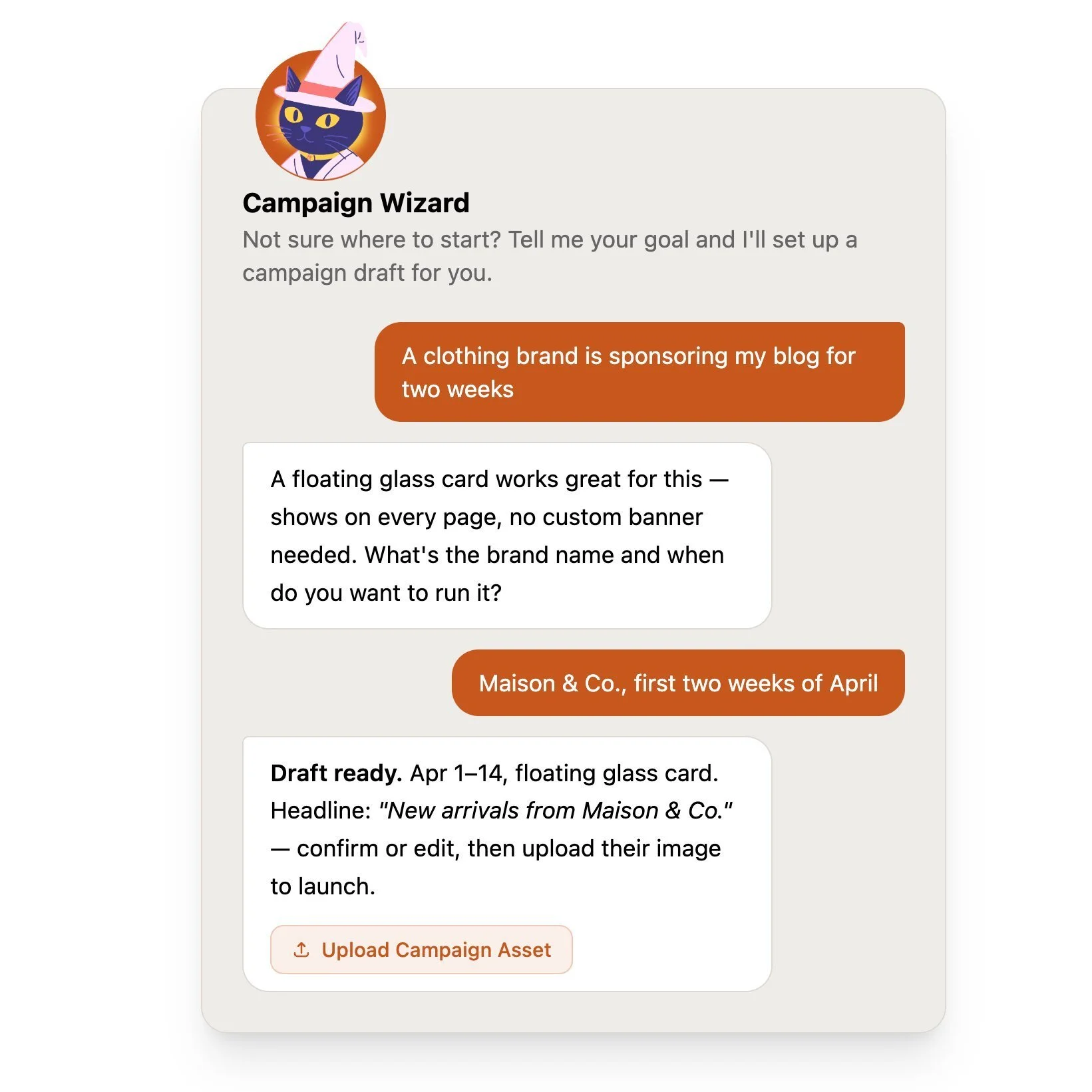
If you've ever wanted to run ads, promotions, or sponsored placements on your Squarespace site without handing the keys (or your sanity) over to Google AdSense, Ad Manager is worth a look. It was built by fellow Squarespace Platinum Partner Braunsberger Media after years of running into the same problem with clients - they wanted control over what showed up on their sites, and traditional ad networks just weren't it. I love tools built by fellow Squarespace pros because I know they have first hand knowledge of what it takes to solve real problems! With AdSense, you don't get to pick what shows up, the ads rarely match your brand, and they take a cut. Ad Manager flips that on its head.

What it does:
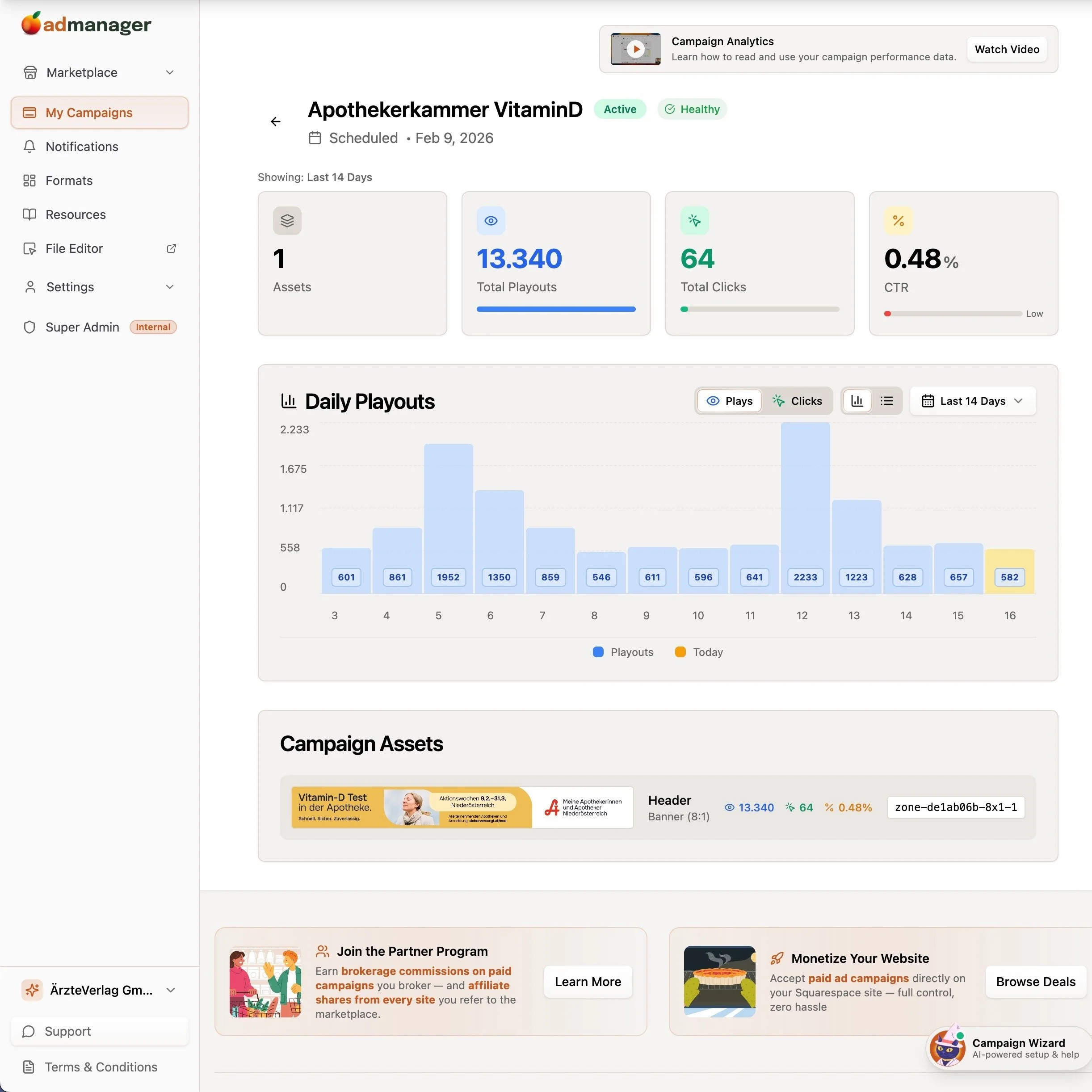
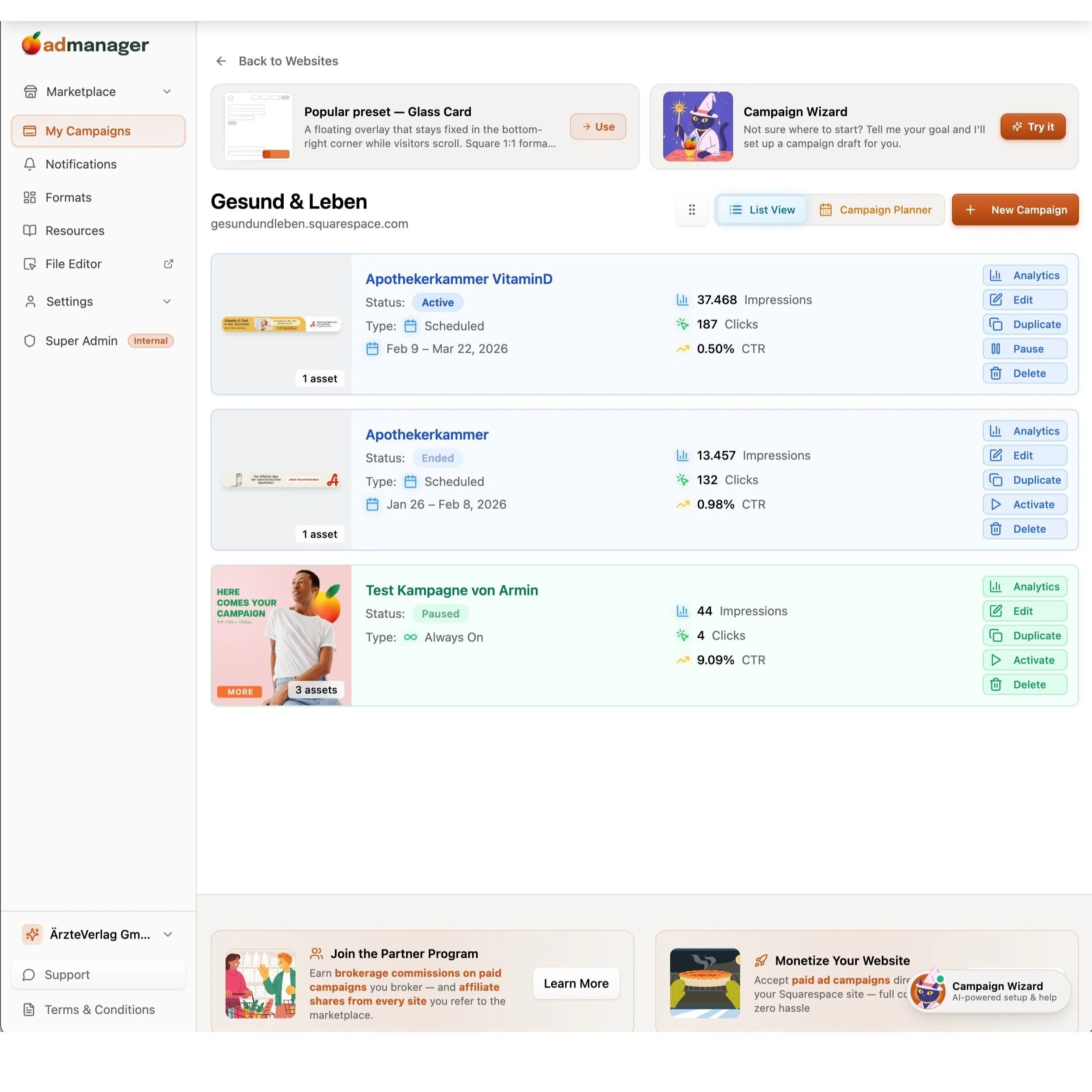
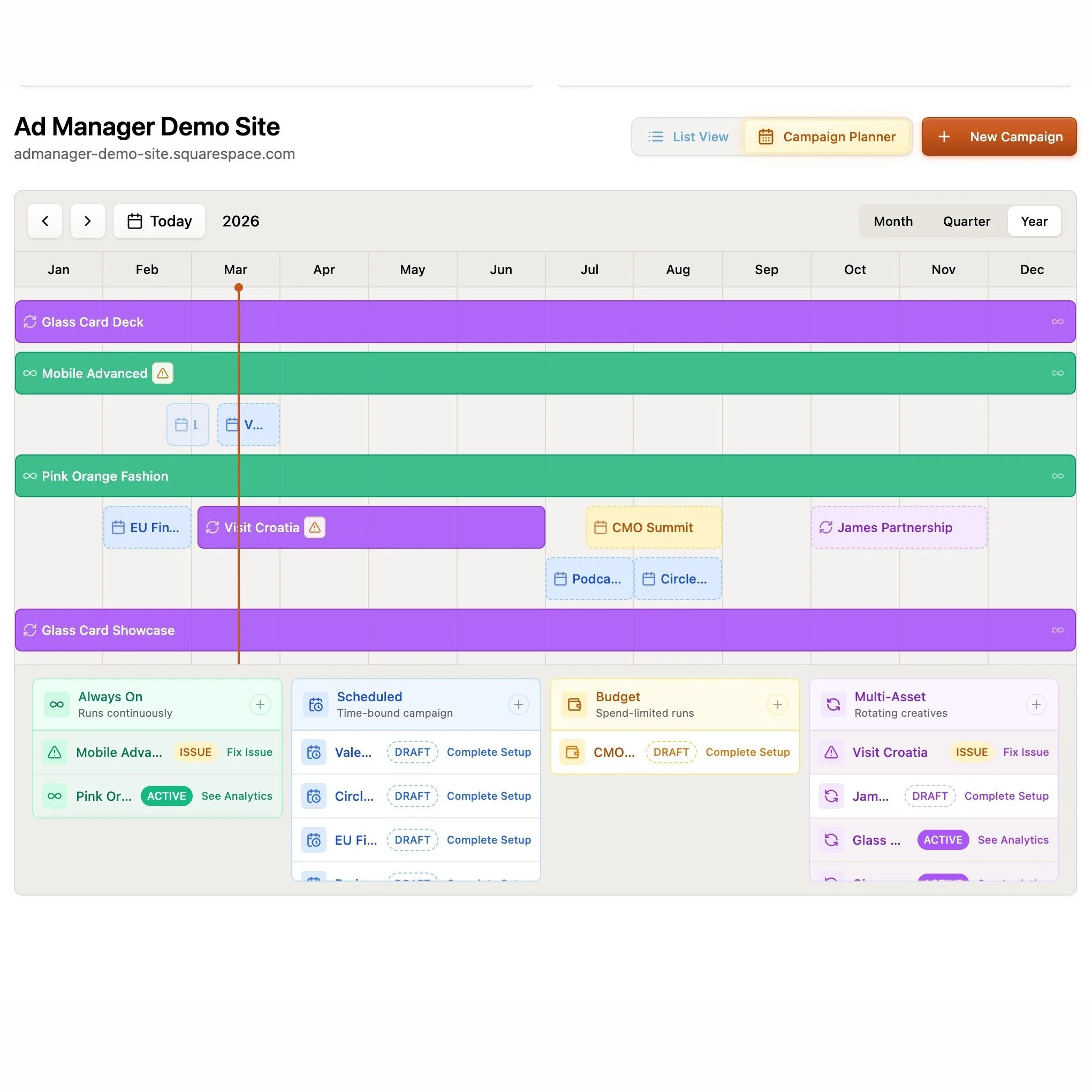
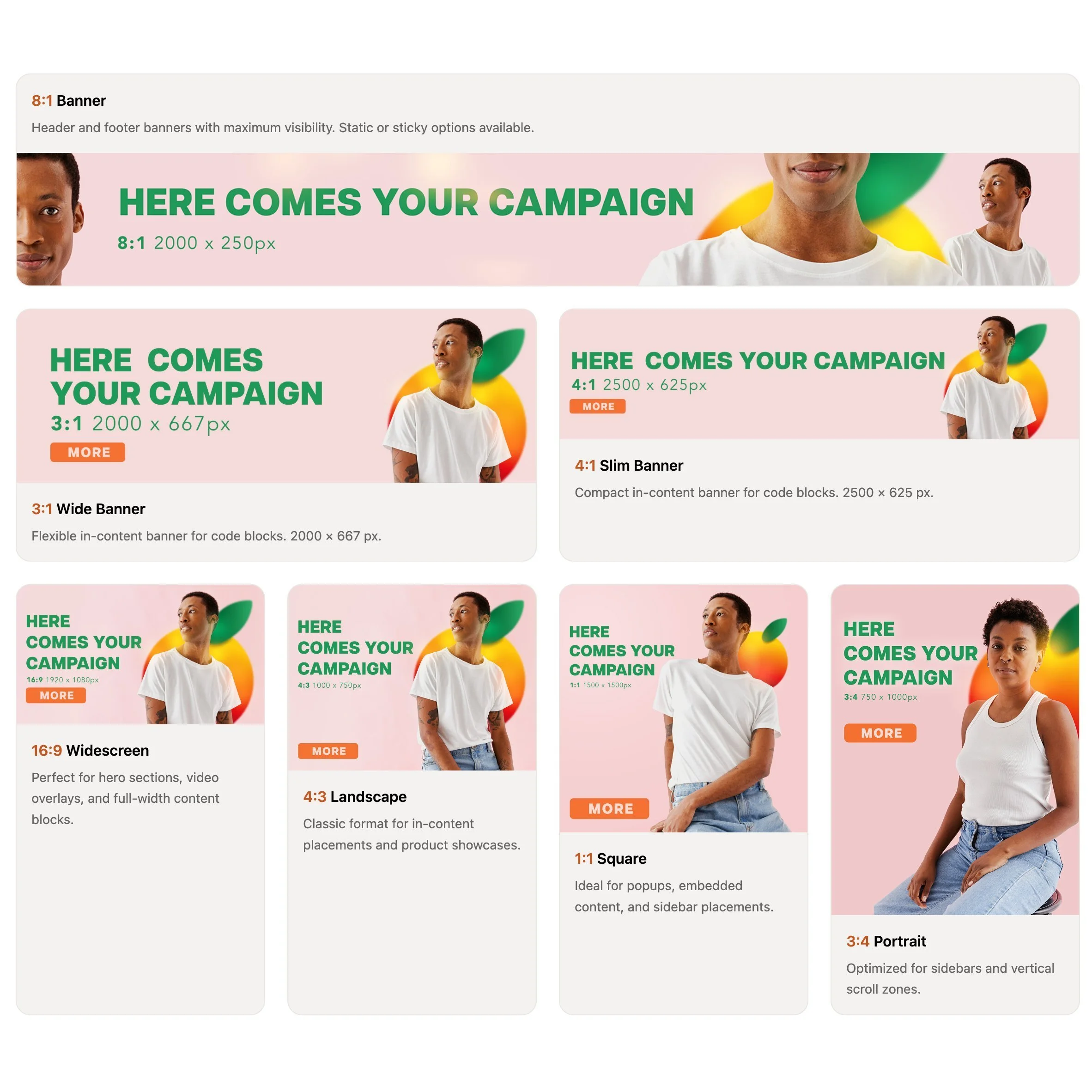
Gives you a central dashboard to create, schedule, and track your own promotional content - banners, timed campaigns, sponsored placements, rotating creatives - directly on your Squarespace site. Setup is a one-time code injection paste and then everything else is managed from their dashboard. You also get real-time analytics for impressions, clicks, and click-through rates, plus a built-in image editor so you're not bouncing between tools.
What makes it really interesting is the marketplace model. You can collaborate with other site owners - either advertise on their websites or field proposals from brands who want to run campaigns on yours. The platform handles the money through an escrow system powered by Stripe Connect, so the website owner gets paid once the campaign has actually run. That's a smart setup for anyone looking to monetize without chasing invoices.
Who should try it:
Anyone who wants to monetize their site with ads or run partner campaigns but doesn't want a third-party network deciding what shows up. This is especially useful for bloggers, content-heavy sites, or agencies managing promotions for clients. You keep 100% of the revenue, which is a pretty big deal compared to the AdSense model.
Pricing:
You can use Ad Manager privately on up to 5 of your own websites for free. The marketplace features go beyond that, and the platform only takes a share on actual transactions - so you're not paying for something you're not using.
Delighted
Making sure that your customers had a great experience is obviously super important for brands of all sizes but Delighted makes it easy even for small businesses to get super actionable feedback from customers in the same way huge companies like Target, Uber, and Instacart do. Most importantly (to me, at least) is that it’s automated since this extension will automatically pull from your Squarespace order data.


What it does:
Allows you to send one-question surveys of several different types to customers either right after they order or on a specified delay. You can collect feedback in one area, track trends, or even automatically send responses to certain people on your team so they can follow up.
Who should try it:
Anyone looking to build up social proof with positive testimonials from customers without having to do a ton of setup tracking them down. Since the surveys are so simple and easy, customers are super likely to submit their feedback, which you can use on social media or your website to delight future customers. And the circle continues.
Pricing:
Free plan available that includes up to 1000 trackings per month and 3 users which I think would work for most teams. You only get one survey type on the free plan but everything can be automated so if you’re running a smaller shop, this would work great for you.
GoDataFeed
Not going to lie to you that setting up data feeds for shops on Facebook, Instagram, Google or Pinterest is NOT my jam. I know people who are great at this and am happy to refer them but for those that are looking to run online ads without having to worry about syncing product data across multiple channels or platforms, GoDataFeed will save you so many headaches.


What it does:
GoDataFeed automatically pulls in your Squarespace product data and optimizes your catalog for multichannel marketing. You can manage all your product info from one place, create optimized ads and make it so much easier for you to manage digital marketing campaigns in-house.
Who should try it:
Anyone who is looking to run ads or sell on platforms like Google, Facebook, Instagram, Pinterest, or 200+ marketing channels.
Pricing:
The lite plan is $39/mo will cover up to 1,000 SKUs and is still super robust in terms of all the other features (unlimited stores, users, and data modifications) compared to the Plus plan which is $99/mo. The right plan for you will really depend on how many products you have but the time GoDataFeed will save you on either plan is well worth it in my opinion.
Outfy
A lot of people have “social media” on the marketing to-do list but realize it can be… a lot. With Outfy, you can automate social media posting, saving you a ton of time working on getting new traffic to your site. You can easily create videos, GIFs, collages, or even put the whole thing into “autopilot” mode.


What it does:
Once you sync your Squarespace site to Outfy, you can easily generate ads for Facebook, Instagram, and Google for any product in your shop. Share on social media, automate posting or create graphics all from the Outfy dashboard.
Who should try it:
Anyone who wants to try their hand at social media marketing without needing to hire a graphic designer or digital marketer.
Pricing:
All the plans basically include the same features so you’re basically just going to pay for how much you use or share via the app. The free plan gets you 30 credits/month, where one credit = one post to a social network. If you want to use any of the GIF, video, or collage layouts those are more credits.
Bottom Line
Running an eCommerce business on Squarespace is made even more powerful by taking advantage of some of the extensions that are available to supercharge the experience. (See also: this post all about Squarespace shipping extensions!) If you’re looking to get more eyes on your store either through social media marketing, selling on other platforms, running digital ads, or building up a huge roster of satisfied customers, give one of the sales & marketing Squarespace extensions a try.

A Step-by-Step Guide to Starting an eCommerce Business in 2024
Do you have a great idea for an eCommerce site but no idea where to start? This quick step-by-step guide will help you cover the basics, launch quickly, and be able to start selling with confidence on Squarespace. We’re going lean and mean!
In my many (many) years as a web design and former design agency owner, one of the biggest traps I've seen new business owners and startups fall into is wanting everything to be absolutely perfect before launch day. And not just in a “let’s make sure to spell check the copy” kind of way. No, more in an “analysis paralysis”, perfectionist kind of way. Here are some of their trademark behaviors:
They get stuck on minute details that won’t affect their initial sales or long-term success.
They put off launching while they worked on extras that could have easily been added in Phase 2 (or 3… or 5… or 10) of the project.
They research and research and research but never actually make decisions.
They stall out because they’re afraid they missed something.
And if you’re wondering why you clicked on a blog post about how to start an eCommerce business in 2024 and landed instead on a little side story about people who’ll probably never launch, here’s why:
Because I want you to see how simple it is to just do it.
One of the things I love about Squarespace is how easy it makes it to just jump in and start selling. You can’t put off making sales while you wait for your website to be ready for you. You need to start selling ASAP. The rest can come later.
Taking a Lean-Agile Approach to Web Design & Development
Let me tell you how my little minimalist heart just sings at the sound of the words “minimally viable product.” When others hear it and think “barebones”, I hear the cha-ching of that cash register ringing.
An MVP product is one that starts lean so that you can:
Keep initial investment costs in check.
Get feedback before adding on new features.
Start seeing revenue right away to fund and finance the implementation of those features.
It makes sense in product development and app development and all sorts of other areas so why not web design?
So here we are: how to actually make it happen.
The Step-by-Step Guide to Starting an eCommerce Business in 2024
I could write a college textbook-sized document that covers all the things you could ever need or want to do on your website at some point but these are the things that you need to launch your MVP site. You know, the one that’s going to start making you money ASAP before you even crack open a book. We’ll dig into each of these things in detail in a bit but here’s our shortlist of absolute must-haves:

The Right Website Subscription
A Domain Name
3 Basic eCommerce Settings (Money, Taxes, Shipping)
Simple Content + Images
Legal Policies
With these things set, just add your products and you’ll be ready to sell!
Now let’s dig into each item in more detail:
The Right Website Subscription
There are two parts to this: the right website platform + the right subscription plan.
Now, it’s no secret that Squarespace is the MVP of MVPs. It’s my eCommerce website builder of choice and it should be yours, too. Some people will tell you (falsely) that if you’re in eCommerce you’ve “got to be on Shopify” and - sure- that’s an option you could totally look at.
However, as both a longtime Squarespace Circle Member and a Certified Shopify Partner I feel like I’m uniquely qualified to speak objectively about both platforms. I’ve built sites of all types and sizes on both and yet still choose Squarespace 9 times out of 10 for the sites I work on. Here’s why:
Ease of Use - I’m guessing you didn’t get into business to also learn how to code something as simple as a landing page or contact form. You’re most likely going to be the one managing day-to-day things on your site and I don’t want you to go mental trying to do so.
More Commerce Features - Yep, you read that right. On Squarespace, you can offer more product variations and sell more product types all without the need for paid plugins.
Limited Monthly Costs - You’ll find no one that hates feeling nickel-and-dimed more than me so the type of thing that really grinds my gears is when you pay a monthly fee to a service provider only to quickly realize that in order to do what you really want you’ll need to sign up for 8,342 additional paid apps. Welcome to the Shopify experience: where the world is at your fingertips so long as you’re willing to string together multiple third-party apps with questionable security levels in order to do the one thing the platform claims to be able to do well: sell stuff. With Squarespace, everything’s built right in with the exception of a few very specific optional add-ons making it easy to not just sell but to run your entire business without the need for multiple additional paid apps.
(For more Squarespace vs. Shopify comparison notes check out this post: Squarespace vs. Shopify: Which is Best for Small Business?)
So now that we’re all on the same page with Squarespace, it’s just a matter of picking the right plan. I break down all the options in detail here but here’s the TL;DR:
Choose Basic Commerce ($27/mo) if you’re just getting started and are in super cost-saving mode. You can switch plans at any time so you can always upgrade later. This plan is probably also sufficient for smaller sellers whose primary income isn’t generated online.
Choose Advanced Commerce ($49/mo) if your eCommerce website is the centerpiece of your business. The advanced tools really are what’s going to help you compete most effectively and they come at a pretty reasonable premium over the Basic plan.
A Domain Name
Hot tip before we jump into all things domain-related: if you pay for your Squarespace subscription (above) annually you can register a new domain name FOR FREE for the first year! This will not only save you a few bucks, you’ll never have to figure out how to log in to your “web host” ever again. Because it’s Squarespace. And it’s all just right there. 🧘♀️ZEN
Ok, now on to picking a domain name. I have two slightly contradictory pieces of advice on this front:
On one hand, your domain name is super important. Probably more important than your business name or your product names or your brand colors or anything else.
On the other hand, just pick something and keep on trucking.
In this post, I give a bunch of my been-there-done-that advice on domain names but since we’re going for simple here, my number one piece of advice on domains is this:
Go for the .com version! Vanity domains are becoming slightly more ok but if you absolutely can, find a .com domain that you can live with instead. People will get your vanity domain wrong, like, 96% of the time and that’s annoying for them and bad for you.

Beyond that, I just recommend keeping things as short and easy to spell as possible!
3 Basic eCommerce Settings (Money, Taxes, Shipping)
eCommerce doesn’t have to be scary! There are 1,001 settings and features and options but what it boils down to when you’re just getting started is:
Have a way to get paid
Make sure you’ve got your tax situation on lock
Put together a simple shipping strategy
That’s it. Everything else is secondary or can be added on and taken care of later.
Money - Create a Stripe account so that you can accept cards plus Apple Pay and Afterpay. One account, all the payments. Simple. (More here.)
Taxes - Put ‘em on autopilot.
Shipping - Don’t be stubborn. Just offer free shipping already. Here’s my #1 most recommend strategy in detail!
Simple Content + Images
This is one of my 3 Mistakes New Online Sellers Make: they say too much. Yep, that’s right. Most eCommerce newbies feel the need to write way more than they need to for their websites when the truth of the matter is that people don’t read websites, they SKIM them.
Bottom line: the best sites are simple, straightforward, and highly skimmable.
Most e-commerce sites need only a few static pages (such as an about page and an FAQ page) but I often see newbies give more real estate to the history of their company than they do to what they’re actually selling. This is a huge mistake and has the unintended side effect of reducing sales, which makes people think e-commerce isn’t worth it. The truth is, we’re often getting in our own way when it comes to sales.
A good rule of thumb for web copy is to write out what you think you need to say, then cut it in half... and then cut it in half again. Upside: less to write and faster to launch!
When it comes to the images on your site, it’s also important to keep things simple. Here are two of my best simple image tips:
Don’t worry about minute details in stock photos that may not be exactly right. For example, I once had a client say that a stock photo (that was otherwise perfect for their fitness brand) wasn’t going to work because the brand of weights shown in the image wasn’t the same as the brand they own 🙃 I guarantee no customer is going to notice a thing like that! Images are just there to set the mood and visually contribute to a bigger story. Find ones that work but don’t sweat the small stuff.
Selecting images that are consistent in style is one of the best ways to make stock images look less… stock. Select images that have the same overall colors and tones or the same photographic style, such as all black and white images.
You’d also be surprised at how few photos you’ll actually need on an eCommerce website - aside from product photos, that is! A few well-chosen images for banners and backgrounds on your static pages and you’re in business!
Legal Policies
I know, I know: if the tiny print is really as important as it is, why isn’t it at least in a larger font?! 😂 Jokes aside, you really need to make sure your arse is covered in case something goes sideways. Chances are it won’t but just think of the legal policies on your site like buying insurance; you get it on the off chance that something does go wrong.
My #1 go-to for website policies is Termageddon because it’s an affordable way to make sure that I’m always covered. The policies are auto-updated any time a data privacy law changes (which is actually pretty often these days) which really aligns with my desire to make things as simple and streamlined as possible. Set things up once and you’ll be covered forever.
You may also like: Legal Checklist for New eCommerce Businesses
Putting It All Together
Now that you’ve got the basics taken care of all you need to do is add products and you’re in business! Your MVP website will be a true MVP! The most important thing you can do is just launch. That’s it. Getting started is the hardest part but with these few basics taken care of, you can start selling right away while you turn your attention to the rest of your business. By launching quickly:
You won’t be stuck obsessing over teeny, tiny, meaningless details that won’t affect your ability to sell now OR see success in the long run.
You can feel confident in selling online and add additional features funded from those first sales.
You can build on the strong foundation you have when the time is right.
Time to launch your MVP eCommerce website!

How to Design Your Own Squarespace Template
Your search for the perfect template for your new eCommerce website ends here. In this post, I’m going to show you how you can design your own custom template in just a few easy steps. Includes a walk-through video showing you exactly what to do!
I know what you’re thinking — designing your own custom Squarespace template must be a super hard process that only the most advanced and skilled Squarespace web designers can pull off, right? Don’t worry; it’s easier than it sounds!
Sure, there are a lot of templates out there to comb through and pick from, and I even have a bunch of posts all about templates if you’d like to check those out:
But I really think that designing your own template is an option worth your serious consideration.
Here’s why:
It’s fast and easy to customize your own template, so you can spend more time on other things.
It's free and included on Squarespace, so you can just jump in and start editing.
It’s flexible, so no matter how you decide to pivot or grow, there’s room to build on.
Get Started
So how exactly do you design your own template for your eCommerce website on Squarespace? The exact steps are covered below, but if you prefer to watch, check out my walkthrough of this process in my YouTube video.
You can also follow along with my steps by starting your own free trial of Squarespace. Click the button below to get started and you can work along with me!

Squarespace Blueprint’s Step-by-Step Guide
We’re skipping the template library and building our very own template. Squarespace makes this as easy as pie! Just by selecting from a few preliminary options and settings, a completely custom site is created for you, ready to fill in with your content and products.

STEP 1
Add Your Site Title
The first step asks you to give your website a name. This is important because even if you end up adding a logo to your site later on, the Site Title is what search engines see. So don’t get weird - just give this your company name!

STEP 2
Build Your Homepage
In this section, you’ll work through recommendations for your home page layout from top to bottom. You can change up any of these if they aren’t perfect but try to pick layouts and sections that are as close as possible as you’d like each to look like to save yourself time later on. You can choose as many or as few sections as you like, but I recommend definitely adding one from each, as it will help you frame out a complete home page.

STEP 3
Add Additional Pages
This section is where you can define which other pages you’d like Squarespace to populate for you, so take the shortcut! Select all but Services (unless you also offer services, of course). That means that Shop, About & Contact should all be selected.

STEP 4
Choose Your Color Palette
Here you’ll be presented with some designer-approved color palettes to select from. It’s probably not very likely that your exact brand colors are represented, and that’s ok - just pick something close. If you’re unsure where to start, I recommend selecting from an option in the “Neutral” section - most of those make for a nice jumping-off point and work with a wide range of brand accent colors.

STEP 5
Choose Your Font Pairing
Lastly, you’ll need to select a set of fonts to use as a (you guessed it) jumping-off point. Just like with colors, it’s ok if you have some predefined fonts you use for your brand and don’t see them represented in the options. You can always tweak them later as needed. That being said, if you don’t already have any brand fonts picked out or aren’t sure that the fonts you’ve chosen will work well for the web, these are all great options. Choose a sans serif font pairing if your brand skews minimal/modern, a serif font pairing for a traditional/elevated brand or a mixed pair to make things feel dynamic/fun.
TADA!
Check Out Your New Site & Next Steps
Once you’ve worked through the 5 onboarding steps, Squarespace will do its magic and generate your own custom template to match your preferences and selections! It’s ok if everything isn’t exactly perfect; my guess is that it’s already feeling a lot more YOU than a generic template. From here, you’ve got the groundwork set to go in and customize the placeholder text and swap out the stock images with your own. Use the template wording as a guide for how much copy you need to write and what spaces you have to fill. If you’re needing a little help with stock photography, check out this post all about how to use Unsplash to curate your website images. W
When you’re ready to start selling, follow these steps in A Step-by-Step Guide on How to Set Up Your First Online Shop and use code KRISTINE10 for 10% off your Squarespace subscription! You’re in business!

The Best Technology Combos for Your eCommerce Business
Looking to keep your monthly costs in check or just not pay for subscriptions you don’t need? This post breaks down my best technology recommendations for different types of eCommerce business models. Discover which software and apps work well together to do exactly what you need.
Updated: September 2022
It seems like all business tools these days come with some sort of SaaS subscription-based pricing model. And at first, all the accounts seem to make sense. You sign up for one service that does this thing, and another service that does that thing… but before you know it your bank account is getting hit several times a month for all sorts of things! And it isn’t just a financial drain. Running multiple services side-by-side means you’ve got to keep track of multiple logins, track which programs are in charge of which tasks, and (my favorite) try to get them to all play nice together.
Using tools like Zapier can help ease the pain of connecting various apps and software together but at some point I think we’ve all wondered if there was a way we could pare things down - if only for our own sanity. In the tech industry, the buzzy word for all the software and tools that you use to build your product is a “technology stack.” When I look at my client’s businesses I see all the software, services, subscriptions, apps and extensions as their personal technology stack and the goal is always to keep it as efficient as possible.
An optimized technology stack:
Reduces potential for errors or bugs,
Is easy to manage for individuals and small teams,
Ensures you’re not underutilizing and resources and getting the most for what you’re paying for,
Helps create a consistent UX for your customers or team as they move between platforms,
Allows you to see the big picture, and
Keeps costs low.
With these things in mind, there’s one platform I find to be the perfect starting point for any small to medium business or startup: Squarespace.
Building a Strong Foundation
Start With Squarespace
I love Squarespace not just because it allows you to access nearly everything you need for your business with one login but it does so at a super affordable price point. Using Squarespace as your foundation allows you to skip extra payments for things that often require additional subscriptions and costs with other website platforms. In addition to the actual website builder you can eliminate the need for these extra services because they’re all included with your Squarespace subscription:
Domain including WHOIS privacy & protection
Hosting with Unlimited Bandwidth & Storage
SSL Certificates
Site Security
SEO Features
eCommerce Functionality (yes, some web platforms charge you to add this!)
Squarespace is a minimalist’s dream because you can access nearly all of the things you’ll need to run your online business with one password and one subscription. It’s infinitely customizable to suit your unique product/service mix and business goals and easy to build on to as needed. It’s the perfect foundation to build your eCommerce business on.
(Related post: Why I Love Squarespace for eCommerce)
Now for as robust as the Squarespace is, the cheese doesn’t stand alone. Most businesses are going to need to pair it up with some additional software/services to really make things hum. Keep reading for the software combos I turn to time and time again for running smart eCommerce businesses!
Best Email Marketing Combos

Best combo if you’re just getting started
There’s a lot to love about Squarespace’s built-in email marketing solution and if you’re just getting started it should definitely be on your radar as a great all-in-one tool.

Best combo if you want to build your list but don’t need commerce-based automations
Flodesk is a good option if you’re looking for something that has a great user interface and if image-based emails are important to you. It integrates well with Squarespace but more so for traditional email marketing & list building than for eCommerce-specific automations.

Best combo if you want to get serious about email marketing AND eCommerce
If you’re as serious about email marketing as you are about selling online, ConvertKit should be at the top of your list of tools! It’s powerful where it needs to be and simple where it matters; it’s clear that everything about it is geared to convert.
General eCommerce Technology Must Haves

Best way to build a great eCommerce experience
One of the best ways to make an impact with new customers (and continue to excite loyal shoppers!) is through a great on-brand unboxing experience. If you’re selling anything that requires packaging noissue makes it easy with low order minimums and help making sure you always look good.

Best way to keep your shop protected
Termageddon is my gold standard when it comes to making sure the sites I work on have the best iron clad privacy policies, terms of service and even cookie policies. The best part? Once you’re set up the first time, your policies will auto update whenever laws change meaning you’ll never be left hanging.

Best if you want to start an affiliate or referral marketing program for your shop
If you’ve been thinking of adding affiliates or referrals to your marketing arsenal, you’re so smart! Adding these types of programs help you keep control of your marketing spending, expand your reach and boost awareness. Peach’s is the best partner to Squarespace on this front and the only one I recommend!

Best way to add a custom order form to Squarespace
For complex order forms, quote request forms or forms that require conditional logic or other advanced features, I recommend Paperform. You can integrate forms seamlessly onto your Squarespace site or even use them to add on features and functionalities to your store.

Best way to sell wholesale on Squarespace
Whether you’re just getting started selling wholesale or have been doing it for a while and looking for a way to do it better, Candid Wholesale is the way to go. This platform syncs up your Squarespace inventory and allows you to create custom wholesale order forms, custom pricing and a whole platform of other features to build your wholesale business.
Best Options if You’re Selling & Shipping Physical Products

Best for low to medium volume shippers
Easyship makes it easy to fulfill and ship orders and in addition to never having to stand in line at the post office ever again, you’ll also score a sweet shipping discount over paying retail - win-win-win!

Best for medium to high volume shippers
Help customers help themselves by providing a great experience that extends beyond the order confirmation page. With Aftership Tracking + Aftership Returns you can create branding tracking pages and even allow customers to do self-service returns.

Best if you sell on multiple platforms
If you’re selling on Squarespace + other platforms like Etsy, Faire, Amazon, Shopify or Squares - you NEED Trunk! Trunk makes inventory management super simple and makes sure that your inventory counts are accurate across the board. Bonus - it also makes selling bundles and kits on Squarespace a dream!

Best if you use a third-party logistics company for fulfillment
ShipStation integrates with literally every 3PL provider I’ve ever encountered and it makes fulfillment by a third-party really seamless for Squarespace shop owners.
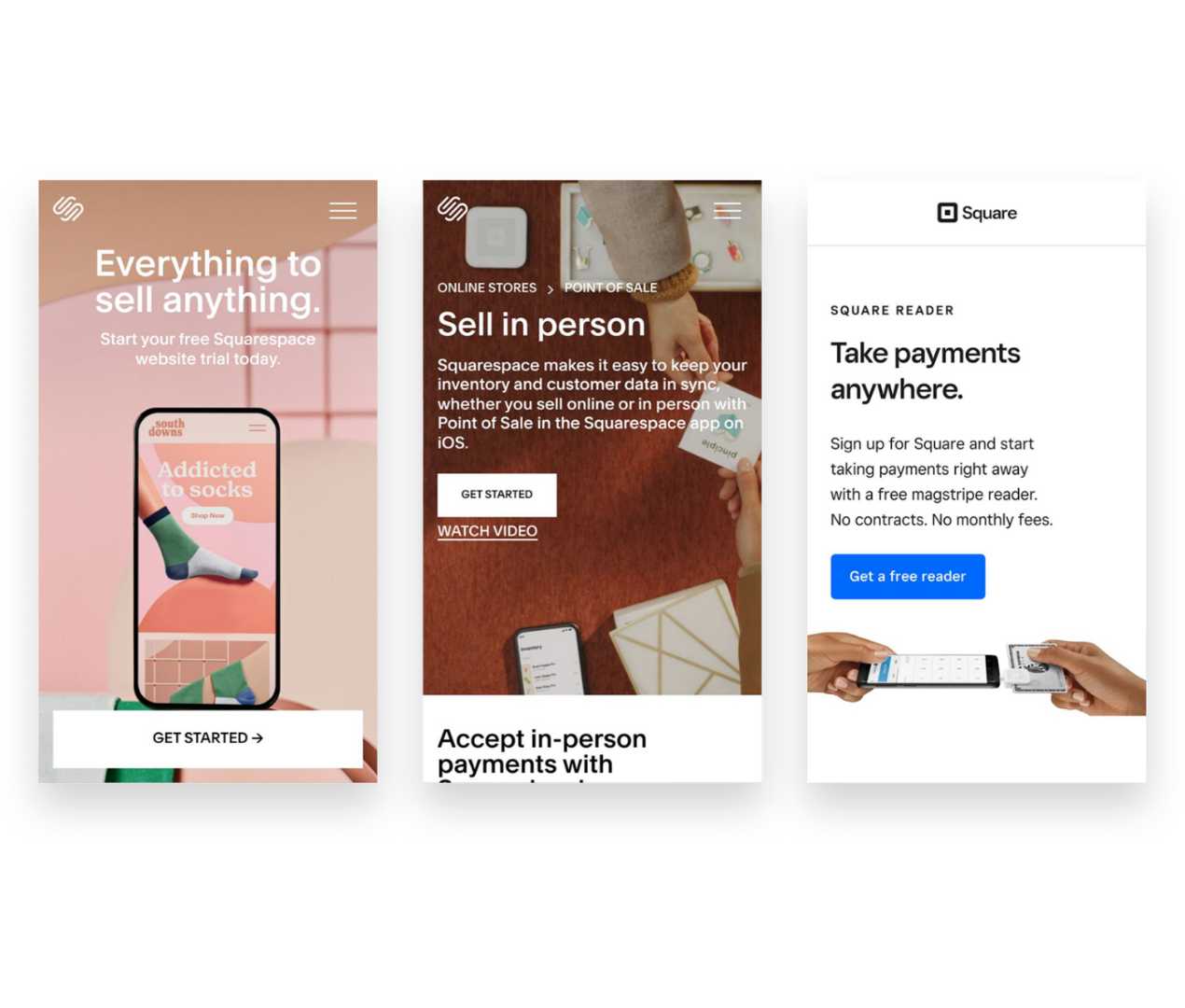
Best if you’re selling online AND in person
The free Squarespace app allows you to basically run your business from anywhere and have full visibility into things like orders and inventory. You can accept mobile payments, scan shipping labels, fulfill orders, update stock levels and more - all from your phone or tablet.
Best Options if You’re Selling Digital Products, Courses, Memberships, Events & Classes
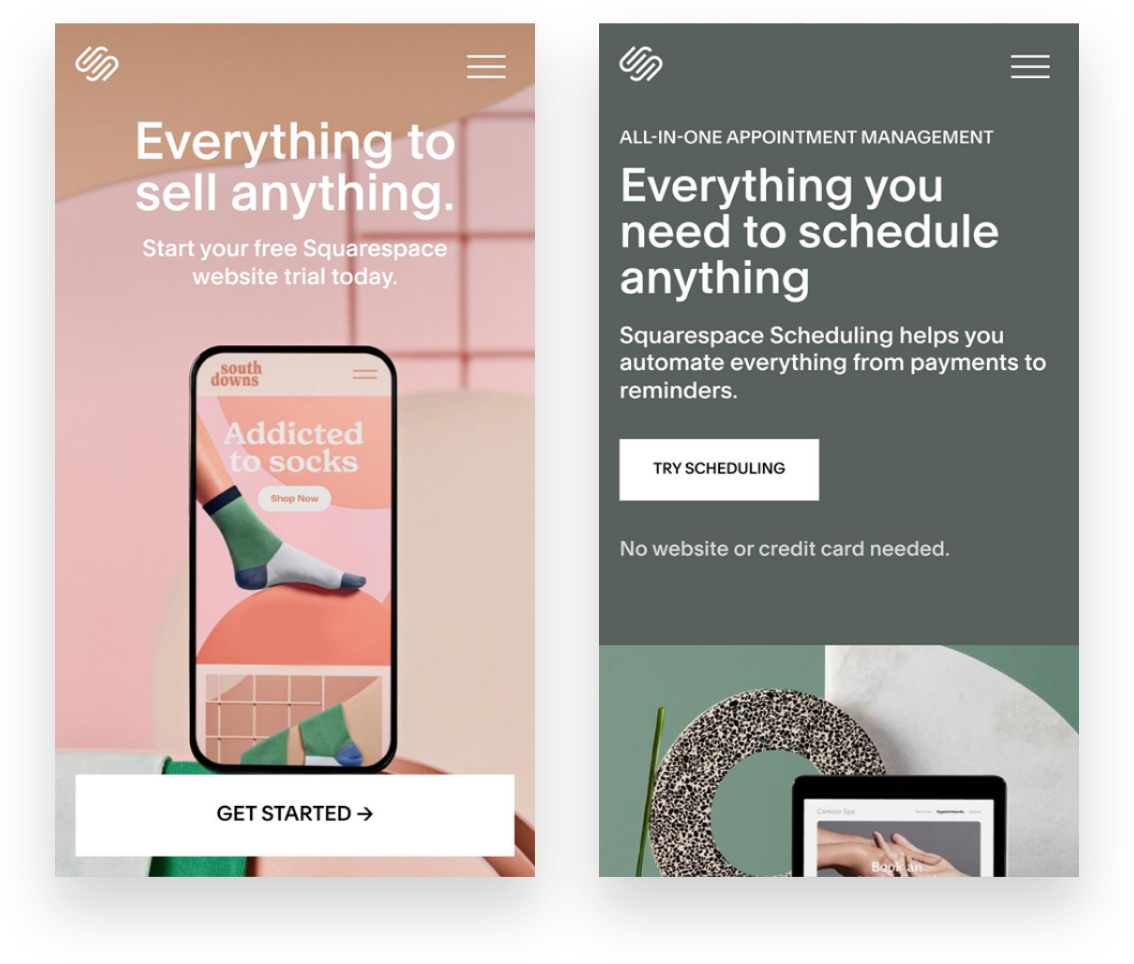
Best for in-person or virtual meetings, events or workshops that require payment and/or registration
Squarespace’s add-on Scheduling works really well and the thing I like most about it is that all of the language can be modified to suit whatever it is you do. You can even create packages of courses and sell gift certificates or subscriptions for any of your events, webinars or classes.

Best for online courses, coaching, memberships or communities
Podia is great at the items above but it’s also not too shabby if you’re selling digital products making it a great all-inclusive add-on to Squarespace. Podia is rare in that it is very feature-rich but still super simple for you (and your customers!) to use. It’s easy to create bundles of your products or services and market them using the built-in tools.
The Bottom Line
Thinking strategically about what features you really need to move your business forward is smart whether you’re trying to keep your budget in check or just wanting to streamline the website tools you use. When in doubt, I always say that there’s no shame in starting small. You can always upgrade plans to add features later on or incorporate new platforms if need be.
Having too many services and software subscriptions for your eCommerce business can be a headache, though - especially if you’re just getting started with eCommerce. You’ll likely end up overpaying for features you don’t use, leaving yourself in a bad spot when it comes to budgeting for the tools you really need.
Hopefully, my strategic pairings and combos above will help you create the perfect technology combos for your eCommerce business!

It’s Time to Make the Move to Sustainable eCommerce Packaging
Making the switch to sustainable eCommerce packaging doesn’t have to be expensive or complicated! Check out some of my favorite packaging swaps for your eCommerce shop.
Did you know that it's predicted that 95% of purchases will be online by 2040?! Great news if you're an eCommerce retailer but not so great news for our planet when you think of all the wasteful packaging that will be created. I'd like to challenge you to make a brand commitment to using environmentally responsible packaging.
Getting started doesn’t have to be a daunting task. Start by just doing an audit of the layers of your packaging to ensure there’s nothing unnecessary that could be eliminated. From there, look for packaging made from non-renewable materials that can be switched out for more eco-friendly options.
All the packaging from my fave packaging partner noissue is either compostable, made from recycled/recyclable materials or reusable so if you’re not sure where to even start they’re a pretty good option. It doesn’t hurt that they have low order minimums and make it easy to customize your own branded packaging!
Check out the ideas below for some easy packaging swaps!

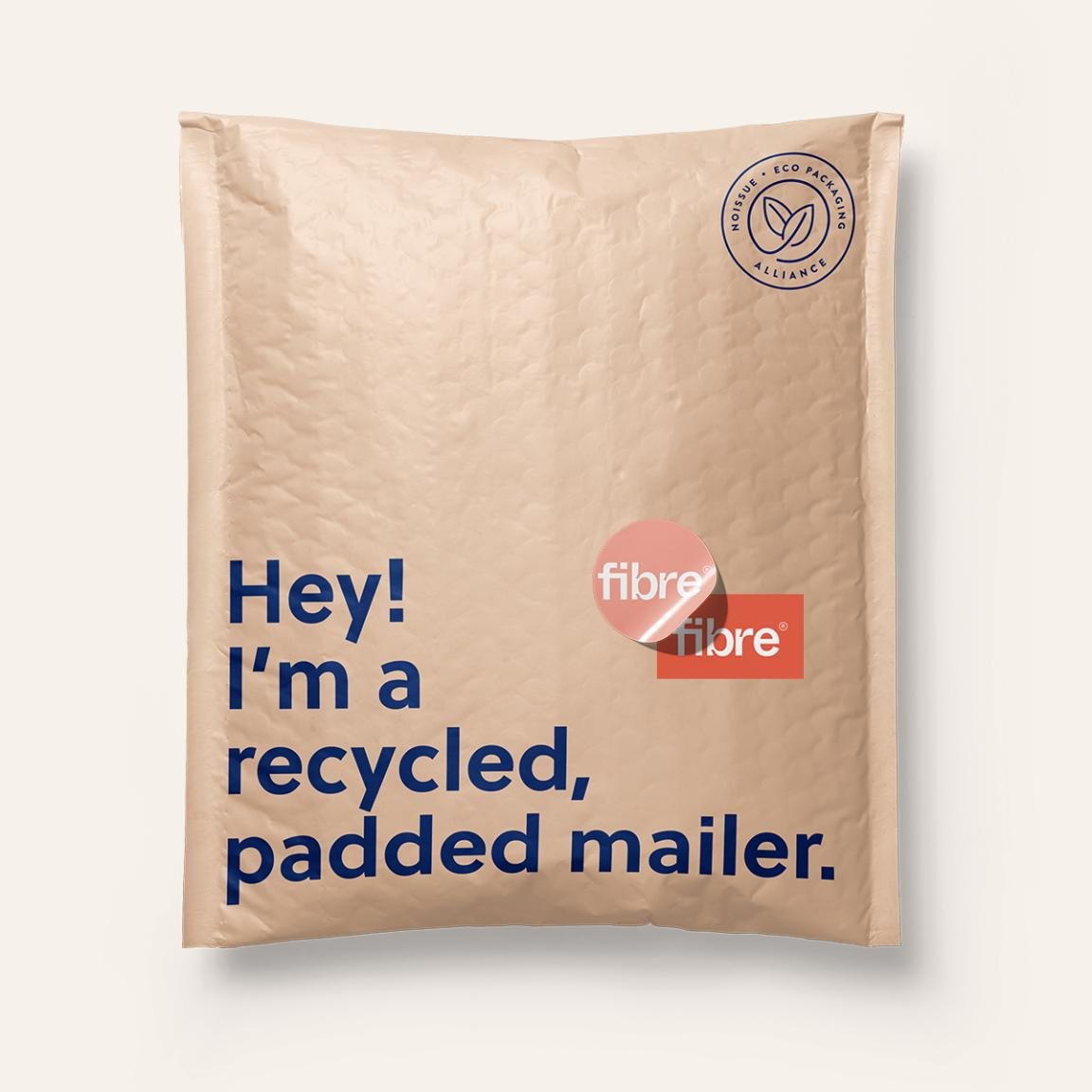
Remove bubble wrap as a layer
Replace with:

Ditch the cellophane & wrapping paper
Better pick:



Replace plastic poly mailers with earth-friendly options

Use pre-used materials (like plastic or paper)

Even changing just one layer out for a more responsible option makes a difference, so don’t be discouraged by starting small – it still has an impact!

3 Mistakes New Online Sellers Make
Tips and strategies to help those new to e-commerce launch quickly and get the most out of a web design project.
If you’re new to the world of e-commerce, it can be... overwhelming. And that’s probably putting it mildly. There are so many things that people will say you need to know and do — and most of it is all written in some sort of techie language that you don’t speak. Honestly, I think it’s probably why there are still so many small businesses that don’t have a website. (Depending on who you ask, estimates are that between 37% to 46% of small businesses in the US still don’t have a website!)
As consumer demand for online shopping options continues to rise, businesses that have even a small web presence will beat out those without one. As I’ve worked with hundreds of clients over the years (and also just browsed a lot of websites), I’ve identified three major mistakes I see a lot of e-commerce newbies make. So, if you’ve been struggling with making the leap from brick-and-mortar or word-of-mouth selling to fledgling e-commerce business, read up. The best part? The solutions aren’t the least bit technical :)
Mistake #1
They make the project bigger than it needs to be.
All too often, I see business owners struggle with e-commerce projects (or put them off altogether) because they are just trying to do too much with their new website at once. They put too much pressure on trying to get everything online and making it all “perfect” when they should be focusing on making smaller, more incremental improvements over time. Some people blame this on being a “perfectionist” but I say it’s a diversion tactic and, unfortunately, it’s costing business.
Possible Solutions:
“The incremental sales boost you’ll get from having just 25% of your top sellers online is still going to be better than no sales at all if you waited to get everything ready to go first.”
If you have a large inventory, don’t worry about getting it all online at once. Pick a handful of your best sellers and start there. The incremental sales boost you’ll get from having just 25% of your top sellers online is still going to be better than no sales at all if you waited to get everything ready to go first. Remember, time = money.
Break the project up into phases. Start by moving just one product or service type online or only providing limited options or variations at first. This will allow you to test things out to see how they go while keeping costs down. Customers would rather have limited options than no options.
Start simple and add fancy features later. Your website doesn’t have to have all the bells and whistles on the day you launch. You can always work on adding cool new things down the road. Keeping your site simple to start will allow you to get launched faster and you can use the analytics (and sales!) from those initial online customers to help you add to your site as you grow. The added benefit here is that it will give people a reason to keep coming back to see what’s new!
Mistake #2
They say too much.
There are typically two reasons why we tend to say too much on our websites: 1) we think it's all about us or 2) we think if we could just tell people more that will encourage them to buy. This results in websites with giant, boring blocks of text or super complicated menus - both of which are a big turn-off when it comes to sales.
Again, the best sites are simple, straightforward, and highly skimmable. Most e-commerce sites need only a few static pages (such as an about page and an FAQ page) but I often see newbies give more real estate to the history of their company than they do to what they’re actually selling. This is a huge mistake and has the unintended side effect of reducing sales, which makes people think e-commerce isn’t worth it. The truth is, we’re often getting in our own way when it comes to sales.
Copywriting Tips:
Keep the focus on your products or services and the benefits they provide to your customer or client. People don’t care about you, they care about what you can do for them. Good news: this means the pressure’s off your need to write the perfect bio or company mission statement. (No one was reading it anyway.)
Avoid technical jargon or long explanations, even if you think they are important to what you’re selling.
Whenever possible, write in bullet points or be open to layouts that push the extraneous details down the page or out of view for most customers. For example, moving super detailed info to a FAQ page or hiding it in a drop-down versus putting it all out there upfront. This way, it's there for the small percentage of people who want to see it but it's not in the way for everyone else.
A good rule of thumb for web copy is to write out what you think you need to say, then cut it in half... and then cut it in half again. Upside: less to write and faster to launch!
Mistake #3
They spend too much time on design.
“E-commerce isn’t a 6 trillion dollar market segment by mistake. There’s a ton of science and strategy to the designs you see online and rookies spend time tinkering with things that don’t need tinkering.”
There’s a reason most websites share a lot of the same layouts and features: it’s because they work. E-commerce isn’t a 6 trillion dollar market segment by mistake. There’s a ton of science and strategy to the designs you see online. And as much as it pains those of us who enjoy aesthetically pleasing websites to admit, function really does matter more than form.
This is another case where rookies have a tell and that’s that they tinker with things that don’t need tinkering. There’s a reason why the button is always where the button always is. Or why menu elements always behave a certain way. It’s because it’s an important part of helping users know how to interact with them.
The upside here is that not worrying about moving things a pixel to the left or right is that you can get to launch day way faster. Also, this isn't to say that design isn't super important to how a website performs, just that for most small businesses, the return on investment just isn't there. It's not worth it to spend months and months stuck in design and development, essentially reinventing the wheel.
Tips to get the most out of the web design process:
Find a web designer you like and whose design style you vibe with and then trust them to do their thing. This doesn’t mean that your input isn’t an important part of the process; just that you hired them for a reason. Your success and happiness are important and they aren't going to steer you wrong.
Don’t be afraid to ask questions if you'd like to know more about the reasons why a design or layout choice was made. In most cases, user experience best practices have guided the decision to put a button here or a link there and we may not recommend moving or changing it if you'd like to maximize sales/conversions but we're always happy to explain why.
In 99.9% of cases, it's best to just pick a theme or template as a great starting point and spend time building out a great user and customer experience around that versus going for a completely custom build. Again, this comes down to ROI and doing everything possible to get you to launch day faster!
If you’re struggling with getting started here’s a post you might find helpful: A Step-by-Step Guide to Starting an eCommerce Business in 2024.

Email Marketing Platform Showdown (ConvertKit vs. Flodesk vs. Squarespace Email Campaigns)
Email marketing should absolutely be at the top of your marketing strategy but what platform should you go with if you’re selling on Squarespace? In this ultimate showdown software battle, we’ll check out my top 3 faves and help you find the right fit for your business.
Updated December 2023
I’ve talked alot before about the virtues of email marketing. We’ve covered why email beats social media, how to use email marketing to increase customer lifetime value, and lots of other things that all boil down to this: email marketing needs to be a part of your eCommerce strategy.
And not just a small part. Like, actually - a pretty big part. Some quick stats for the uninitiated:
Email generates $42 for every $1 spent. A 4,200% ROI is CRAZY, and also means this is a marketing strategy that you should absolutely be using, and using better.
Roughly half of all consumers want to hear from their favorite brands on a weekly basis.
Marketing and advertising emails influence the buying decision of more than half of customers.
Email is 40% better at converting compared to social media.
TL;DR - email marketing is super effective, customers want to get emails from you and they are willing to make purchases as a result of receiving an email from you.
Now for the big question: what email marketing platform to go with - especially if you’re using Squarespace for eCommerce? I’m comparing my top three faves below but first, a quick note about the emails your site sends automatically.
Non-Marketing Emails
There are some eCommerce emails that your Squarespace site is going to send automatically, no email marketing platform required. These are things like:
Order confirmation emails
Shipping confirmation emails
Abandoned cart emails
Waitlist notification emails
Etc.
You can find out more about these types of emails in this post, which also covers how you can customize them to match your brand and how you can personalize them to improve customer experience.
These emails don’t require you to receive any special consent or approval from your customers since they are sent as a result of an action they’ve already taken on your site: making a purchase (or not), or signing up for an out of stock email reminder, for example.
On the other hand, the emails we’re going to be talking about sending from an email marketing platform below are emails that are above and beyond the basics. These are emails that welcome people who sign up to your list with a special coupon code or offer, marketing promos that shout out a new product drop, or sales emails that invite past customers to revisit your shop.
Getting Approval to Send Emails
Anti-SPAM laws help protect people from getting junk they didn’t sign up for by outlining who you can send to and what needs to be included in each email. Luckily, all the email marketing platforms out there help make this easy by not allowing you to send emails to people that haven’t given their approval and by including an unsubscribe link in the footer of every email, amongst other protections. The important thing to note here is that customers can opt in/out of marketing messages while still receiving things like order confirmation and abandoned cart emails that are sent automatically from Squarespace.
Comparing Platforms
All this being said, all email marketing platforms are not created equal. There are definitely reasons why you may want to choose one over the other and the one that works best for you may be the worst choice for someone else. That’s why we’re going to look at the top 3 choices (ConvertKit, Flodesk and Squarespace Email Campaigns) within the lens of eCommerce and also as a Squarespace user.
Here’s the criteria that I think matters most:
Ease of use
Looks
Automations
Integration
Cost
Let’s jump in!

Squarespace Email Campaigns
I’m kicking off our email marketing platform battle with Squarespace’s built-in option: Squarespace Email Campaigns. There have been a lot of improvements to this feature since it first launched a few years ago making it a great option if you’re needing something relatively simple that has all the features you need and none that you don’t.
Ease of use - You literally cannot get any easier than Squarespace Email Campaigns. You can connect any newsletter block to your list with just one click. It’s super easy to style your emails to match the rest of your site since everything is in the same place. Adding content to emails is also a breeze; things like text, image and button blocks are as simple to use as those on your regular site. The fact that it looks and works just like the rest of your website is one of Squarespace Email Campaigns stronger selling points if you feel like the last thing you need is to learn yet another piece of software!
Looks - Squarespace emails look pretty great! There are lots of pre-styled templates you can use as a jumping off point but it’s also easy to make your own branded templates that you can re-use again and again to keep things consistent. Pulling in assets from your website like your logo, some images and your color palette is as easy as pressing one button but the font choices for emails are purposefully kept to a limited selection to make sure that your emails come through into pretty much every email tool and on any device. You can create nice-looking email layouts that feature your site’s content (or new content that you upload) and the options for controlling how each block displays are pretty intuitive.
Automations - You’ll need to be on the Core plan or above to have access to automations that allow you to create things like welcome emails or other emails based on subscriber or customer activity. You can create series of emails triggered by an event but those emails aren’t as organized or visual as those on ConvertKit or Flodesk. Squarespace Email Campaigns also doesn’t yet have some advanced workflow things like being able to tag people based on activity or route them down different paths based on variable conditions.
Integration - You can add product and blog info right into emails without needing to copy/paste links or other info which is AMAZING. And it should go without saying that because this is a tool that’s built right into Squarespace that there’s no need to fuss with embed codes or trying to figure out how to get different programs to play nice and talk to one another. One of the stronger points is that for simple purchase follow-up emails, you can use product purchases as a trigger for an automation due to the fact that this tool is built right into your eCommerce website. Having everything in one place sure is nice!
Cost - It costs nothing (nada, zip, zero!) to use Squarespace Email Campaigns to build your email list and you can also send your first three email campaigns for free. After that, the pricing tiers start at $5/mo and go up to $48/mo (Starter Plan and Max Plan, respectively - paid annually). Most people will want to skip the Starter plan though because it doesn’t offer email automations which I think are absolutely necessary for any eCommerce business. Beyond that, there is no difference between the other plans aside from how many campaigns and emails you’re allowed to send monthly (you’re allowed unlimited subscribers). If you’re just starting out, I recommend the Core plan which is super reasonable at just $10/mo and allows for up to 5 campaigns and 5,000 emails.
Overall Thoughts
There’s a lot to love about this simple email marketing solution and if you’re just getting started it should definitely be on your radar as a great all-in-one tool.

Flodesk
Flodesk is a relative newcomer to the email marketing arena but - hoo boy - did they come in like a wrecking ball! Everyone seemed to fall in love instantaneously with their great-looking templates and the simple pricing setup. Flodesk is a great option for beginners and more advanced marketers alike and it’s easy to incorporate into Squarespace. That said, it’s not without it’s own quirks and issues.
Ease of use - Based just on the simplicity of the interface alone, Flodesk is a dream to work with. It’s clean, modern and minimal which is a breath of fresh air over some other platforms that seem to make things unnecessarily cluttered. So for that alone, Flodesk wins points in my book. The interface is broken down into four parts: Emails, Forms, Workflows & Audience. Emails are where all the one off, newsletter-type emails live. Forms are where you can create either forms or landing pages to embed onto Squarespace for collecting sign ups. Workflows are where you can create visual automations like welcome sequences. And, lastly, Audiences is where you can create mailing list segments.
Looks - All of the pre-made forms, email layouts and layout blocks for within emails are very visually appealing and that’s a lot of what attracts people to Flodesk. You can also save some settings like your logo and custom color palette so that it’s easy to make sure those aspects are on brand every time. The one thing that kind of drives me crazy about Flodesk though is one of the most important: fonts! Every single time you add new blocks or copy in new text (which is likely going to be every single email you send since who sends the same thing each time?) you need to redo the font settings. This can either be really time consuming (if you actually take the effort to do it) or result in sloppy looking emails (if you don’t).
The other thing to note about the super pretty layouts is that a lot of your email will get converted into an image when it shows up in people’s inboxes. There are some studies out there that show that this can negatively impact deliverability rates and/or increase the chances of your email getting filtered into the promos tab or marked as spam. This is just a word of caution that while the layouts look really good that relying too much on them can mean that your emails also don’t have actual “readable” text in them that could be an accessibility issue.
Automations - Flodesk workflows are actually pretty powerful considering the interface is so simple - you may not realize all that you’re really able to do! Workflows are kicked off when someone is added to a segment and can include as many emails as you like set apart by any time delays you specify. Unlike Squarespace Email Campaigns, all the emails for a specific action are kept in one place which makes it easy to organize. You also have lots of advanced thing like conditional actions which are things like if/then rules based on whether someone clicks a link or has opened up the message that was sent prior.
What’s not so easy is setting up automations based on commerce activity, such as those on Squarespace that allow you to send emails after someone buys a certain product, for example. However, they recently launched a new Checkout add-on that allows you to set up sales pages and checkout pages, add upsells, accept payments and follow up instantly. This could be a pretty cool option if you’re not needing a full platform such as Podia to sell digital goods.
Integration - There are two ways to integrate Flodesk & Squarespace. The first is by embedding the code that’s automatically generated by Flodesk into a code block on Squarespace which is as easy as copy-and-paste! The second is by setting up Zapier so that you can use Squarespace forms but then map those submissions to various Flodesk segments. The latter option is great if you want to make sure your forms still always match the rest of your website 100%. An other option if you do use Podia is that Flodesk is now a native integration for that platform making it super easy to connect those two pieces!
Cost - The pricing on Flodesk is crazy simple: it’s a flat rate $38/mo and it includes unlimited everything, forever. You do get a month free if you pay annually and all new sign ups also come with a 30 day free trial of the software. This pricing set up is great because you’ll never pay more as your list grows and all the features are included so long as you’re a subscriber. The Checkout add-on can be purchased separately from email or in a bundle with it and increases the cost accordingly. (Bonus: use my link here to save 50% on your Flodesk subscription!) All this being said, there are more affordable plans with both Squarespace & Convertkit - especially for those with smaller lists.
Overall Thoughts
Flodesk is a good option if you’re looking for something that has a great user interface and if image-based emails are important to you. It integrates well with Squarespace but more so for traditional email marketing & list building than for eCommerce-specific automations.

ConvertKit
ConvertKit is an OG in the email marketing space and it shows. It has a robust suite of tools available to email marketers of all sizes and super powerful tools to help you automate and sell online. It has a bit of a bad rep for creating “ugly” emails but stay tuned because there may be a little method to the madness!
Ease of use - Even though Convertkit has been around for a long time, they still work on releasing improvements to the product which I really appreciate! For example, when I first tried Convertkit back in the day the interface was a little confusing and overwhelming but today it’s clean, simple and well-organized. It’s easy to see all the tools and understand how they relate to one another and even things like their email templates have received a nice facelift! The main dashboard is broken up into 4 main parts. The first is “Grow”, which houses all your subscriber info, forms and landing page. “Send” is where you can find broadcasts, sequences, email templates and snippets. “Automate” has visual automations, rules, integrations & RSS. And, lastly, “Earn” has products, tip jars, and payouts. Whew! So you can see that there are so.many.tools to choose from!
Something else worth noting is that of all the programs reviewed in this post, I find the dashboard of Convertkit the most helpful. It’s so easy to see stats and analytics at a glance!
Looks - Ok, on to the contentious topic of ConvertKit’s looks. And this is not in regards to the platform itself which is really great-looking but instead about the emails it sends. I mentioned above that ConvertKit tends to have a reputation for creating somewhat “boring” text-based emails. However, ConvertKit’s founder makes a very strong argument for this type of email (you can read more about it here) and I think that so many people have made a turn towards overly visual emails these days that text-based emails may have an even stronger appeal than they did almost a decade ago. All this is not to say that you can’t create nice-looking emails in ConvertKit because you actually can, just know that they will be somewhat less flashy than those created in either Squarespace Email Campaigns or Flodesk. You can still add nice images, brand colors and fonts - all the bare components of those other platforms - they’re just going to be a little more simple overall.
Automations - ConvertKit probably has the most powerful automations of any of the tools we’re looking at in this post! So much so that it actually breaks them down into two parts: Sequences and Visual Automations. Sequences are the simpler of the two and they can be compared to workflows in Flodesk. Sequences are a series of emails set off by an event such as signing up for a freebie or opting in to receive email updates. Visual Automations are Sequences on steroids and have some of the same features as Flodesk workflows but then 1,001 other options as well. You can do things like filter subscribers based on conditions, take actions based on when products/services are purchased, create multiple paths into the automation, add/remove subscriber tags, etc. If any of this all seems overwhelming, ConverKit also has automation templates that you can just duplicate and customize for everything from creating a paid newsletter to promoting and upselling other products.
Integration - ConvertKit integrates with Squarespace in much the same way as Flodesk, with one major notable addition. For basic things, you can either embed ConvertKit forms right into your Squarespace website using a code block or use Zapier to pull info into Flodesk from Squarespace forms and newsletter blocks. Where things get really cool though is the Squarespace Commerce API integration with ConvertKit. IT. IS. AWESOME. Once connected, this means that you can pull purchase activity from Squarespace into Flodesk and use it to tag subscribers, trigger automations - all sorts of things! You can even track revenue data for each subscriber and also see previous purchase history. ConvertKit also has integrations with tools like Teachable, Stripe and Podia so if you use any of those in other parts of your business it would be a great place to pull all your eCommerce data together on the marketing front.
Cost - ConvertKit has a free plan that would be great if you’re just getting started out and have a list of 300 subscribers or fewer. However, most people will want to subscribe to the Creator plan at $9/mo (if paid annually) in order to send automated emails and sequences. Plans go up to $49/mo if you have 3,000 subscribers, or more if you have more. There’s also a Creator Pro plan that includes things like subscriber scoring, advanced reports and a newsletter referral system that starts at $29/mo.
Overall Thoughts
If you’re as serious about email marketing as you are about selling online, ConvertKit should be at the top of your list of tools! It’s powerful where it needs to be and simple where it matters; it’s clear that everything about it is geared to convert.
Bottom Line
The good news is that in our email marketing software epic showdown battle, you really can’t go wrong. But you can definitely do… more right? Here’s how I think things shake out:
Choose Squarespace Email Campaigns … if you’re just getting started with both eCommerce and email marketing.
Choose Flodesk … if you’re focused on building your list but don’t necessarily need it to be based on Commerce activity.
Choose ConvertKit … if email marketing is the corner piece of your marketing strategy and it’s important to you that it’s integrated with all the places you sell online.

The Ultimate Squarespace eCommerce Guide
Stop chasing your tail! I've covered some of my favorite posts on everything from choosing Squarespace for your new eCommerce website to mapping out a winning eCommerce strategy, from launch day to managing the day-to-day. Wherever you are in the process, I’ve got you covered!
There’s so much information out there about Squarespace web design and eCommerce but that’s half the problem! It’s all over the place and not necessarily right where you need it! So I decided to corral some of my favorite posts on everything from choosing Squarespace for your new eCommerce website to mapping out a winning eCommerce strategy, from launch day to managing the day-to-day. Wherever you are in the process, I’ve got you covered!

Choosing Squarespace
As a small business owner, you have a lot of choices that you’re going to need to make. But it’s the first one that’s arguably the most important. To me, choosing Squarespace for eCommerce is a no-brainer but I want to help you get all the facts so you can decide for yourself.

Early Decisions
Some of the early decisions in the eCommerce web design process are things you can set and forget but even simple things can help make sure you’re set up for success moving forward.

Map Out a Winning eCommerce Strategy
I wish I could tell you that eCommerce was as easy as making a website public and watching the money roll in but the reality is you need a solid eCommerce strategy in place to keep things on track. These simple and straightforward resources are here to help!

Go above & Beyond
The difference between ho-hum and fabulous is usually just paying attention to the little details that your competition most definitely missed. Don’t worry - I’m going to make sure that you’re prepped and ready to crush it and stand out from the crowd.

Launch With Confidence
Launch day doesn’t have to be nerve-wracking! You can sell on Squarespace with confidence when you know your site is on point from all angles.

Manage the day-to-day
To me, once your site is up and running is when the fun really begins! You can build new features, add new products and continue to refine the experience - all decisions you can back up with data.

How to Send Delivery Confirmation Messages with Squarespace
Letting your customers know when a package has been delivered with custom delivery confirmation emails can help you increase customer satisfaction and reduce your admin time. There are two options that integrate seamlessly with Squarespace commerce and I’m sharing the pros and cons of each for you!
This is going to sound cheesy but I’ve been waiting for the perfect time to use this sentence: “I’m not just an eCommerce pro - I’m also a customer!” Cringy? Yes. But this means that a lot of the tips I recommend are because I’ve been working in eCommerce since the early 2000s... aaaand a lot of them are because I’ve been shopping online for just about as long.
As a customer, I love love love when I get an email as soon as a package I’ve ordered has been delivered. As a pro, I love that this is something that’s easier than ever for small businesses to be able to do! It’s a really great way to show customers that you care about their experience and be proactive about any issues there may be with the shipment or order. Providing tracking and delivery updates to your Squarespace customers can also really help reduce the number of status update inquiries you or your customer service team have to field so if you ask me this one is a win-win-win.
There are two ways to send custom order tracking and delivery updates to support your Squarespace eCommerce business. I’ve set up both and to me, there’s not necessarily a super clear winner; the best solution will be the one that aligns with your business needs and that may be completely different from someone else’s. I do have a favorite when it comes to simplicity but the alternative is pretty cool too! I’ll detail them both for you so that you can decide!
Easyship
Of course, my favorite shipping extension made it onto this list! And that’s because even if you like the second option below better for post-purchase tracking and delivery updates you’ll still need a shipping extension to be able to get those orders shipped out in the first place. I love Easyship because it has all the great shipping features and capabilities you want (importing orders, creating labels, carrier discounts, shipping rules, etc.) but still manages to have a super simple user interface that makes it a breeze to use.
Easyship is also the only shipping extension that integrates with Squarespace that offers a “shipment delivered” trigger on Zapier which makes it perfect for us to use to set up simple order delivery confirmation emails!
To do this, you’ll just connect both your Easyship account and your business Gmail account to Zapier. From there, it’s as simple as creating your simple stock email that goes out every time the Easyship “shipment delivered” trigger is activated. (For more on using Zapier check out this post: Fun With Zapier for eCommerce.)

Using Zapier to send simple order delivery confirmation messages from Squarespace + Easyship
Pros: Simple, minimal, not much tech setup, low/no cost
Cons: Design and formatting options for the email are limited
Accounts Needed & Costs:
Easyship - Free for up to 100 shipments/month, then $23/mo for an annual Plus plan. The Plus plan also comes with it’s own custom branded tracking page and emails if you’d like to use those instead of the ones generated by Squarespace. Bonus: give Easyship a try by using my code GWZMUM and get a $20 account credit towards shipping costs.
Zapier - Free for up to 100 single-step tasks/month, $19.99 for up to 750 tasks plus the ability to set up multi-step zaps.
Aftership
If you’re looking for the minimalist approach, stop reading and just go with the above! But if you’re looking for a few more features that will really help your small business look pretty badass, Aftership is worth looking into. You’ll still need to use a shipping extension (check out my reviews of all of them here!) to take care of the outgoing shipping situation from your shop but Aftership picks things up from there.
What may surprise you about this option is that it’s actually pretty dang affordable to do things that used to only be available to huge online sellers like sending branded step-by-step delivery updates and a tracking page with upselling marketing opportunities. While it’s definitely more labor-intensive to set up all the features (there are almost too many of them!), if you’re a growing eCommerce business it may be worth it.
Aftership is also a great option if you’ve been wanting to do things like send text updates about shipments or offer automated returns in the future since those are easy add-ons from the base subscription.
To get started with Aftership, from your Squarespace home screen go to Settings > Extensions > Aftership > Connect.
Pros: Fancier-looking emails, more options if you want to add them, low cost
Cons: Complicated set up with lots of (almost too many!) options, more apps to log in to
Accounts Needed & Costs:
Shipping extension of your choice - such as Easyship (above) in order to manage your outgoing shipments
Aftership Tracking - $9/month for up to 1,200 shipments per year, cost goes up based on usage and if you want any of the upgraded features. The Essential plan will get you a branded tracking page and custom email notifications for when order is in transit, out for delivery, there has been a failed delivery attempt, when the shipment is delivered and/or a delivery exception.
(Optional) SMS notifications - $0.04/text, to also notify customers by SMS about shipments
(Optional) Aftership Returns - free for up to 3 returns per month, paid plans start at $9/month to be able to create an interactive returns page that will allow you to manage returns to your Squarespace store
Bottom Line
Keeping your customers in the loop can not only help reduce the number of customer service inquiries you have to field, but it can also be just another way to help your small business look big online. While I definitely like to be cautious when incorporating new apps or software into my tech lineup, using Easyship or Easyship + Aftership are affordable ways to improve customer experience that integrate so seamlessly with Squarespace that they have my minimalist’s stamp of approval!

A Minimalist’s Guide to Squarespace Inventory & Product Extensions
If you’re checking out some of the inventory management and product extensions on Squarespace, read this post first! I review all of the extensions available to help you manage everything from stock levels to print-on-demand services so that you can add just the right tools for your business.
Welcome to my latest installment of a Minimalist’s Guide to Squarespace extensions! In this post, we cover all things inventory and product management. Why the Minimalist’s Guide you ask? Well, because I just hate adding apps or plugins willy nilly and I like to keep things as simple as possible, only adding third-party programs when absolutely necessary. With that in mind, I think it’s important to really understand what each extension does so that you know what you’re going to get and at what price. Then, you can decide for yourself whether the additional functionality is worth investing in and how you are going to incorporate it into your business. Let’s go shopping!
Extensions To Help With Inventory
If you’re struggling to manage inventory and stock levels or if you sell on multiple different platforms, these extensions will all help you get things under control. I love a simple spreadsheet as much as the next girl but as you grow a spreadsheet just may not cut it.
inFlow Cloud
What it does: With inFlow Cloud, you can update Squarespace stock levels automatically and manage inventory and orders from your phone or tablet. You also have the option to purchase a scanner so that you can scan barcodes to receive stock or fulfill orders. inFlow Cloud is a complete inventory management system that can help you manage everything from purchasing to sales.


Who should try it: Companies with medium-large inventories and a small team that need more than a spreadsheet to stay on top of things. inFlow Cloud can help you save time counting inventory and also plan ahead so you don’t run short.
Pricing: The cheapest plan is $71/mo but only allows up to 100 orders and 2 team members which most people who need something like this will quickly exceed. The Standard plan is $179/mo and gets you 1,000 orders and 5 team members, plus some additional features like being able to control user access permissions. The other thing to factor in is whether scanning barcodes for tracking is something you want to do; the optional inFlow Smart Scanner will set you back $799.
Trunk
What it does: I have reviewed Trunk before in this post all about how to sync inventory between Squarespace and Shopify but really it does much more than that! You can also use it to loop in Quickbooks, Square, Amazon, Etsy, Faire, and other popular platforms. I especially love how simple and straightforward the user interface is. Another thing I like about Trunk is that it puts the focus on Squarespace as the center of what you sell, looping in everything else around it. It can save you time with real-time SKU-based stock level syncing and also allow you to seamlessly track quantities across packs and sets or have available stock automatically calculated based on materials.


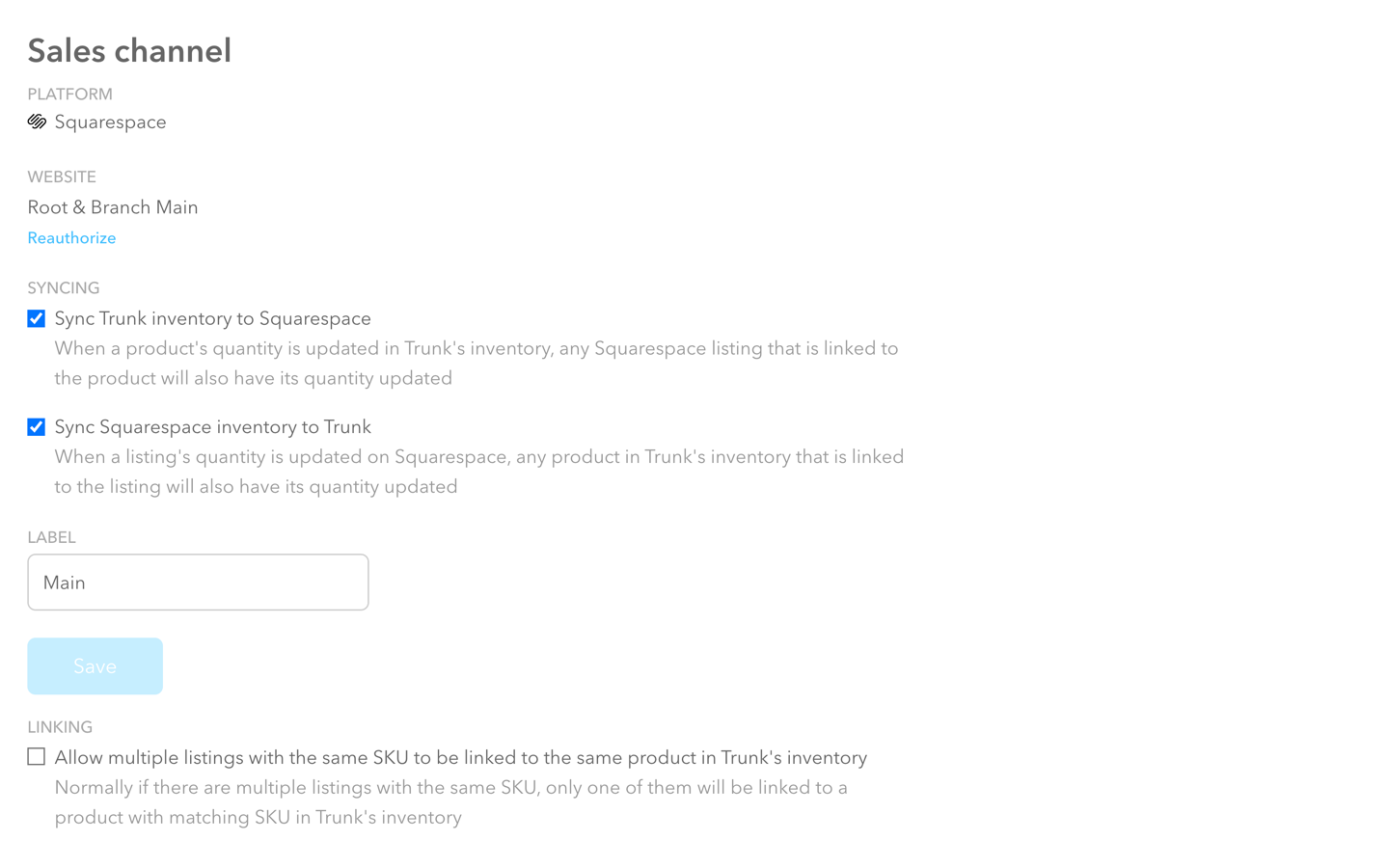
Who should try it: Anyone who sells on multiple platforms and wants to make their life easier by not having to worry about overselling on one site and erroneously looking sold out on another. If you sell bundles or kits that involve multiple SKUs, Trunk will also make sure that you have availability across all items which can help you with ordering and planning. Trunk would be perfect for the smaller online shop that needs a little help getting inventory organized but doesn’t need all the features (or expense) of something more robust like inFlow Cloud, above.
Pricing: Plans start at $35 which gets you real-time stock level syncing and low stock alerts but only 100 orders/month. Trunk does have nice incremental pricing tiers that allow for additional orders/month even on the lowest plan which is nice if you have a moderate number of orders but don’t want or need the features of the pro plan. Speaking of which, the Pro plan allows for bundling & kitting and duplicate SKU syncing which are both pretty cool features if you need them especially considering the pro plan starts at just $39/mo.
My Pick:
If you’re just needing something basic, start with Trunk. It has all the most popular sales channels and inventory-tracking features without a lot of bloat at a very reasonable price point. inFlow Cloud has more advanced features but a price tag to match - although when you’re ready for those extended capabilities I would say the higher price could be worth it.
Extensions For Print On Demand Services
If you’re an illustrator, artist, or photographer you probably want to sell custom products that feature your work but don’t want to invest in products that you’re not sure you can sell or have to worry about production and shipping. These apps take care of all those headaches to free you up to focus on your work.
Printful
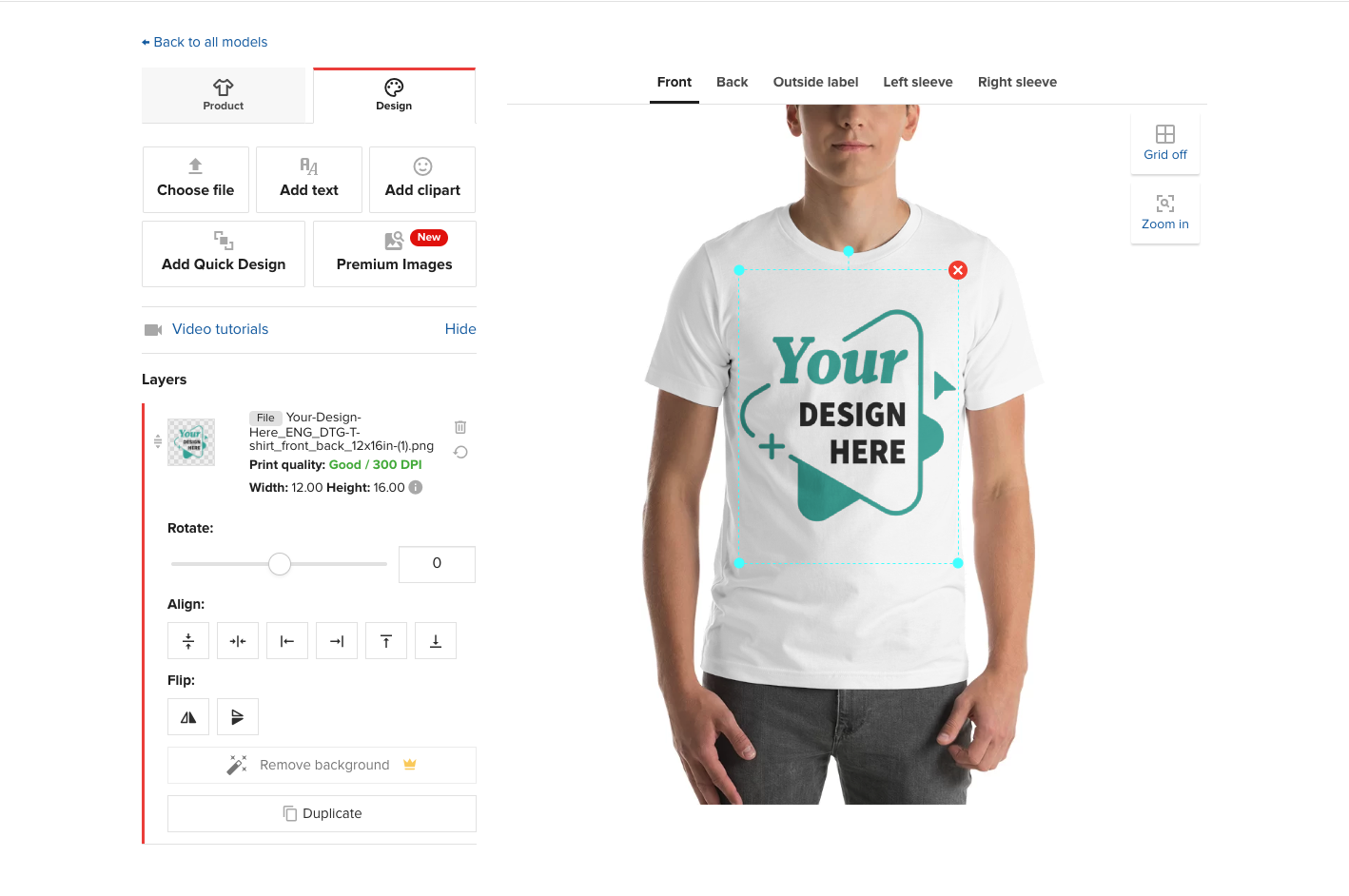
What it does: Printful allows you to sell print and embroidery products without needing to invest in inventory or manage production, fulfillment, or shipping. Just upload your designs, pick your products and you’ve got yourself a shop! Most people think of Printful for apparel like tees and sweatshirts but they also allow you to sell your own custom accessories (like hats, bags, and phone cases) and home goods (like mugs, pillows, and wall art). They also offer warehousing services if you have other items that you want to combine with your custom Printful items and you can also send them your own custom inserts like stickers or cards that they will include with all your shipments so that things look like they came right from you. Another feature I really love with Printful is their mockup generator which makes it easy to have high-quality, realistic-looking mockups that look awesome in your store!
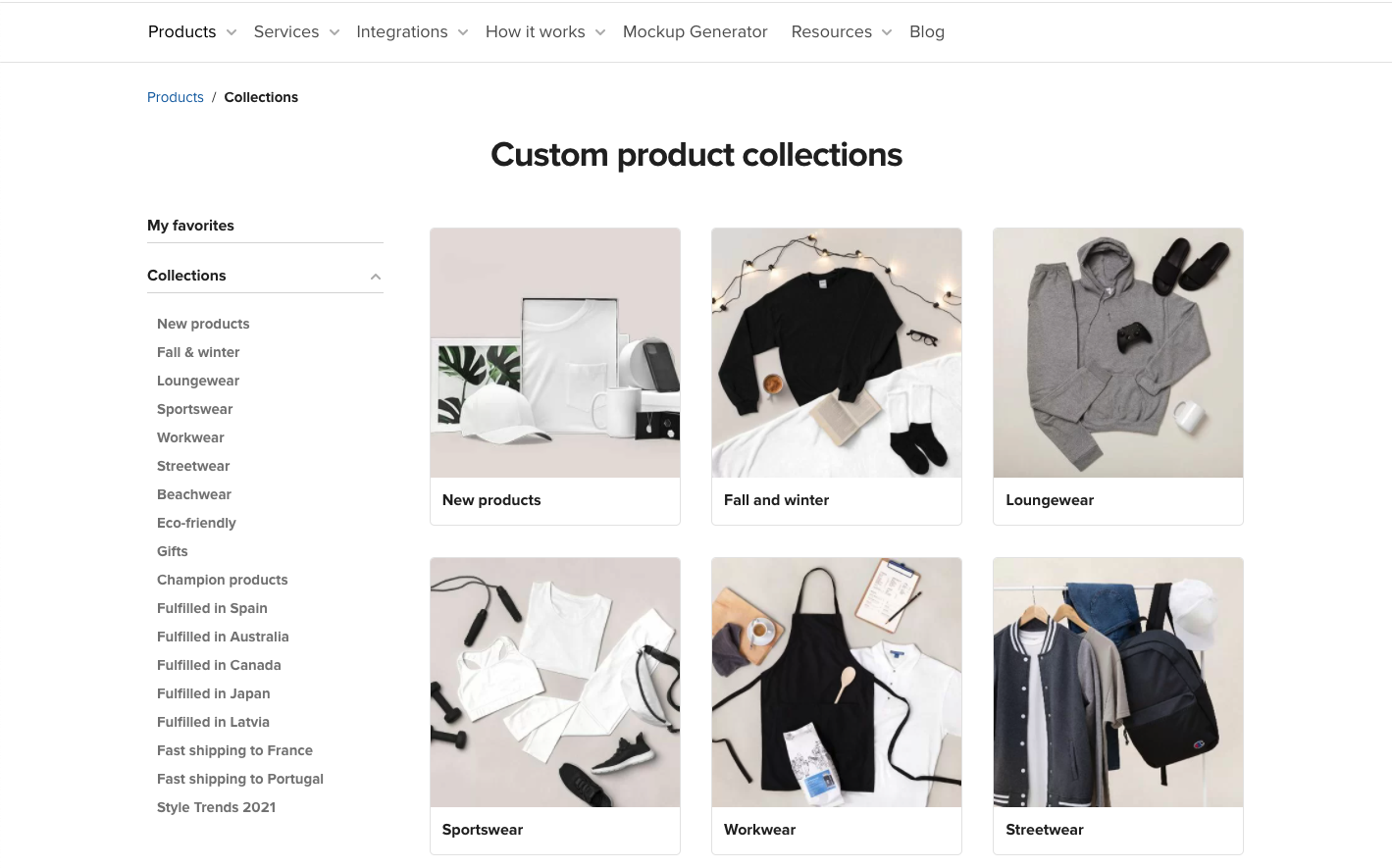


Who should try it: Any designer, illustrator, or artist who is looking to sell custom pieces without needing to keep inventory in stock and who doesn’t want to hassle with order fulfillment or shipping. With Printful, you can create as many items as you want and adjust the pricing markup to any amount that you like.
Pricing: There is no subscription fee to sign up for Printful, you just pay the wholesale price per order placed. For example, someone places an order for a poster on your website and you charge them $39. The wholesale cost on Printful might be $9 + shipping. You pay Printful for that order and pocket the difference. So basically, you only pay when you get paid.
Printique
What it does: The premise with Printique is the same as Printful, above. They allow you to sell premium photo products while they handle all the production and white-label shipping. Printique is more art-focused than Printful so the products are things like photo books and albums, framed and unframed prints, and wall decor plus some other miscellaneous items like calendars and other little gift items.


Who should try it: Printique is perfect for professional photographers and artists who are looking for some more advanced features like being able to control how things crop for different proportions and want to be able to sell on a wide range of materials like canvas, acrylic, and wood or who are interesting in offering framed prints or photo books.
Pricing: Just like with Printful, you don’t pay Printique until you have an order so you never have to worry about paying for unsold inventory or monthly subscription fees!
My Pick:
I think both Printful and Printique are great services that allow you to start an online shop without needing to invest in inventory or worry about the hassles of shipping and fulfillment. The reason to pick one over the other is really just based on what you’re selling; go for Printful for graphic designs printed on high-quality apparel and other fun things like posters and pillows. Check out Printique if you’re selling anything with a photo like framed prints.
Dropshipping Extension
Spocket
What it does: Look, I’m going to be honest here. Dropshipping is not my jam. But this extension is on the list and I wanted to be thorough and give it a quick review. If you’re a serious drop-shipper, I would say that you may want to check out Shopify over Squarespace but if you’re just wanting to supplement your other inventory on Squarespace with a few drop-shipped products, Sprocket is the way to go! They pre-vet suppliers from across the globe and you just select the items you want to sell and they push through to your shop for purchase! They have a wide range of products and you can see a review of each seller and where the items ship from.


Who should try it: I think Spocket would work well for a Squarespace shop owner that sells their own products and is just looking to supplement with a few other items. In theory, you could run an entire Squarespace shop just filled with all drop-shipped products if you wanted! You do you!
Pricing: The Starter plan is $24/mo and allows you to include up to 25 unique products. I think that most people would want to be on the next plan up though: the Pro plan which is $49/mo. This plan allows for 250 unique products and 25 “premium” products. I read Spocket’s help documentation to try to figure out the difference between “unique” and “premium” products and TL;DR you’re gonna wanna sell premium products 😉 as these are the highest quality items with the best discounts. On the Pro plan, you also get branded invoicing, which I think would be imperative for any drop shipper to help things feel cohesive.
Bottom Line
I think there are some real winners on this list, depending on what your exact needs are. From Trunk to save you time and headaches keeping inventory in sync across all the platforms you sell on, to Printful and Printique for allowing you to sell custom products completely hands-off - there are lots of good options that will allow you to connect your Squarespace website to the tools you need to grow your business. When it comes to extensions, my biggest piece of advice is to just understand what you’re going to get and at what cost. When incorporated strategically, they can really help you take things to the next level!
Looking for more hot takes on Squarespace extensions? Be sure to check out my other MInimalist’s Guides on sales & marketing extensions and shipping extensions!

Website Tips From an eCommerce Pro
Part actionable list, part pep talk - this post has 7 tips on eCommerce, web design and websites in general from me, an eCommerce pro! These are the things that I think would make every website more engaging, more successful and just more fun to use!
If you sometimes wonder what advice an eCommerce pro would give about your website, you’re in the right place! I got to thinking the other day about the biggest things I would suggest to people about eCommerce, web design, and websites in general and I came up with this list. It’s certainly not comprehensive but I would say if you paid attention to just these 7 things you could take your site from novice to pro-level! Some are simple fixes, others are a little more abstract but I think all are totally doable!
When In Doubt, Cut It Out
I talk about this idea a bit more in this post about 3 Mistakes New Online Sellers Make but I think it bears repeating. And the good news is that it lightens your load as well! Overall, I think one of the things that really sets beginner websites apart from more professional ones is editing.
Over-explaining and providing too much information can be just as harmful as not providing enough so the key is to trim down copy and cut out the clutter. You want to inform but you also want people to be able to skim. (If you feel like you have a lot to say or tons of technical details you want to include, just make sure you have a great FAQ page to put all that info on so you can keep your main pages lean and mean.)
Keep Categories & Tags in Check
I talk about tags and categories as they pertain to shops in this post but this could also apply to your blog as well! Remember back in the day when blogs all had a ginormous sidebar with a crazy tag cloud that looked like this:

Hahahaha. Those were the days. To me, all this says is that this person had too many tags/categories! Take my blog, for example. I have only 5 major blog categories: eCommerce, Shopify, Squarespace, Web Design, and Marketing. I have one bonus category called “Kristine Neil Studio” that I use sparingly for posts that are more personal or “behind-the-scenes” type posts. I have just over a dozen tags. That’s it. Keeping things minimal has a couple of benefits: 1) it keeps me focused on creating just the content that I know works and 2) it makes it easy for readers like you 👋 to find what they are looking for!
The same principle applies to shops as blogs - in fact, it’s probably even more important there. I sometimes see shops where some products have been tagged “blue” and others “Blue”. Well, that’s not helpful (tags are case sensitive) because if I’m looking for some blue suede shoes I may miss what I’m looking for because you’ve called them Blue suede shoes. So, just keep a really refined list, don’t add tags/categories at every whim, and make sure you’re not making a ginormous tag cloud mess of things by paying attention to spelling and case.
Learn to Love (or at Least Not Loathe) a Spreadsheet
If you have a store on Squarespace (and if you’re reading this, I’m betting you do!) the fact that you can view, edit, import, and export your products via CSV file is ✨magic✨. Want to update the prices of all the products in one particular category in bulk? Spreadsheet. Need to hide everything with a certain tag? Spreadsheet. Want to adjust inventory levels without needing to open every.single.product? Spreadsheet. Check out this post for more info on CSV product imports on Squarespace.
While you’re playing with spreadsheets you can also export customer profiles and order info to a sheet which is great for creating reports or extracting data to help in your marketing or advertising efforts.
Enable & Customize Your Abandoned Cart Emails
Cart abandonment causes eCommerce businesses to lose up to $18 Billion annually so it just makes sense to enable this built-in feature of your Squarespace website and yet so many people aren’t using it! This is such a simple way to bring back some lost revenue and even if a small percentage re-convert, it can still be a nice little boost to the bottom line.
You can check out this post for more about customizing your store’s email notifications, which includes everything you need to know about how to style and update all the emails your site sends (which includes cart abandonment emails).
If you’re looking for where to turn to enable Abandoned Cart Recovery on your own Squarespace website, it’s super easy! From your home screen just go to COMMERCE > CHECKOUT > enable ABANDONED CART EMAILS > hit save! That’s it! You’re in business!
Keep Your Header Navigation Simple
Your header navigation is the links that appear at the top of your site and contrary to popular belief, it’s not actually helpful to include links to everything there. You know that saying that says “if everything is important, nothing is”... well, it definitely applies here! If you have lots of important content, it’s better to organize it strategically into folders or by linking to it from your home page or other landing pages instead of trying to include links to everything in your header.
A popular trend that I am really liking these days is a mega footer instead! People are now used to seeing just the most important links at the top of the page but love being able to scroll to the bottom of a site to see more info. This is helpful because when you first land on a site a minimalist header allows you to quickly get an understanding of where to start or how to dig deeper. Keeping your header navigation simple is also much more mobile-friendly and is just another way you can make your small business look big.
White Space is Your Friend
A couple of items above refer to keeping things minimalistic in terms of content but some of the same principles should apply to the design of your site itself. In design terms, white space is the negative space where nothing is really happening (it doesn’t have to be white) and it’s an important tool you can use to help people take in and digest the information you’re presenting in a meaningful way.
Fun fact: did you know that when I was an undergrad I spent a couple of years teaching public speaking? I found it so rewarding and it’s funny: even though a lot of people say they have a fear of public speaking, I think the more frustrating thing is feeling like you’re just not being understood. The goal was always really to help students learn to better express themselves or communicate their ideas more clearly and effectively. Some of the techniques are just learning how to breathe when speaking and using pauses to create buffers around certain content to help it stand out or make a point.
White space in design is the visual representation of the same thing. It’s the design equivalent of not speaking in onelongrunonsentence and nevertakingabreath and makingeverythingruntogether. White space is just creating room for each point to live on its own and giving some things more prominence than others with hierarchy. It’s just slowing things down a bit so it doesn’t feel frantic. Something I love about Squarespace is that it’s just naturally going to help you create sections that have nice, even borders but don’t be afraid to use things like spacer blocks or padding to give things the space they deserve. (Looking for more on this topic? Check out my Minimalist’s Guide to Branding!)
Don’t Be Afraid to Be Real!
One of the last website tips I have for you regardless of which industry you’re in or what you sell or what your website goals are: don’t be afraid to be yourself! Even if you’re a big company, letting a little personality show through is way more alluring than being too poised and polished. Of course, you’ll need to determine what level of “raw” fits with your brand voice but with so many brands online competing for limited attention, the last thing you want to do is blend into the background.
I’ve mentioned this before but I used to be a perfectionist when it came to writing blog content. I would spend DAYS writing, re-writing, and scrutinizing every post. And while I certainly don’t advocate for any deliberate typos or misspelled words, once I stopped worrying about being perfect and just writing, blogging became one of my favorite things to do. It was great that it was no longer the log jam in my business but the unintended side effect: I realized that people liked my voice. If there are some mistakes here or there, it’s a reminder that a real human is on the other side of the screen. So, just being real helped me be able to create more content but also to create content that people actually liked. Win-win!
For you, being real may be using an appropriate dash of humor or writing some really witty copy. Maybe being real is telling people what you honestly think of one product over another or not being afraid to show your face every now and again. Letting people see what’s happening behind the scenes can also help you create a more empathetic brand. Whatever it is, the most engaging brands are the ones where we can see and feel the humans behind them.

3 Features of a High Functioning eCommerce Website
The key to a successful eCommerce business? Building on a platform that does more than just manage a storefront. Learn more about my favorite Squarespace features that turn your average website into an eCommerce powerhouse.
Oh, if only all it took was having a great website. It would definitely make my job easier. I could just make pretty things all day without a care in the world about how things worked, or integrated with the rest of your business, or just functioned in general. But we all know that pretty ≠ high functioning. Yes, it definitely takes more than a great website to run a successful business.
Here’s the problem that I have though: typically increasing a website’s functionality - basically how well it serves your business - usually requires adding more tools. Tools to help strategize and improve user experience, tools to help communicate and manage, tools to ship and schedule and socialize. My minimalist heart just breaks a little sometimes when it requires 1,001 apps and subscriptions to download and sign up for -- just to get simple things done.
As small business owners flock to eCommerce in record-breaking droves, I think it’s more important than ever to consider platforms that can offer simple solutions for all parts of a business. A website, like the cheese, does not stand alone.
Best Solution: Squarespace
Listen, Squarespace is like the all-inclusive resort of website platforms. And trust me on this because over the last 20 years I’ve tried and used them allllll. There are some naysayers out there that say Squarespace isn’t where to be for eCommerce but I call BS. When it comes to a platform that just works, and that has all the tools and capabilities built-in, Squarespace beats out all of the others hands down. (Related: Squarespace or Shopify: Which eCommerce platform is best?)
The biggest reason I cast my vote for Squarespace in this category is that it’s so important that your eCommerce website doesn’t just have eCommerce capabilities. You need to be able to tend to things like design, marketing, analytics, and accounting. You need to be able to manage the parts of your business that extend beyond your website and you need to be able to do them as seamlessly and efficiently as possible.
Not convinced that you can consolidate your business software and make life simpler by choosing Squarespace? Here are three of my favorite Squarespace functions and the other apps they can replace:
Campaigns
Replaces: Third-party email marketing platforms like MailChimp, Flodesk, ConvertKit, or MailerLite.
What It Does: Campaigns allows you to build and manage mailing lists and create visually stunning emails and newsletters that match the style of your site. And because they’re connected inside Squarespace, Campaigns makes it crazy simple to put together emails that feature items from your shop and/or blog! You can even create automated emails to follow up after purchase and welcome new subscribers with a coupon code or send targeted emails to customers based on their interactions with your site.
Learn More: You can add a Campaign subscription to your existing Squarespace site by just going to MARKETING > EMAIL CAMPAIGNS. That’s it. If you’re not ready to subscribe to a plan, there’s no charge to just build your list and you can send your first three email campaigns for free.
Member Areas
Replaces: Apps and software like MemberSpace or Memberful, some learning tools like Teachable or Thinkific, or other “all-in-one” platforms like Podia.
What It Does: This feature from Squarespace is a literal game-changer. It allows you to create members-only content that is either free or paid. Sharing your expertise through gated content like a “members only” area or with an e-course is one of the most rapidly growing segments of eCommerce and people love learning new things online directly from experts! Member Areas can handle recurring billing for things that are ongoing memberships and even allows your users to manage their own accounts and subscriptions so that you can focus on creating content instead of being an admin.
Learn More: I did a quick review of the Squarespace membership feature here. If you’re looking to give this a try, you can enable it on your existing site just by going to SETTINGS > MEMBER AREAS and toggling it on. You’ll need to take care of a few eCommerce settings before you can sell access to any content but it’s a pretty easy process and it’s built right in alongside the pages and tools you’re already used to using in Squarespace.
Scheduling
Replaces: Online scheduling apps like Calendly, Square Appointments, Acuity, or those offered by other platforms like Dubsado or Honeybook.
What It Does: Squarespace Scheduling allows customers to make appointments with you but, honestly, that just scratches the surface! You can also allow people to book group classes, sell packages and gift cards, set up subscriptions, and automatically set up Zoom meetings. You can also send custom reminder emails or follow-up text messages and even gather information via intake forms. I’ve found that this tool is almost infinitely customizable to fit any type of business especially because they allow you to change the language of the buttons and booking pages so that everything is perfectly personalized for your business! There are some clients I’ve had that use Scheduling exclusively as an “eCommerce” solution for their service-based businesses which I think is so smart!
Learn More: To get started with Squarespace Scheduling, just click on the “Scheduling” link from the home screen. If for some reason it’s not in the list of available items, you can turn to add it so that it’s easy to access by going to SETTINGS > ADVANCED > MENU SHORTCUTS and toggling the Scheduling one on. There are lots of features to this powerful tool but if you’re setting Scheduling up for the first time, Squarespace has super helpful tips and a checklist to help you get started.
Remember: Less is More
When it comes to the best eCommerce website platforms, you have to look at your needs beyond just having a storefront. There are so many other aspects to running a successful online business that are just as, if not more, important. How your website looks and functions, including how easy it is for you to access the tools and features you need every day, can make or break your experience. Set yourself up for success by building on a platform that has everything you need built right in from the start and be leery of platforms that may seem to do eCommerce better but make it difficult to do anything else.

A Minimalist's Guide to Branding
A minimalist brand doesn’t mean boring! Find out why I think it’s great to start simple and iterate as you grow along with my checklist for the things you actually need - so you can know what to save for later!
I pin pretty brands to my secret Pinterest boards just like you do. Branding is fun and creative, and can make things feel really “official”. But it can also be a startup’s Achilles heel because while it’s true that all of the finer details of a brand are important to get right, branding is ultimately an art that's super subjective. This means that there really are no “right” or “wrong” answers.
In true minimalist fashion, my take on brand design tends to lean towards getting something out there that works rather than getting mired in details that no one will ever notice. As a former brand designer, I have definitely seen lots of clients with great products and services miss their moment by spending too much time and money obsessing over whether they should go with the bold or regular version of a font.
From a business perspective, the more time & resources you sink into your new brand, the less cost-effective it becomes and I can almost 100% guarantee that the finer details you’re obsessing over will be lost on customers. This is because branding is more than a design - it’s an experience. More importantly, a minimalist brand design can be powerful, adaptive, and even bold if you want it to be. Keep reading for more, plus my shortlist of the brand essentials you absolutely need.
Simple Is Powerful
Have you ever noticed that some of the most expensive products have some of the most minimal branding? Complicated design actually ends up looking pretty cheap, and cluttered labels or packaging can make it look like you don’t know what you’re doing or who you want to appeal to. Picking one or two fonts or one signature brand color shows confidence and is often all consumers need to be able to connect with a brand. Too many elements, doodles, illustrations, and colors are just noise that stands to distract people from your message. It’s also important to remember that legible matters more than cute so if your fonts are so ornate or swirly that people literally aren’t sure what you’re saying this is also a problem.
Minimal is Adaptive
Sure having a 42-page brand identity handbook seems cool but let’s be honest - most new businesses and startups don’t have enough info to be able to know what will resonate with customers or what will perform well in their space. Not only does this make committing to a complicated brand design upfront not very smart from a business standpoint, it means that when feedback and analytics do start rolling in, the design system can’t pivot or keep up with all the changes. I always think it’s better to launch and iterate. Just make some initial decisions and move forward. You don’t have to live with them forever; things like logos, fonts, colors, even names - all totally changeable down the road. Being able to adapt quickly to market shifts, customer preferences or industry trends is a competitive advantage!
Refined Doesn’t Mean Boring
Minimal doesn’t have to be generic. Simple can be bold, colorful, or even edgy. Check out this post from Canva that has some great examples of minimal brands that are impactful and engaging. Some tricks to making a minimal design stand out are to play with scale (making things much larger or smaller than expected) or to use color in an expected way. This could be anything from going all-in with one bold signature color or using a refined palette that’s completely different from anyone else in your industry. Lastly, as I’ve mentioned before, consistency matters more than anything. You may be “bored” with a minimalist brand that doesn’t have a lot of elements to “play” with but that’s because you see it every day. Customers are bombarded with thousands of messages and brands every minute and need the simplicity and clarity of a consistent, simple-to-identity brand.
What You Need
In this post on how to set up your first online shop, I included a quick list of what brand details I think you need at a minimum from a web design perspective. Here’s that same list, expanded with a few extra details and examples.
Logos
A primary text-based logo in just one or two colors


A simplified square logo to be used as a favicon and social media profile pics. (This is often a monogram or icon.)


Colors
A simple color palette which consists of 3-4 colors:
One dark color, preferably something neutral that will be used for copy and to use a background for white/light text
One light color, used mostly for backgrounds
One bold accent color used to attract attention for things like buttons, links, and other CTAs
One softer accent color (optional), to be used sparingly for secondary CTAs and liven up the design


Fonts

There are lots of resources out there about picking great fonts. I really like some of the posts that GoLiveHQ has like this one or this one. Something that I really recommend when it comes to fonts that makes life wayyyyyyy easier is to make a list of all the software/programs that you’re going to be using and pick fonts that are available on all those apps.
For example, Proxima Nova is a popular Squarespace font but it’s not available on Canva. This means if you use Canva to make your social media graphics that you’ll have to pick something close to but not exactly the same as Proxima Nova. A lot of programs do let you add custom fonts but many don’t and even if this is a possibility it’s often an extra tech step that most people would rather skip.
Beyond making sure that the fonts you want to use are available on all the programs that are essential for your business, I recommend keeping fonts simple. Select one headline font, one complementary body font and if you really must, just one accent font that is used super sparingly.
Headline Font
Body Font
Optional “Accent” Font
That’s it!
The key is to set some initial brand elements up so you have things to work with… but then build yourself in some flexibility to adapt and change your brand as your business grows and evolves!

The Secrets to Quick eCommerce Success
No get rich quick schemes, here! Just some super simple not-so-secret secrets to help you get to launch day faster so you can start building on your eCommerce successes early.
Whether you’re just embarking on your eCommerce journey or have been around for a while, it’s easy to get overwhelmed and overloaded with apps, tools, details, and ideas that you incorporate with the best of intentions but that ultimately distract from the task at hand AKA getting people to buy from you.
My pure little minimalist heart just loves paring things down to the most minimally viable product, a concept co-opted from the product development realm where it refers to the idea of putting out a version of your product that has just enough features to satisfy early adopters, who will, in turn, provide feedback for future iterations.
Put simply, it’s finding the Goldilocks version of a product -- one that lives in that sweet spot between “not enough” and “too much”. So, when it comes to eCommerce, what’s the sweet spot? What are the bare minimum things you’ll need to get crossed off that to-do list in order to get you to launch day?
The Keys to Success: Launching Quickly & Focusing on The Essentials
As I’ve mentioned before here, one of the biggest mistakes new online sellers make is trying to go too big from the start. In doing so, they lose time that they could be selling working on nitpicky things that don’t really matter. I say the key to success is launching fast, even if it’s not “complete”. To get to launch day fast, select a great template, and then complete this quick checklist of the most essential eCommerce tasks. Get these taken care of and you’re off to the races; the rest you can work on later while you watch the first sales from your early adopters roll in.
1. Product Info
I mean, you have to have the details of what you’re selling, right? Depending on what that is, this may be more or less complex, but at minimum, you’ll need to have the following attributes organized for your core products. These are your “best sellers” - or the things you think will be most popular or profitable if you haven’t launched yet.
Product Name
Product Description
Price
Product Photo(s)
Product Variations (things like size or color)
Inventory count for each variation, if you’ll be tracking inventory
Shipping dimensions and weight (See #3 below on how to skip this one!)
2. Money Info
All of this means nothing if there’s not a direct connection between your website and your bank account 🤑 When it comes to getting paid, you have “traditional” or more “mainstream” options like Stripe, Square, or Paypal, but options Afterpay that provide deferred or multiple payments (or that are accepted in more countries worldwide) are becoming more popular and in demand.
3. Shipping Info
Shipping is usually any new online seller’s Achilles heel. Seriously. It seems easy but can get really complicated super fast. This is why I recommend either offering free shipping or setting up flat rate shipping. (Bonus, this also gets you out of needing to come up with the shipping size and weights of all your products from #1, above.)
To set up shipping, you just need to know these basic things:

Shipping origin address (where you’ll be shipping from)
Any limits you’d like to have on where you’ll ship to (i.e. only certain states/provinces or countries, etc.)
Which options you’d like to offer: free shipping, flat rate, or others. When in doubt, don’t overthink this: just offer free shipping. Make it simple. People like free shipping and you should price your products to account for this cost. Don’t fall into the trap of thinking that shipping costs are too high and that you need to nickel and dime your customers in order to make up for it. Also this is the perfect excuse to pull my favorite Drake meme out. And because I know you’re wondering, yes, I do have this image saved to my desktop. That’s how often I have to refer to it.
4. Tax Info
Thinking about taxes are usually the last thing on any online seller’s mind and rightfully so as setting up and collecting sales tax online is confusing at best and maddening at worst. Trying to understand all the rules, which ones you have to comply with and which ones aren’t applicable and then setting things up correspondingly is a literal nightmare. And that’s coming from someone who does this for a living.
To me, the best solution is the automatic one. Let the tax experts do their thing.
Getting to Launch Day Faster by Focusing on The Essentials
Ok, good news? By focusing on just the four areas above, you can go from zero to launched in no time at all. Will there be more to work on in the future? Sure. But you’ll be up and running and have something viable to build on. You’ll have the bare basics without sacrificing one iota of user experience. And that, to me, is the first step towards success.

A Minimalist's Guide to Squarespace Shipping Extensions
Looking to up your shipping game… or just stop wasting afternoons in line at the post office? Try a Squarespace shipping extension to help you process orders, print labels, manage returns, track shipments, and more!
For small- to medium-sized businesses, managing shipping is typically one of the biggest headaches and often eats up tons of resources - time, money, and sanity! Luckily, there are a handful of extensions that can help take a load off. In true minimalist fashion, you know I’m not a fan of adding software to the mix unnecessarily so here’s my take on each extension so that you can strategically add just what you need. There are solutions for high-volume or low-volume shippers and even things to help you upsell, manage returns or just offer more advanced order tracking than Squarespace does out-of-the-box.
AfterShip Tracking
You can totally send shipment notification emails directly from within the orders management panel in Squarespace but sending just one lonely tracking email could mean that you’re missing out on other opportunities to connect and engage with your customers… after things ship ;) Guess the name makes sense, right?


What it does:
Allows you to track all your shipments on one dashboard and also send customers to a branded tracking page so that they can see their order’s status. The coolest feature is that you can feature other items there to upsell!
Who should try it:
Anyone looking to reduce the number of customer service-type emails and is looking to bring customers back to their site to make another purchase.
Pricing:
Free plan available that includes up to 50 trackings per month, but you don’t get notifications or a custom domain. The next plan up is $9/month and you get all the features + 100 trackings per month. Beyond this plan, you just pay per how many trackings/month you need.
Easyship
I used to think that Easyship was really only geared for international shipping or very large, enterprise-level stores but the recent Squarespace partnership shows that they’re just as committed to the smaller shippers out there.


What it does:
With Easyship, you can connect your store, sync your orders, generate labels, and more - even on the free plan. Syncing is easy and you can set up rules to help you automate shipment processing.
Who should try it:
Business owners who appreciate a clean interface and who are looking for a good all-in-one shipping platform to automate their process.
Pricing:
Free plan for up to 100 shipments per month but you don’t get a branded tracking experience to offer customers. For $29/month you get more features and up to 500 shipments per month. The Plus plan comes with a 30-day free trial so you can try it out before committing!
Aftership Returns
Aftership Returns is by the same company as Aftership Tracking, above, but they are separate subscriptions. Aftership Returns does just what the name implies: lets you set up an automated returns management portal for customers to initiate self-service returns.


What it does:
Allows customers to request return requests, generate return shipping labels, and then keeps them in the loop on how things are going. You can also set up automations and rules that comply with your return policy.
Who should try it:
Anyone who finds themselves processing a lot of returns! ;) Even though there is a free plan (see below) I wouldn’t add this unless you’re actually having a lot of returns. The bigger question I would have is WHY so many people want to give your products back?! 😬
Pricing:
Free for 3 returns per month (although at this rate you could probably manage them yourself). Higher level plans start at $9/month and have additional features that may be attractive such as also being able to offer exchanges.
ShipBob
If you like Amazon Prime 2-day shipping, you’re going to love ShipBob. More than just a shipping platform, however, ShipBob is full-on order fulfillment. They have inventory locations across the US so that you can offer fast, 2-day shipping just like Amazon from pretty much any location.


What it does:
Allows you to warehouse your inventory at their location(s) to automatically fulfill online orders and make sure they show up at your customer’s door in 2 days. You can use your own packaging to ensure that even the unboxing experience is on-brand.
Who should try it:
Store owners with larger inventories that can absorb the setup costs of using a fulfillment center or anyone who has a static inventory that hates processing shipments themselves!
Pricing:
The cost of ShipBob is going to vary depending on how much storage space you use each month in their warehouses, how many orders you have each month to pick and pack, and how often you need to ship new inventory to them to process. In addition to the fulfillment cost, you’ll pay for the shipping costs per shipment but they offer competitive rates and (bonus!) free plain boxes and tape if you decide to not use branded.
Shippo
I mean, I’m just a fan of this company’s name. Because, honestly, I’m jealous that I didn’t think of it. It’s a shipping hippo! You can import your orders and compare discounted rates for various USPS options.


What it does:
Shippo allows you to offer on-demand tracking, customer notifications, and seamless handling of returns in addition to the standard order syncing / shipment label printing capabilities. Shippo will also automatically sync orders from your Squarespace account and then send back tracking information.
Who should try it:
Anyone who may run multiple stores but just wants to process orders from one platform or who wants to take advantage of their “Pay As You Go” pricing without a big commitment. This is perfect if you have varying shipment quantities from month to month.
Pricing:
I’m a big fan of the “Pay As You Go” option which allows you to print up to 5,000 labels per month for just $0.05 per label. (And actually, at the time of this post, they’ve waived those fees entirely through July 7, 2020, due to Coronavirus which is pretty cool of them!)
ShipStation
I always think of ShipStation as kind of the OG of shipping platforms. It has tons of features and a very robust platform although it may be overkill for some. You can just quickly and easily manage your Squarespace shipments or also take advantage of some of their other fulfillment and inventory tracking features.
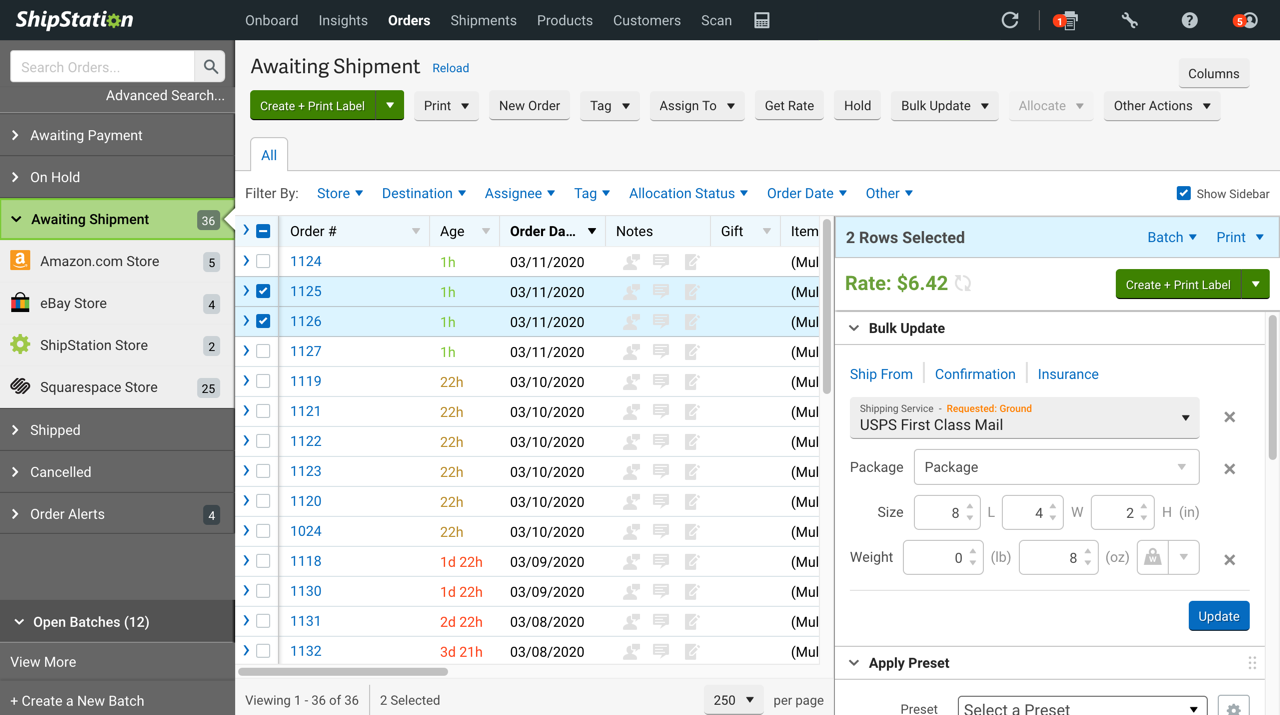


What it does:
Allows you to import Squarespace orders and then shop rates from a wide lineup of carriers. You can create customizable automation rules, crate branded labels, and packing slips
Who should try it:
Higher volume shippers who want or need all.the.features. The interface is a little busier than some of the others but that’s because they offer a lot!
Pricing:
There is no free plan. The cheapest option starts at $9/month and allows you to process up to 50 shipments. Like most of the others, prices and features go up along with the more advanced plans.
Bottom Line
Most of these extensions offer free plans or trial periods so that you can try them out before signing up for a long-term relationship. I would definitely recommend adding a shipping extension to your software lineup if you’re finding yourself spending too much time each week waiting in line at the post office, wasting time on carrier websites trying to get quotes, or need some help processing orders & returns in general. If you’ve not yet outsourced some of the “grunt” work for your business, I say that shipping is the best area to leave to the pros. Managing printing labels and sending notifications and monitoring tracking numbers can be a headache that you just don’t need to worry about!
Want more on shipping? Check out this post: eCommerce Strategy 101: Should You Offer Free Shipping?

Kristine Neil
Fractional Web Partner
I'm Kristine Neil - a communications strategist who has spent 20+ years designing websites, first running a full-scale design and marketing agency, and now leading my own studio. I've been the creative director managing the work, the coder quietly fixing what others couldn't, and the strategist in the room asking why before how. Somewhere between the MBA and the other degrees, I decided web design was just one tool in a much bigger toolbox - the real work is figuring out what you're trying to say, who needs to hear it, and what's getting in the way. A website is just where all of that comes to life.
I build on Squarespace, and after years deep in the platform I know how far it can go and when to push past its limits. These days, I'm especially drawn to working as a fractional partner - getting to know an organization over time and helping with whatever moves them forward, whether that's a full redesign, an ongoing hand with content and strategy, or just being the person who knows their site best. I write here about eCommerce, web strategy, and making the complex feel a little more human.