

Notes on building smarter websites for actual humans.

6 Steps to a Great Sales Page
If you're struggling with how to sell without feeling like a used car salesman, this post is for you! Six easy steps to show you that it's really all about building rapport and trust with your customers by clearly outlining your offer. This foolproof formula works every time!
Updated Sept 2022
“Sales page” does not have to be such a yucky word! Like, seriously, doesn’t just reading it skeeve you out a little?! Like I feel a little gross just typing this out! But, I will persist just for you! Because sales pages are important and done right can get you RESULTS.
Here’s the thing: kinda all the pages on your website are sales pages. Or at least they should be. Because really all a sales page is, is a page that is doing its damndest to get someone to buy. And isn’t that the point of your whole website? Anyways, let’s forge on.
According to Neil Patel, these are the 11 (count ‘em - eleven) components of a highly converting sales page:
Headline
Subheadline
Image
Video
Brief copy
Call to action
Trust signals
Explanation of the product or service
Benefits of the product or service
Testimonials
More CTA
Seems easy enough, right? Well, I would say that you could make it even easier! Here’s a simplified, pared-down version with just six key parts that anyone can do!
A Sales Page in Six Steps

Tip #1
Start With A Great Headline
Here’s where Neil and I (and generally the rest of the internet) are on the same page. You’ve got to start off strong with a short, compelling reason to get people to stay on the page and keep reading. Our tendency when writing is to focus on ourselves (“Here’s what I offer!) but a stronger headline would help the visitor feel heard or understood, reassuring them that they are in the right place and that the answers to whatever problems you’re going to solve for them are just a bit down the page.
Example: Sonder.com shows off how they’re different but keeps it focused on what their customers want: short term rentals with impeccable design.

Tip #2
Build Some Rapport
After you’ve caught their attention, help readers know that you really do understand them. Tell a brief story they may relate to, use words or phrases they may use, show them that you know how they are thinking or feeling right in that moment. Remember, they landed on your page because they are actively thinking about a problem they are having.
Example: Ruby.com focuses on how their services can alleviate pain points for their customers.

Tip #3
Throw Out The Opening Pitch
You’ve gotta tell them what you’re selling and ideally (if you did your job right in step #2), your offer is the answer to all their problems! 😉If you’re a service-based business, selling what you offer in the form of a product can be very powerful and really help people understand what they’ll be getting.
Example: Purebarre.com invites beginners to try a free class or download their app to jump into training.

Tip #4
Be Transparent About Cost
This doesn’t have to be a super awkward slide-a-piece-of-paper-across-the-desk moment. Again, if you’ve done a great job at framing things as problem > solution above the price almost becomes irrelevant. Also, sorry to be obvious here, but no one is under the delusion that you’re doing what you do for free so just putting the price out there in plain sight is way less awkward than having them contact you only to realize that you’re selling champagne and they have a beer budget.
Example: Headspace.com flips the script a little by leading with their cost right up front but I love how simple it is!
Tip #5
Prove You’re Worth It
Back up your claims to greatness with testimonials from past clients and/or descriptions of any guarantees you may offer. Help customers feel reassured that you’re legit and they’ll start to see themselves as one of the positive outcomes!
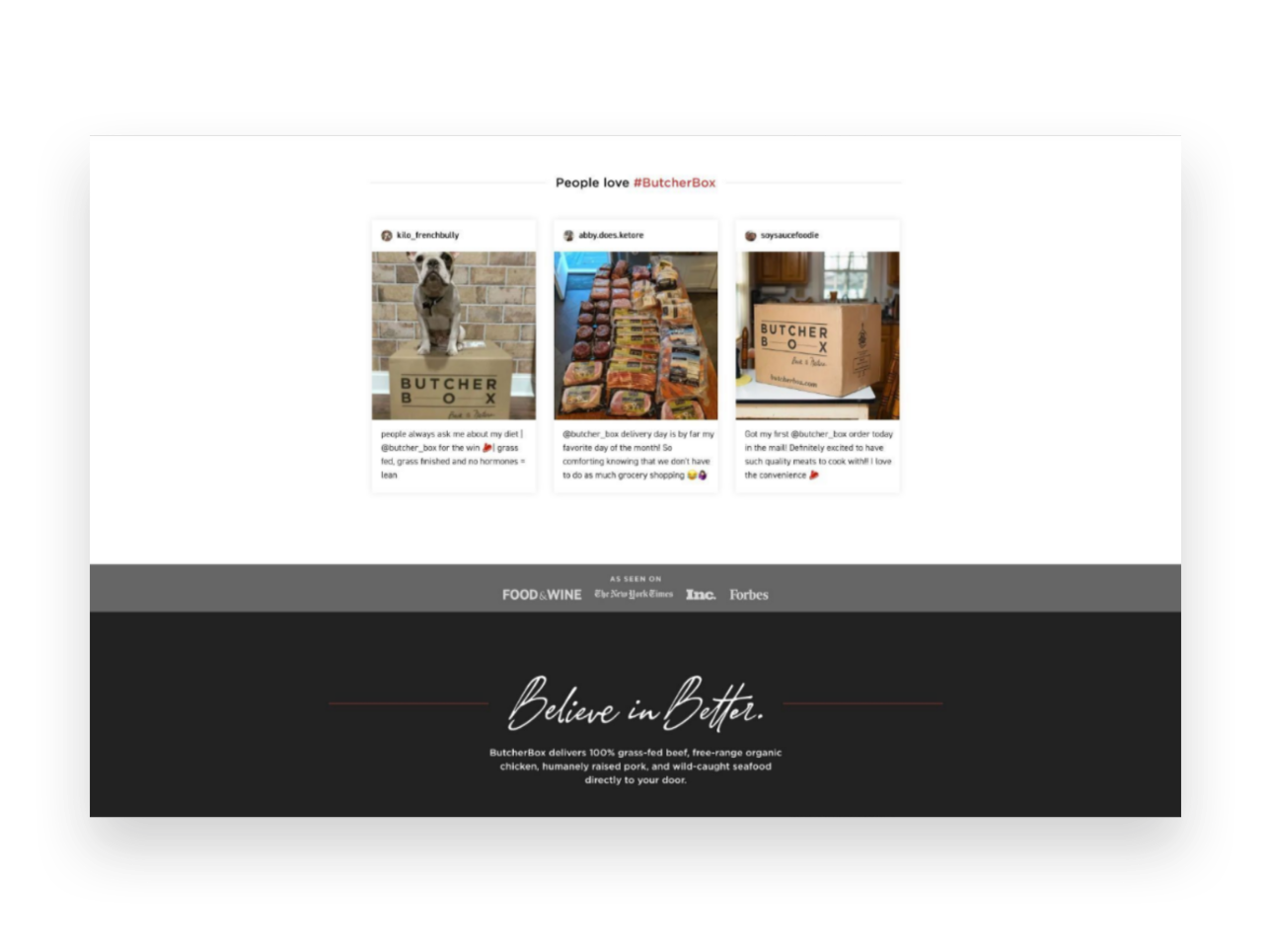
Example: Butcherbox.com shares testimonials people have posted to social media for a great dose of street cred!

Tip #6
Make the ask!
Whatever it is: your {“Buy Now” “Book Now” “Download Now”} button goes here! At this point, remember the 4 S’s and make it short, sweet, straightforward, and simple!
Example: Anchor.fm ends a great sales page with a simple & bold CTA - get started!

Should You Offer Free Shipping?
Free shipping is popular but may not be the best solution for everyone. Learn when it works, when it doesn’t, and 6 strategies to explore if you’re thinking of offering it as a shipping option for your online store.
If there’s an area where every single online seller seems to struggle, it’s trying to figure out what to charge for shipping and delivery. It’s such a challenge because there’s a very fine line between a solution that eats into your profits as little as possible and one that doesn’t completely turn customers off at checkout.
I tell nearly every client I work with that they absolutely should be offering some form of free shipping. It can be a hard pill to swallow but if you consider that more than 80% of U.S. shoppers say that shipping cost (combined with shipping speed) is one of the biggest factors that influence whether they’re going to buy at all.
That’s right. Your products could be amazing and the fact that you’re charging too much for delivery that takes too long is what’s tanking your sales.
So, what is it about things like free shipping that make us all feel like we just got away with sticking it to the man? Why don’t we like transparency when it comes to shipping costs? As an online seller, what are the pros and cons of offering free shipping? How do you offer free shipping without seeing red?
As a store owner, should you even consider offering free shipping?!
Keep reading for answers to all these questions + 6 strategies to explore if you’re thinking of offering free shipping in your online store.
First, Why We All Love Free Shipping
There’s probably no better way to explain it than via meme:
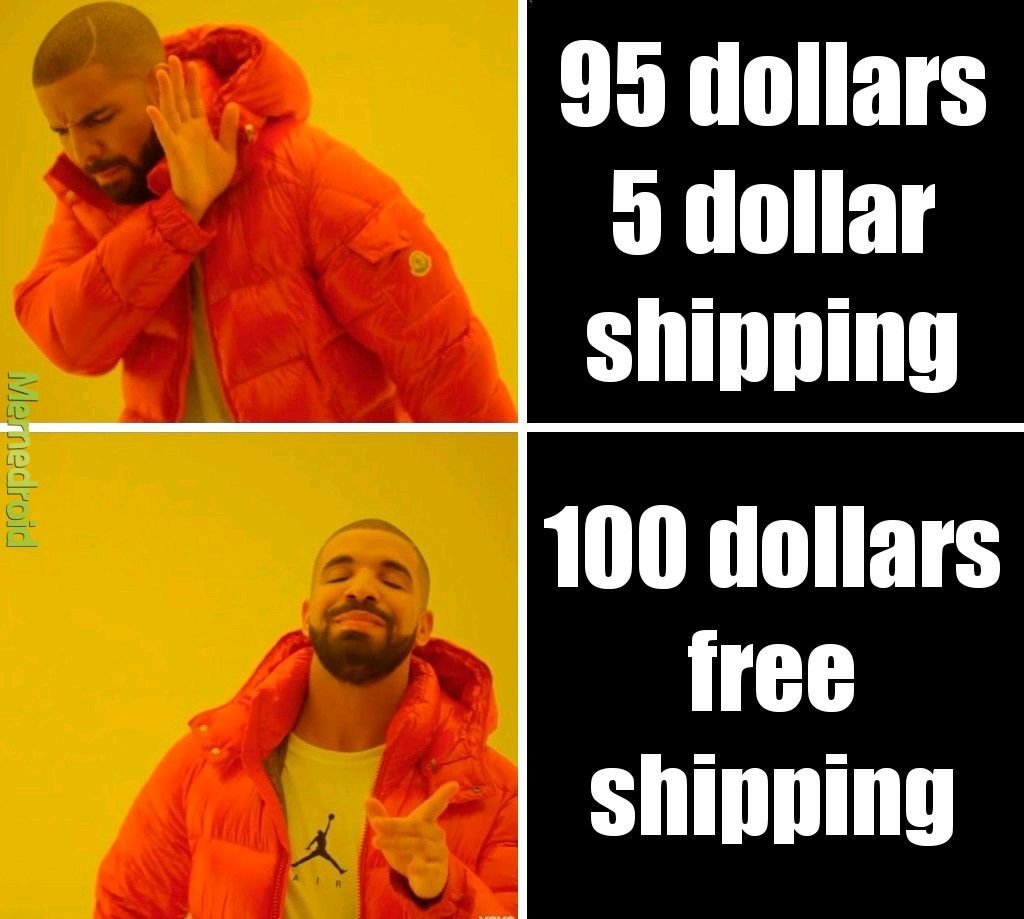
So true, right? To the average shopper, there’s just something magical about free shipping. This is probably because for most shoppers, we assigned a higher value to the cost of shipping than it actual is. (Or, transversely, perhaps we’ve undervalued the cost of whatever it is we’re buying.) Whatever it is, we like the word free. Seeing a free shipping offer is like an aphrodisiac to any online shopper - enticing us to buy things we honestly may not have otherwise.
When viewed from this standpoint, offering free shipping is really no different than running any other sale or promotion. It's a marketing tactic deployed based on the assumption that people wouldn’t buy without it. The shipping cost is just the amount of money we’re willing to spend to get the sale. (Hold this thought. We’re going to circle back to it in a minute.)
Why We Love Transparency (Except for When It Comes to Shipping Costs)
It’s funny when you look at trends in one area of business and how they compare/contrast to trends in other areas. Case in point: brands that have publicly embraced “transparency” as one of their core values are seemingly everywhere these days. There’s something raw and authentic-seeming about a company that will just lay it all out there and tell you everything: how much their CEO makes, where they source materials, how things work behind the scenes.
Instagram and social media has helped as all feel like we know the people and happenings behind the brands we shop from - and this can be a major marketing tactic.
There’s just one area it seems no one wants to see the real truth of: shipping.
I’m sure there is some psychological pricing word for this but it seems to boil down to the fact that most of us just don’t want to know how the sausage is made. We kind of just want to know the total cost and be offered some sort of guaranteed delivery date and we don’t really care how the places we buy from make that happen.
It used to be that “shipping & handling” was seen as just a necessary evil of shopping online. If you wanted something that was sold somewhere not local to you, it made sense that you’d have to pay to ship it. But we’re all too savvy & spoiled for that now. Basically, we want free 2-day shipping to apply to everything we buy ever. So the total cost matters more to us than the breakdown. We’d rather pay $30 for something and get it shipped for “free” than buy a $25 product with a $5 shipping cost.
Free Shipping Pros
Free shipping is super simple for buyers to understand
Free shipping has become an expectation for many shoppers
Free shipping can reduce cart abandonment rates
Free shipping can increase conversion rates
Free shipping can reduce customer service costs for returns (if things ship for free there’s no reimbursement of shipping costs)
Free Shipping Cons
Free shipping isn’t actually “free”
More orders don’t necessarily mean more profits
It can be hard to forecast and budget for the unknown
There may be cheaper ways to “advertise” depending on your product(s) or target demographic
Bottom Line
So, what’s the bottom line? Should you or shouldn’t you offer free shipping?
I say that if you’re a high volume shipper with products that are relatively small, lightweight, and/or similarly sized (i.e. not a lot of variation in product dims and weight) it would probably work well for you. On the other hand, if you sell products with a lot of variability in size, weight, or destination or have too low of volume to be able to average out the highs and lows, there may be better solutions (see some ideas below such as only offering free shipping on specific products, or only if a certain order minimum is met, etc.).
The last thing to consider (and I hinted at this above) is that this really boils down to a difference in mindset (and accounting). If you would like to do a promotion for free shipping or you think that offering it might help you increase the number of sales in the short term, the cost of shipping is essentially a marketing expense.
If offering free shipping is a long-term strategy or something that you just consider “the cost of doing business” then it would be considered a direct cost and classified as a Cost of Goods Sold. (BTW, just because you include it as part of your COGS doesn’t mean you can’t market it as a perk you offer on your website.)
The reason I mention this is because all too often I talk with merchants who only think of shipping costs as an expense. They then turn around and spend thousands on things like Google ads or promoted social posts. If they thought of free shipping as a marketing tool and invested in it the same way, I can almost guarantee they’d see a better ROI than any of that ad spend.
How to Offer Free Shipping And Not Lose Your Shirt
If you decide to offer free shipping, or just want to try it out for a while to see how it affects your conversion rates and the bottom line here are some tips to keep in mind:
If your product isn’t a highly commoditized one, just bake shipping costs into your product prices and just raise prices. (This is my #1 piece of advice for a reason!)
Make limitations on the shipping method that will be “free” i.e. only ground shipping is free but overnight or 2-day is an upcharge. Interestingly, people are willing to pay for express shipping so long as it is their choice to do so and they know that they had an opportunity for free (slower) shipping. In this way, any express shipping orders are a bonus since you’ve already included the cost of “free” shipping in their prices.
Offer free shipping only to certain geographic locations (sorry Alaska, Hawaii, Canada and others!)
Set a “minimum order” requirement to qualify for free shipping. This is a great way to boost average cart values as people are very often willing to spend a little more on product so long as shipping is free.
Offer free shipping only as a short term promotion for a limited period of time. This can be a good way to try it out and see how your customers respond to it.
Add free shipping as a membership perk or to reward your most loyal/repeat customers. This can give you some recurring/passive income in the form of membership payments that can then be used to offset shipping costs.
Bonus! If you decide you don’t want to offer free shipping, try these other “free” alternatives which can be just as enticing: free in-store pickup or local delivery, or free returns/exchanges.
My last piece of advice is to pick a strategy and stick with it - at least for a while. Customers will appreciate that they know what to expect when shopping with you and you’ll have enough time to gather data to determine whether your initiative was successful. You can always tweak down the road as needed. That being said, I do think that offering free shipping in some form is useful for nearly every online seller so I hope you give it a try!

11 Lead Magnet, Offer & Freebie Ideas to Grow Your Email List
Smart, strategic ideas for lead magnets, offers and freebies that go beyond the typical to help you build your email list.
One of your best business assets may be something you don’t suspect. It’s not your website or your super-secret trademarked process or even your brand recognition or goodwill. It’s your email list! And if you’re not using your website to actively build a list, you are leaving money on the table.
Like I’ve mentioned before, you can’t count on social media to connect with your audience, and done right people are not annoyed or bothered by getting emails. Here are some quick email marketing stats (all stats from here.):
72% of consumers say that email is their favorite method of communication with companies they do business with. '
81% of US online shoppers are more likely to make additional purchases, either online or in a store, as a result of emails based on previous shopping behaviors and preferences.
66% of consumers have made a purchase online as a direct result of an email marketing message
Why Email Works
If you’re running an online business or have something to sell (your products, your services, even your time!) - the chances are good that it’s going to take more than one contact with a potential customer to get them to fork over some cash. Do you know what odds aren’t good? Hoping that the client comes back to your site on their own to check you out multiple times. So, email gets you in front of people who have already expressed at least some moderate amount of interest in what you have to offer on a timeline you can control.
Here’s the secret: you’ve got to sweeten the deal
Sorry but no one is signing up to your list just because they’re hoping to get an email from you at some point. Email isn’t that magical. But people want to feel connected to brands they are interested in so let potential subscribers know that discounts and the VIP treatment awaits and they’ll be more than happy to sign up! And, of course, while this post is all about how to grow your email list don’t forget that email marketing success is really about sending consistent content that’s of high value to your subscribers. Just think of all the ways you can be a resource to your customers or how you can help them get the most out of their purchases from you. (Related post: 4 Post-Sale Emails Every eCommerce Site Needs)
Lead Magnet, Offer & Freebie Ideas
We’ve all seen the sign up boxes offering a discount off our first order and those are good but I want you to think about how you can set up a sign up box with a message that 1) aligns with your brand and 2) isn’t just about dishing out discounts left and right. I do think that a welcome discount code can be good so I’ll share with you exactly how to set that up below but remember the goal is to think of ways that you can give something of value to subscribers and start to build a relationship with them. We’re not just looking for one-time signups who will unsubscribe as soon as they get their coupon code here!
Offer a Free Gift with Purchase. I especially like this over a pure discount because it doesn’t de-value your products.
Offer a free gift with purchase by creating a coupon code for one of your smaller “add-on” type items. To prevent people from taking advantage of things, just set a dollar limit. (i.e. Free XYZ with any purchase of $$$ or more.)
Offer free shipping - but only for first-time customers who spend $X
Offer a discount code that only applies to certain shop categories like your best sellers to encourage people to try you for the first time
Offer a “digital gift card” instead of a coupon code - it feels more special!
Offer a companion guide to your products. For example, if you sell genuine Italian leather goods, offer a free guide on how to take care of leather accessories.
Send free samples. For example, if you sell candles pop a free wax melt in the mail so people can try out your scents!
If you sell services or digital goods:
Use a free Canva template to create a workbook, cheatsheet, checklist, or printable that aligns with your larger services.
Offer a teaser of what to expect from your larger offering i.e. just the first chapter of your ebook (with a link to buy the full one at the end, obviously)
Giveaway access to a “resource library” of files (ex: Grab my 10 favorite business checklists!)
Create an email “mini-course” that triggers upon signing up
Offer a free trial or way to engage with you at low/no risk for a limited period of time
Whatever you decide upon, you’re sure to start seeing new list signups start flowing in!
How to Set Up an Automated Welcome Offer
Create/set up your freebie. It doesn’t have to be fancy! (See below for ideas if you’re struggling to think of what to offer.)
Add a newsletter block or popup to your site. Most people throw their newsletter signups in the footer but, hey, go crazy and put them wherever! Don’t feel like you can’t pop a signup mid-page if it makes sense. Or, if you’ve got something cool you don’t want people to miss, use the popup feature!
Don’t ask for more info than you need to. Email address only or email + name, max. That’s it.
In your email marketing system, create an automatic “welcome” email that goes out to anyone who has just signed up for your list and includes the offer within the body of the email, or use a link/button to attach a download.
Not sure which email marketing software to go with? Check out Email Marketing Platform Showdown (ConvertKit vs. Flodesk vs. Squarespace Email Campaigns) for my recommendations!

How to Use Squarespace Scheduling as an eCommerce Tool
Squarespace Scheduling makes it easy for you to turn your services into easy-to-shop products and it’s actually kind of the low-key rock star of the Squarespace family of features that we’ve all been sleeping on. Learn more about this infinitely customizable tool and why it’s one of my favorites for all sorts of businesses.
Updated: Aug 2022
If you’re a service-based business that’s looking for ways to productize your services (or a traditional eCommerce shop looking to add services to your mix), you’ve probably realized that you really have only a handful of good options: 1) Try to find a specific app or tool that’s focused on your industry so that it has all the features you need and just hope and pray it’s not $973 zillion dollars a month; 2) String together free or “freemium” apps that only kinda get the job done and also kinda make it look like you’re a high-end hobbyist and not the professional badass you are; 3) end up on this blog post because you’re like, “I just wish there was one tool that I could customize to do exactly what I want at a decent price so I can focus on running my business.”
Solution: Squarespace Scheduling
Whoa, now - I know what you’re thinking. You’re thinking that you need to sell access to events or provide packages of services or host virtual classes and sell gift cards, not a meeting scheduling tool. Good news: Squarespace Scheduling does all those things and more and it’s actually kind of the low-key rock star of the Squarespace family of features that we’ve all been sleeping on. I’ve used it for lots of clients to create an easy and professional way for them to move their service-based businesses online. The best part: it’s nearly infinitely customizable so no matter what industry you’re in, you can make it look and feel exactly how you need it to. The second best part: since it’s built right into your website, you can manage everything about your business in one place. Priceless.
Features
Appointment Types
If you’ve used any sort of online booking tool before, you’re probably used to thinking of appointment types in terms of “30-minute meeting” or “60-minute meeting” which are both totally possible with Scheduling. But you can ALSO set up group classes or a series of events, offer optional add-ons or upsells, or even create coupons or discounts for any of the above. There are also lots of little details you can add that help with merchandising and branding your offerings - from being able to add photos to displaying custom confirmation pages.
Availability
The Availability section has a lot of options but this is part of its strength. In this panel, you have options to set two types of resources: your time + rooms. There are all the settings you’d expect in a typical meeting scheduler when it comes to your own availability: setting daily/weekly hours, controls for how far in advance people can book, how many appointments can be booked each day, etc.
What sets Scheduling apart though is all of the other control it gives you. Want to minimize gaps in your day so that you don’t have unproductive downtime between meetings? Done. Want to only offer certain events on certain days? Easy. Want to look super popular and in-demand? Just enable the “look busy” feature so that it doesn’t look like you have all day every day completely wide open. 😳
The second resource you can control is “Rooms” but don’t let the name limit you. Sure, you can use this to set availability for actual rooms (think: booking the conference room at your coworking space) but you could also use it to represent stations or chairs (like in a hair salon) or even things - like how many snowboards your outdoor adventure company has available for rent. You could use this to control booking at a company level so that you can never overbook or oversell if you have more people or demand than you have resources or inventory.
Payment Options
It’s not eCommerce if you’re not getting paid! Scheduling allows you to connect Stripe, Square, or Paypal… plus a few combos of all of those. My favorite processor is Stripe because it’s super easy to get set up and it’s pretty much the gold standard for how to get paid via anything across the whole internet (which means you only need one account).
Customer Emails & Reminders
I’m a huge proponent of the idea that providing a great customer experience doesn’t end once a sale is made; to me, that’s just the beginning, and all of the interactions you have with your clients and customers after the sale are just as important! Scheduling allows you to customize and personalize every.single.detail. of all the confirmation, reminder, and follow-up emails that get sent out. You can also tailor them to each different appointment type, package, or subscription versus a lot of other tools that require you to create just one generic confirmation email that needs to work as a one-size-fits-all solution.
It’s also really easy to set up reminder and confirmation emails that put the power to cancel or reschedule into your customer’s hands (notice a recurring theme here on not spending time being your own secretary??).
Intake Forms
The name “intake” forms may make you think this feature is only helpful if you run a medical practice (which you could absolutely do with Scheduling as the advanced plan is HIPAA compliant!) - but you can also use forms to collect any other type of information from clients upon booking. You can also have some forms be internal only so that you can complete them on behalf of your clients or even use a form as a client agreement for “terms and conditions” or other fine print stuff. Back on the healthcare note, if you happen to be in the medical profession there’s even a built-in SOAP notes feature if you don’t feel like creating your own custom form.
Packages, Gifts & Subscriptions
This is where Scheduling really starts to feel like an eCommerce solution! By building on top of the foundation of a typical “scheduler”, Squarespace Scheduling allows you to transform simple standalone services into easily sold products. Booking a meeting is selling a service but buying a package of 3 consultations is a product. You can even get fancy and make and set up “Buy 2, Bet 1 Free” type offers! The best part of this is that the booking is still handled entirely by the client so you don’t have to be in charge of handling any of the admin.
Subscriptions are another way to take a standard service and transform it into a product with a recurring revenue stream. Subscriptions can either be for a set number of installments, such as every month for 6 months, or set to repeat indefinitely until canceled. You can choose to charge a “setup” or enrollment fee… or not. You can put packages into categories so that your booking pages and links only show the most targeted products. This would allow you to do things like creating targeted landing pages or sales pages and direct people just to the selected subset of your packages or subscription products, which can be a highly effective sales tool.
Generate & Send Customizable Invoices🆕
You no longer need a third-party invoicing tool to get paid from clients, regardless of whether they’ve scheduled with you yet or not. With Scheduling Invoices, you can quickly create invoices with your own custom line items and share them with clients via a link. They can pay online through the same account that you use to accept other payments through scheduling, either via Stripe or PayPal. This is a great option for people who may offer standalone or add-on services for clients before or after their scheduled appointments or classes. For example, if you are a personal trainer you could use scheduling to get paid for sessions and then follow up with a personalized invoice for supplements. All of the info for this client will be in one place, their payment experience will be consistent and you can easily see analytics for everything all on one dashboard. (Another great way to use Squarespace as your CRM!)
Clients
If you’re looking for a way to manage and view your client’s info all in one place, you’ll love that the Scheduling tool has a Client panel that is as good as any other CRM platform out there. You can see each client’s contact info, record private notes about them, and see a history of any forms they’ve completed. You can also schedule things for them on their behalf as well as place new orders for them for any packages or subscriptions you might offer. Also, for those that sell packages and subscriptions, you can manage all your orders and subscribers from within the same system. It’s like a powerful little POS system!
Reports
Any serious eCommerce business owner is always looking to get their hands on as much data as possible to help inform decisions and keep a finger on the pulse of their business. The Reports panel inside the Scheduling tool has built-in (and good-looking!) reports for things like revenue, tips, appointments, users, and forms. You can also export the data to a CSV file so that you can dig in further in a spreadsheet if that’s your jam.
Link & Embed Options
Since Scheduling is part of Squarespace, you probably already understand that you can add a Scheduling block to any page, post, or product anywhere on your website. Super easy. But Scheduling also gives you options for a branded landing page you can direct people to (perfect for that link in profile!) in addition to embed codes for booking buttons and booking bars that you can add anywhere else you might need them. You can even generate a QR code for the Client Mobile App to allow your clients to book and manage their own appointments, classes, subscriptions, and packages.
Integrations
As much as I always want the tools and apps I use to do as much as possible without the need for other subscriptions, there are also select times when stacking a few choice pieces of software together definitely makes a final tool that’s more powerful than the sum of its parts. Scheduling plays nice with the following tools/software. The list is long so I’ve bolded my favorites!
Accounting & Invoicing
Quickbooks
FreshBooks
Email Marketing
Squarespace Campaigns
MailChimp
AWeber
Active Campaign
ConvertKit
Constant Contact
Drip
MadMimi
Simplero
CRM
Google Contacts
Salesforce
Infusionsoft
Pipedrive
Google Sheets
Uplaunch
Wufoo
Zoho CRM
Daylite
Client Engagement
Referral Candy
ReviewRail
Video Conferencing
GoToMeeting
Zoom
Join.me
Google Meet
API
API & CSS Support
Zapier
Automate.io
Zoho Flow
Custom Sidebar Integration
Webhooks
Payments
Stripe
Square
Paypal
Web Builders & Social
Squarespace
Facebook
Analytics & Conversion Tracking
Google Analytics
Facebook Pixel
Sync With Other Calendars
IDK about you but I’m sure not into checking several different apps each day just to know what’s going on. It’s way easier to just sync everything into one place so you can get the big picture. No more accidentally booking a work meeting when you’re really supposed to be at the dentist's office. Scheduling syncs with Google calendar (everyone’s fave) and also with others like iCloud and Outlook.
Users
If you have multiple team members that all need access to your Scheduling tool (or even their own calendars), you can just add them as a contributor to your Squarespace account and give them only Scheduling permission. This will allow them to access everything in the Scheduling section but still not be able to edit or mess with the rest of the content on your website!
eCommerce Use Cases
Not sure if using Scheduling is a viable solution for your business/industry? Here are a few different use cases that could all use this tool:
Small Businesses - Set up a class series (like a cooking class or other educational series) or sell access to online or in-person workshops
Fitness or Health-based Businesses - Sell subscriptions or gift certificates to either in-person or virtual sessions
Consulting Businesses - Use Scheduling to sell group classes/workshops or book private sessions. You could also sell digital products like ebooks or other downloads by attaching links to those products to custom confirmation emails.
Retail Shops or Boutiques - Provide options to book private “shop in person” time slots or sell services like personal styling or shopping
These are just a few ideas to show you that there are so many ways to take your services (or launch new ones!) and make them easy products for people to engage with. I hope it also shows you that there are so many ways you can make the everyday interactions you have easier with a tool like Scheduling.
Give It A Try!
If you have a Squarespace site, it already comes with a free trial of Scheduling! From the home menu just click SCHEDULING and then follow the prompts to get started on your free trial.

Ecommerce Pricing Strategies That Will Help You Increase Your Bottom Line
Pricing strategies are some of my favorite things to explore because it's just so fascinating how our consumer brains work. These aren't tricks, just proven ways to help you sell more on your eCommerce site.
Updated July 2022
Something everyone in business struggles with is pricing. If things sell quickly, we worry that maybe we could have priced higher and made more money. If things aren’t selling at all we are quick to cut prices, rationalizing that “any sale is better than no sale” and eat away at our profits in the process.
The thing about pricing is that getting it right isn’t just dumb luck. There are strategies (with actual science and psychology to back them up) that can help you figure out how to position your products and services to optimize profit.
1. Cheaper Isn’t Always Better
This is an example of how what you say about your pricing matters almost as much as what the actual price is. (Copywriters worldwide are applauding me right now!) Imagine someone selling fake designer sunglasses on a street corner. Their only sales pitch is that they are cheaper than their competition (either other fakes or the real thing). They don’t tell you why (inferior materials, cheap labor, potentially stolen goods, whatever), they are just telling you that you’re not going to find a cheaper pair of sunglasses anywhere. Do you buy it? Of course, you don’t! Because your mind immediately thought it was a scam or a trick. Why would they be pointing out their competitor’s pricing if there wasn’t something great about their own product that they could promote instead? Leaning on price alone as a differentiator is a race to the bottom.
Takeaway: Don’t mention your competitors or their prices unless you can also provide damn good reasons why you’re a more affordable alternative. Explain that you have better purchasing power or a more refined process or more high-tech manufacturing facilities or whatever it is. Let that be the differentiator and the pricing won’t matter.
2. Give Them a Price Anchor
Price anchoring is a nifty little pricing psychology hack that I often compare to the jewelry case at Costco. Have you ever lingered a while at the Costco jewelry case? It’s a price anchoring master class. Why? Because there is always that one singular engagement ring that is glittering and giant and comes with a price tag of something like $99,193.74. This makes you laugh in horror because who in their right mind would buy this? No one. But you know what suddenly looks super awesome? That very reasonably priced and almost as sparkly stunner right next to it. Why does Costco put this anchor ring in the case? To make the prices of all other rings seem like a bargain. Once your mind has been shocked by the first price, all other prices will seem reasonable by comparison.
Takeaway: When giving people options, make sure there are perceivable differences in cost and value. On the off chance someone goes for your super-premium option you’re in the money but in the everyday scenario, the item you really want to sell will seem like the best deal by comparison.
3. Play With The Digits
There are tons of different articles, strategies, and theories out there about how the way we present the price of what we’re selling affects the bottom line and they can all agree on this: when in doubt, shift the digits up or down.
Down Shift (Charm Pricing)
Charm pricing is so ubiquitous that it’s everywhere and even though we’re all super aware of it, none of us seems to be immune to it. It is wildly effective! It’s basically reducing the price by one cent to a number that ends in 9 (or 5, but 9 is more popular).
So: making something that is $10.00 ➞ $9.99
Why this works: scientists aren’t 100% in agreement on why but one theory is that because the price is specific that we feel like its value is calculated very precisely. Others say that because we calculate the value of a product or service based on the perceived loss that we read $9.99 as cheaper than $10.00 or that we feel like we’ve saved money by buying something for $9 rather than $10.
Up Shift (Prestige Pricing)
On the flip side, shifting prices up by a cent or rounding them to even numbers and removing the decimals can have equally powerful effects.
For example: making something that was $197.82 ➞ $200
Prestige pricing works well in situations where you’re selling based on emotions and feelings and less on rationale. For example, if you’ve positioned your product as the premium option in the market shifting the price up to a round number can help validate the copy and drive up sales. Where $197.82 would be perceived as a “sale” price or markdown, $200 feels like the right type of price for something premium.
Takeaway: Depending on your positioning, shifting your prices up or down a digit can have a big impact. The most important thing is that the pricing layout (how the numbers themselves are actually presented) aligns with the copy and positioning of your product. Buyers are quick to suss out any sort of dissonance between what they’re being told and what they’re being sold so if your copy says premium but your price says discount, they’re going to click away.
4. Use Price Tiers to Your Advantage
This principle seems to almost contradict #1 above but there’s a method to the madness, I promise! This one comes from Priceless: The Myth of Fair Value which is a great book if you’re into this topic like I am. If this book doesn’t exactly sound like your idea of a fun weekend read, no worries, here’s the breakdown of one of the studies which may blow your mind a little at first but will definitely help you structure your price tiers better!
The study looked at beer purchasing patterns (as all good studies should).
Round 1: Two beer options
Out of 100 Beers Sold:
Outcome: People preferred the fancy beer 4 out of 5 times.
Round 2: Two original beer options + with a new option priced lower
Out of 100 Beers Sold:
Outcome: Now the premium beer seems too expensive and since the cheap beer is priced so closely to the mid-range beer, the midrange beer seems like the best option.
Round 3: Two original beer options + with a new option priced higher
Out of 100 Beers Sold:
Outcome: Surprise! People like nice things and some people will always buy the most expensive option but now the mid-range (formally premium) choice seems like the smartest way to go.
Takeaway: If you’re going to bracket your prices into tiers, always anchor up as opposed to down. Cheers!
5. Limit Their Choices
It has been proven time and again that among our many great skills as humans, making decisions amongst too many options is not one of them. Shoppers given too many things to choose from will often opt to do nothing or defer a purchase because 1) we know we suck at making decisions and fear making the wrong one and 2) we tend to over-analyze things that are presented as very complex sending us into “analysis paralysis.”
In the example of using pricing tiers (above), a safe max is three. And if you’re thinking right now that if three options are good then 10 must be better let me tell you NO. Wrong. Stop this.
Takeaway: If there isn’t much difference between similar products or services you offer, consider eliminating or consolidating to present fewer options to your customers or clients. Offering a curated selection of products or services will almost always beat offering an endless array of options shoppers feel bewildered trying to sift through.
The Bottom Line (Pun Intended)
When working on pricing for your online shop or eCommerce store, it’s important to think about all of the different factors that can impact whether that “Add to Cart” button gets clicked. It’s certainly not simple but it doesn’t have to be a guessing game either. Taking some time to familiarize yourself with various eCommerce pricing strategies can help you feel more confident in setting your prices while also improving your bottom line.

What does Squarespace's new Fluid Engine mean for eCommerce?
Squarespace Fluid Engine is the latest release on Squarespace's 7.1 platform. Find out what's changed, what's stayed the same and what it all means if your shop is built on Squarespace.
July 21, 2022
The internet is all abuzz because Squarespace has just dropped an all new editing experience called Fluid Engine. Maybe you’ve heard about it already (or maybe you’re just learning about it now!) and you’re wondering — what does this mean for me and my site??? Here’s the scoop!
How We Got Here
As a reminder if you’ve had a Squarespace site for any number of years, you’re used to what’s now being called the “Classic Editor” which allows you to add any of Squarespace’s trademark “blocks” (things like text, images, buttons, video, etc.) onto your pages at predefined points. You may have had to use things like Spacer blocks to get things to line up the way you wanted. The Classic Editor offered a mostly intuitive design experience but some advanced layouts such as creating full bleed content or overlapping blocks required custom code.
Intro to Fluid Engine
What makes Squarespace’s new Fluid Engine different from the Classic Editor is that it offers the ability to add blocks anywhere in a section - even overlapping them if you’d like! Instead of adding blocks at predefined points in a section, blocks can now be added anywhere you want and dragged, dropped, stretched, resized, layered or manipulated to achieve just the look you’re going for. You don’t need Spacer blocks and there’s a chance you’ll be able to get by with a lot less custom code.
Fluid Engine also comes with one other big change and that’s to how your site looks on mobile. Previously your page layouts were automatically translated to mobile and there wasn’t really a way to change the way they looked without also editing the desktop view. With Fluid Engine, the desktop and mobile views can be edited independently offering more control over how things look on smaller screens.
What does this mean for eCommerce sites?
Good news if you’ve read this far and are worried that how you upload and mange products on your site will change — all of that stays exactly the same! There are no changes to the way eCommerce looks or works at all. Your product pages, shop page and other static pages like your cart and checkout are not changing in either the way you edit them or the way they work for your customers.
Fluid Engine only impacts content pages on your site (more on that below) so things like your home page, about page or other non-shop related pages. One of the biggest selling points for me on using Squarespace for eCommerce has always been in how creative and dynamic your non-shop pages can be versus those built on Shopify, for example. So while the release of Fluid Engine has no affect on how eCommerce works or functions in any way, I do think it makes a stronger case than ever for why Squarespace continues to be a great choice for online shops. After all, how you present your brand on your non-shop pages is as important and influential on conversion rates as any actual eCommerce function.
Who has access to Fluid Engine?
Fluid Engine is available now on all English language sites built on Squarespace 7.1. (If your site is still on Squarespace 7.0, this is just yet another reason to make the switch to 7.1 as there are no plans to release the new editor experience on the 7.0 platform.) If your site was built before early-mid July 2022 and is on Squarespace 7.1, you’ll notice an upgrade button in your Classic Editor sections. Should you click it? Up to you but here’s what that means:

(Here’s what a Classic Editor section looks like on 7.1 with the option to upgrade it to a Fluid Engine section in the top left corner.)
Upgrading a Classic Editor section that used custom code may cause that code to break. This may not be a bad thing (you can probably replicate the layout without code in the new Fluid Engine section) BUT you should know going in that things may not immediately look the way you want.
Once you click Upgrade on a section there’s no going back. This is a one way ticket situation so just be sure you want to board the train, you know what I mean?
If you’re going to be doing any DIY editing on your site, don’t forget to check out the mobile view. In my extensive beta testing of this product, I spent a lot less time writing custom code but a lot more time manually recreating all mobile page layouts.
Do you have to make the switch?
The short answer is not really. As long as your 7.1 site was built prior to the launch of Fluid Engine, all of your existing page sections will remain as Classic Editor sections. However, any new sections you add will be created with the new Fluid Engine powering them so you’ll end up having a little bit of a mixed bag of sections for a bit. In the long run, as you edit and add new content to your site old sections will be replaced with new ones - all built with Fluid Engine.
Bottom Line
This is a big announcement and a big change from Squarespace but don’t let it scare you. You don’t have to make any big changes right away if you don’t want to and how your online store looks and works is not changing in any way. This is just the latest in Squarespace continuing to push things forward in terms of innovative design capabilities. Have any questions about how to use Fluid Engine or adding new Fluid Engine sections to your eCommerce site? Feel free to contact me!

eCommerce Lessons from an Online Shopper
I've been waiting my whole eCommerce career to use the line "I'm more than just an eCommerce web designer, I'm also a shopper" and the time has finally arrived.
One of my earliest memories of online shopping in its modern form was when I first discovered sephora.com while cruising the internet at the job I had during my last semester of undergrad. It was 2002 and I worked in reservations at a golf resort. In between booking hotel rooms, coordinating spa treatments and reserving tee times, I spent most of my time in my little half-cubicle online shopping.
I loved that I could see all of the things and take all the time I wanted to compare products. I had a particular fondness for “value sets” of products and often made little spreadsheets calculating what the savings were for buying a bundle vs. buying individual items separately. I was lured by free gifts with purchase. I found great joy in the unboxing of things I bought just days earlier when I probably should have been working. It was a weird transitional time in my life but also one of the first times I had a regular 9-5 job and the splurges on high-end skincare were a salve for much more than my face.
To this day, it stands in great debate as to whether I quit or was fired from that job. What is true is that it definitely set in motion my love for all things e-commerce. And it wasn’t just because I thought it would be easier to have everyone just book their rooms and spa treatments and tee times online themselves so that I could be free to shop online.
It was just that even then, from a business standpoint, I thought it would be much smarter to invest in ways to empower resort guests to make reservations themselves in the same way Sephora allowed me to browse virtually. I knew I spent way more online than I ever would in person at the mall.
There was something way less confrontational about being able to read product details at my leisure, without the pressure to buy. There was room to explore, to discover, to truly take it all in. Whether booking hotel rooms or buying designer perfume, it was novel then to be given the authority to manage things yourself and I liked it.
Around this same time, there were the cries from small businesses everywhere that online shopping was either going to kill brick-and-mortar altogether, or that it was just a fad not worth investing in. The vestiges of these beliefs exist to this day - less so for startups who tend to be more open to seeing the value in technology - but definitely in the small business sector. You either see yourself as a local business that only serves other locals and therefore has no need for a website… or you understand the power of ecommerce but are not sure where you fit into the whole scheme of things.
Interestingly, in a new role sometime after the end of my storied stint at that resort I did go on to work for a company where I was given the opportunity to actually develop an entire eCommerce platform. I didn’t necessarily have any professional experience in the field yet but I had the overconfidence that comes with being fresh out of college and someone willing to give me a chance. If I knew nothing else, I knew that so long as I built interactions that would satisfy me as an online shopper that there was a pretty good chance it would resonate with others. I was right. That platform is still in use to this day and generates multiple millions of dollars for the company every year.
Here are some lessons from my early days as an online shopper that are still just as relevant today and which have now been thoroughly vetted through my involvement in successfully bringing hundreds of businesses to life online, many for the very first time:
1. Constantly give me new things to look at and explore.
If you want me to keep coming back to your site time and time again, you better give me some exciting reasons to do so. Change up that homepage hero banner and link it to some fresh content. Create a “new” category in your shop so that I can see everything that’s dropped since my last visit. Make me feel like I need to check back in often or else run the risk of missing out on something big.
A frequently updated website draws people (and Google) in and creates the ultimate sense of FOMO. Use this to your advantage.
2. Answer all the questions I didn’t know I had.
Your FAQ page matters more than you know. I feel like I can always pick up on how well a company treats their customers based on an FAQ page alone. People like me do, in fact, read every single question and answer – and not just because I want to learn more about your products or services. I do it because I want to see how you answer questions. Is your tone sassy? Sweet? Direct? Blunt? Does it sound like you would truly help me if I had a problem or does it sound like you’re just setting yourself up to cover your own ass with rules and fine print?
A great FAQ page is your secret, hidden way to show your customers a bit of your brand personality. Yes, that should come through in the copy on your other pages but those pages are where you talk about everything going right. An FAQ page is generally the only place where you talk openly about all the things that could go wrong. And it’s in those moments where I want to know you’ve got my back.
3. Show up in my inbox.
If I truly like your brand or your company or your products, I’m signing up for your email list. So, entice me with a coupon code or lure me in with the promise of special offers, whatever it is - I want to be in the loop and I’m willing to give you my email address in exchange for the good stuff.
The crazy thing about email marketing is that I know how the sausage is made and I still want some. I know the messages I get in my inbox aren’t really personalized, written just for me and catered to my personal shopping whims. I know that emails are, for the most part, trying to sell me something. And yet, for brands that I really love - I do not care. I like being invited back. I like feeling like I’m part of the family. I know I’m being marketed to and yet, done right, I don’t mind one bit.
4. Treat me like the VIP I think I am.
Perhaps you haven’t noticed a trend yet but most of what I like about shopping online are the ways it mimics (and sometimes goes beyond) the in-person experience. The best online retailers understand this and follow through with awesome ways for me to feel like I’m their #1 customer. There are so many ways to roll out the red carpet for your online guests and not all of them need to be expensive or complicated:
One of the easiest things you can do is enable customer accounts so that repeat customers like me can easily access my order history.
You can add a live chat widget so I can skip the customer service phone queue and not stress over sending a cold email.
Roll out an affiliate or referral program that recognizes repeat business or encourages customers to share your brand with friends.
Set up a simple, automatic returns process so that if I need to swap out a size or just return something that’s not exactly what I thought it would be I can do so in the easiest way possible.
Customers have a lot of options when browsing around online and all of these things just boil down to making each and every customer feel like they're your best one. Think of ways you can make their lives easier. Be empathetic to their needs. Reward them for their loyalty.
5. Send me packages that show me you love your own brand.
Lastly, the experience with your eCommerce brand lasts longer than you think it does. It goes way beyond the checkout page and extends right to my front door and beyond. Make a lasting impression with packaging that excites me. This means it needs to be 1) on brand, 2) potentially contain a little surprise and 3) anticipate my needs. And, yes, packaging can do all these things.
A branded box and packaging that’s filled with branded tissue or fill, and topped with a branded sticker or card – that’s the holy grail for an online shopper. This is the pay off for not just getting in the car and heading out to the store. The unboxing experience is the whole thing. That’s what we’re here for.
And it just says so much to me when I order something that shows up in a plain old, boring box with not so much as a thank you note. There’s something special about interacting with a company that’s confident enough in their own brand that they want to slap it all over everything and send it all over the world. Whatever it is, packaging matters.
The Bottom Line
20 years on from my short-lived stint as a hotel reservationist and I can tell you to not underestimate the power of eCommerce. It doesn’t matter your business or industry. I could be booking a facial, buying shoes, accessing exclusive digital content, or scheduling a meeting – and all of them are chances for your business to impress me, influence me and convert me into a fan for life. It’s not a coincidence that even after all these years, there’s still a magical delight in receiving one of those black-and-white Sephora packages at my door.

Squarespace Feature You Should Be Using: Product Reviews
One of the best eCommerce tools you can use is built right into Squarespace and I bet you're not even using it yet. What is it? Product reviews! Find out how to get started sending review requests and displaying them on your site.
Anyone else here scroll right on past product descriptions half the time and head straight for the reviews/comments? 🙋♀️ There’s just something about getting an outsider’s take on things that feels so much more trustworthy. I mean, sure YOU love your products but what do the real people think?
Good news: collecting reviews for the physical, digital or service products that you sell on Squarespace could not be easier! But this is a feature that I see people sometimes skip setting up. It’s definitely worth the few minutes to be able to start collecting that valuable feedback from satisfied customers to share with the world. (p.s. Showing reviews on your product pages is a great way to boost sales!) Here’s how to do it.
How to Turn on the Product Reviews Feature on Squarespace
I told you this was going to be simple! To start sending out review request emails and displaying reviews on your site, from the home menu in Squarespace click COMMERCE > PRODUCT REVIEWS. From there:
Toggle REQUEST REVIEWS on to send an email request for a review 14 days after every purchase of physical, digital or service products in your shop.
Toggle EMAIL NOTIFICATIONS on if you’d like to receive an email notification every time someone leaves a review.
That’s the basics! There are a few more settings and options that you’ll want to set up or customize to your liking which I’ll get to in a second but first, what happens when someone leaves a review on your Squarespace site?

What leaving a review on Squarespace looks like for your customers.
How Squarespace Product Reviews Work
Once you’ve turned reviews on, here’s how things work:
14 days after you fulfill each order, customers will receive an automated email asking them to leave a review. (You can - and should! - customize this email - more on that below!)
In addition to (or in lieu of) a written review, people can also rate products between 1 and 5 stars.
How to Customize the Squarespace Product Review Request Email
The stock email that Squarespace is going to send out once you toggle reviews on is pretty boring and generic looking. You’re going to definitely want to jazz it up with your own branding and maybe even customize the copy so it has some of your company’s personality.
To edit the Product Reviews email specifically, from your home menu click COMMERCE > CUSTOMER NOTIFICATIONS > CUSTOMER ENGAGEMENT > PRODUCT REVIEW REQUEST. From here you can change the text from the default to something more personalized.
To change the way emails look in general you’ll head to COMMERCE > CUSTOMER NOTIFICATIONS > GLOBAL EMAIL STYLES. In this section you can change things like fonts and colors in the email, add your logo or social media icons, and other things that will change the way ALL emails sent from your site look. (For more on customizing all of your shop’s email notifications, check out this related post: How to Customize Your Store’s Email Notifications.)
How to Change The Way Reviews Are Shown
Product reviews are shown on product details pages below all other content. You have a few options on how to display reviews on your site:
Show Product Reviews Only - This option will show only reviews related to each specific product on that product’s details page. So reviews for Product A will only show on Product A’s page, reviews for Product B only on that page, etc. The star rating shown is an average of the rating for just the product in question. I would recommend this option once you have a lot of reviews for each product.
Show Store Reviews Only - This option will display ALL the reviews you’ve received regardless of which product page you are on. This means that on any given product page you’ll see a mix of reviews for Product A, Product B, etc. The star rating shown is an average of the ratings for all products in your shop. I would recommend this option if you’re just getting started and don’t want it to look like your products don’t have any reviews.
Show Both Product & Store Reviews - This option will allow people to toggle between a tab that shows just reviews related to the product they are looking at and a second tab that shows all reviews received from your shop. This is a good option if you’re wanting to show that customers also really like other products you sell since the product thumbnails shown with each store review are clickable to those specific product pages.
To select the display option that works best for where you’re at right now, from your home menu click COMMERCE > PRODUCT REVIEWS and in the “Display” section click on the dropdown menu to select from one of the options above. You can change this at any time so select what works for now and update later as you’d like!
What to Do When You Get a Bad Review
Eek! Ok, I know it seems like the end of the world but bad reviews happen to all of us and you should definitely not live in fear of a bad review. You should also not let the chance of a bad review prevent you from asking for feedback in the first place!
If you’re confident in your products, customer service and the overall experience of shopping with you then you know the occasional bad review probably says more about the reviewer than you. Perhaps they just had a bad day or something happened that was outside of your control like a shipping delay. Assuming you’ve done all you can to make things right, just chalk the occasional bad review up to that person not being your ideal customer and move on with your life.
How to Manage Reviews
All of the above being said, you’ll probably want to still go in and hide any less than stellar reviews. I would only do this for things that are truly nasty or untrue; objective reviews that are less than 5 stars may have feedback or comments that future customers find helpful such as how to pick the right size or what they could do differently to expect a better outcome. Sometimes the 3 and 4 star reviews are the best ones because they seem real and honest!
For anything else, from the Product Reviews panel click on VISIBILITY next to the review you’d like to hide and change from PUBLIC > HIDDEN. Click on HIDE to Confirm.
Squarespace Product Reviews FAQs
-
Yes - long winded reviewers get cut off at 1500 words.
-
Yes. Customers can only review a purchase within 120 days of receiving the review request email.
-
No - and it’s not recommended to do so, especially if it’s a negative review. You don’t want to seem argumentative. Instead, I would just go in and hide the review and send the customer a personal email to try to resolve the issue. To hide a review, follow the steps in the “How to Manage Reviews” section, above.
-
If someone places an order for multiple products from your store, they will only receive one review request email but they can review and rate each item individually.
-
Not at this time. Review request emails will only go out for purchases made from your online shop.
-
Yes… but only within the last 14 days. For any customers who purchased before that, you could always reach out with a personalized email asking for feedback. One off testimonials can then be incorporated elsewhere on your site which is still a good thing.
-
No. Only reviews received directly from customers via the email review request form can be managed and displayed via Squarespace. This helps the credibility of the reviews on your site since they are all verified purchases.
-
Nope but you can hide them using the steps in the “How to Manage Reviews” section, above.
-
You cannot resend review request emails and this is probably for the better. I would say that the best reviews come from people who are willing and eager to respond quickly when asked the first time. Resending requests could seem spammy and might actually impact the feedback you receive. If someone doesn’t respond, just let it go and focus on your other, more engaged customers.
-
Not at this time. Keep in mind that review request emails are sent out 14 days after you mark an order as fulfilled. If you sell physical products, this gives enough time for shipping and allows the customer to use the product a bit before reviewing. For digital or service products, 14 days is a good window where the experience is still fresh in their minds but it’s not too soon as to be annoying.
-
Yes! I detail everything you need to know about moving from Etsy to Squarespace including how to import reviews in this post.
-
You can embed reviews widgets from third-parties onto your Squarespace site but honestly? I think it looks kind of janky and that it's ok if all your reviews aren’t aggregated in one place. Let Facebook reviews live on Facebook and website reviews on your website. You could always do like I recommended above and add some static text to your site quoting a few select really awesome third-party reviews if you really wanted to include that copy on your site. Otherwise, I would focus on building well-rounded reviews across a variety of platforms as this could be good for SEO.

The Best Technology Combos for Your eCommerce Business
Looking to keep your monthly costs in check or just not pay for subscriptions you don’t need? This post breaks down my best technology recommendations for different types of eCommerce business models. Discover which software and apps work well together to do exactly what you need.
Updated: September 2022
It seems like all business tools these days come with some sort of SaaS subscription-based pricing model. And at first, all the accounts seem to make sense. You sign up for one service that does this thing, and another service that does that thing… but before you know it your bank account is getting hit several times a month for all sorts of things! And it isn’t just a financial drain. Running multiple services side-by-side means you’ve got to keep track of multiple logins, track which programs are in charge of which tasks, and (my favorite) try to get them to all play nice together.
Using tools like Zapier can help ease the pain of connecting various apps and software together but at some point I think we’ve all wondered if there was a way we could pare things down - if only for our own sanity. In the tech industry, the buzzy word for all the software and tools that you use to build your product is a “technology stack.” When I look at my client’s businesses I see all the software, services, subscriptions, apps and extensions as their personal technology stack and the goal is always to keep it as efficient as possible.
An optimized technology stack:
Reduces potential for errors or bugs,
Is easy to manage for individuals and small teams,
Ensures you’re not underutilizing and resources and getting the most for what you’re paying for,
Helps create a consistent UX for your customers or team as they move between platforms,
Allows you to see the big picture, and
Keeps costs low.
With these things in mind, there’s one platform I find to be the perfect starting point for any small to medium business or startup: Squarespace.
Building a Strong Foundation
Start With Squarespace
I love Squarespace not just because it allows you to access nearly everything you need for your business with one login but it does so at a super affordable price point. Using Squarespace as your foundation allows you to skip extra payments for things that often require additional subscriptions and costs with other website platforms. In addition to the actual website builder you can eliminate the need for these extra services because they’re all included with your Squarespace subscription:
Domain including WHOIS privacy & protection
Hosting with Unlimited Bandwidth & Storage
SSL Certificates
Site Security
SEO Features
eCommerce Functionality (yes, some web platforms charge you to add this!)
Squarespace is a minimalist’s dream because you can access nearly all of the things you’ll need to run your online business with one password and one subscription. It’s infinitely customizable to suit your unique product/service mix and business goals and easy to build on to as needed. It’s the perfect foundation to build your eCommerce business on.
(Related post: Why I Love Squarespace for eCommerce)
Now for as robust as the Squarespace is, the cheese doesn’t stand alone. Most businesses are going to need to pair it up with some additional software/services to really make things hum. Keep reading for the software combos I turn to time and time again for running smart eCommerce businesses!
Best Email Marketing Combos

Best combo if you’re just getting started
There’s a lot to love about Squarespace’s built-in email marketing solution and if you’re just getting started it should definitely be on your radar as a great all-in-one tool.

Best combo if you want to build your list but don’t need commerce-based automations
Flodesk is a good option if you’re looking for something that has a great user interface and if image-based emails are important to you. It integrates well with Squarespace but more so for traditional email marketing & list building than for eCommerce-specific automations.

Best combo if you want to get serious about email marketing AND eCommerce
If you’re as serious about email marketing as you are about selling online, ConvertKit should be at the top of your list of tools! It’s powerful where it needs to be and simple where it matters; it’s clear that everything about it is geared to convert.
General eCommerce Technology Must Haves

Best way to build a great eCommerce experience
One of the best ways to make an impact with new customers (and continue to excite loyal shoppers!) is through a great on-brand unboxing experience. If you’re selling anything that requires packaging noissue makes it easy with low order minimums and help making sure you always look good.

Best way to keep your shop protected
Termageddon is my gold standard when it comes to making sure the sites I work on have the best iron clad privacy policies, terms of service and even cookie policies. The best part? Once you’re set up the first time, your policies will auto update whenever laws change meaning you’ll never be left hanging.

Best if you want to start an affiliate or referral marketing program for your shop
If you’ve been thinking of adding affiliates or referrals to your marketing arsenal, you’re so smart! Adding these types of programs help you keep control of your marketing spending, expand your reach and boost awareness. Peach’s is the best partner to Squarespace on this front and the only one I recommend!

Best way to add a custom order form to Squarespace
For complex order forms, quote request forms or forms that require conditional logic or other advanced features, I recommend Paperform. You can integrate forms seamlessly onto your Squarespace site or even use them to add on features and functionalities to your store.

Best way to sell wholesale on Squarespace
Whether you’re just getting started selling wholesale or have been doing it for a while and looking for a way to do it better, Candid Wholesale is the way to go. This platform syncs up your Squarespace inventory and allows you to create custom wholesale order forms, custom pricing and a whole platform of other features to build your wholesale business.
Best Options if You’re Selling & Shipping Physical Products

Best for low to medium volume shippers
Easyship makes it easy to fulfill and ship orders and in addition to never having to stand in line at the post office ever again, you’ll also score a sweet shipping discount over paying retail - win-win-win!
Best for medium to high volume shippers
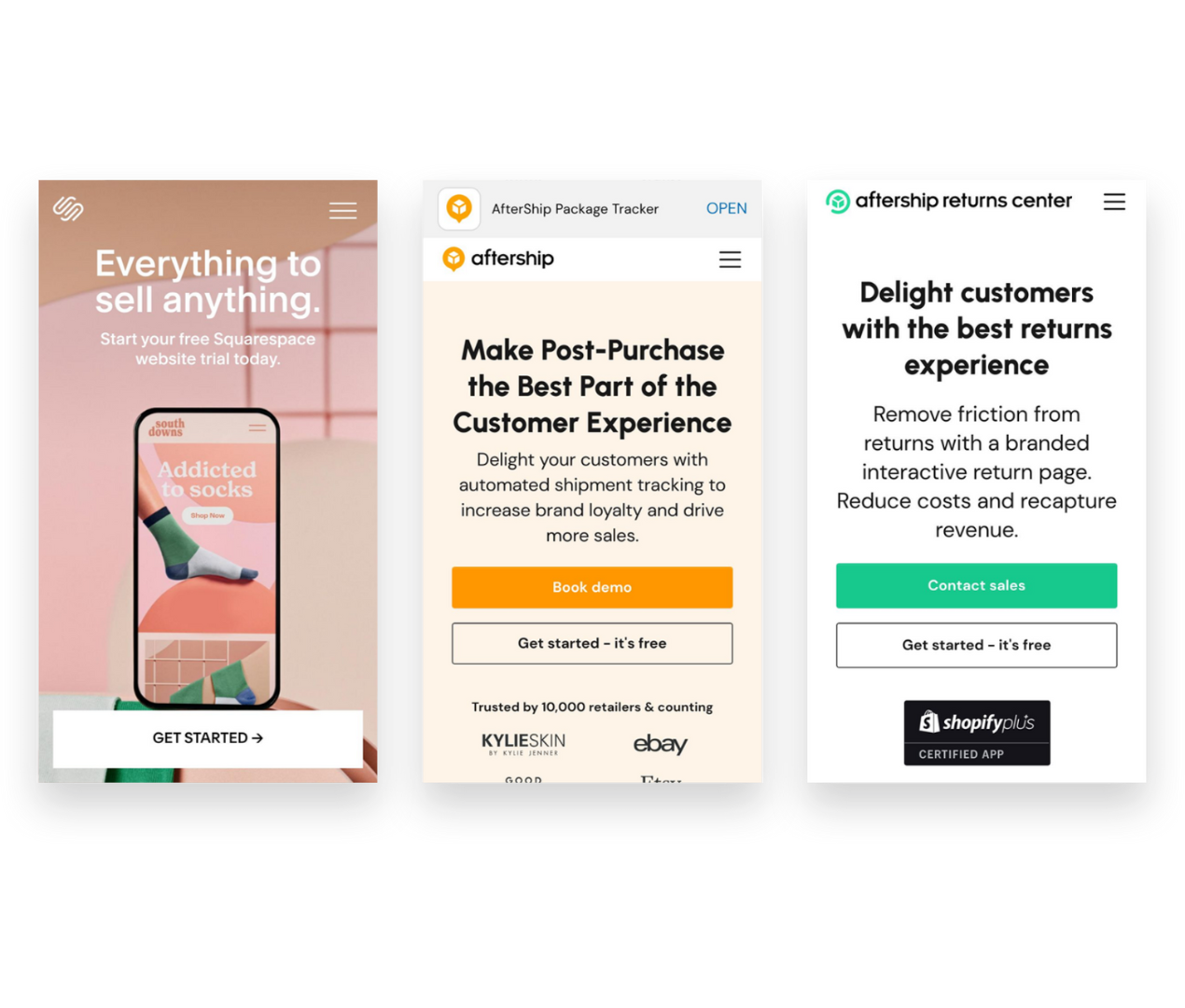
Help customers help themselves by providing a great experience that extends beyond the order confirmation page. With Aftership Tracking + Aftership Returns you can create branding tracking pages and even allow customers to do self-service returns.

Best if you sell on multiple platforms
If you’re selling on Squarespace + other platforms like Etsy, Faire, Amazon, Shopify or Squares - you NEED Trunk! Trunk makes inventory management super simple and makes sure that your inventory counts are accurate across the board. Bonus - it also makes selling bundles and kits on Squarespace a dream!

Best if you use a third-party logistics company for fulfillment
ShipStation integrates with literally every 3PL provider I’ve ever encountered and it makes fulfillment by a third-party really seamless for Squarespace shop owners.
Best if you’re selling online AND in person
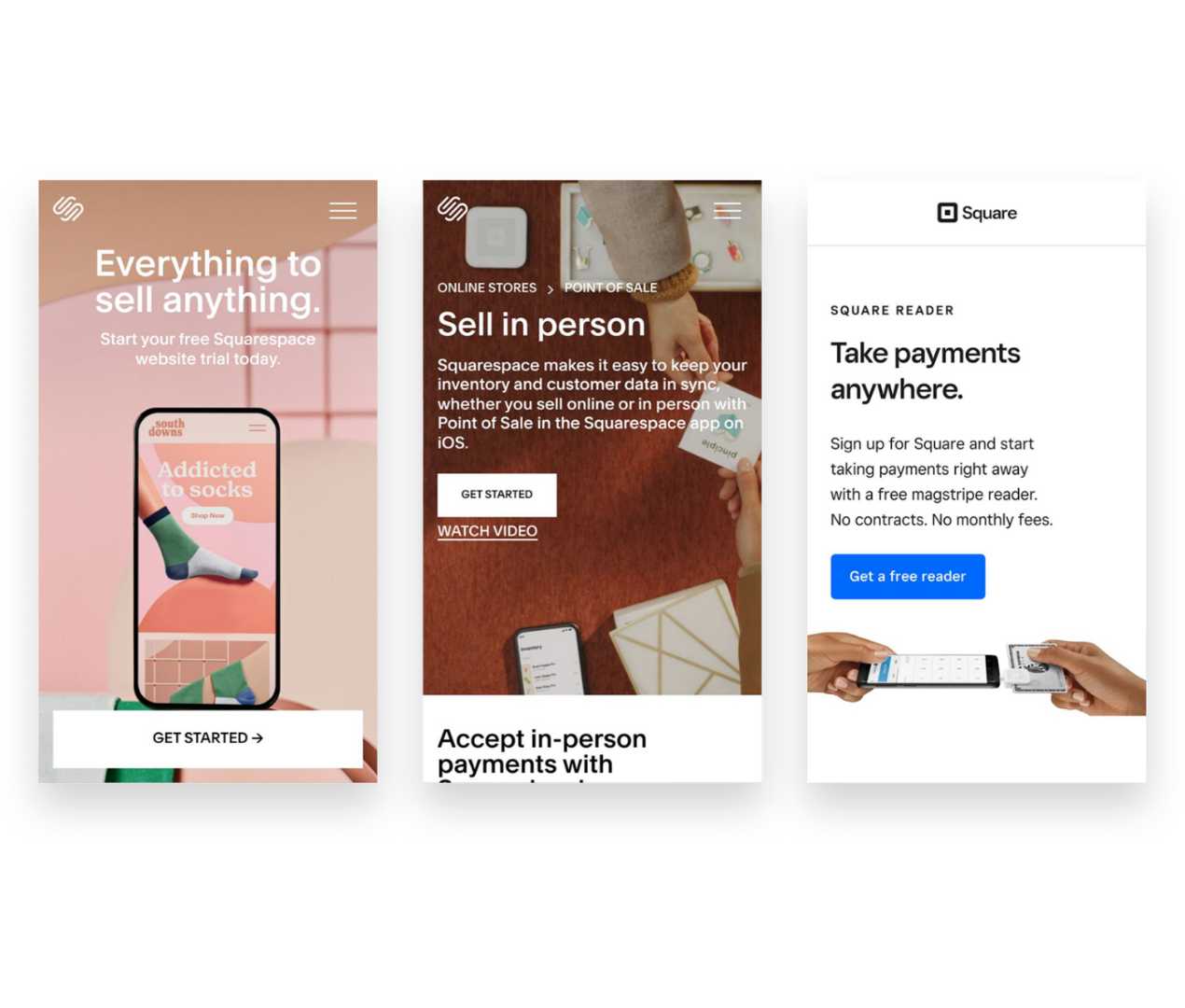
The free Squarespace app allows you to basically run your business from anywhere and have full visibility into things like orders and inventory. You can accept mobile payments, scan shipping labels, fulfill orders, update stock levels and more - all from your phone or tablet.
Best Options if You’re Selling Digital Products, Courses, Memberships, Events & Classes
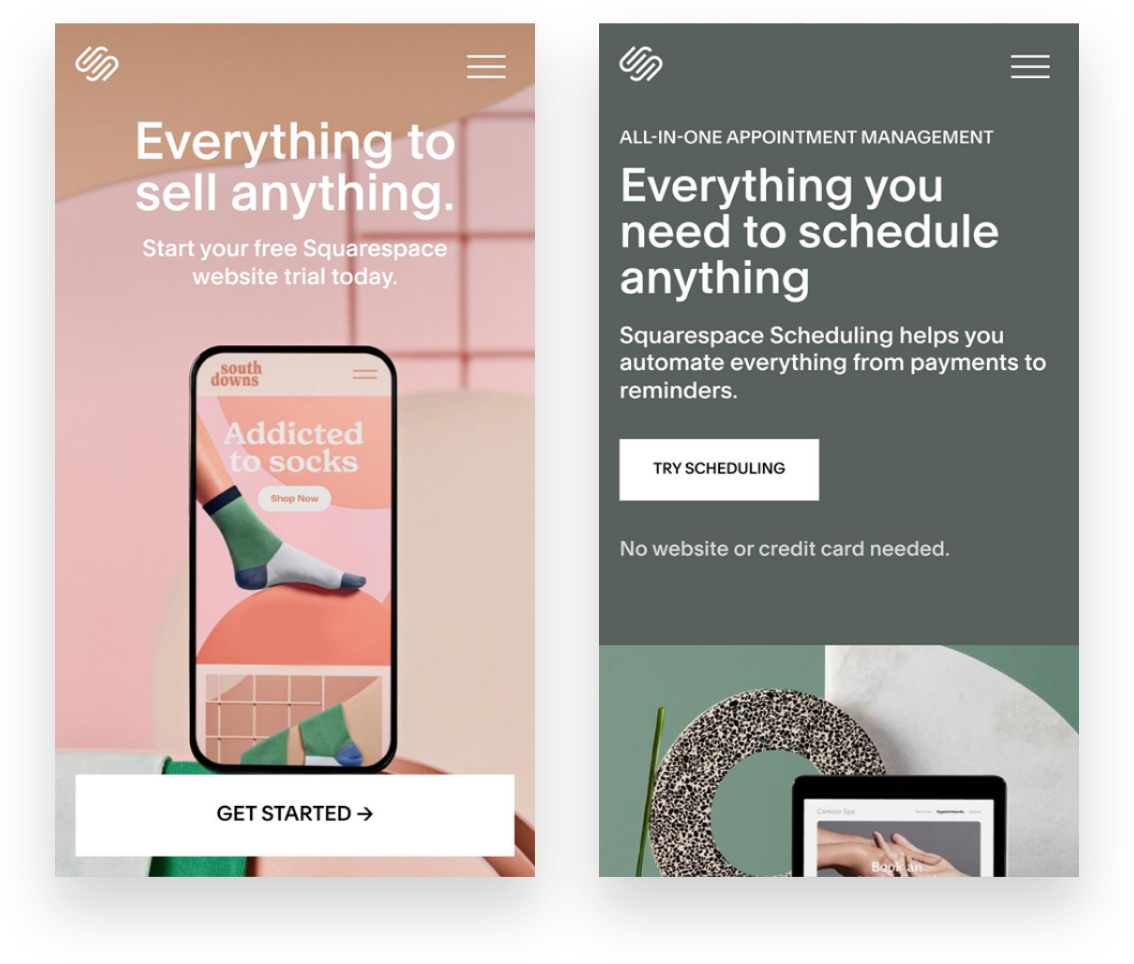
Best for in-person or virtual meetings, events or workshops that require payment and/or registration
Squarespace’s add-on Scheduling works really well and the thing I like most about it is that all of the language can be modified to suit whatever it is you do. You can even create packages of courses and sell gift certificates or subscriptions for any of your events, webinars or classes.
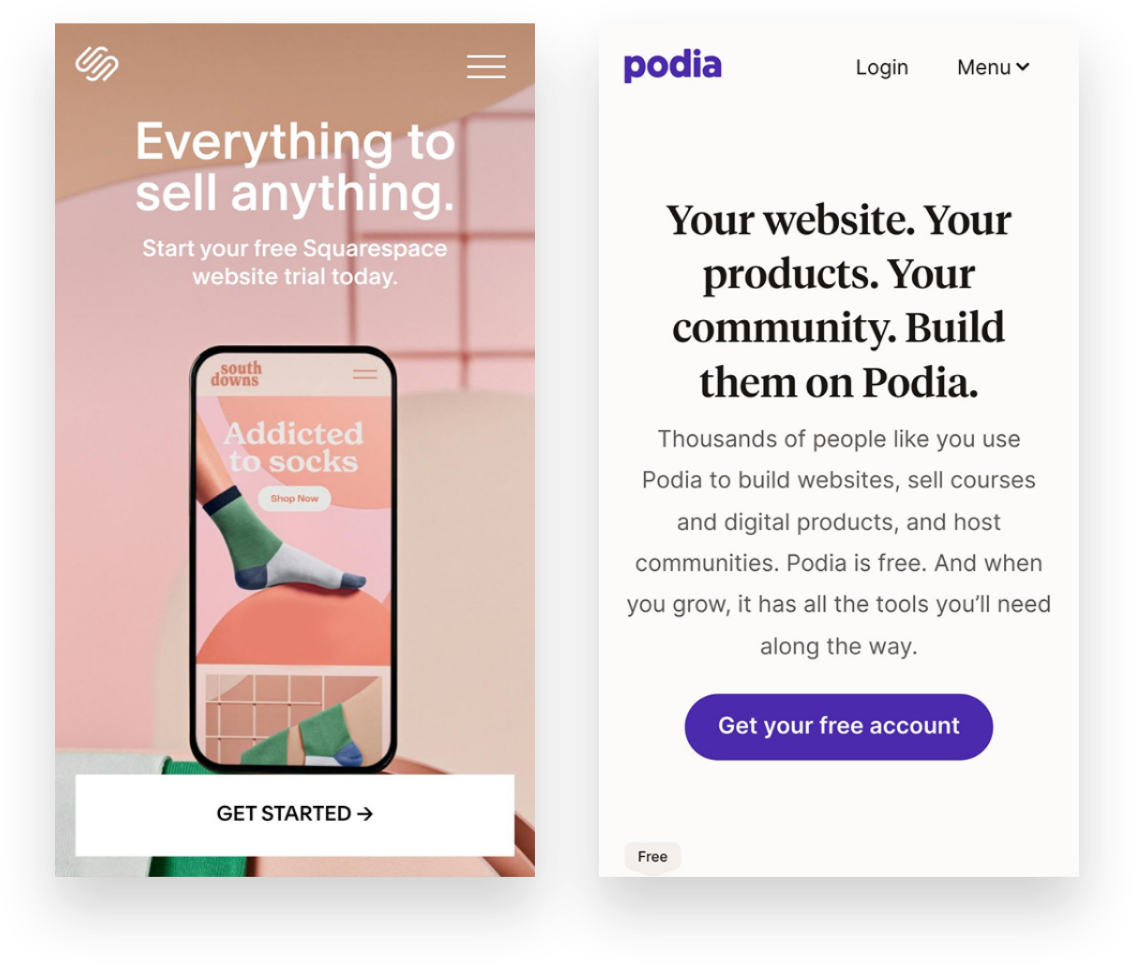
Best for online courses, coaching, memberships or communities
Podia is great at the items above but it’s also not too shabby if you’re selling digital products making it a great all-inclusive add-on to Squarespace. Podia is rare in that it is very feature-rich but still super simple for you (and your customers!) to use. It’s easy to create bundles of your products or services and market them using the built-in tools.
The Bottom Line
Thinking strategically about what features you really need to move your business forward is smart whether you’re trying to keep your budget in check or just wanting to streamline the website tools you use. When in doubt, I always say that there’s no shame in starting small. You can always upgrade plans to add features later on or incorporate new platforms if need be.
Having too many services and software subscriptions for your eCommerce business can be a headache, though - especially if you’re just getting started with eCommerce. You’ll likely end up overpaying for features you don’t use, leaving yourself in a bad spot when it comes to budgeting for the tools you really need.
Hopefully, my strategic pairings and combos above will help you create the perfect technology combos for your eCommerce business!

12 Ways to Build a More Empathetic Brand
Discover how taking an empathetic approach to eCommerce may be the competitive advantage you’ve been missing. Use my 12 tips to connect with stressed out and distracted customers on a more human level before, during and after each purchase.
In business, we usually focus on things like product and price as places to differentiate and optimize. But let’s be honest: there’s more than enough advice to go around out there on how to boost profit margins, how to price strategically, or how to drum up alternate revenue streams. That’s business. But what we know is that now more than ever, all business is really about people. It’s your people that are the true competitive advantage.
It’s you, your team, and anyone your customers or clients interact with on your behalf. That’s one-half of the people equation.
The other half is your customers. Despite our tendency to refer to them as visitors, readers, or buyers, they’re human, too! And the one thing they don’t want is to be sold to. What they want is to be understood. So how can you go about building a connection with people… online, no less? How can you start today to build a more empathetic brand?
A Quick Crash Course on Human-Centered Design
“Empathy sells in ways pricing tricks and sneaky buttons and fancy websites never will.”
There are lots of fancy official-sounding definitions of human-centered design out there but my take boils down to this: human-centered design asks us to use empathy to put aside our own notions in favor of what our customers need. It asks us to try to understand them before implementing a solution to any perceived problem(s) they may have.
In the case of eCommerce, it’s using an empathetic approach to thinking about how or why people shop, how to help them with whatever they are trying to do, and, ultimately, what needs to happen for them to feel comfortable enough to reach for their wallets.
The reason I bring this up before we jump into some ways to build a more emphatic brand is that as you think about the general ethos of your company right now you may discover that changes need to be made. You may decide that there’s room for improvement when you view your eCommerce website through a more empathetic lens.
Also, lastly, before you click away thinking this is a little too woo woo for you, that you thought you were here to learn how to make some money online and not get a philosophy lesson from a web designer… lemme tell you. Empathy sells in ways pricing tricks and sneaky buttons and fancy websites never will. After all, people do business with other people.
The eCommerce Process in Three Easy Steps
This may seem obvious but just so we’re on the same page: within the framework of commerce - online sales in particular- I always think of things as what happens before, during, and after the sale. In this case “the sale” is whatever action you’re asking people to take. The trap lots of eCommerce websites fall into is they only seem to care about the middle part: the actual sale. They forget about all that needs to happen before a customer or client decides to purchase. They forget about all the opportunities they have to build a human-connection relationship after the sale. Not you. You’re going to nail this from discovery to inquiry to purchase and beyond.
And just so we’re clear: to me, any website that does more than just provide static information is an eCommerce website. If you’re not sure if you have an eCommerce website, the best litmus test is to check out what all your buttons say.
Ecommerce website buttons say things like:
BUY NOW
BOOK NOW
DOWNLOAD
EXPLORE
SCHEDULE A CALL
RESERVE YOUR SEAT
ENROLL TODAY
SIGN UP
DISCOVER
DONATE
SUBSCRIBE
ADD TO CART
BASIC website buttons say things like:
READ MORE
LEARN MORE
CONTACT
See how the eCommerce buttons are all active and the others are all passive? That’s my definition of eCommerce. Are you asking people to take action? Then you have an eCommerce site! So, when I say “action” below, I want you to insert whatever your primary button asks. Really think about it. Before the “BOOK NOW”. During the “ENROLL TODAY”. After the “ADD TO CART”. Whatever it is for you.
Before The Action
“I often see people who are actively monitoring abandoned cart metrics attempt to find fault in the checkout process when, in fact, it’s their lack of empathy before the sale that’s likely the culprit.”
This is arguably the most important phase and offers some of the greatest opportunities to use empathy to build trust with visitors. If you do things right in this step, the others are much easier hurdles to get over. Conversely, I often see people who are actively monitoring abandoned cart metrics attempt to find fault in the checkout process when, in fact, it’s their lack of empathy before the sale that’s likely the culprit.
Tip 1: Show your understanding of the problem - This is probably what you think when you think of empathy but it’s a great place to start because too often we think of our websites as a great place to talk about ourselves. Wrong-o. When thinking about the copy for your eCommerce website, think first about what problems or challenges your target demographic has that your product or service solves. Address those points head-on. Customers want to feel seen, heard and understood first and foremost.
Tip 2: Envision the situation - Think about your target demographic again. Your people. Who are they? Are they older and less comfortable with technology? Focus on creating an online experience that’s accessible to them. Think about fonts sizes that are readable, high-contrast colors, buttons that feel natural. Is your audience more likely to visit your website on desktop or mobile? Are they searching for your product or service during leisure time or work time? While sitting on the couch in the evening at home or during a quick moment waiting in line somewhere? Is it quiet or noisy?
Tip 3: Offer ways to ease friction - Make it easy for people to discover and engage with your content, products or services. Organize things with tags and categories, add search functionality, or advanced filtering abilities so people can jump right to what they need. Bundle products that are frequently purchased together into one product to save people time and clicks. Highlight your best-selling items on your homepage. In short, think about any roadblocks that might come up between discovery and checkout and try to eliminate as many of them as possible.
Tip 4: Reveal the realness - Oddly, one of the best ways to show our customers and clients that we understand that they are real, human people is to reveal to them that we are also real, human people. I overcame one of my own hang-ups on this front when it comes to blogging, actually! As a bit of a perfectionist, it used to take me forever to write a blog post. As a result, I rarely blogged and my writing ended up feeling stiff and bland. When I gave up the ghost and decided I would just write the way I talk, blogging became so much easier and - surprise bonus! - it started feeling real. It resonated with readers because it was obvious another human was behind the keyboard. I’m not saying I don’t care about typos or grammatical errors anymore. I just care more about sounding like myself so that when you get an email from me in the future you aren’t wondering if I had a ghostwriter sub in for me that day.
During The Action
Ok, by “action” here I almost always mean adding to cart and the checkout process itself but as you’ll see there are lots of supporting ways to show empathy towards your customers during this phase. Since so much of these things are kind of “standard” (meaning there’s not a lot of room for variation or creativity when it comes to checkout procedures), this is one area that most commerce sites get mostly right. But that’s not to say there’s no room for improvement!
Tip 5: Empower your team - Whatever kind of customer service or support you provide, whether it’s by email, live chat, or phone, empower your customer service team to actually follow through on whatever promises you’ve made, be they implied or explicit. If you write on your home page about being a family-run business with down-home roots but your live chat is answered curtly by someone who is very clearly… not your family… you’ve broken a promise to me and now I feel lied to and I’m two seconds from calling this whole purchase off. Empower your team to be kind, understanding and flexible. Encourage listening and understanding. The worst leaders ask their customer service teams to be nothing more than code enforcers and hall monitors. When in doubt, take a lesson from Zappos on how to do it right.
Tip 6: Prioritize ease over information - This is another trap I see newbie commerce folks fall into: asking too many damn questions. Think back to the situation you envisioned above. With all the distractions people are facing these days, both internal and external, does it really matter if you ask them during checkout to answer no less than 27 questions about how they found you, what their favorite color is, and what’s their astrological sign? No. These things don’t matter. The truth is that people hate long forms and are petrified of too many choices so don’t go mucking your checkout process up with them! Keep checkout as simple as humanly possible. Ask only what’s absolutely necessary at the exact moment and save the rest for a follow-up.
Tip 7: Put technology to work - The cool thing about technology is that there’s so much that’s accessible to even the smallest of businesses these days to really wow customers. Find ways to use the tech and tools available to you to make buying from you (or booking, subscribing, enrolling, whatever it is) as easy and awesome as can be. Are they a repeat customer? Auto-fill their info from last time so they don’t have to type everything out again and only need to give it a quick verification. Find a way to productize your services, automating part of the process so they can get access more quickly. Use scheduling tools to make booking time with you a breeze.
Tip 8: Personalize everything - Every aspect of your cart and checkout process can (and should!) be personalized not just to your brand but also to your customer or client whenever possible. Inject your personality into the standard forms offered by Squarespace to follow through on the brand promises you made elsewhere on your site. Order confirmation emails, shipping notifications and booking confirmations are all places you can use technology to address your customers and clients by their first name, proactively answer questions you anticipate they may have about what’s next and provide a human touch.
After The Action
Amateurs assume that once someone makes the purchase, books the event or schedules the call that everything else is smooth sailing. But as you’ll see, there are several places in the post-checkout experience to show your customers some TLC and start to build that human connection that will hopefully lead to repeat business down the road.
Tip 9: Be consistent - Whoa! You got someone to trust you enough online to give you some money. Don’t drop the ball now! Haha! No, seriously. Buyer’s remorse is a real thing and you don’t want anyone feeling that way about you and your business. Keep your branding and messaging consistent once people move beyond your website. If you sell physical products, this can be making sure your packaging and follow up emails are on point. For service-based sellers, proposals, contracts, and invoices need to be on-brand. At this point in the process, people have shown that they trust your business enough to work with. Continue to build on that with every touchpoint after the “action”.
Tip 10: Show your appreciation - Telling your customers that you appreciate them is just a lovely thing to do. Period. But there’s a little empathy at play here too. Telling them thank you is your way of acknowledging that they had a choice. They could have chosen your competitor but instead, they chose you. They could have decided to do nothing but they didn’t. Let them know through your words that you understand what it took for them to be there or even provide them with a little bit about how your company gives back with product-specific email automations.
Tip 11: Follow up and then follow up again - Don’t leave people guessing or hanging about what to expect or what’s next. Especially for large dollar value purchases, follow up immediately and then clearly outline the next steps so that people can rest easy knowing they made the right investment. But you don’t have to sell big-ticket items to make following up a winning strategy; I always think of food delivery services that show the status of your order all along the way: dinner’s in the oven, it’s getting packed up, it’s out for delivery, here’s a little map of where it’s at exactly, etc. The goal here is to anticipate the questions or concerns that people are going to have after they purchase and just answer them without them needing to ask. Being proactive is a great way to show empathy. Even just linking out to your FAQ page lets people know that you’re there for them with answers to their questions.
Tip 12: Reward loyalty - Most long-term sustainable businesses are built on repeat customers and clients. They are your backbone. They’re your biggest fans, the ones most likely to recommend you to their friends and family, the ones who rave about you without even being asked to. Reward this as aggressively as you can afford to through a great referral program. I’ll never forget how a hotel we once stayed at in Vegas remembered that we’d stayed with them just once before. We hadn’t really planned to be repeat guests, it was just a good deal and we took it. But when the front desk agent greeted us by our first names and thanked us for coming back and gave us a complimentary newspaper every morning and an upgrade to a higher floor? You better believe we’ve stayed with them numerous times ever since. It was just so nice to be recognized. We felt like we were part of a VIP club. The cost to the hotel of all this? Negligible. The newspaper? The moving us to a room that was probably going to be empty for the weekend anyways? These things cost them nothing but meant the world to us. Reward your loyal customers and clients. Greet them by name. Remember their birthdays or how their dog really loves long walks on the beach. Go out of your way to accommodate them.
What will you do first?
Like I said above, there’s a chance that some of the ideas I’ve provided are making you think about changes that need to happen. Maybe they’re in how you train your staff, how you word or set up your email marketing, or in what info you provide on your website for all to see. Perhaps there’s room to improve your site’s navigation so it’s more clear and understandable or to update your checkout process so it’s respectful of the stresses and challenges your target demographic are likely feeling. Whatever it is, I can guarantee this: there’s no better ROI than starting now to build a more empathetic brand. Even small shifts in messaging, layout and experience can yield amazing results.

How To Set Up an Affiliate Program for Your Squarespace Shop
Word of mouth marketing should definitely be part of your eCommerce toolkit so I’m sharing all the benefits, the differences in types of programs and my #1 tool to make it all happen on Squarespace like a dream.
Affiliate marketing is a “trend” that has turned into an industry mainstay. It really is such a great way to market your eCommerce business! Don’t worry if you don’t already have a referral or affiliate marketing program set up or aren’t sure where to start. In this post, I’m going to first remind you why you should definitely give this a go, then make sure you know which type of program to set up (affiliate or referral), and finally give you my #1 recommended tool to make the whole thing super easy breezy on Squarespace! Let’s go!
Why try affiliate or referral marketing?
So you don’t have all your marketing eggs in one basket! If I had a dollar for every eCommerce store owner who described their marketing plan as something along the lines of “I’m just going to post on Facebook” 🙈… well, let’s just say that I’d have a lot of dollars. But what happens when the algorithm doesn’t go your way, when Instagram crashes for the day again, or when Google ads stop working? Well, nothing will ever beat how effective it is to hear a friend say that you absolutely MUST try something. Rewarding your loyal fans and customers for every time they do what they do, well - that’s algorithm-proof.
So you can expand your reach on a limited budget. The other thing about paying for ads or boosting posts is that you’re fronting the costs on the mere hope that they will turn into sales. But with affiliate or referral marketing, you don’t pay unless you make a sale. It’s a win-win! Affiliate marketing also allows you to control your costs since it’s easy to know exactly what you’ll be spending on marketing for every dollar you make and can just build it into your budget accordingly. If you don’t have a lot of money to spend on marketing, I’d put it towards building an affiliate or referral program and email marketing first before I ever spent a dime on social media.
To boost brand awareness amongst your key demographic. Because all the web traffic in the world doesn’t mean a thing if the people visiting aren’t actually potential customers. And you know who may know people who could be your potential customers? That’s right, your current customers. Instead of trying to figure out how to build a fake buyer persona and replicate it in Google AdWords (mind numbing, if you ask me) - why not just… have your current customers do it for you? They know your people better than anyone!
Referral Programs vs. Affiliate Programs
Ok, before we get into which affiliate program is best for Squarespace let’s sort out the differences between referral programs and affiliate programs. Because they’re both kind of the same but very different and it’s just nice to know what’s what. Also, don’t worry, because my favorite tool can do both!
Referral Programs
A way to reward your current loyal customers who share about your brand.
Examples:
Refer a friend and save 5%!
Give $20, Get $20.
Get $10 off for every friend you refer.
Get a free sticker for referring a new client.
Affiliate Programs
A way to incentivize influencers (and micro-influencers!) to promote your brand.
Examples:
Receive 10% recurring commission on every new subscription.
Get $10 for every referral to our store.
Share your affiliate link and receive $5 for every sign up.
Use your affiliate code and receive 20% commission from every sale.
As you can see, both referral marketing and affiliate marketing are very similar. Both reward people for sharing about your business. The difference is that referral marketing is geared towards working with people who are also your customers and affiliate marketing would be more appropriate if you have fellow industry leaders or influencers that you’re hoping to partner with to build your brand. Both have their place and you may, in fact, someday use both strategies! To get started you may decide that one fits more with your current goals than the other.
Which affiliate program is best for Squarespace?
There are lots of affiliate marketing platforms out there that you could certainly try out but you know what? I’m not even going to bother linking all of them here. I’m going to help you cut to the chase and just go with the best: Peach’s (<— affiliate link). Here’s why:
You can set up either a referral program OR an affiliate program (or both!)
It’s made FOR Squarespace and integrates like a dream.
It’s super easy to use and their customer support is A+
It helps you keep everything organized and on (almost) 100% auto-pilot
There are lots of ways to customize to set up the perfect program for your business needs.
No commission fees!

You can try Peach’s free for 14 days. After that, their referral software is $49-149/mo and the affiliates one is $59-$199. Well worth the price for either one or both for how powerful these tools are!

How To Create a Custom Order Form for Squarespace
There’s no need to switch to Shopify and add on a sketchy third party plugin to have a customizable order form on your website. I have a simple solution that means you don’t have to give up on your Squarespace site to be able to have a custom order form. Keep everything you love and add a custom order form right into your current site.
Updated May 2022
This is one of my favorite little Squarespace “hacks” because one of the most common reasons why people think they need to have a Shopify website is to be able to add a plugin to manage custom order forms. But what if you didn’t have to give up on your Squarespace site, the awesome design capabilities, your killer blog, and all that you’ve already built to be able to have a custom order form on Squarespace? Solution: Paperform.
What is Paperform?
At first glance, Paperform is a form builder but it’s really so much more than that. The flexible SaaS Platform allows you to easily create custom forms, build product pages, take payments, automate onboarding, create dedicated landing pages, schedule appointments and put manual processes on autopilot. it’s as simple as writing a document but a lot more fun..
With over 2,000 integrations and 500 templates, there are lots of style and customization options making it a great option for creating things like landing pages, custom quote forms, booking, and reservation forms, and (as you may have guessed) custom order forms. You can collect payments via your forms and either embed them directly on your Squarespace site or link out to them from a text link or button. Perfect for small businesses wanting to build beautiful solutions tailored to their brand.
How to Create a Custom Order Form for Squarespace
You can start your custom order form from one of the 500+ templates they have to offer or choose to create your own from scratch. Personally, I like starting from scratch but there are lots of templates to choose from so if you see one that seems close to what you’re trying to do by all means take the shortcut!
Customize your form to include any questions you need to gather customer and order info. (Remember shorter forms convert best!) Paperform currently has over 26form fields including all the standard stuff like name, email, address but also some really cool fields like file upload, appointments, subscriptions, coupons, price, products, and calculations... Those last few are going to be our secret weapons for your custom order form!
Price - this field is great for simple fixed prices if you set the field to “read-only”. (Hint: If you want people to be able to name their own price or make a donation, just toggle the “read-only” option off.)
Products - adding a product field is like adding a little eCommerce shop right to your form! You can add products, set stock limits of various SKUs, set prices, add images to products, and choose how you’d like your products to be displayed in your form.
Calculations - these fields are cool because not only can you do simple calculations but you can use your customer’s answers in calculations! This means you can add custom or variable values based on the selections people make.
Coupons: Having the option of using coupons not only encourages existing customers to return but also helps to incentivize new ones to engage with your brand. With Paperform, coupons can be disabled or enabled at any time, have an expiration date, and apply to specific payment fields on a form. This feature works really well with the calculations function to automatically work out the price.
Custom Pricing Rules

Custom Pricing Rules are Magic
These are the backbone of any custom order form! Custom pricing rules are like calculation fields on steroids. You can use these to modify the total price of an order based on inputs. You can use logic to map form answers to specific prices. You can even add a processing fee to the total. Combined with the calculations field, you can create a seriously powerful dynamic pricing form for your Squarespace website.
Other Cool features:
Logic Rules - determine when questions, pages, sections of pages, and success pages should be displayed
Custom Emails - use logic to determine which messages are sent after submission
Discountable Products - on a product-by-product basis
Shipping - calculate variable shipping costs based on customer answers
Answer Piping - so that you can display things like customer names and order totals in real-time
Receipts: Now your customers enter their email address for the receipt in the checkout page, one will be auto-sent via Stripe when it has been successfully being charged.
Sales Tax - set up simple or complex rates based on user input automatically added
Analytics: Custom built-in data analytics and powerful data management and automation workflows, including google analytics and Facebook pixel support
Authorize Payments - charge customers later by only authorizing cards at checkout
Product Import - via CSV file
Zapier - connect your form submission info to virtually any other program
Custom Summary Emails - send custom emails or even custom PDFs to either your customer, yourself or both
Custom Confirmation Messages - display custom messages that correspond to answers
Custom Redirects - send customers to another page back on your website based on their answers
Form Sharing - essentially, once you’ve created your beautiful yet intelligent form, custom pdf or custom email, you can send it to the account of your business partner, a colleague or even a client.
Getting Paid
Paperform integrates with multiple payment gateways depending on your individual preference. You can accept the following payment methods for your custom order form:
PayPal
Stripe
Braintree
Square Payments
Embed on Squarespace
Once your form is ready you can either link to it from your site via a button or text link… or embed it right on your site! This means that you can add your custom order form to any page of your Squarespace site. You just copy and paste the code generated by Paperform into a code block where you want your form to appear! Your order form is also automatically mobile-friendly and will work on any device or screen size.
Take It Further
Set up recurring payments or subscription products using the built-in subscription field.
Embed a custom form onto your Squarespace site that allows visitors to upload and submit files along with their forms.
If you’re wanting to create a custom quote request form, you can still use all the calculations fields and custom pricing rules to get a total for you. Just turn off the payment processing.
Add an appointment field to allow customers to book a meeting or schedule their service with you.
Accept donations or set up “pay what you want” pricing by making any price field editable by your customers.
Use the in-app editor to edit anything. From resizing and annotating to adding Insta worthy filters, the Image Editor allows you to control exactly how your images look without needing to open Canva, Figma or PhotoShop.

How to Use Unsplash to Curate Your Website Images
Finding great looking stock images sometimes feels like trying to find a needle in a haystack. Learn how to find the hidden gems and put together a cohesive selection of images for your eCommerce website - all for free!
Great photos can really make or break a website but sometimes it’s just not in the cards to have a bunch of your own. This could either be because it’s just not in the budget to have a photoshoot right now or because the high quality ones you do have just aren’t enough to fill out an entire website.
When I’m looking for photos for projects, the number one place I head it to unsplash.com. Check out the video below where I show you how to source royalty-free, good looking, stock images through Unsplash and also share some of my best tips for curating stock images that don’t feel too, well, stock. Watching video not your thing? Keep reading to catch the details!
p.s. Watch the video on Loom for video bookmarks to jump to specific sections or if you need a transcript/captions.
Tips on Using Unsplash
Create a free account so that you can save images you find into collections! This makes it so that you can be more organized and intentional when selecting images.
Add images to collections by clicking on the plus icon (NOT the heart icon) and either adding it to an existing collection or creating a new one.
Share a collection by heading to your profile, clicking into the collection you want to share and grabbing the url from your browser bar. That’s it - easy!
Stock Image Tips
Image Tip 1: Keep Things Consistent - Selecting images that are consistent in style is one of the best ways to make stock images look like a professional took them just for you. Select images that have the same overall colors and tones or the same photographic style, such as all black and white images. Making sure to stick to a well defined color palette is probably the number one way you can make things feel cohesive.
Image Tip 2: Think Micro to Macro - Try to choose a range of images that represent your industry, field or topic across the spectrum. Using the example from the video above about finding pictures for a farm to table restaurant website that might mean looking for pics of everything from individual ingredients to the fields they are grown in to the chef that selects them and finally the guests that enjoy each dish. Find images that show close ups and then others that give the bigger picture. Some of my favorite stock images are actually ones that are just used as background images on a website to “set the mood.” These images usually have alot of space that would look good with text or a button over the top of it or could even just be used as a transition between website sections.
Image Tip 3: Don't Get Lost in the Details - Don’t worry about minute details in stock photos that may not be exactly right. For example, I once had a client say that a stock photo (that was otherwise perfect for their fitness brand) wasn’t going to work because the brand of weights shown in the image weren’t the same as the brand they own 🙃 I guarantee no customer is going to notice a thing like that! Images are just there to set the mood and visually contribute to a bigger story. Find ones that work but don’t sweat the small stuff. Like I said, unless you had a photo shoot of your own you could scour all the stock photos on the whole internet and never find one of yourself!
Image Tip 4: Think Outside the Box - Get creative in the search terms you use which can help you uncover interesting photos for your site that other people in your industry may not be using. For example, it’s a pretty safe bet that every restaurant out there searched for “restaurant” photos but my bet is that not a lot of them searched for “Tokyo street food” or “friends celebrating over drinks.” Thinking about your target demographic and searching for things that may resonate with them or help them see themselves in your site is a good place to start if you’re feeling stuck on what to search for.
Example Website Photo Collections
Want to see how all these tips comes together to create four unique image collections? Check out these sample collections I created for four hypothetical food concept websites. Each of them has to do with food, cooking, baking, eating together with friends and family and yet none of them look alike at all. I’ve used a consistent photo style for each and focused on finding images that represent a wide range of keywords within each board so that there’s a wide range to choose from. I didn’t worry about little details like the brand of dishware or the type of vegetable, I just went for things that could help tell the story of each brand alongside their own personalized images and website copy.




Check out each collection to see how each could clearly represent four very different brands and let me know if you use Unsplash to curate your own image collections!

It’s Time to Make the Move to Sustainable eCommerce Packaging
Making the switch to sustainable eCommerce packaging doesn’t have to be expensive or complicated! Check out some of my favorite packaging swaps for your eCommerce shop.
Did you know that it's predicted that 95% of purchases will be online by 2040?! Great news if you're an eCommerce retailer but not so great news for our planet when you think of all the wasteful packaging that will be created. I'd like to challenge you to make a brand commitment to using environmentally responsible packaging.
Getting started doesn’t have to be a daunting task. Start by just doing an audit of the layers of your packaging to ensure there’s nothing unnecessary that could be eliminated. From there, look for packaging made from non-renewable materials that can be switched out for more eco-friendly options.
All the packaging from my fave packaging partner noissue is either compostable, made from recycled/recyclable materials or reusable so if you’re not sure where to even start they’re a pretty good option. It doesn’t hurt that they have low order minimums and make it easy to customize your own branded packaging!
Check out the ideas below for some easy packaging swaps!
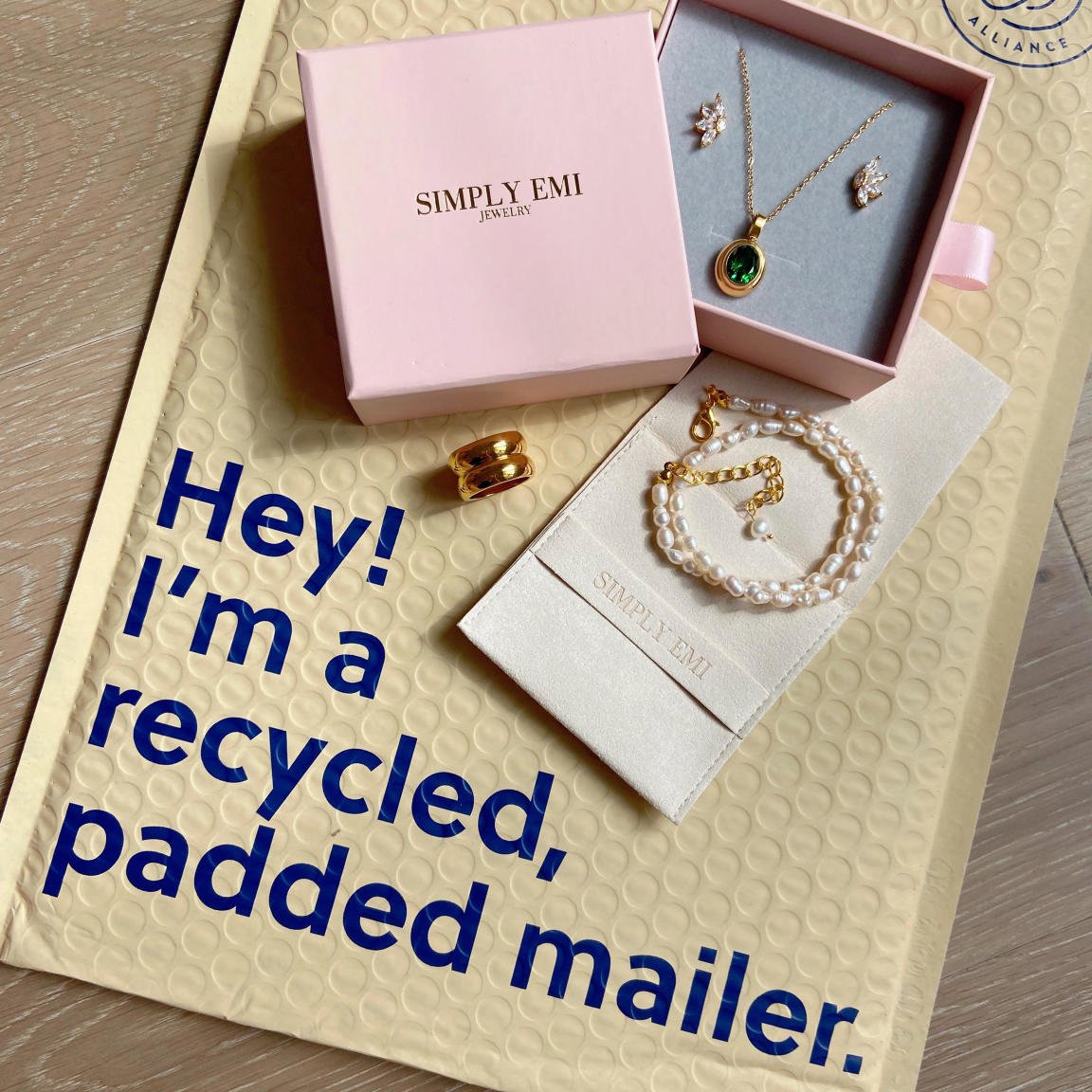
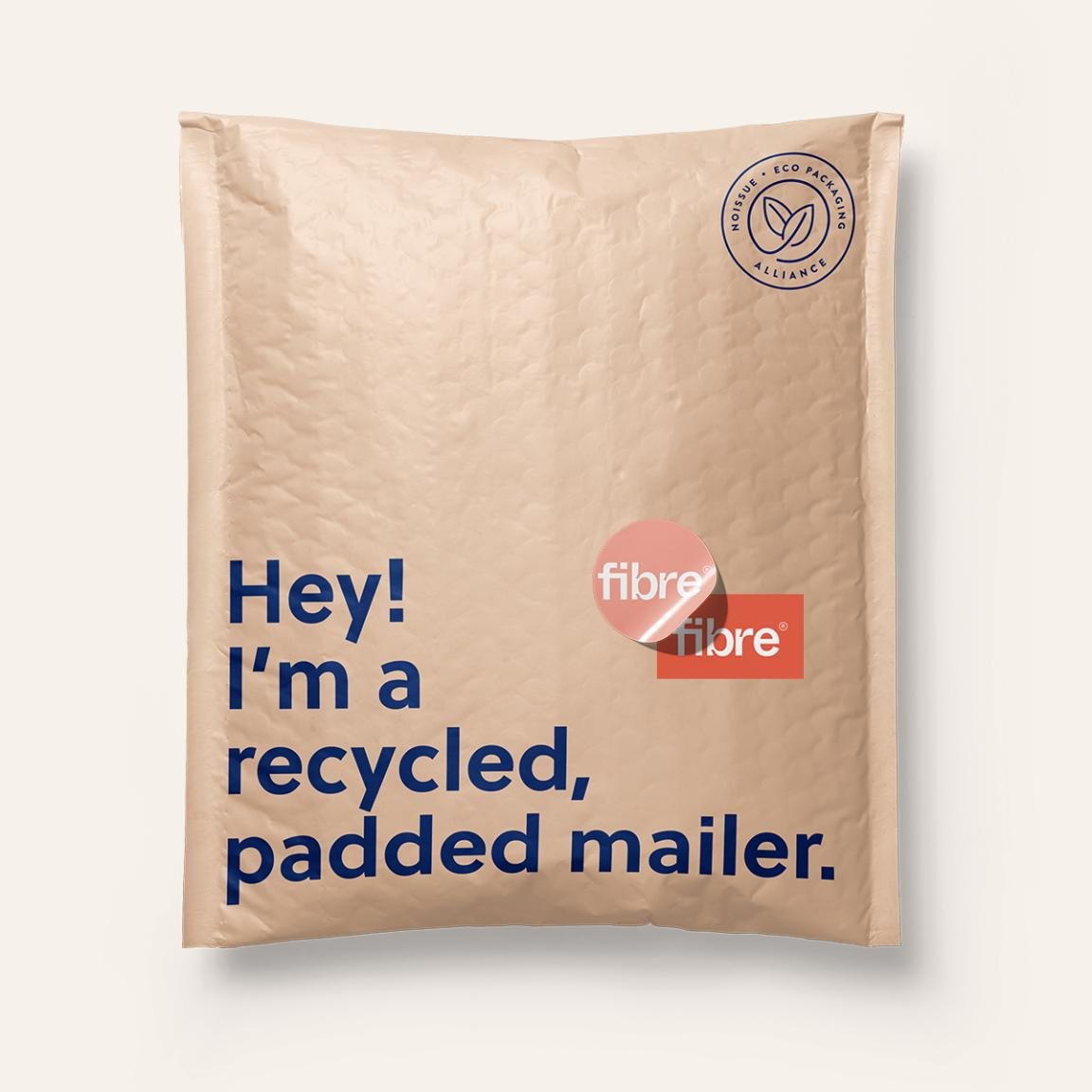
Remove bubble wrap as a layer
Replace with:

Ditch the cellophane & wrapping paper
Better pick:


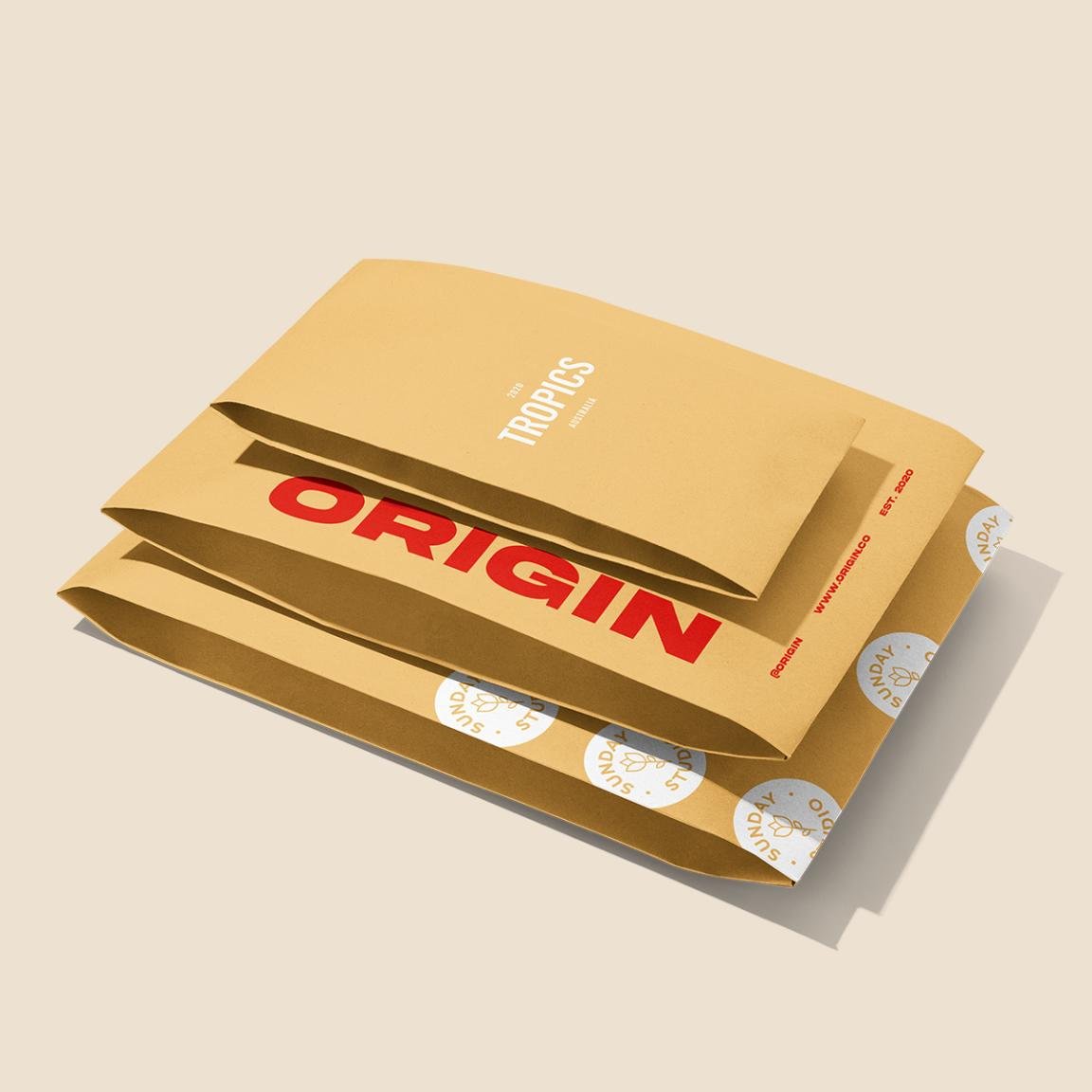
Replace plastic poly mailers with earth-friendly options

Use pre-used materials (like plastic or paper)

Even changing just one layer out for a more responsible option makes a difference, so don’t be discouraged by starting small – it still has an impact!

8 Ways to Make Your Small Business Look Big Online
Just because you're small doesn't mean you have to look it! Here are 8 ways your small business can turn up, compete with the big guys, and use your size as a competitive advantage!
Updated April 2022
Most of the businesses I work with are startups or small-medium businesses so if anyone has a soft spot for SMBs, it’s me. And there are tons of reasons why you should actually really lean into the fact that you’re on the smaller side because it is definitely not a weakness. In fact, it can be a real competitive advantage! Small businesses can offer more personalized service than larger businesses and are often much more capable of pivoting to adapt quickly to new trends or changing marketing conditions. All this being said, there are still some things you can do to make sure your SMB looks big - in a good way.
1. Understand that your brand matters more than your logo.
Big companies get this right. To them, the brand ethos - everything the brand stands for, the brand voice, the mission and goals, and all the visual collateral is the grounding force. Many small businesses make the mistake of overthinking their logo and not thinking enough about how they’re going to fulfill the promises they want their brand to make to their customers. Branding is important but when it comes to logo design, think minimal to look big and remember that consistency matters more than anything.
2. Think global.
The beauty of the internet is that it makes almost anyone the world over a potential customer. Unless you also have a brick-and-mortar location you need to promote, being too hyperlocal can really limit your growth potential and alienate potential shoppers from outside your area. This applies to everything from your actual business name to your choice of photos.
3. Add a live chat widget.
Live chat isn’t just a trend, customers have come to expect it as a key way to interact with brands they love. The biggest concern I’ve heard from SMBs is that enabling live chat on their site will somehow chain them to their desk like a customer service agent but so many of them can allow you to set up automations and link to FAQs or help articles based on what people are asking. This leads us to...
4. Use automation to look like a superhero.
By now I think you may know about how much I love Zapier - and one of the biggest reasons why is that I can automate a ton of mundane tasks that make me look like I’m super on it, even if I’m not even at my desk. There are lots of other tools and apps that have automations that you can (and should) be taking advantage of. From email marketing workflows, the automated emails your eCommerce store sends out or your CRM, there are lots of ways to “set it and forget it” in the name of better customer service. (Looking for some new tech tools? Check out this post all about refining your tech stack or my resources page here for links to my recommendations.)
5. Branded email is your friend.
Email addresses are cheap. You have no excuse for using a Gmail email address for your business. Get GSuite for your brand and make sure everyone in your company has an email, plus general addresses for things like returns, shipping, orders, etc. If need be, you can even just use aliases to route those all to your inbox. No one needs to know that you’re the CEO, creative director, returns specialist, customer service agent, and shipping department! 🤣
6. Keep your inventory up to date.
Managing your inventory and keeping everything up to date is super important. If you’re feeling overwhelmed by this, you can always outsource it but it’s actually probably easier than you think to manage inventory or even fulfill orders yourself right from your phone. All of the eCommerce platforms have mobile apps that you can download on your phone or iPad that make it super easy to scan in new inventory as you receive it. Some of them even help you with shipping so that’s a bonus, too!
7. Add a “Buy Now, Pay Later” option to your site.
Not only are "Buy Now, Pay Later" services super popular, but they also make your store look big! Adding one of these payment gateways puts you amongst big name brands which instantly shows everyone that you may be small but you mean business! All of the big providers in this realm (Afterpay, Affirm, Klarna) include merchants who use their services in their own special shopping portals, and having your name on their list is a definite perk!
8. Do what you can to stand out.
Many startups and SMBs fall into the trap of doing exactly what their competitors are doing, not just in terms of how they look and feel but even in their websites, products, and service offerings. Just because everyone else offers a certain package or has a specific feature on their website, does not mean you need to follow suit. Big brands aren’t afraid to be different and know that they will benefit from the courage to stand out. If things are feeling a little stale or too much like everyone else, sometimes something as simple as a website template switch can really give things new life!

How to Sell Bundles & Kits on Squarespace
Use my favorite simple tool to help you sell simple bundles or keep track of all the pieces that go into more advanced kits. Offering "build your own" options on Squarespace is easy when you organize things and know exactly what you have on hand to sell.
In this recent post, I sang the praises of bundles. They’re a great way to simplify the buying process, add value, reduce friction and boost sales - all total wins! But how do you actually sell bundles and not feel like you’re constantly having to babysit your inventory and stock levels? I mean, think about it:
Say you sell both Product A and Product B by themselves. But since you know that bundles are a great sales tool, you also sell a bundle that contains both Products A & B together. As is, every time you sold one of your bundles you would have to go in and manually adjust the available stock levels for the individual products so that you don’t run the risk of overselling them. The same would work in reverse if there was a run on Product A because it became super popular. Without manually adjusting the stock level of your bundle someone may purchase it without you actually having enough inventory on hand to fulfill it. No good.
The solution is a super simple tool called Trunk. I love Trunk and wrote about it in this blog post as a great way to sync inventory levels between programs such as Squarespace and Shopify, or Squarespace and Square, or any other number of platforms that Trunk integrates with such as Amazon, eBay, Etsy, Faire, and Quickbooks Online.
But the secret is that it does more than just sync things up between platforms - it can also be used to sync things up on the same platform. Which makes it perfect for keeping your inventory in tip-top shape even if you’re only selling on Squarespace.
Advanced Bundling & Kitting
I explained above a simple bundle that contains two items that are also sold individually but you may have a scenario that’s a bit more advanced such as:

This kit could contain the box, the string, the liner, AND all the individual chocolate pieces.
If you sell the same items in multiple quantity packs. An example of this might be if you sell candy bars and provide the option to buy a single bar, a pack of 5 bars, or a pack of 10 bars. In this case, once your inventory drops to 9 you would need to make the 10-pack unavailable but still offer the 5-pack and individual options. Trunk can do this for you. Bonus - even if you decided to no longer offer the single bars (who only wants one candy bar anyways?!) you could set that up as a hidden product so that the availability of your other options still depends on how many individual bars you have in stock. This brings us to:
If you sell gift boxes or bundles and need to keep track of all the pieces, materials & supplies. Gift boxes and subscription boxes are really popular with customers but they can be a lot to manage as a merchant! How many boxes or bundles you can sell ultimately depends on the component in your bundle with the lowest available quantity. And components don’t need to be publicly available goods, either! Just like in our candy bar example above, you can add all the parts you need to fulfill an order as a component: the box, the fill, the pack-ins, and all the actual items included in your gift box! Think of how much easier it would be to sell gift boxes that contain similar but not exactly duplicate items; no more last-minute inventory crunches or overbuying just to be on the safe side.
Q: What about “build your own” bundles or boxes?
This is a popular topic and one reason why some people look to Shopify over Squarespace, where the functionality exists but only if you’re willing to pay for no less than 3 third-party apps to the tune of $$$$ per month. Needless to say, I’m not a fan. Don’t worry - emulating a custom “build your own” bundle experience on Squarespace is easy if you just set your products up as variants instead of main products. This is made so much easier because on Squarespace each product can have up to 6 options and up to 250 variant combinations whereas on Shopify you’re limited to 3 options and 100 variant combinations.
So, for example, if you want to sell a gift box that contains six items you would just set up each set of items as variants of your main gift box product. Customers would choose your gift box product, then select the items they’d like to add to the box using the drop-down menus for each option set. Using Trunk, you could easily sell the same options in multiple different gift boxes without losing your mind trying to keep up with everything!
Related Post: To sell even more advanced customizable products with more complex pricing, you could also always build a custom order form for Squarespace.
Try Trunk
If you’d like to see what it’s like to streamline your inventory tracking when selling bundles & kits, you can try Trunk out free for 14-days. The trial includes all the features you need to make this happen but after that, you will need to be on the Pro Plan which starts at just $39/month and scales up based on the number of orders you have each month. Simple.

How to Move Your Etsy Shop to Squarespace
Etsy raised its rates. AGAIN. So are you wondering about how to move your Etsy shop to Squarespace? I’ve got answers to all your burning questions such as why you should choose Squarespace over Shopify, how much it’s going to cost, and what to do with your Etsy shop once you make the switch. Bonus: I’ve got complete step-by-step instructions on exactly how to make it all happen.
Updated March 2022
If you’ve been selling on Etsy and landed on this blog post, my guess is that you know it’s time to make the switch and you’re wondering just how to move your Etsy shop to Squarespace. You wouldn’t be here if you weren’t already thinking about it.
But I also know that it’s a big move that you probably have 1,001 questions about.
You’re wondering if you should choose Squarespace or Shopify.
You’re wondering how the math shakes out.
You’re wondering how to actually.. . you know, MOVE everything from one platform to another?
I’m going to answer all those things and more, but first - for anyone who’s still unsure about whether or not they should be selling on their own website vs. Etsy:
Why You Should Be Selling on Your Own Site:
So you can build your own brand, on your own domain. I’m guessing you didn’t start your business just to be known as another user on someone else’s platform. Having your own website is step one in building not just a business but a brand.
So you can own your contacts and build your email list. Your best future customers are people who have already bought from you. Using your own website to build an email list is one of the smartest ways to future-proof your business.
So you make your own rules. Don’t let someone else tell you what shipping options you can offer, how you can discount your own products, or limit how you market your own business.
So you can stop bleeding money in the form of fees - Etsy may seem like a good idea if you’re just getting started and want to test out new products or see what kind of traction you can get. But once you start selling? Hoo boy - it’s fees on fees on fees. (See my more thorough breakdown of the money math down below.)
So you can control the customer experience. On your own site, ideas you have for upsells or add-ons are easy and you can build a deeper connection with your audience through content and marketing.
So you can sell anything you want. Etsy is supposed to be a place that’s limited to handmade or vintage items but there are so many opportunities for you to increase your bottom line by augmenting your product lineup with other products. (Don’t worry, I’ve got ideas for you on that!)
So you can keep customers focused on your own work. Sure Etsy may get a lot of traffic but even if you can manage to show up on the first page on Etsy, you’re just another listing sitting right there side-by-side everyone else. On your own site, you can show off the quality and value of your work instead of being reduced to the seller with the cheapest listing price.
So you can sell to all the customers NOT on Etsy. There’s a myth out there that you just can’t quit Etsy because of “all the traffic” on the site. Well, what about all the people NOT on Etsy? What about them? I’m assuming you’d like to sell to them, too? Having your own website will help make your work visible to anyone on the internet searching for what you offer.
Why Etsy Sellers Should Choose Squarespace over Shopify

Imagine this is tea and I’m spilling it.
A lot of sellers moving from Etsy think they should make the leap over to Shopify. I think it’s because someone’s aunt’s best friend’s brother who works in “tech” told them so? ¯\_(ツ)_/¯ But let me tell you: that is not a good enough reason to choose a web platform.
I’ve used them all, tried them all, worked on them all for clients, and hands down I come back to Squarespace every time. Especially for sellers moving from Etsy. Here’s why:
Squarespace offers more design options and control than Shopify. I know you care about aesthetics and creating “cute” page layouts on Shopify is NO FUN. I mean, I spend almost all day up to my elbows in HTML and CSS and even I shudder at the thought of it.
Squarespace offers more marketing capabilities than Shopify. Thinking about blogging as a part of your marketing strategy (you should, it’s great for SEO!)? Good luck making that work on Shopify.
Squarespace is less expensive and requires fewer paid add-ons to work. Shopify looks all fun and games until you realize that if you want to add something as simple as a contact form to your website you’ll need to add a paid app. I mean, half the reason to get away from Etsy is that you’re sick of being nickel-and-dimed!
Bottom line: in my experience, there are so many clients who end up talking to me after they gave Shopify a try and regretted it. They wish they went with their instinct to move to Squarespace instead right from the get-go. Basically, when it comes to design freedom and the ability to customize and sell anything you want (all while not getting dinged by a thousand paid apps in the process) the grass is definitely not greener in Shopify land.
Let’s Do The Math
Not convinced yet that moving to Squarespace from Etsy is a great idea? Let’s take a look at the math! Before we jump into an example, here’s a quick review of the pricing options and fees associated with the different Squarespace plans vs. Etsy (yes, I made a spreadsheet for this):
Side-by-side it’s actually kind of hard to tell which plan is best because of the different pricing structures so let’s use a real example.
In this example, we’re going to pretend that you only sell one product that is priced at $40 (about the average of an Etsy item).
We’re also going to assume that you sell everything without needing to renew your listing so that you only pay the Etsy listing fee of $0.20 once. (This may not be the reality, which would only serve to make the Etsy costs even higher.)
Let’s pretend that you sell 750 units per year which works out to be roughly 60 sales per month or 15 per week.
Based on these numbers your gross sales would be $30,000 per year.
Running these numbers through all of our Squarespace plans and Etsy pricing, here’s what each platform and plan would cost you.
Squarespace Basic Commerce - $1,381.50 (4.61% of sales)
Squarespace Advanced Commerce - $1,645.50 (5.49% of sales)
Etsy - $3,307.50 (11.03% of sales)
Moving to even Squarespace’s most expensive plan would save over $1600 a year right off the top! But that’s not even the whole picture.
Etsy also has this sneaky little thing called their “Offsite Ads program” which you cannot opt out of once you have reached $10,000 or more in annual sales. This program means that they can (without your consent, approval, or oversight) place ads in search and on social media and then charge you an additional 12-15% in fees. This could end up costing you thousands — $3,600 in our example above to be exact!! The details on this program are super nebulous but you can get the gist of them here.
Basically, it’s easy to see how Etsy fees can really start to have an impact on your bottom line as your sales grow.
On Squarespace, the sky’s the limit when it comes to growth. You won’t pay more the more you sell and, in fact, as your sales grow the fixed costs of owning and operating your own eCommerce website will go down with each additional order that comes in!
Step-by-Step Instructions on How to move your Etsy shop to Squarespace
Step-by -step instructions on How to Move Your Etsy Shop to Squarespace
One of the reasons why you may have chosen Etsy in the first place is because it made it fast and easy to get started. But you can do the same thing over on Squarespace. Let me show you how!
1. Start With a Great Free Template
There are lots of great free and paid templates on Squarespace (check out some of my faves here and here).
But if you’d like me to cut to the chase and just tell which template I think would be a great start if you’re moving from Etsy, I say pick the Maru Template.

Here’s why:
It’s simple - in a good way! There’s not a lot of filler content to have to delete or write over and it has just the pages and elements you need to start.
It’s shop-focused - just replace the demo products with your own and you’re in business!
It can adapt to pretty much any style - so it doesn’t matter if your design is a little funkier or a little more conservative than the demo shows! Once your own fonts and colors are set, it will take on the perfect mood!
Get started by signing up for a free 14-day trial of Squarespace using the Maru template using this link and then clicking on “Start With This Design.”
2. Add Your Content - But Keep it Simple!
On Etsy, you have very little space to get to write about your business so moving to your own website can sometimes feel overwhelming because you have so much real estate to fill up! It’s like living in a tiny studio apartment and then moving to a huge mansion - there are so many empty rooms to fill!
With this in mind, I would encourage you to keep things simple. Start by just using the content areas shown in the demo and overwrite it with some words of your own. You don’t have to furnish the whole new house at once!
If it’s too much, I would also say to go ahead and skip the about page (you can always hide it from public view for now). Remember, even with just a simple home page, your shop, and a contact page you already have 3 more pages of your own online than you did on Etsy!
Just focus on getting a few things out there and you can always add on later.
3. Commerce Settings

Just like on Etsy, there are a few eCommerce settings you need to set up once, and then they are taken care of until something changes. Truly, set it and forget it!
Fun fact: when I first got started doing websites exactly 1,487 years ago, I basically just clicked on every single settings menu available no less than 32 times each to make sure I didn’t miss anything!
Why? Because it’s a lot and you can totally feel like you’re missing a tiny checkbox somewhere!
Or that somewhere there’s a hidden setting that’s going to have lifelong impacts on the stability of your business.
DO. NOT. WORRY.
All my clicking around and the core of eCommerce boils down to three really simple basics.
So even though there are lots of settings in the Squarespace Commerce section for now we’re just going to focus on how you want to get paid, what shipping options do you want to offer, and how you’ll handle sales tax. That’s really all you need!
I’m going to save you some headaches of your own and give you the simplest, most straightforward, get right-to-selling options to go with:
Payments - I recommend Stripe (+ Afterpay if your products are $100+)
Shipping - I recommend just offering free shipping to start
Taxes - I recommend setting up TaxJar and turning on automatic sales tax calculations
Related posts you may find helpful:
All of the settings above are taken care of in the Commerce panel (just click on Commerce from the left-hand dashboard menu). Remember, the goal here is just to launch. Taking care of payments, taxes and shipping will get you in business. You can always keep refining other settings and options later on as you grow!
4. Import Etsy Products Into Squarespace
Ok, you may be wondering how we could conclude the Commerce section above without addressing the most important thing - your products!
That’s because moving your shop from Etsy to Squarespace COULD NOT BE EASIER thanks in large part to the built-in import tool from Squarespace.
Your awesome products are what got you this far so I wouldn’t dare ask you to ditch what you’ve already worked so hard on!
Before we jump into the specific steps needed to import products, here are some quick tips:
What info does Squarespace import from Etsy:
Product titles
Descriptions
Photos
Inventory
Prices
Shipping dimensions of products
Note: Only active and sold out products are imported. (If for some reason you don’t have any active or sold old products then draft, inactive, and expired products will be imported.) Also, in order to import everything accurately be sure to temporarily turn off “Vacation Mode” on Etsy. You can turn it back on right after import which should only take a few minutes or so!
How to Import Etsy Products Into Squarespace:
Quick version: Commerce > Inventory > Import > Etsy > Get Started > then just follow the on screen prompts!
Full version: You can find complete step-by-step instructions in the Squarespace help center here.
After you import your products into Squarespace, there’s still a little work to do but I promise it’s 1,000 times easier than adding all your products one-by-one!
Tips & Tasks for After Import:
Review how your products look. Sometimes what works on Etsy seems out of place on your own site. For example: did you write really long, oddly detailed product names on Etsy so that you could stand out in search results? Yeah, you don’t have to worry about that here! Clean up names so that they are short and sweet and remove any references to Etsy processes from your product descriptions.
Add product categories & tags. This is so key in making sure your shop is easy to browse and that all products are super discoverable! (For more on how to use product categories & tags in Squarespace, check out this post.)
Add, delete or rearrange product photos. Put your best foot forward and make sure your product thumbnails are all the best pics you have and that they are consistent in style.
Add product variation images. This is one of the best things you can do to make your product page feel really interactive and really helps people have a crystal clear picture of what they’re ordering.
“One of the best things about moving from Etsy to Squarespace is that you don't have to lose what you've already built.”
5. Bonus Step! Import Reviews
One of the biggest reasons I hear that people want to stick around on Etsy is because they have some great reviews they don’t want to leave behind! Those are coming with us, too, though!
What Etsy Review Info Imports Into Squarespace:
Customer names & images
Product titles & images
Review text & dates
Star ratings
Notes & Tips:
You need to make sure you import products BEFORE trying to import reviews otherwise this won’t work!
Reviews aren’t synced so if you plan on continuing to sell on Esty and you get new reviews, you can repeat the process below to pull in fresh reviews.
Following the steps below will add ALL Etsy reviews you have to ALL products. Depending on your situation, this could be ALOT. If you’d rather just show some select reviews here and there I would recommend adding them to your new site manually.
Ready to import those reviews? Here are the steps:
Quick version: Commerce > Product Reviews > Import from Etsy > then just follow the on screen prompts!
Full version: You can find complete step-by-step instructions in the Squarespace help center here.
6. Launch Your New Site!
It’s finally time to launch your new site but there’s one last task that I would take care of first: be sure to add a newsletter sign-up box to your site!
After all one of the biggest reasons why you’re moving over is because you know how important it is that you own your own contacts. I would recommend adding a newsletter box to the footer of your site but you can also link to one in a popup or even ask customers at check out if they’d like to subscribe. Easy!
Subscribe & Launch!
When you’re ready to launch, you can just hit the upgrade button that should be at the bottom of your trial site or go to: Settings > Billing & Account > Subscriptions > Website > Upgrade and follow the prompts from there. (Not sure which plan to pick, see the FAQs below!)
Make sure you turn your site visibility to public so that everyone can see your work and buy from you! To do this to to: Settings > Site Availability > Public > Save.
Congrats! You’re in business! 🎉
At its simplest, these are the steps on how to move your Etsy shop to Squarespace and launch a new online shop for the first time. This will get you to a place where you can do business online on your very own website! There are lots of ways to continue to improve and expand from here whether it’s working on email marketing, SEO, order management, shipping/fulfillment, promotions and offers… the list can really go on and on.
But the goal is just to start, to have something you can grow and build on. Congrats!
FAQs
-
Now that you have your own shiny, new Squarespace website what should you do with your Etsy shop? Well, the way I see it you have a few options:
Option 1 - Use Etsy for what it is: as a glorified search engine & lead generator. Keep a handful of your best sellers active on your Esty shop but add a note in the announcement section promoting your new site. And since the best future customers are often people who have already purchased from you, you could even go a step further and include a card in all shipments from your Etsy shop promoting your website as a way to discover your full product line.
Option 2 - Put your Etsy shop into vacation mode. This will allow you to leave everything as is on Etsy while you give your new website all the attention.
Option 3 - If you’re fully ready to ditch Etsy, you can say goodbye and deactivate your account following the steps here.
FWIW, I recommend going for Option 1 for a couple months, then going to Option 2 for a bit and then finally Option 3. This will allow you to make a nice transition for your existing Etsy customers and also still have your info available in Etsy in case you realize you forgot or overlooked something on your Squarespace site.
-
Sure - why not? I mean, to me they are two completely different audiences so if you feel like you have the bandwidth to manage both (and are willing to pay the fees to do so!) then you could definitely sell on both.
In this post, I review a product called Trunk as a tool to keep inventory in sync between Squarespace and Shopify but you can also use it to make sure that Squarespace and Etsy are always up to date!
If you do decide that you want to continue selling on Etsy alongside your new Squarespace site, I would highly recommend adding Trunk to your arsenal to prevent overselling on one platform or another!
-
On Squarespace 7.1, you can import up to 300 products from Etsy.
-
You can import up to 250 reviews from Etsy.
-
If you’re not sure which plan to go with I would recommend checking out this post but the TL;DR is that most sellers should choose the Basic Commerce at a minimum.
Whichever plan you go with, I recommend paying for your subscription annually vs. monthly so that you can score a free domain name and free custom Google workspace email in addition to a few other bonuses!

How to Connect Your Squarespace Shop to Instagram
Interested in selling on social media? Here are the exact steps to connecting your Squarespace site to Instagram plus all the pros, cons, alternate options, and ideas to improve the experience for your followers.
Updated March 2022
I’m going to preface this post by reminding you that social media is not my jam. I am a huge proponent of not relying on social media for business and I think there are better, more organic ways to connect with your audience. THAT BEING SAID, this is one of the more popular questions I get so I wanted to put together some info and ideas for you. Depending on your industry (and your number of followers!), selling on social media - especially Instagram - is important to be able to do. Let’s jump in!
Squarespace Tools for Selling on Instagram
Squarespace has recently simplified the way you connect your eCommerce shop to Facebook and Instagram which is great because it used to be a little bit of a… process. The other good news is that once you’re all connected to Meta Commerce Manager you’ll be able to add products from your site to your Instagram profile or Facebook page, tag products in Insta posts & stories and use FB pixel for ad retargeting if that’s something you want to do. Basically all the social things!
Step-by-step instructions to connect Squarespace & Instagram
To get started, navigate to Commerce > Facebook & Instagram when logged into your Squarespace site
On this page, you’ll see a URL link that you will need to copy into Meta Business Suite. You can copy it now or just keep this window/tab open to grab it in a minute.
Open Meta Business Suite by clicking on the Add Link to Meta button
In the new Facebook window that opens up select Create a Catalog > Get Started
Select Ecommerce as the catalog type > Next
Select Upload Product Info > enter a name for your catalog > Create
Click View Catalog > Add Items
Select Data Feed
Answer “Yes” to “Is your spreadsheet or file ready”
Answer “Use a URL” when asked "Choose how to upload your file"
Click on Schedule Feed
Here’s where you paste in that URL that you copied from Squarespace! Paste it into the Enter URL box > Next. (Don’t worry about entering any login details!)
You’ll be asked how often you’d like Meta Business Manager to update your products. Hourly is the recommended interval here but you can toggle “Add automatic updates” on.
Name your data source (just call it your shop’s name) > Upload
Your Squarespace storefront is now being reviewed by Instagram for approval!
Q: How long does it take to get approved to post on Instagram?
A: You’ve just clicked through all of that and you’re ready to post on Instagram right away but you do have to wait for your catalog to be reviewed and approved first. The review process happens automatically once you’ve correctly completed the steps above and it can take anywhere from a few days to a couple of weeks. There’s nothing Squarespace can do to speed this process up, the ball is in Meta’s court on this one.
You’ll know you’re approved and can start tagging products when you receive a notification in your Instagram app. You’ll also see a “shopping” option show up on Instagram which is your green light to start tagging!
Q: What product info from Squarespace is synced to Meta/Instagram?
A: For each of your products, the product name, the main product description (NOT including what’s in the additional info section), and the price are pulled. Note that if you have a product with multiple variations the lowest price for the product will be displayed.
Q: What type of products can you tag on Instagram?
A: You can only tag physical Squarespace products on Instagram. So if you sell digital products or services check out some of my other solutions below! At this time, you’re also not able to tag gift cards as products so for those, again, you’re going to need to go the alternate idea route.
Q: What are the requirements to be able to tag your Squarespace products on Instagram?
Make sure your products follow Meta's commerce policies
Have the same Facebook Page connected to both your Facebook Business Manager and your Instagram business profile
Have an Instagram Business account in one of Instagram's supported countries
Q: The data feed URL has my built-in Squarespace domain. Is this correct?
Yes! Don’t worry - even though the URL you copy from Squarespace shows your built-in domain name (ex: your-site.squarespace.com), this is just for the back end and no one will ever see it!
Q: What happens when someone clicks on your product tag on Instagram?
A: In posts or stories where you’ve tagged one of your Squarespace products, your followers on Instagram can see the product details and tap on a button that says “View Website.” From there, they’ll be taken directly to the product on your site to complete their purchase. It is a super easy, frictionless checkout process for your customers and followers!
Q: How do I change where people are directed to after clicking on a tagged post?
A: On Squarespace, you can select whether you want people to be directed to the product details page or be sent directly to the checkout once they tap on the tag. To change this, on Squarespace go to Commerce > Facebook & Instagram and select the option you’d like from the drop-down. Note that even if you select to send people directly to checkout that if your product has multiple variations that the product details page will still show up first instead so that people can make their selection(s) from the options. Same goes for subscription products like subscription boxes - this is just to give people a chance to review the details before checking out.
Other Ideas
I mentioned some reasons above why you may not be able to use Squarespace’s native Instagram connection - namely that you sell digital products, service products or gift cards that you want to be able to “tag” or mention on social. You may also just not be into having your shop be inextricably linked to Meta & Co and want to have a little more control over the experience and information. It’s actually super easy to set up your own “integration” especially when you consider that the only thing it’s doing is just directing people to buy from your website anyways. There’s really not a lot of magic there from a functional standpoint so here are some alternate ideas to explore:
Just add links to your stories! This ability used to be limited to accounts with over 10k followers but now everyone can just add a link in stories to any url. This is basically all a shop tag is anyways - just a fancier looking link.
Add a “link in bio” page. There are several tools out there that allow you to do this but some popular ones are FeedLink, Lnk.Bio, Link in Profile, and linkit by Planoly. These options are all ways to add a clickable, shoppable grid without having to go through the headache of setting up a Facebook shop, etc. You’ll be in complete control of where things link to and what information is presented to your audience and your bio will have a history of all the links you’ve shared. If you wanted to use something that was connected to / created by Squarespace, check out Unfold Bio Sites!
Create your own landing page on Squarespace. If you don't need some of the other services offered by the apps above such as being able to schedule posts, why not keep things simple and create your own landing page on Squarespace? To do this, create a new page in the unlinked area of your site and add text, images or buttons to direct people to your most popular content or products. Use this page as your link in bio and you're in business. Remember that since most people coming to this page will be on mobile that it's ok if it looks a little weird on desktop. Simple is best.
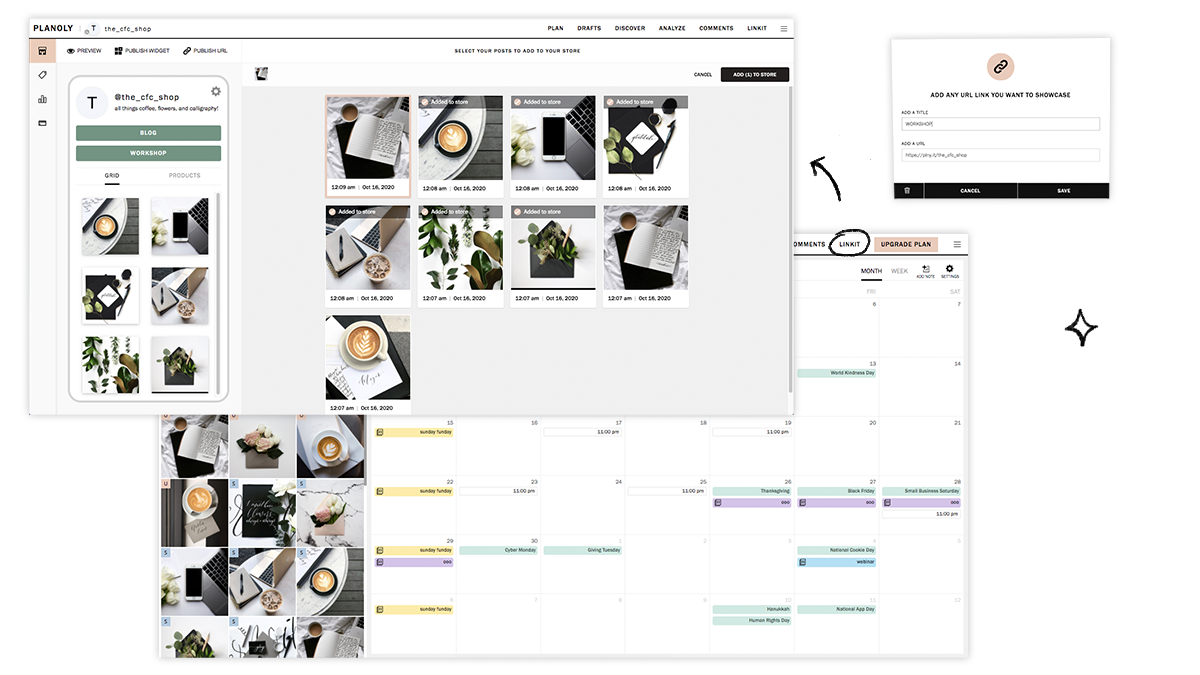
Image Caption: linkit by Planoly, which is my fave. When I was active on social media back in the day, I loved being able to visually plan content on Planoly and the linkit tool is a free add-on that can help you drive major traffic to your site by creating a clickable gallery of your Instagram posts.
My #1 Recommendation for Selling on Social
Focus on creating great content and organic engagement. While it’s true that a button or link makes it convenient to be able to buy from our favorite brands online, these aren’t where the magic lies. The decision to buy happens because followers feel inspired by or connected to a brand, not because a button is compelling them to. If you have a well-organized and mobile-friendly website I would argue that you don’t even need any of the apps above; a simple link to yourstore.com/shop is all they’ll need :)

The Best Upsell You Can Offer Is a Bundle
Product bundling is one of the easiest things you can do to boost sales - it beats other tricky upsell tactics every time! Find out why this strategy is so effective and learn how to implement it on your Squarespace shop today.
A lot of eCommerce talk is all about how to boost sales. And when that happens, invariably people start thinking about how to upsell customers as a way to increase average cart values. By upsell I mean that if customers have added Product A to their cart, thinking of a way to entice them to also add Product B. This is typical thinking and I can see why a lot of sellers try to go about things like this but there’s an easier way:
Product Bundles.
We're all pretty familiar with product bundles. Anyone who’s ever been through a drive-thru and ordered a combo meal has purchased one. Why do they work so well? Well, there are SO many reasons that we’ll get into in a moment but I know I’m not the only one who panic orders a #7 at Taco Bell even though they don’t even drink soda.
Product bundles are the perfect upsell. They allow you to boost sales, grow revenue, and up your AOV (average order value) all at once.
Bundling, Defined
Price bundling is a marketing strategy or a pricing strategy where you combine two or more products and typically sell them at a lower price than if the items were sold individually. There are two types of bundles: pure and mixed.
Pure bundles are things that you can ONLY buy as a bundle (think: a buffet meal - one cost includes all and you can’t buy things ala carte).
Mixed bundles are things that you can buy either separately OR as a bundle. Example: my taco bell value meal. I could buy the tacos and soda on their own or as a combo.
For eCommerce purposes, I think mixed bundling is the way to go so most of what we’re going to talk about from here on out is going to be with that model in mind. Now, on to the good stuff:
Why Bundling Works So Well
Let me count the ways!
“Using an upsell product bundling strategy can be 68% more effective than trying to grab a new customer.”
Simplified buying process - as humans, we’re geared to freeze up if given too many options to pick from, a phenomenon called Hick’s Law that I go into depth on in this post. The bottom line on this is that more choices = more decision time. Providing a smaller number of choices decreases the mental load required to make a purchasing decision which leads to happier, more satisfied customers. Bundling takes advantage of this by not asking customers to try to pair up or select items on their own. The fear of choosing the “wrong” thing is much lower with bundles, especially when they’re positioned as problem-solving and are features/benefits-focused.
Increased perceived value - people love a deal so even if they weren’t necessarily planning on buying everything in the bundle, sometimes the “savings” is just too good to resist. Think of my Taco Bell value meal. I don’t even drink soda and I understand pricing strategy so I KNOW that I could probably save money by just ordering the items I want ala carte. But the ease of ordering by number plus the “savings” is a strong motivator. There’s a sense that you’re getting more but paying less.
Easy to market and promote - it’s easy for customers to see the value in bundles of complementary products which makes your job selling to them just that much easier. From an analytics standpoint, since bundles increase your average order value you can spend a lot less per conversion to sell the same number of products. Not to mention that if you do go the pure bundling route (where your products are available to purchase only as bundles and not individually), you only need to promote the number of bundles SKUs you have, not the total number of product SKUs. This means things like fewer Instagram promoted posts to come up with, less marketing copy to write, and fewer branded photoshoots required! Lastly, studies have shown that it’s 68% more effective to market a product bundle to an existing customer than trying to acquire a new one.
Lower shipping, distribution, and fulfillment costs - as long as you’re packing a box for shipment, you might as well make sure it’s filled to the brim! There’s a fixed cost associated with shipping and fulfillment that may be hard to meet when you’re selling products piecemeal but that’s easy to beat with product bundles. Think about it: how many times have you received a giant, empty Amazon box with one lone item in it? The box, packing inserts, and even the shipping label itself cost pretty much the same whether you’re shipping one item or three. So if you’re struggling with getting ahead on shipping, bundling may be just the ticket.
Reduced friction & increased sales - People are so busy that even if they wanted to check out allllll of your products to find just the right one, they just may not have the time to do so. Bundles are a convenience that are appealing for just how fast and easy they are to order. There’s also a little psychology at play here - one line item in your cart at checkout just “feels” less expensive than a cart with multiple items. At checkout, a cart with multiple items may give some shoppers pause and even compel them to start removing things to “save for later”. A bundle is a one-and-done package deal that you can’t second guess. If you sell services or other complementary products as a bundle, people also won’t feel “nickel and dimed” by multiple line items of associated costs. The bundle price is what it is and that’s it.
Bundling Tips
Ready to incorporate bundling into your eCommerce strategy? Here are some tips!
Combine low-volume, low-priced items with high-volume, premium ones. This not only helps you move slower inventory, but it can also help people discover new favorite products that they otherwise might not have tried. Think of this as the when you buy shampoo and it comes with a little, free travel-size bottle of styling gel by the same brand. You may not have tried the styling gel on its own but as part of a bundle, it was low risk for you and helped the brand move some of its lower volume products. Win-win.
Promote your bundles as great gifts. Position product bundles as a way to solve a specific problem, benefit a certain type of person, or celebrate a holiday or special occasion. Buyers shopping for someone else are always looking to experts like you to ensure their gift is a success. To get the most out of this segment, create a category for bundles in your shop! This way people have the option to skip right to them and won’t have to even worry about sifting through individual products trying to find the right thing.
Try bundling instead of discounts. Discounting decreases a product’s perceived value so I’ve never understood how quick some sellers are to look to discounting strategy instead of bundling strategy. Bonus - not only does bundling boost the perceived value of the products being sold but also of the company itself! You don’t want to be known as a discount seller.
Combine bundles with free shipping offers. Set your free shipping threshold (i.e. “Orders over $100 ship free!”) at the price of your best bundles. As we discussed above, bundling can help you get ahead on shipping costs because you’re shipping more in roughly the same amount of packaging and for the same fulfillment cost. This can help you avoid shipping orders for lowe priced products that cost more to ship than you’re making.
Give your bundles a great name. I always say to focus on the benefits and features of products and product bundles because that makes them harder to compare to others. When you position your product bundle as solving a specific problem, you no longer have to worry about your competition; they’re selling commodities and you’re selling solutions. This has another benefit of people ignoring a higher cost for a bundle than buying just one of the goods. Any sort of price-based comparisons fall away as people focus instead on how the products are going to improve their lives or solve some sort of problem.
Bundling FAQs
-
I mean, higher discounts are always nice but be careful you’re not devaluing your products or brand. There’s no perfect percentage but studies have shown that at only a 20% discount people may prefer to buy items separately while higher discounts steer people towards bundles instead. I would also make sure you’re pricing your individual products appropriately so that there’s room to bundle them effectively. Individual products should be priced at a premium to bundled goods.
-
The answer to this may surprise you! Studies have shown that when the bundle cost is on the high side bundles that include fewer products perform best. Conversely, low-cost bundles do better when they contain more items.
I think the secret to this is that both expensive bundles with lots of products in them and cheap bundles that skimped on inclusions can come across as cheap.
-
Upselling (aka suggesting an alternative product to the one a customer originally intended to buy) really only works when the upsell is less than 25% higher than the original item. Upsells work best for low-risk and low-value items otherwise you run the risk of making people feel like they were bait and switched!
Cross-sells (suggesting companion products that would pair well with the product purchased) can be as simple as showing related products on the page or before checkout and also do well for items that are priced lower than the first item.
Both of the above can be beneficial but shouldn’t really be the heart and soul of your selling strategy. p.s. I go into more on upselling & cross-selling in this post!
For more about selling bundles on Squarespace check out this post!

My Favorite Source for Custom eCommerce Packaging
Custom, branded packaging makes such an impact - not just in the unboxing experience but in building brand loyalty, referrals, and repeat visitors. Bonus points for you when it’s affordable, eco-friendly, and looks as great as your eCommerce website itself!
Half the fun of shopping online is that whenever the mail comes you get to unwrap a little present to yourself! And yet so many startups and small businesses kick the can down the road and put off investing in custom packaging because they think it’s going to be expensive or difficult to source.
But I say that if you’re spending all the time and energy working on your custom eCommerce website, why let your customers down when it comes to unboxing?
Custom, branded packaging makes such an impact - not just in the unboxing experience but in building brand loyalty, referrals, and repeat visitors. There’s nothing worse than shopping from a cute online shop just to see your order show up in a free USPS box 😬
I’ve finally found a source that I can confidently recommend to you for custom, eco-friendly packaging: noissue! Learn more about why I recommend this awesome source:

Creative, Mix & Match Packaging Options
Packaging isn’t a one-size-fits-all situation! What works for you is going to be based on what you’re shipping, how you need to package it and, ultimately, what suits your brand. With noissue you can combine just the right items for you and they’ll all work great together.

Low Order Minimums
One of the biggest reasons why startups and small businesses default to free boxes over custom packaging is because it used to just require too much upfront committment and cost. But if want to try things out with, say, just 25 custom boxes to start you can do just that!

Easy Design Tools
The easy design editor makes it super simple to create cool patterns out of your logo or customize any product. There are also some pre-designed items that you can add like simple kraft boxes or mailers - great to mix and match with some of your own custom elements like tissue paper or cards. noissue also has a pre-press team that will make sure your design is going to print perfectly!
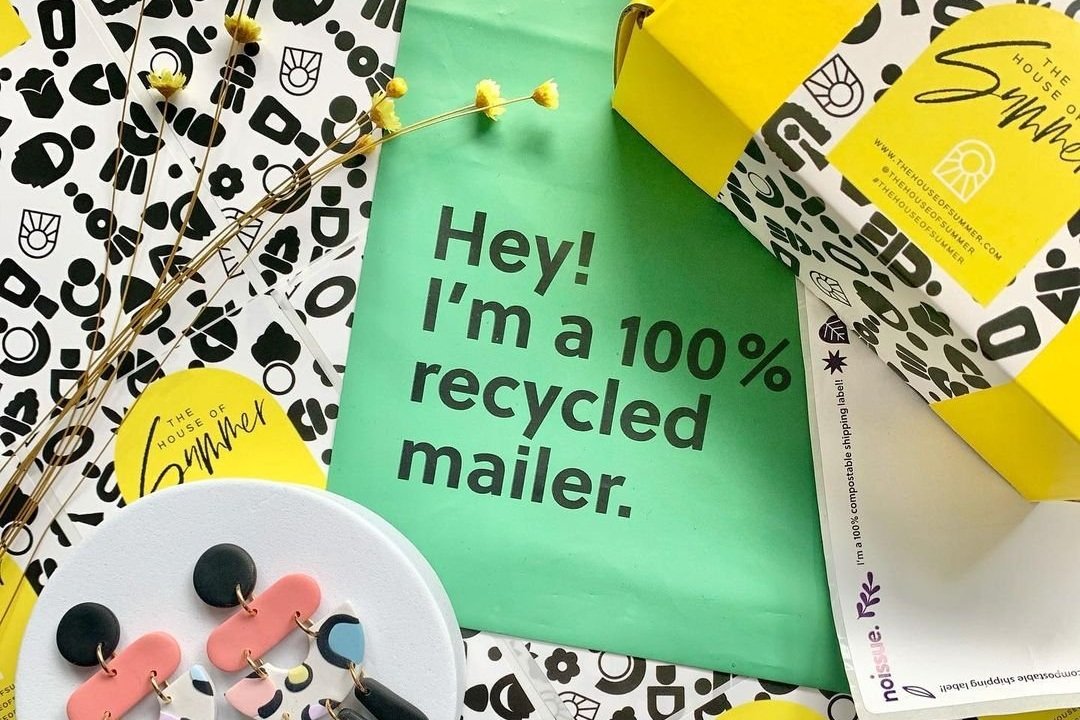
Sustainable Products
Everything - seriously, every single thing - in noissue’s product lineup is either compostable, recycled, or reusable. They are very transparent about their supply chain and sourcing which is super rare in the print industry, especially at this price point. Eco-friendly packaging is something online customers are looking for and you can proudly feature that you ship using earth-friendly materials on your website.

Noissue offers eCommerce packaging that not only protects your products and promotes your brand - it’s all super earth-friendly!
Ready to add custom packaging to your eCommerce arsenal? Click below to check out my fave source! It’s a small investment that is so worth it!